
Parallax Scroll Portfolio Widget for Elementor
On this page
What It Does
This widget builds a parallax portfolio slider where each slide’s background and foreground move at different speeds as visitors scroll or swipe. It works well for images, titles, and counters arranged as a set of slides, letting you show a portfolio, product showcase, or hero section with a layered scrolling effect instead of a flat, static image.
See it working on a live page before adding it to your own page:
Why It Matters
A flat image grid doesn’t hold attention on a portfolio or landing page. Giving the background and foreground different scroll speeds adds a sense of depth as the visitor scrolls, without needing a heavy slider plugin or custom animation code.
What You Get
- A slide-based parallax layout with image, title, and two counters per slide
- Smooth scroll-driven motion between background and foreground layers
- Per-slide link support so each slide can point to its own URL
- Style controls for title, counter, thumbnail, and slide appearance
Capabilities
- Repeater-based Slides list (4 items by default, add more with + Add Item)
- Per-slide Select Image, Title, Counter 1, Counter 2, and URL fields
- Dedicated Style sections for Title, Counter, Thumbnail, and Slide
- Title alignment, top offset, height, and typography controls
Required Setup
- Elementor FREE Plugin installed & activated.
- You need to have the WDesignKit plugin installed and activated.
- Make sure you’ve created an account and logged into it.
- This is a pro widget. A valid WDesignKit Pro license is required to access and use it.
- Make sure you’ve downloaded the Parallax Scroll Portfolio widget.
How to Use It
How to Activate the Parallax Scroll Portfolio Widget
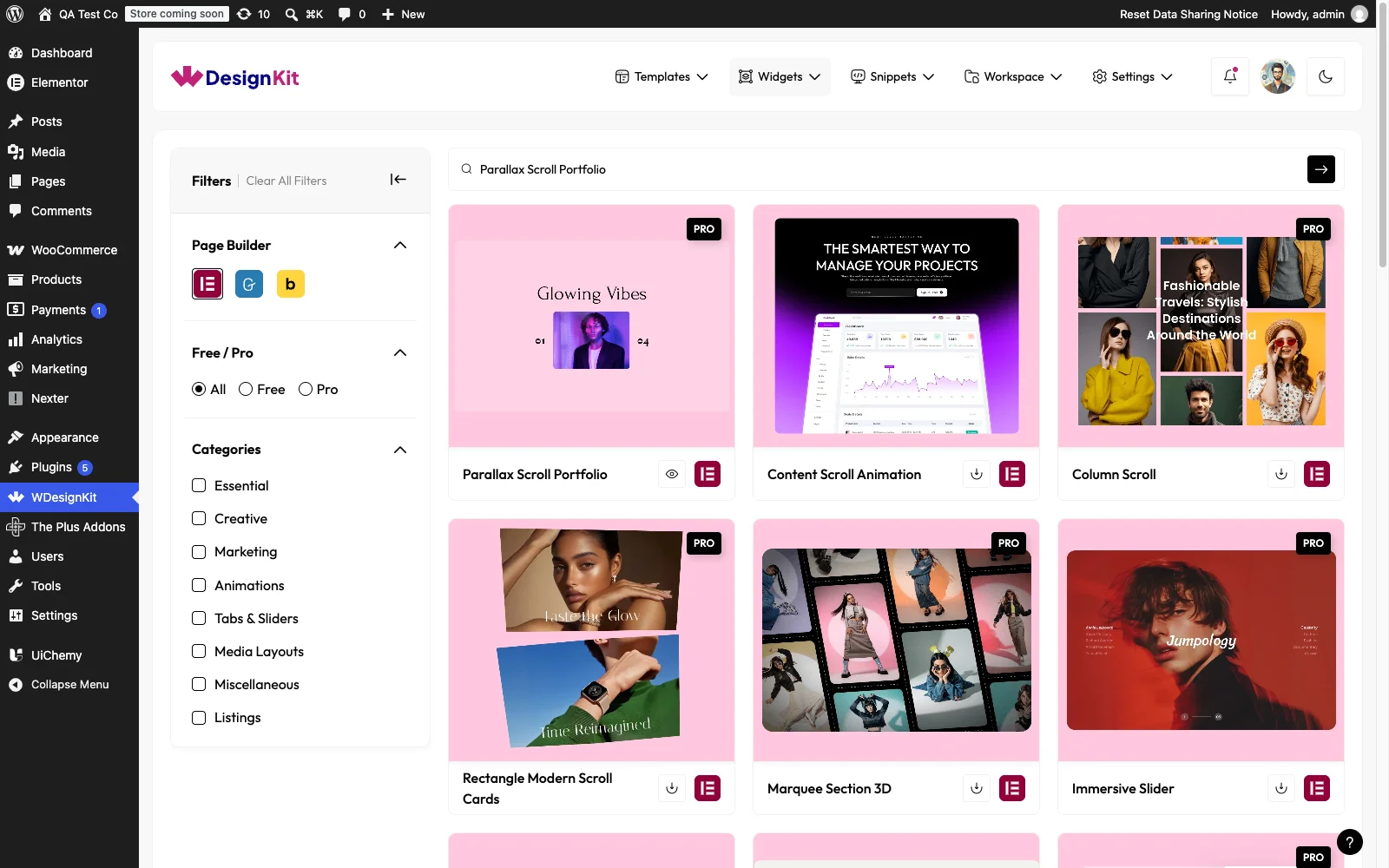
- WDesignKit → Widgets → Browse Widgets.
- Search the widget name and select Elementor as the Page Builder.
- Click on the Download icon.
Using the Widget in Elementor
Add the Parallax Scroll Portfolio widget to the page.
Content
From the Slides section, you’ll find four repeater items by default. Open an item to configure it.
Use Select Image to choose the slide’s image, add a Title, and set Counter 1 and Counter 2 to label the slide (for example, its position in the sequence).
Add a URL if you want the slide to link somewhere, then use + Add Item to add more slides.
Style
From the Title section, you can set alignment, top offset, height, and typography for each slide’s title text.
The Counter, Thumbnail, and Slide sections give you further style controls to customize the counters, thumbnail previews, and overall slide appearance.
Use Cases
- Product Showcases: Highlight products with parallax effects that add depth and make them look premium and engaging.
- Portfolio Websites: Perfect for designers, photographers, and creatives who want to showcase their work in a smooth, scroll-based layout.
- Photography & Visual Projects: Present images in an immersive way where layers move at different speeds as users scroll.
- Landing Pages: Grab attention quickly with eye-catching parallax sections that guide users through content.
- Hero Sections: Create impactful hero areas with layered visuals and smooth scrolling effects.
- Brand Story Sections: Tell your brand story visually by combining images and text with motion and depth.
- Case Studies & Showcases: Show progress, highlights, or results in a clear and engaging scroll experience.
Limitations
- Only available for Elementor
- A pro license is required, it isn’t part of the free widget set
- Each slide needs its own image for the parallax effect to display correctly
Troubleshooting
- The widget doesn’t appear in the Elementor panel. This is workflow-derived, not sourced from a specific support ticket: confirm your WDesignKit Pro license is active, since Parallax Scroll Portfolio is a pro-only widget and won’t load without one.
- A slide shows no parallax motion. This is workflow-derived, not sourced from a specific support ticket: check that an image is selected in that slide’s Select Image field, the layered scroll effect depends on the image being present.