
How to Modify Widget Downloaded From Public Library of WDesignKit?
On this page
What It Does
Once you have downloaded a widget from the WDesignKit Public Library, you can open it in the Widget Builder editor and change its design, content, controls, HTML, CSS, or JS to match your own project.
Why It Matters
A downloaded widget is a starting point, not a locked file. Most projects need a small change, a different color, extra field, or tweaked layout, and editing in place is faster than rebuilding the whole widget yourself.
What You Get
Full editor access to any widget in My Widgets, including ones you downloaded from the Public Library, letting you add or remove controls and edit the underlying HTML, CSS, and JS.
Benefits
- Turns a generic downloaded widget into one that fits your brand and requirements exactly.
- The same editing workflow applies whether the widget is downloaded or one you built yourself, so there is only one interface to learn.
Capabilities
- Open any widget in My Widgets, including downloaded ones, directly in the Widget Builder editor.
- Add or remove controls, and edit the widget’s HTML, CSS, and JS.
- Validate PHP, CSS, and JS changes before saving, catching syntax errors and builder-specific structure problems.
How It Works
Edit in New Tab opens the widget’s local files, its PHP register_controls, JSON config, CSS, and JS, in the Widget Builder editor. Saving writes a full replacement of the changed files back to your site, so the next time the widget loads in a page builder it reflects your edits.
How to Use It
Are you looking to modify a widget that you have downloaded from the public library of WDesignKit? With WDesignKit, you can easily modify and customize widgets created by other users to suit your specific needs. Whether it’s adjusting the design, content, or functionality, you can tailor the widget to match your website’s requirements. By making modifications, you can create a unique and personalized widget that fits naturally into your website.
Requirement – This feature is a part of The WDesignKit, make sure it’s installed & activated to enjoy all its powers.
Once you have downloaded a widget from the public library, go to Widgets > My Widget page.
Go to the downloaded widget you want to edit, click on the three dots, and then click Edit in New Tab.
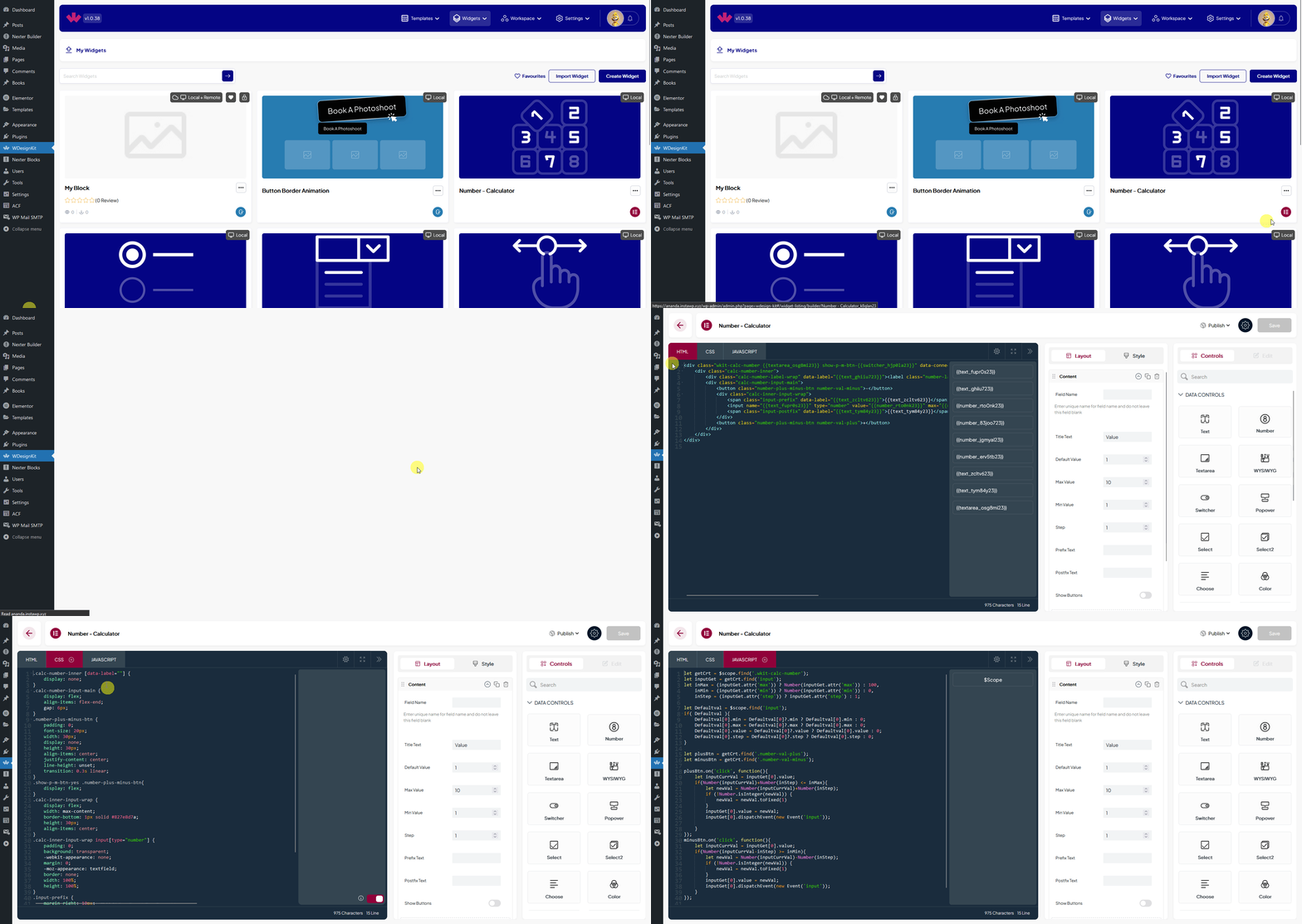
It will take you to the widget editor page, where you can edit the widget. You can modify the widget according to your need, you can add or remove controls, edit HTML, CSS and JS etc.
Following this process, you can edit your own custom widget as well.
Note: Keep in mind when you update the downloaded widget with a new version, it will override your changes.
Use Cases
- Recoloring a downloaded widget to match your site’s brand palette.
- Adding an extra field or control that the original widget did not include.
- Simplifying a widget by removing controls or markup you do not need for your use case.
Limitations
- Updating a downloaded widget to a newer version from the Public Library overwrites your local edits, since the update replaces the same files you customized.
- Editing across builders is not supported; you edit an Elementor widget as Elementor PHP or a Gutenberg block as its own registered block, not as a converted format.
- This session’s WDesignKit connector was not logged in to a cloud account, so the Widget Builder editor screen itself could not be re-captured live; the steps below reflect the plugin’s existing documented flow and were not independently re-verified against today’s screen.
Troubleshooting
- Edits disappeared after an update. This matches the documented behavior above: updating a downloaded widget to a new version replaces the files you edited. Re-apply your changes after updating, or avoid updating a widget you have heavily customized.
- Widget Builder editor will not open for a downloaded widget. Confirm the widget still exists under My Widgets and that WDesignKit’s Widget Builder feature is enabled in Settings > Features Manager.
- Changes to CSS or JS do not show on the front end. This is workflow-derived guidance, not sourced from a specific support ticket this session: clear any page or browser cache after saving, since cached front-end assets can hide a just-saved change.