
How to Get UiChemy Compatible Pro Figma Templates?
Figma Templates & UiChemy2 min read
On this page
What It Does
UiChemy converts a Figma layout into a WordPress website, but only from Figma files built to be UiChemy-compatible. WDesignKit maintains a library of 50+ such templates, including Pro ones, so you don’t have to build a compatible layout from scratch.
Why It Matters
Not every Figma file converts cleanly through UiChemy: layer naming, structure, and component conventions matter. Starting from a template that’s already tagged UiChemy-compatible removes the guesswork and gets you from Figma design to a working WordPress site faster.
What You Get
- 50+ Figma templates specifically tagged UiChemy-compatible, both free and Pro
- A dedicated UiChemy filter in the WDesignKit.com Figma Templates browser
- Full multi-page website designs as native, editable
.figfiles
Benefits
- Skip the trial-and-error of checking whether a random Figma file converts cleanly through UiChemy
- Activating a Pro license unlocks both Pro Figma templates and 100 credits toward other WDesignKit features
- Same account covers both browsing free templates and downloading Pro ones once licensed
Capabilities
| Capability | Detail |
|---|---|
| Access tier | Free UiChemy-compatible templates: any WDesignKit.com account. Pro ones: WDesignKit Pro or UiChemy Pro license, activated in WDesignKit. |
| Filtering | A dedicated “UiChemy” option in the Figma Templates browser’s filter dropdown |
| License bonus | Activating a UiChemy Pro license in WDesignKit also grants 100 credits toward other features |
| File format | Native Figma .fig file, imported directly into the Figma app |
Required Setup
- A free account on WDesignKit.com
- A WDesignKit Pro or UiChemy Pro license, activated in WDesignKit, for Pro templates
- The Figma app (desktop or web), to open the downloaded file
- The UiChemy plugin, to actually convert the downloaded Figma design into a WordPress site
How to Use It
- Log into your account at wdesignkit.com, then go to the header menu: Templates > Figma Templates.
- Select UiChemy from the last filter dropdown and click search to show only UiChemy-compatible templates.
- Browse the free and Pro results and click the template you want.
- On the template’s detail page, click Download to get the
.figfile. - Open the Figma app, click Import > From your computer, and select the downloaded file to bring it into your workspace for editing.
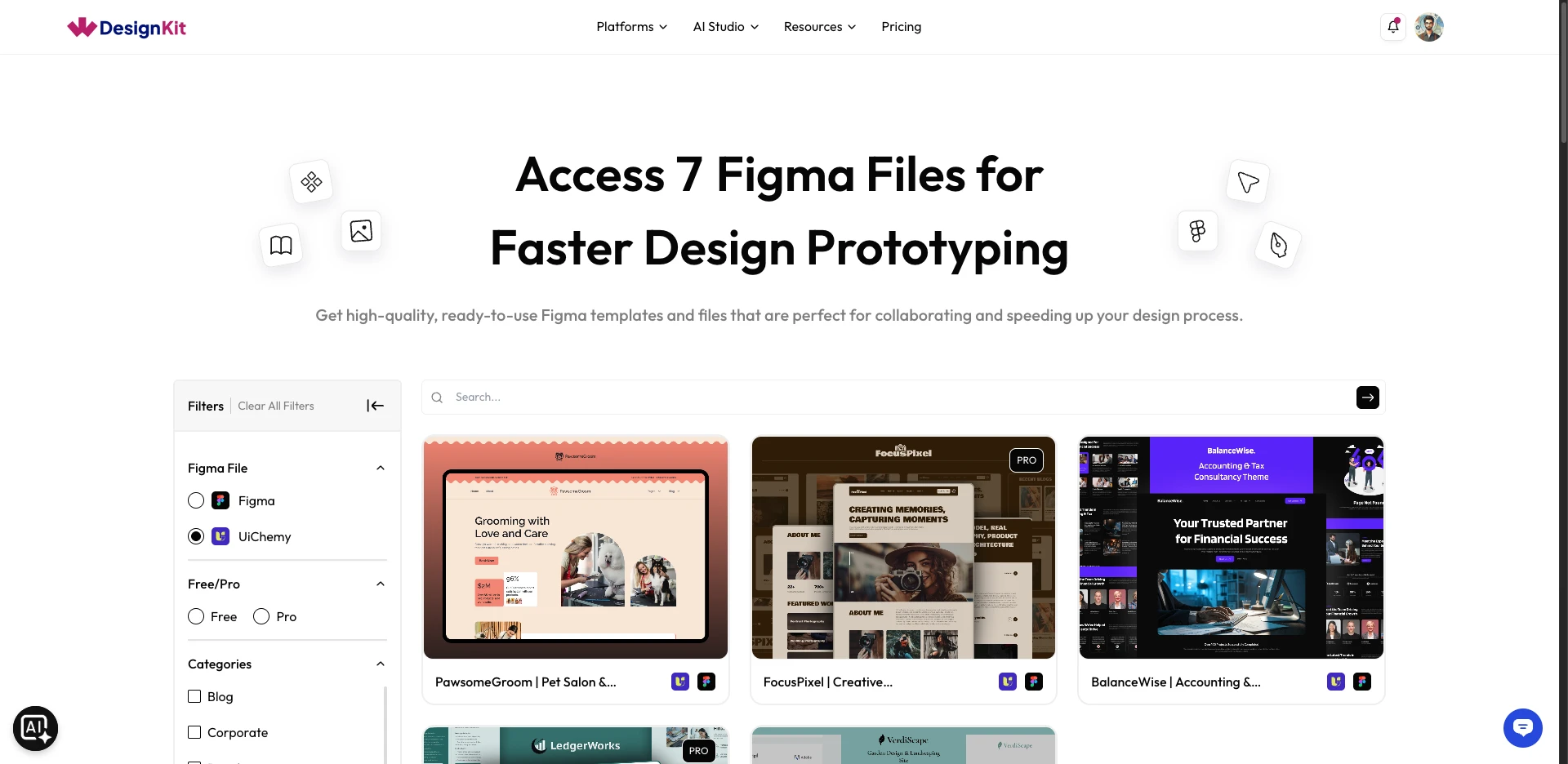
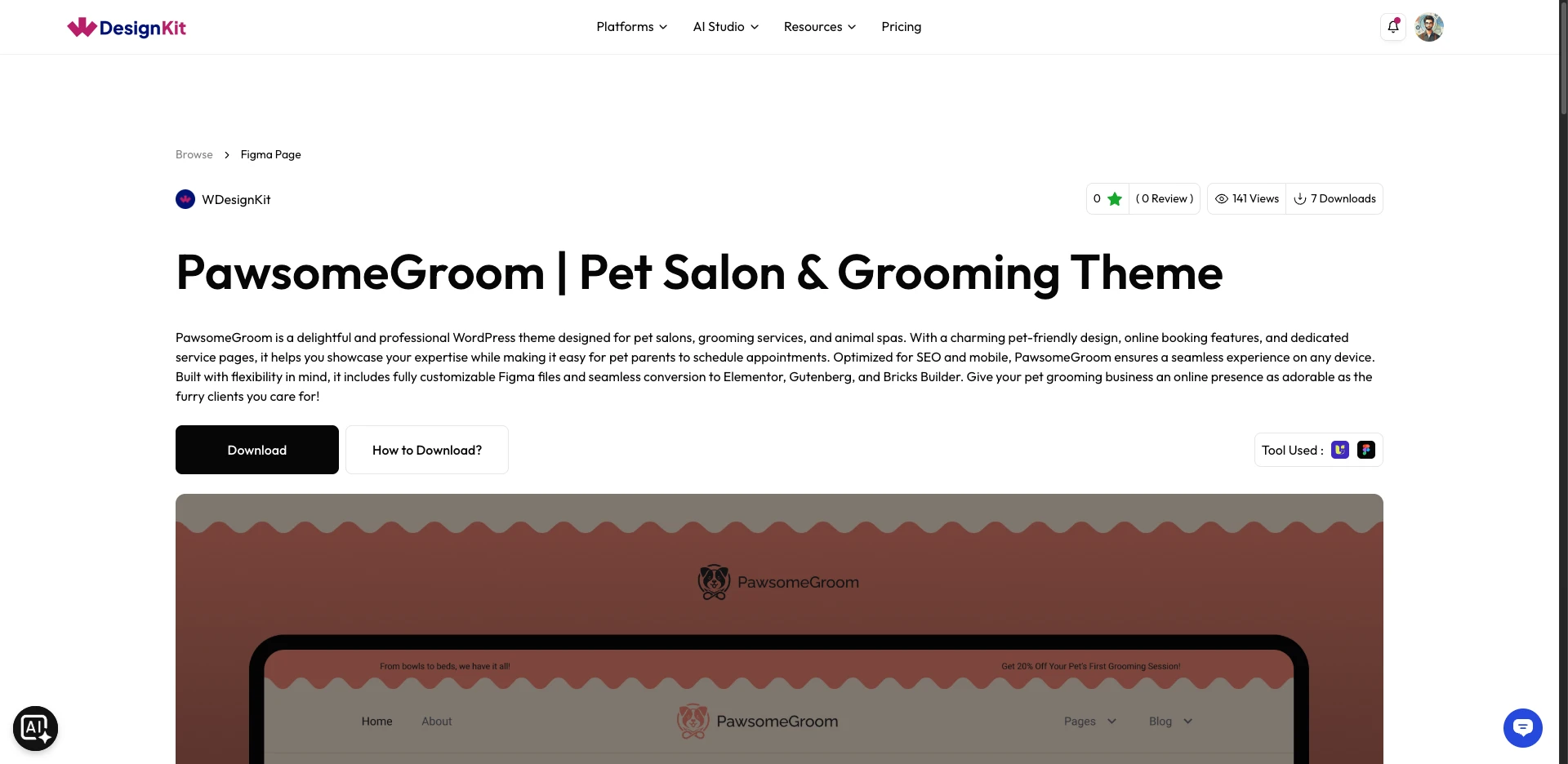
Once imported into Figma, use UiChemy to convert the design into a WordPress site.
Use Cases
- Starting a client build from a design guaranteed to convert cleanly via UiChemy
- Reviewing free UiChemy-compatible templates before committing to a Pro license
- Sourcing a multi-page Figma reference file for a UiChemy-based rebuild
Limitations
- Download is only available from the WDesignKit.com web app, not from inside the WordPress plugin.
- Pro templates require an active WDesignKit Pro or UiChemy Pro license activated in WDesignKit; a free account cannot download them.
- Only templates tagged UiChemy-compatible are guaranteed to convert cleanly; other Figma templates in the broader library are design-only.
Troubleshooting
No FluentSupport tickets specifically about downloading UiChemy-compatible Figma templates were found at the time of writing.
- UiChemy filter shows no results: confirm the filter dropdown is actually set to UiChemy and not a different builder/category before assuming the library is empty.
- Download button unavailable for a Pro template: confirm you’re logged in and your WDesignKit Pro or UiChemy Pro license is activated in WDesignKit.
- General issues or anything not covered above: reach out to the helpdesk.