
Button Click Animation Widget for Elementor
On this page
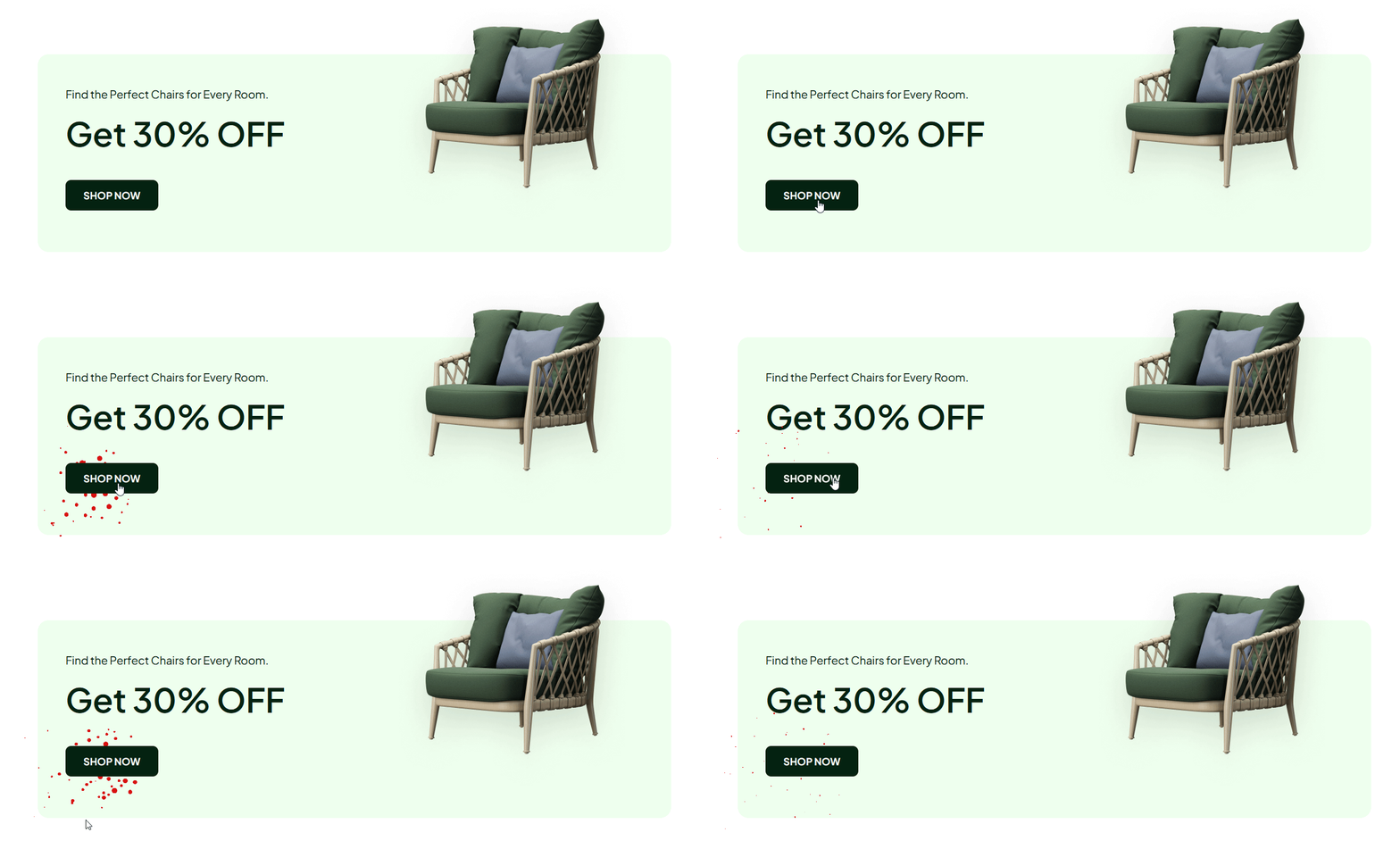
The Button Click Animation widget adds a particle or push effect to a button when it is clicked.
1. What It Does
Displays a button that bursts custom shapes outward, or plays a simple push effect, at the moment it is clicked.
2. Why It Matters
A click reaction gives visitors instant feedback that their click registered, and a particle burst makes a call-to-action button feel more rewarding to press.
3. What You Get
A configurable button with text, an optional icon, a link, per-device alignment, and a Shapes repeater that defines the particles for the click burst.
4. Benefits
Skipped, already covered above: the value is the click-triggered particle feedback described in Why It Matters and What You Get, restating it here would not add anything new.
5. Capabilities
- Button Text field
- Show Icon toggle to add an icon to the button
- Url field for the button’s link
- Button Alignment control per responsive device
- Shapes repeater, each item with a Select Shape dropdown, pre-defined shapes or a custom SVG, and a Color field
6. How It Works
On click, the widget bursts a copy of each Shapes item outward from the button in its set Color, building the particle effect from as many shapes as are added to the repeater.
7. How to Use It
- Activate the Button Click Animation widget from WDesignKit’s Ready Widgets.
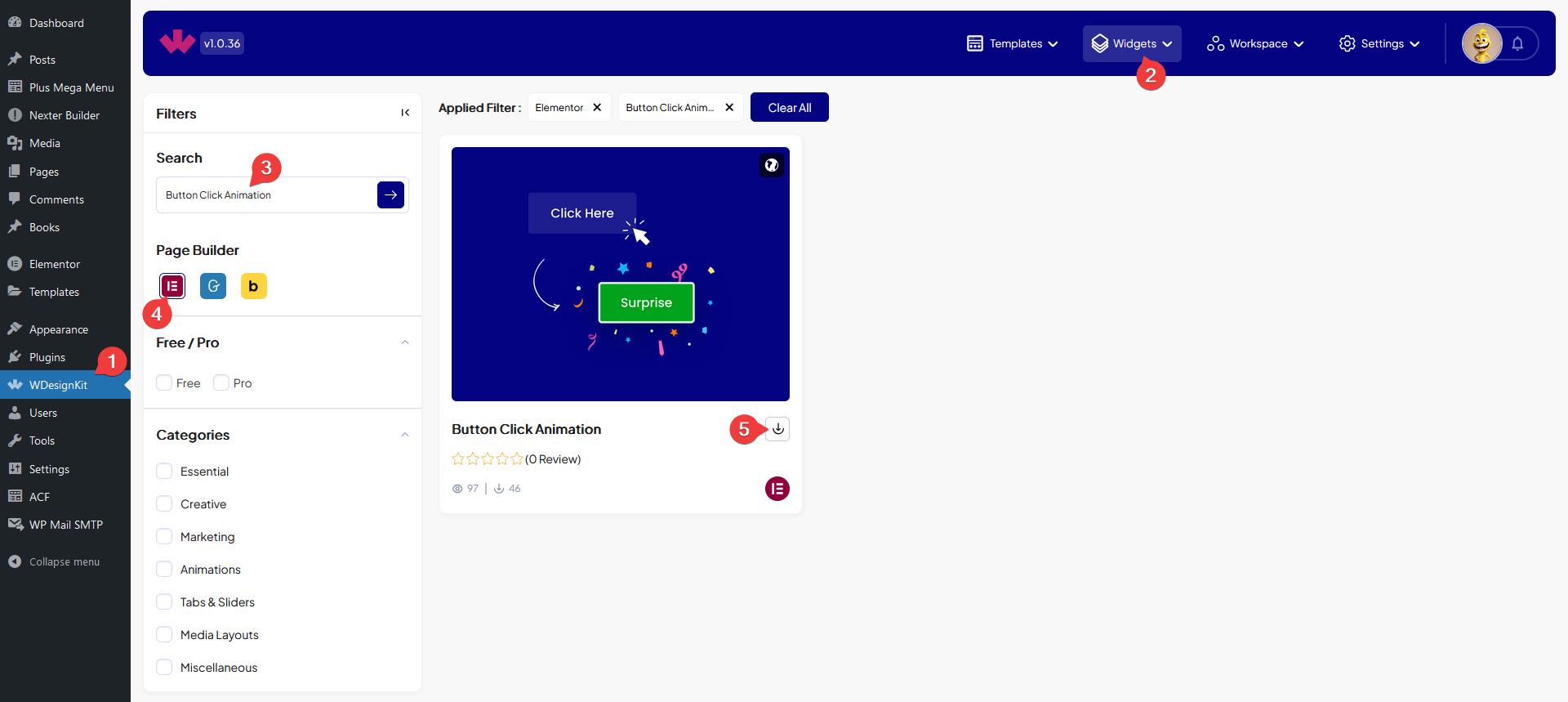
- Drag the widget onto the page and set the Button Text.
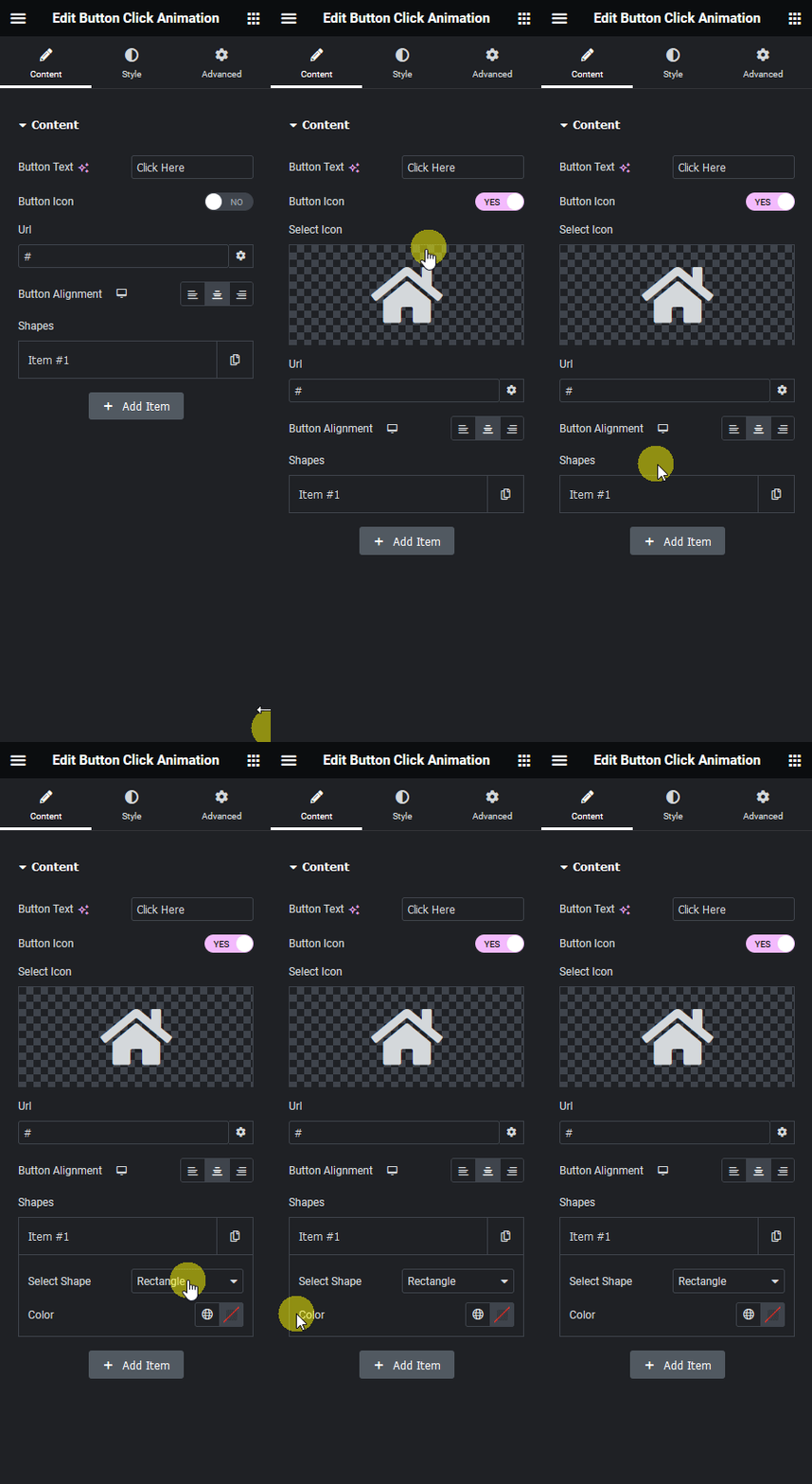
- Optionally enable Show Icon, add a Url, and set Button Alignment per device.
- Add one or more items under Shapes, each with a Select Shape and Color, to build the click burst.
8. Use Cases
- A playful call-to-action button that rewards clicking with a particle burst
- A checkout or signup button where visible click feedback reassures the visitor
9. Limitations
- Without at least one Shapes item added, there is no particle effect to play on click.
- The burst plays the same for every click, it does not vary randomly between clicks.
10. Troubleshooting
- Nothing happens on click: confirm at least one item exists under Shapes with a shape and color set.
- Icon does not appear: enable Show Icon, the icon is hidden unless this toggle is on.
- Custom SVG shape does not render: confirm the SVG was uploaded correctly in Select Shape and is a valid SVG file.