
Scroll Banner Widget for Elementor
On this page
This widget creates a banner that scales to a set size for desktop, tablet and mobile as the visitor scrolls the page.
1. What It Does
Scroll Banner pins the banner while scrolling and animates it from its normal size to a fixed target Scale value, set separately for Desktop, Tablet and Mobile.
2. Why It Matters
It adds a scroll-linked size animation to a hero banner or section heading without writing custom JS.
3. What You Get
A banner with Title, Description, and an optional button, plus a Style 1 / Style 2 layout choice and per-device Scale settings.
4. Benefits
Skipped, already covered above: the value is the scroll-linked motion described in Why It Matters, restating it here would not add anything new.
5. Capabilities
- Style 1 or Style 2 layout
- Title, Description, Button Text, URL and icon
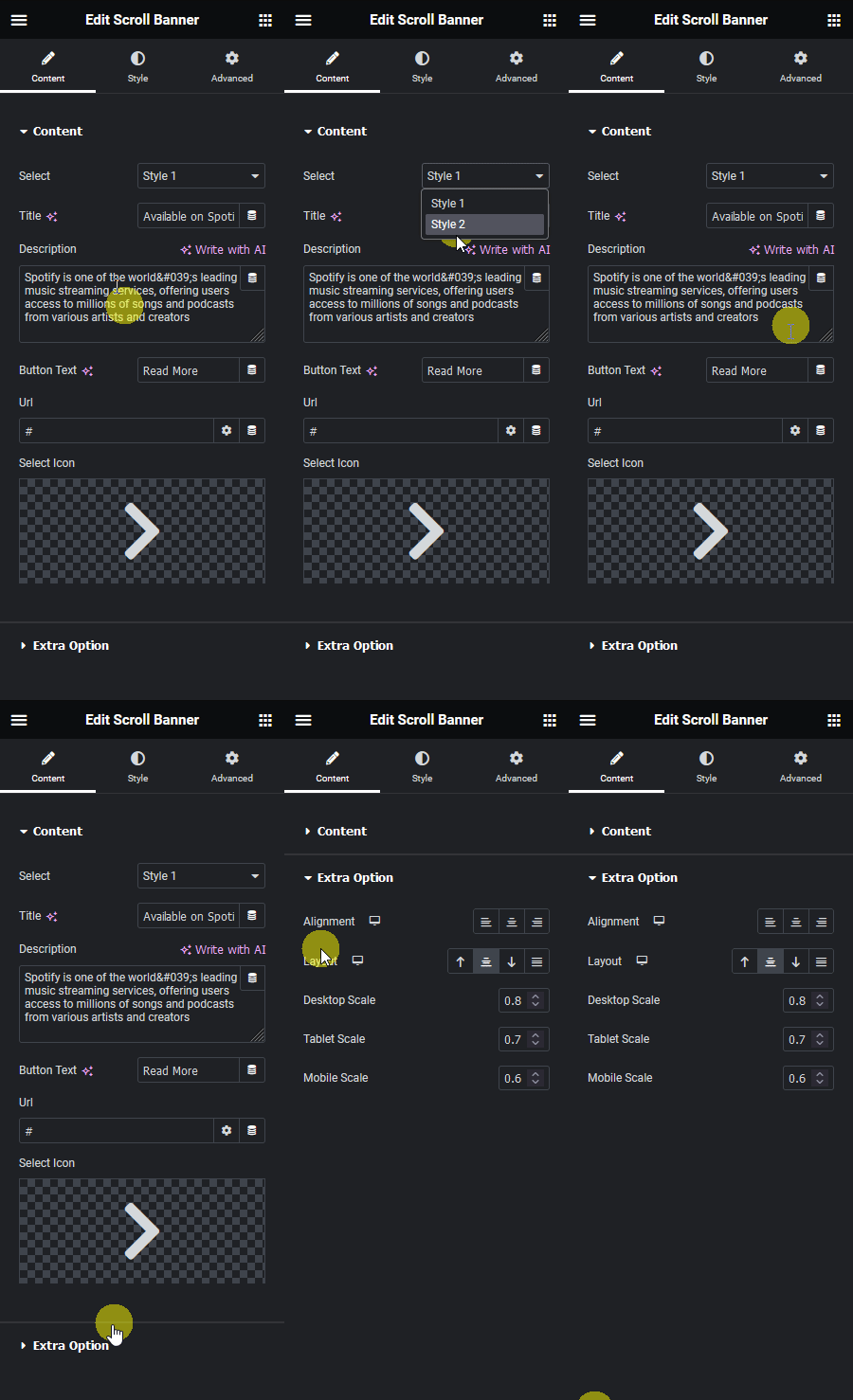
- Desktop Scale, Tablet Scale and Mobile Scale, each a fixed target value (default 0.8 / 0.7 / 0.6)
- Free widget on the WDesignKit marketplace, confirmed live at version 1.0.3
6. How It Works
The banner is pinned in place while the visitor scrolls past it, and animates from its normal size to the Scale value set for the current device, confirmed live via the widget’s JSON and JS. There is no separate minimum/maximum range, each device breakpoint has its own single target scale.
7. How to Use It
- Activate the Scroll Banner widget from WDesignKit’s Ready Widgets.
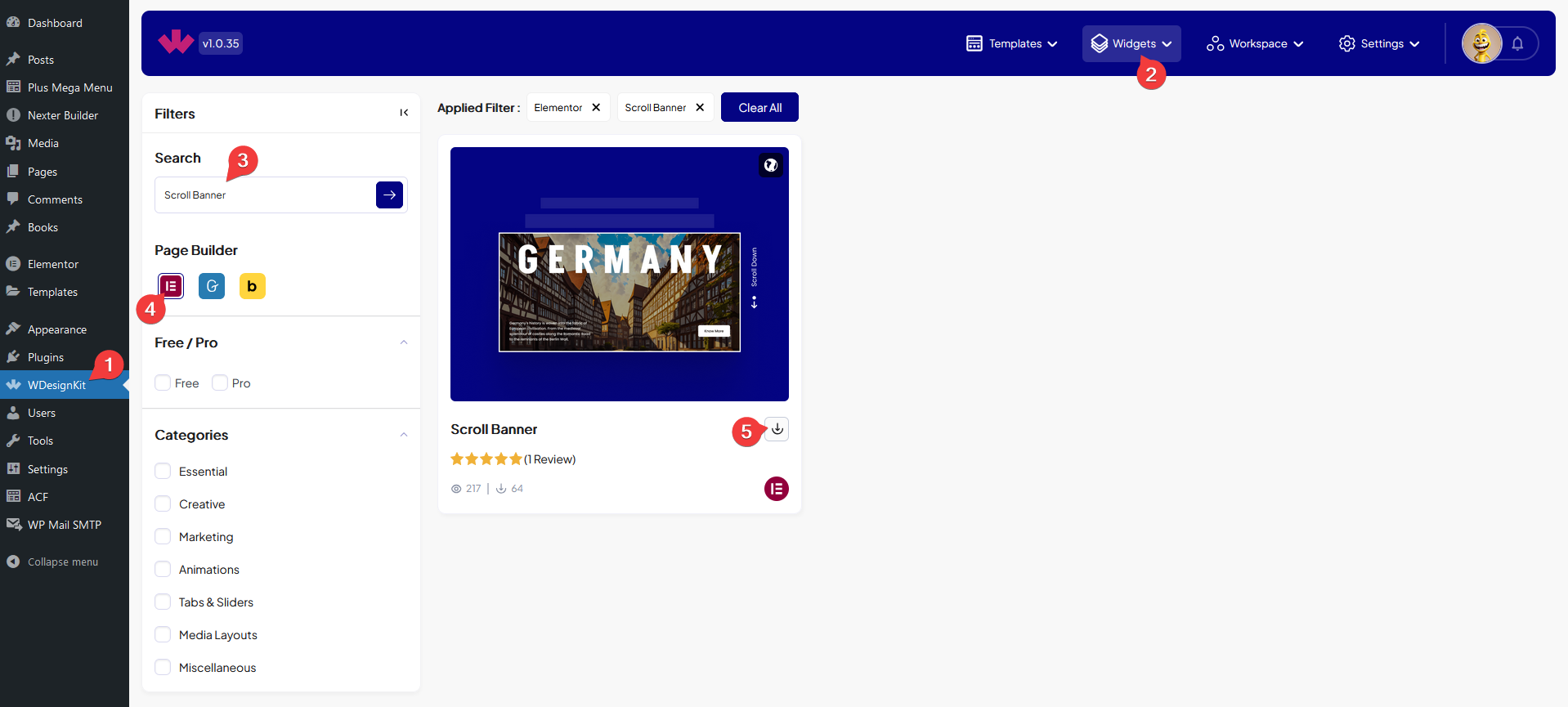
- Drag the widget onto the page and set the Title, Description and button content.
- Pick a layout style and set the Desktop, Tablet and Mobile Scale values under Special Options.
- Preview by scrolling the published page, the scroll effect does not play inside the Elementor editor canvas.
8. Use Cases
- A hero section banner that shrinks smoothly as visitors scroll past it.
- A section heading that scales into focus on scroll.
9. Limitations
- Each device breakpoint has one fixed target Scale value, confirmed live via the widget’s JSON config, there is no adjustable minimum/maximum range or easing control exposed in Elementor.
- The scroll-linked animation is a motion effect, disclosed as not independently re-tested against prefers-reduced-motion accessibility settings this session, sites targeting strict accessibility compliance should verify this separately.
10. Troubleshooting
- Banner does not resize while scrolling: confirm the widget is activated in Ready Widgets.
- Effect not visible while editing: expected, preview on the published page instead.
- Banner scales to the wrong size on a device: check that device’s specific Scale value under Special Options (Desktop/Tablet/Mobile Scale are set independently).