
Product 360 Viewer Widget for Elementor
On this page
The Product 360 Viewer widget is a pro widget that plays an image sequence automatically or in response to mouse drag, move, or scroll, ideal for a rotating product view.
1. What It Does
Steps through a numbered sequence of images to simulate a rotating or animated view of a product, driven either automatically or by the visitor’s mouse.
2. Why It Matters
An image-sequence viewer lets visitors inspect a product from every angle without needing an actual 3D model or video file, useful for ecommerce product pages.
3. What You Get
A Local or Remote image source, frame range and naming controls, autoplay and loop settings, four mouse interaction modes, and per-device canvas sizing with an optional full-screen button.
4. Benefits
Skipped, already covered above: the value is the interactive frame-by-frame product view described in Why It Matters and What You Get, restating it here would not add anything new.
5. Capabilities
- Source Type: Local to pick images from the media library, or Remote plus an Image Link folder path for externally hosted, numbered images
- Digit Number dropdown matching your image filename padding, Start Frame and End Frame fields
- Desktop, Tablet, and Mobile Width and Height for the canvas, and a Full Screen Button toggle with its own text, position, and hover options
- Animate toggle with a Frame Time (in milliseconds) for autoplay speed, plus Loop, Stop Frame, and Reverse controls
- Retain Animate toggle to resume autoplay once the mouse leaves after interaction
- Mouse Option dropdown: None, Drag, Move, or Wheel
- Easing and Blur toggles for the frame transitions
6. How It Works
Remote sequences must be named as a plain number plus extension, matching the Digit Number padding, since the widget builds each frame’s filename from that pattern between Start Frame and End Frame. With Animate on, the sequence autoplays at the speed set by Frame Time, Loop repeats it (which disables Stop Frame), and Retain Animate resumes autoplay after a mouse interaction ends. With Animate off, Mouse Option decides how the visitor scrubs through frames: Drag, Move, or Wheel.
7. How to Use It
- Confirm a WDesignKit Pro license is active, this is a pro-only widget.
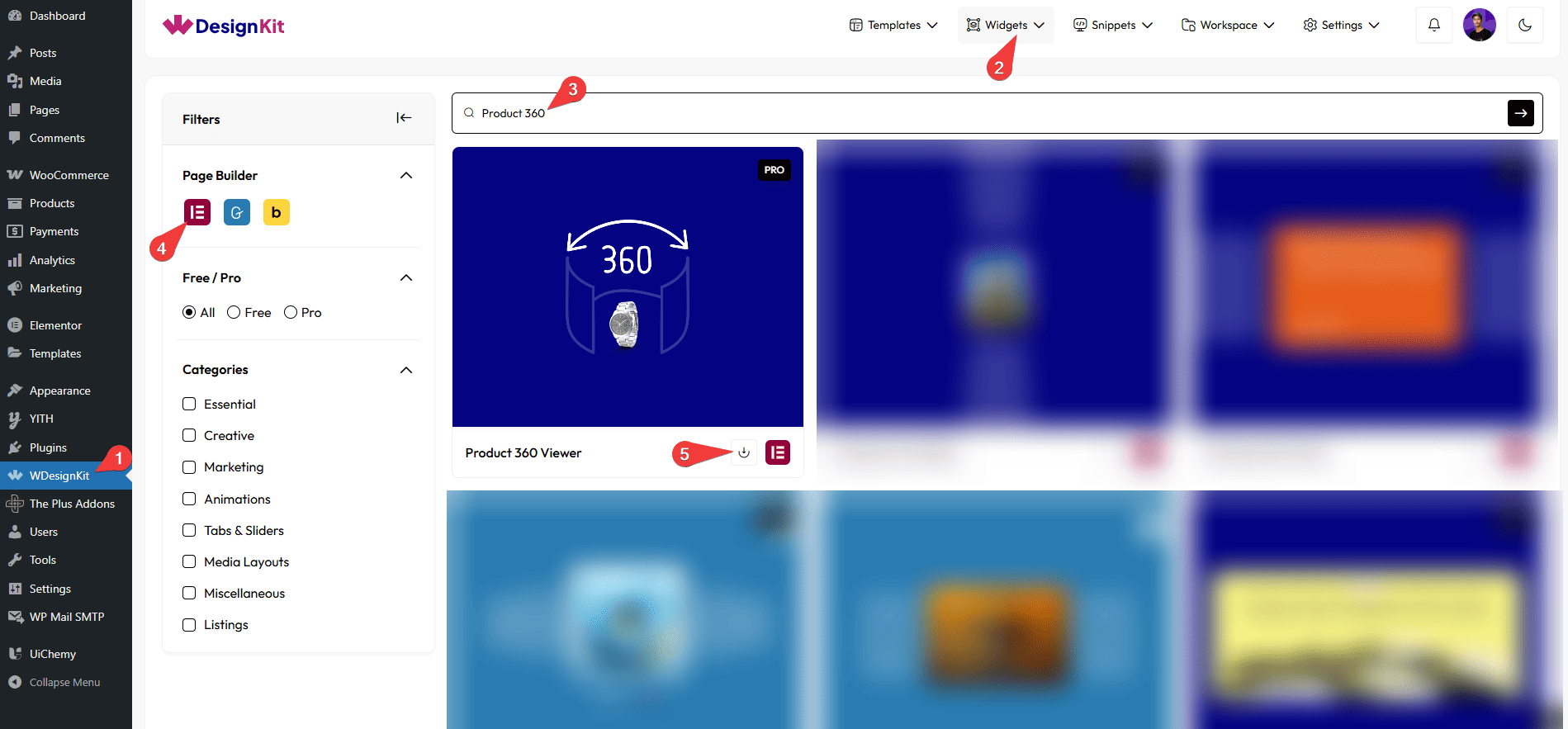
- Activate the Product 360 Viewer widget from WDesignKit’s Ready Widgets.
- Drag the widget onto the page and choose Local or Remote from Source Type.
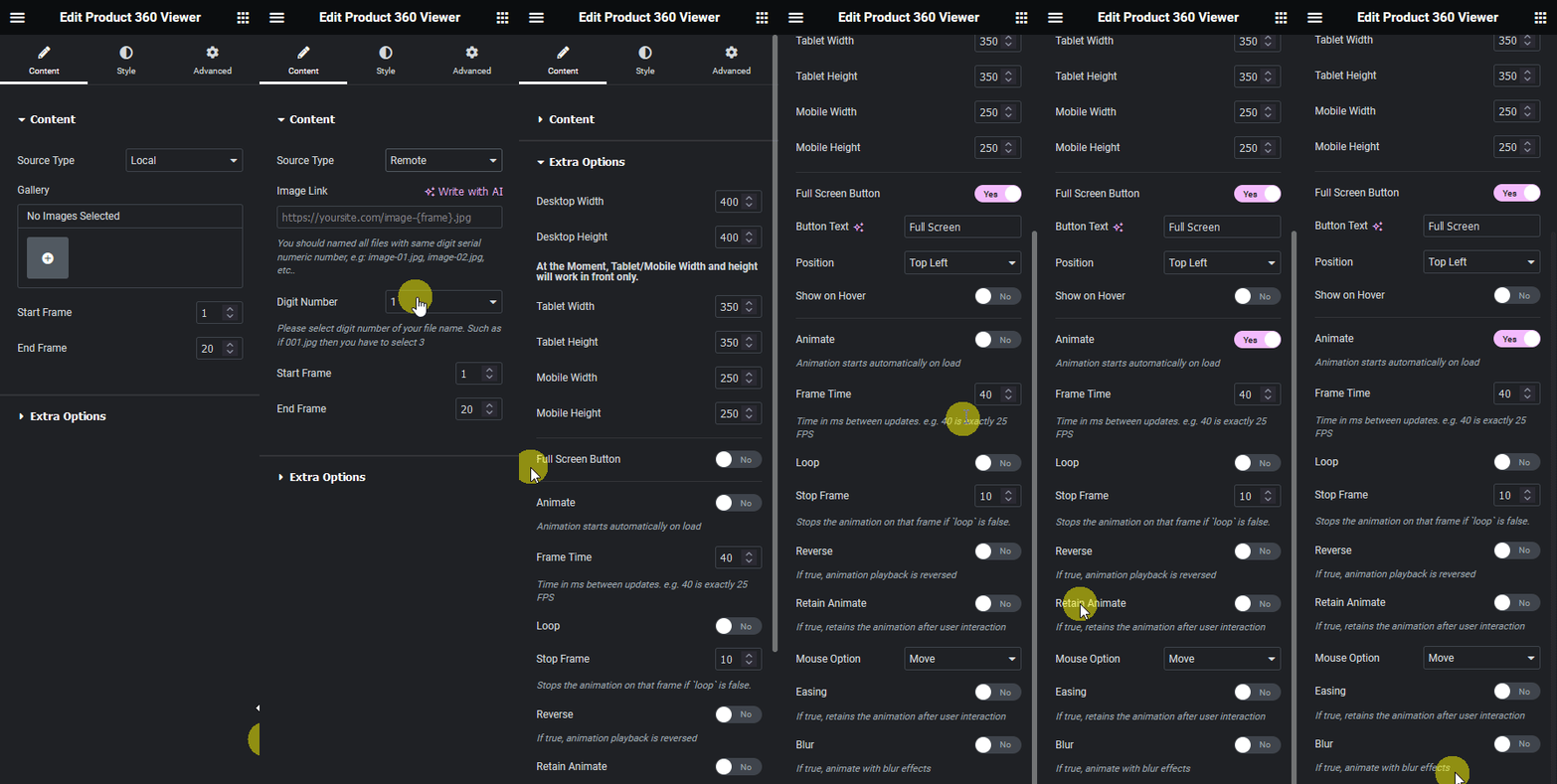
- For Remote, set Image Link to the folder path, set Digit Number to match your filename padding, and set Start Frame and End Frame.
- Set the canvas Width and Height per device, and optionally enable Full Screen Button.
- Enable Animate for autoplay, set Frame Time, and choose Loop, Reverse, or a Stop Frame, or leave Animate off and pick a Mouse Option instead.

8. Use Cases
- A rotating 360 product view on an ecommerce product page
- An autoplaying frame-by-frame animation used as a lightweight video alternative
9. Limitations
- This is a pro-only widget, it does not work without an active WDesignKit Pro license.
- Loop and Stop Frame cannot both take effect at once, enabling Loop overrides Stop Frame.
- Retain Animate and Stop Frame both require Animate to be enabled, they have no effect otherwise.
10. Troubleshooting
- Sequence does not load with Remote source: confirm the images are named as plain numbers matching Digit Number, for example 001.jpg for a 3-digit sequence.
- Animation will not stop where expected: check whether Loop is enabled, it disables Stop Frame entirely.
- Mouse interaction does nothing: confirm Animate is turned off, Mouse Option only takes effect when autoplay is disabled.