
Open Door CTA Widget for Elementor
On this page
The Open Door CTA widget shows a line of text that reveals an image with a widening door-opening effect when the visitor hovers over it.
1. What It Does
Displays a Prefix Text and Postfix Text on either side of a hidden image, and widens that image into view with a hover-triggered animation.
2. Why It Matters
An animated reveal on hover draws attention to a single call to action without needing a full banner, useful for a short line of text that leads to a linked image or page.
3. What You Get
A hoverable text-and-image call to action with independent Prefix Text and Postfix Text fields, a linkable image, and separate toggles for whether the link fires on tablet and mobile.
4. Benefits
Skipped, already covered above: the value is the hover reveal described in Why It Matters and What You Get, restating it here would not add anything new.
5. Capabilities
- Prefix Text and Postfix Text fields around the image
- Select Image field for the image that widens into view on hover
- URL field for the link the whole call to action points to
- Tablet Link and Mobile Link toggles, each independently enabling or disabling the click-through link on that device size
6. How It Works
The image starts at zero width between the Prefix Text and Postfix Text. On hover it widens open, confirmed live via the widget’s CSS transition. Tablet Link and Mobile Link independently control whether tapping the call to action follows the URL on those screen sizes, since there is no hover state on touch devices, confirmed live via the widget’s JSON (version 1.0.2, added as a control-label and URL-options update).
7. How to Use It
- Activate the Open Door CTA widget from WDesignKit’s Ready Widgets.
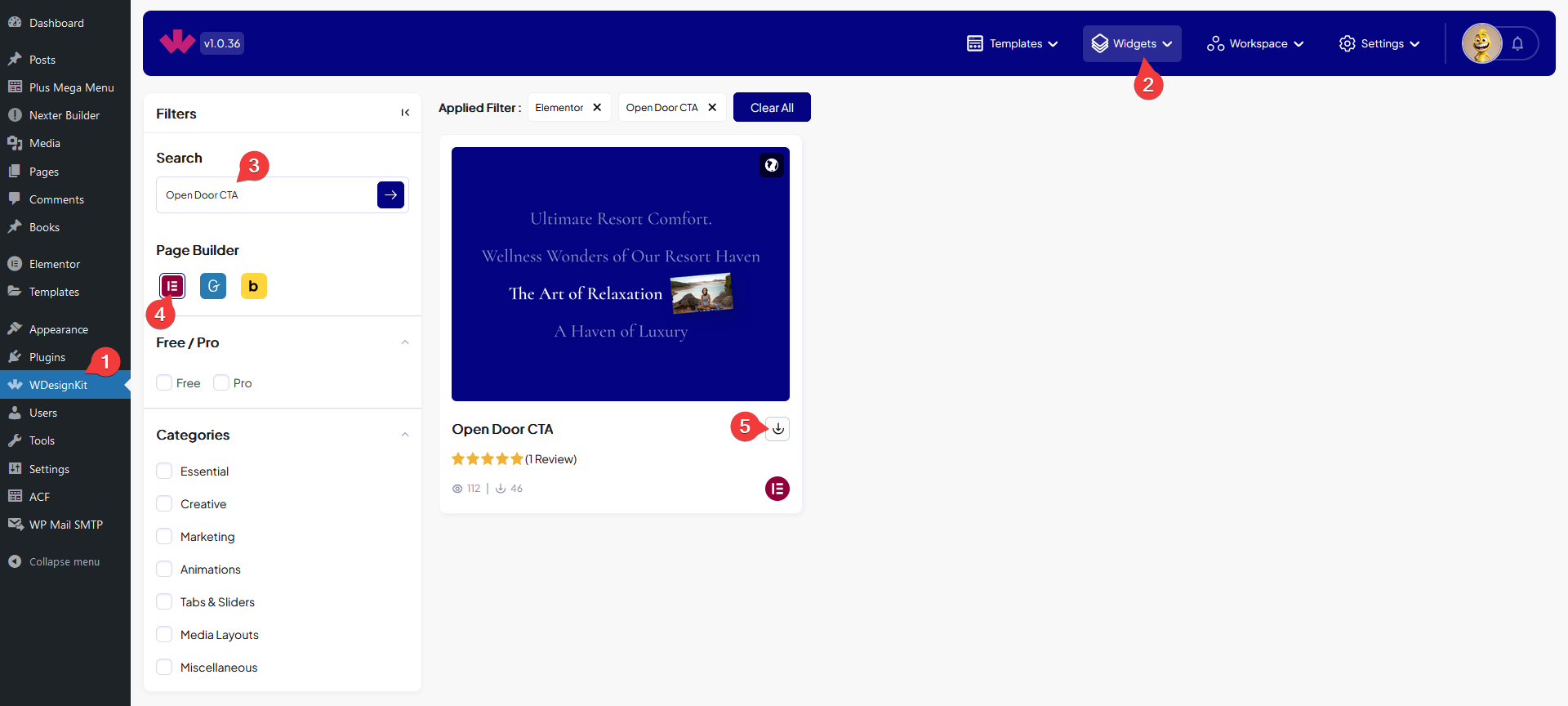
- Drag the widget onto the page and set the Prefix Text, Postfix Text, and Select Image.
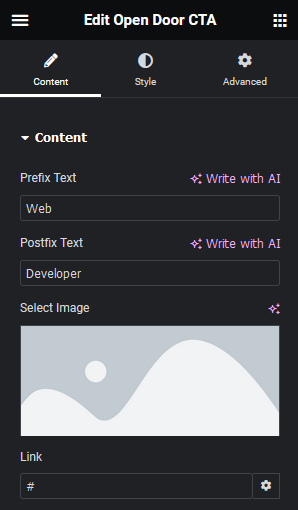
- Add a URL for the click-through link, then decide whether Tablet Link and Mobile Link should stay enabled for touch visitors.
- Preview the page and hover over the text to see the door-opening reveal.

8. Use Cases
- A short call to action linking to a case study or landing page
- A playful hover reveal between two words in a hero section
9. Limitations
- There is no hover state on touch devices, Tablet Link and Mobile Link only control whether the call to action is clickable there, they do not simulate the widening animation.
- The reveal always widens horizontally, there is no vertical reveal option.
10. Troubleshooting
- Image never appears: confirm Select Image has a real image set, the call to action has no visible placeholder if it is left empty.
- Call to action is not clickable on phones: check the Mobile Link toggle, it disables the click-through on mobile independently of the desktop URL.
- Hover animation looks stuttery: this depends on image file size since it is a CSS width transition, use an optimized image.