
How to Delete a Template or Website Kit?
On this page
What It Does
WDesignKit lets you delete a saved template or full website kit from your library, either from the WDesignKit web app or from inside the WordPress plugin.
Requirement: This feature is part of WDesignKit. Make sure it’s installed and activated.
Why It Matters
Your template library grows every time you save a section, page, or kit. Old duplicates, abandoned drafts, or one-off client work clutter the library and make it harder to find the templates you actually reuse; deleting the ones you don’t need keeps the library usable.
What You Get
- A Delete action from each template card’s three-dot menu, in both the WDesignKit web app and the WordPress plugin
- A confirmation step before the template is removed
- The same deletion flow for individual templates and full website kits
Capabilities
| Where | What it deletes |
|---|---|
| WDesignKit web app → Templates → Uploaded | Your own uploaded templates/kits, removed from the cloud |
| WordPress plugin → Templates → My Templates | Same uploaded templates, deletable from inside WordPress too |
| WordPress plugin → Templates → My Templates (downloaded templates) | Templates you downloaded from the marketplace, local to this site |
Required Setup
- WDesignKit plugin installed and activated
- Logged into your WDesignKit account, in the app and/or the plugin depending on where you’re deleting from
How to Use It
Delete an uploaded template or kit
- Log into the WDesignKit web app and go to Templates → Uploaded.
- Find the template you want to remove, click its three-dot menu, then click Delete.
- Click Yes in the confirmation popup. The template is deleted.
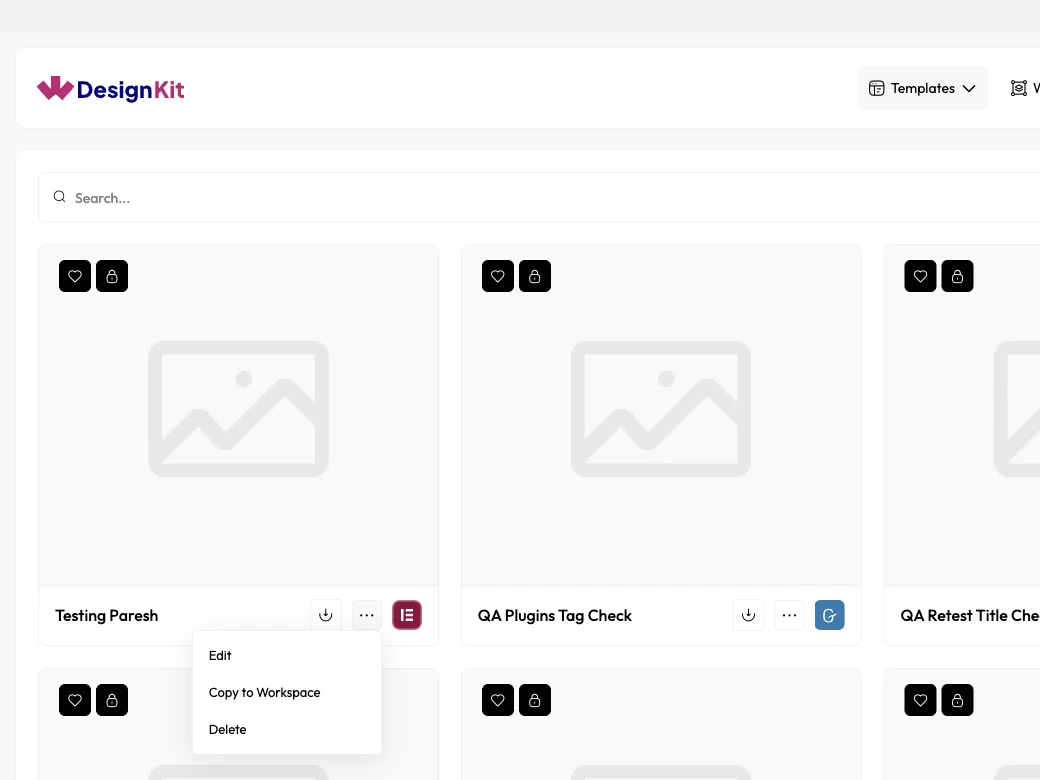
Live-verified (September 2026): clicking Delete opens a confirmation dialog before anything is removed.
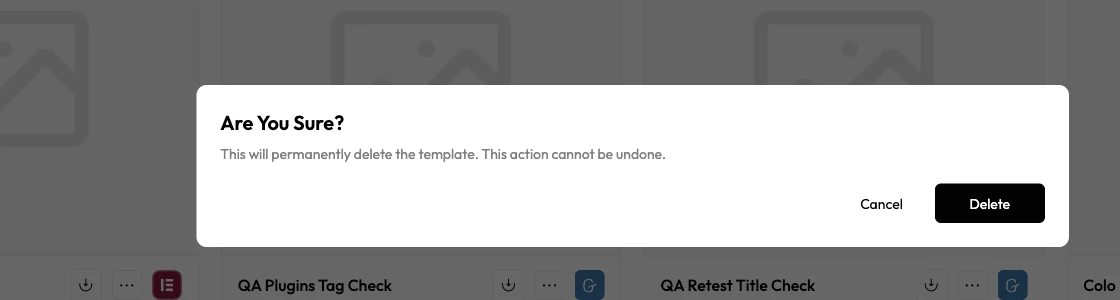
Note: You can do the same from the My Templates page of the WDesignKit plugin.
Delete a downloaded template
To delete a template you downloaded (rather than one you uploaded yourself), go to Templates → My Templates in the plugin and repeat the same three-dot → Delete → confirm steps.
Note: You can’t delete downloaded templates from the WDesignKit plugin’s cloud-facing view; they must be removed from My Templates locally.
Use Cases
- Removing duplicate or superseded template versions after finalizing a design
- Cleaning up one-off client templates that won’t be reused
- Removing a downloaded marketplace template you no longer need on a specific site
Limitations
- Deleting a template you uploaded removes it from the cloud; it stops being available to re-download on any site once removed.
- Downloaded templates cannot be deleted from the WDesignKit plugin’s cloud/uploaded view; they must be removed from My Templates instead.
- Deleting a template does not remove instances of it already placed on live pages; those pages keep the content, just disconnected from the original cloud template.
Troubleshooting
No FluentSupport tickets specifically about the delete-template/website-kit flow were found at the time of writing.
- Delete option missing on a downloaded template inside the plugin: confirm you’re viewing My Templates, not a cloud/marketplace browse view; downloaded templates are only manageable from My Templates.
- Deleted template still shows on a page: expected: deleting a cloud template does not retroactively remove it from pages where it was already placed; edit or remove that content manually on the page itself.