
How to Add Templates, Widgets, and Snippets in Workspace?
On this page
Once a workspace exists, you add content to it by saving a new template directly into it, or by copying or moving an existing template, widget, or code snippet into it from your own library.
What It Does
Adding templates, widgets, and code snippets to a workspace puts them inside that shared container, so every member of the workspace can see and use them, instead of the content staying private to your own account.
Why It Matters
Creating an empty workspace does nothing on its own, it only becomes useful once it holds the templates, widgets, and snippets your team actually needs. This is the step that turns a workspace from an empty folder into a shared library.
What You Get
Templates, widgets, and code snippets that live inside the chosen workspace, visible from that workspace’s page to every member with access, instead of only in your personal library.
Benefits
Skipped as a distinct section: the concrete benefit (a shared library the whole workspace can use) is already covered under Why It Matters and What You Get above.
Capabilities
- Save a brand-new template straight into a chosen workspace at save time.
- Copy an existing template or widget into a workspace, keeping the original in your personal library too.
- Move an existing template or widget into a workspace, removing it from your personal library.
- Copy or move a code snippet into a workspace the same way.
- Everything added is scoped to that one workspace only, it does not appear in any other workspace.
How It Works
Every template, widget, and snippet you own has its own Copy to Workspace and Move to Workspace actions, alongside a Select Workspace step where you pick which workspace receives it. Copying leaves your personal copy in place; moving removes it from your personal library, since it now lives only in the workspace.
How to Use It
Save a New Template Directly to a Workspace
- Build your template as usual in Elementor or Gutenberg.
- When saving, open the Save Template popup and choose the target workspace instead of your personal library.
- Save the template. It is created directly inside that workspace.
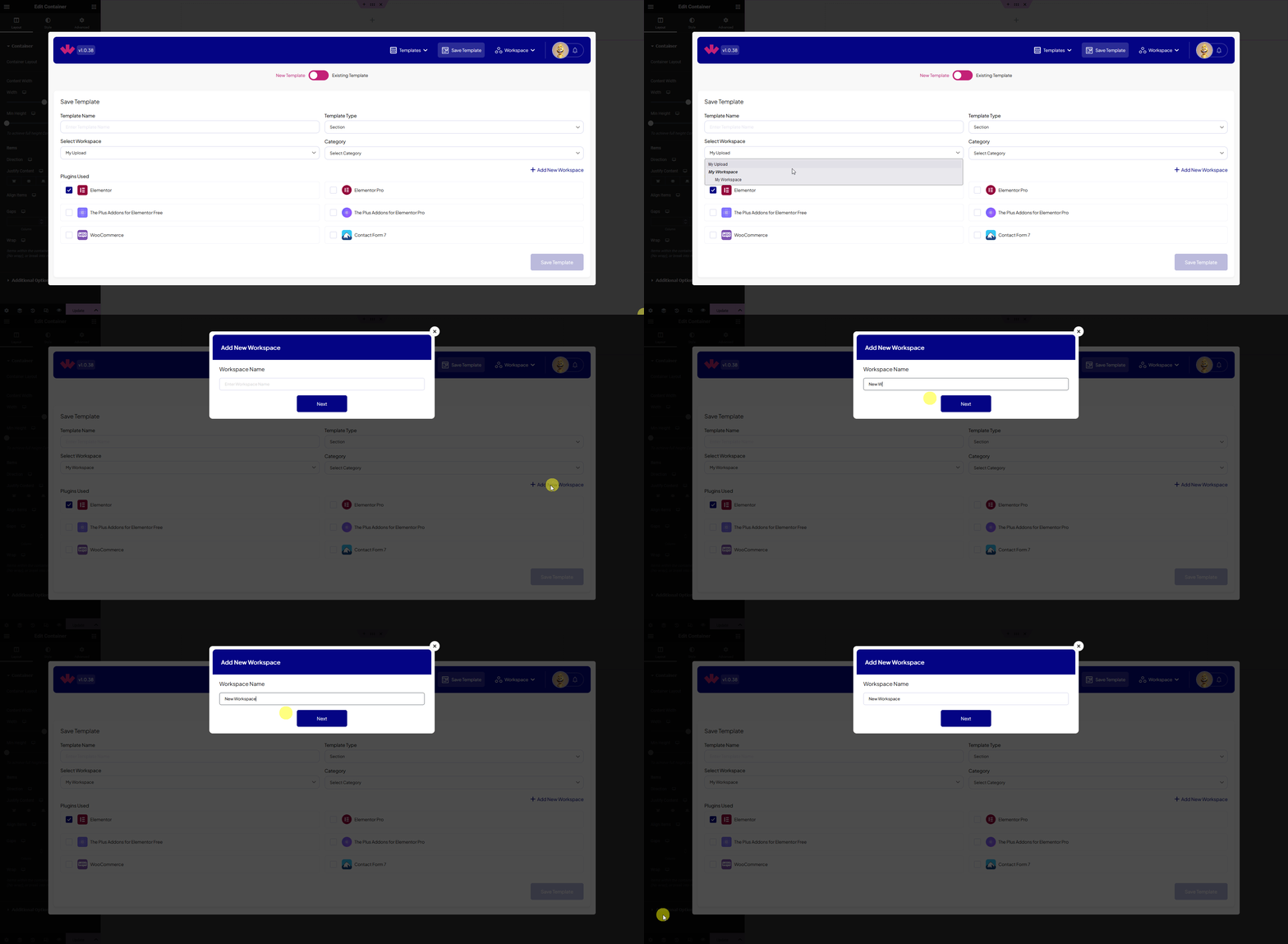
Copy or Move an Existing Template
- Go to your saved templates list.
- On the template you want to share, click Copy to Workspace (keeps your personal copy) or Move to Workspace (removes it from your personal library).
- In Select Workspace, choose the destination workspace and confirm.
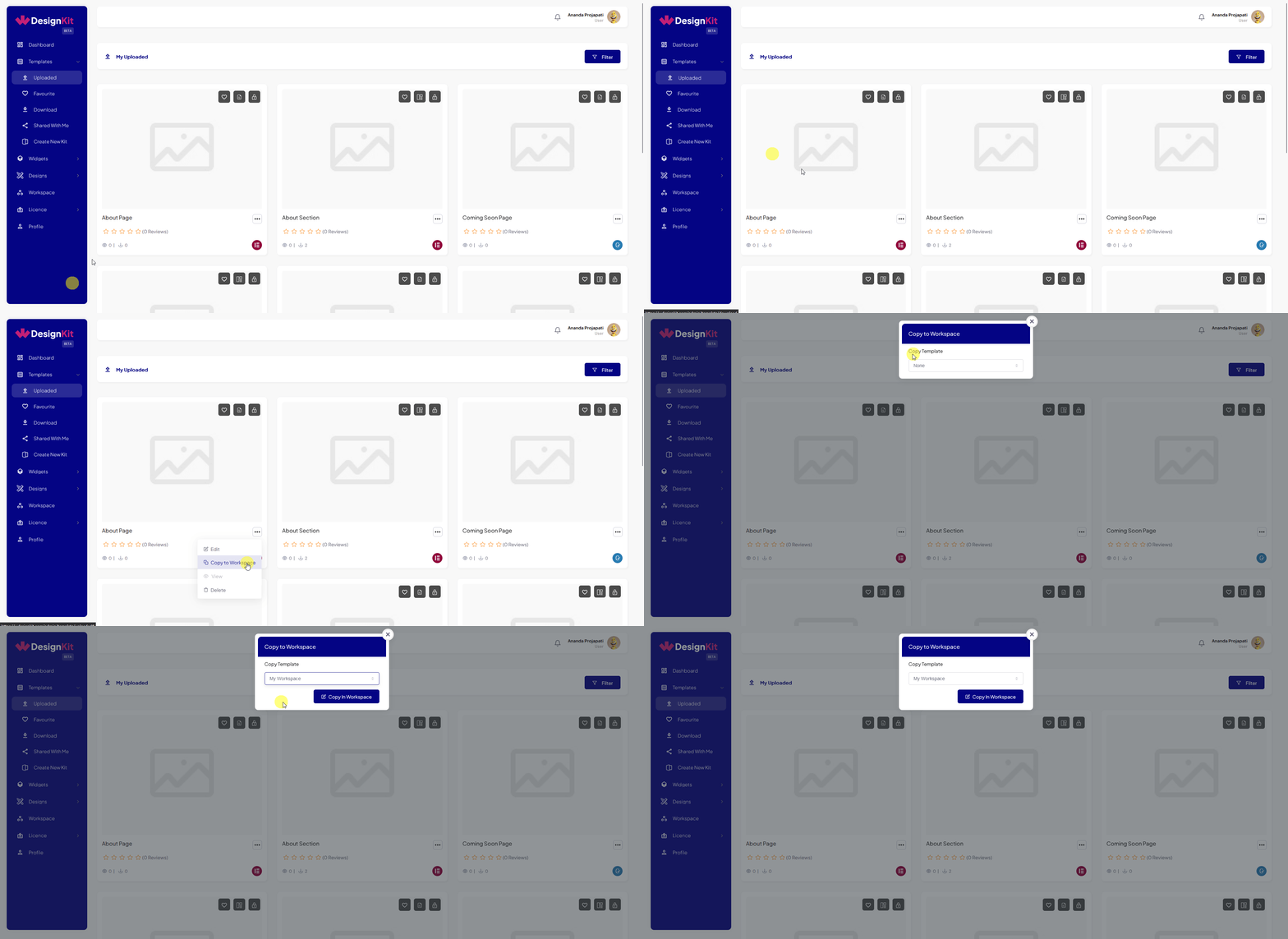
Copy or Move an Existing Widget
- Go to your local widgets list.
- On the widget you want to share, click Copy to Workspace or Move to Workspace.
- In Select Workspace, choose the destination workspace and confirm.
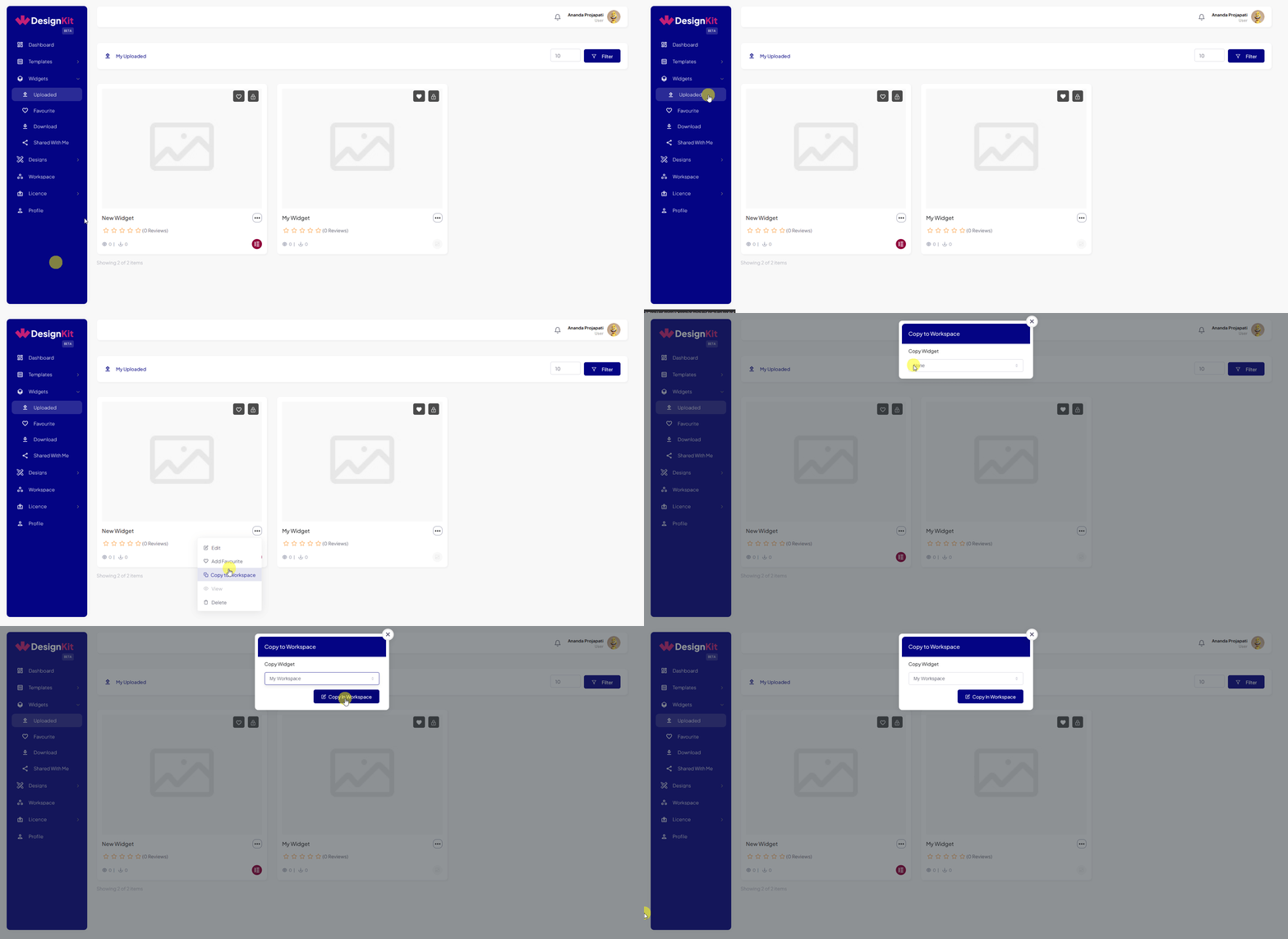
Copy or Move an Existing Code Snippet
Code snippets support the same Copy to Workspace and Move to Workspace actions from your local snippets list, followed by the same Select Workspace step.
No screenshot of this specific snippet-to-workspace step exists in the media library, and it could not be captured this session (no logged-in WDesignKit test account or local rig was available). Flagged as a doc needing a new screenshot rather than shown with an unrelated or stale image.
Use Cases
- A team builds a client’s landing-page template locally, then moves it into the client’s workspace once approved so the client’s own developer can grab it.
- An agency copies a proven widget into a new project’s workspace while keeping the original in their personal library for reuse on other projects.
Limitations
- Moving a template, widget, or snippet removes it from your personal library, if you need to keep a personal copy too, use Copy instead of Move.
- Content added to one workspace is not automatically shared with any other workspace, each workspace is separate.
- Adding members and managing their roles is a separate step from adding content, see the dedicated “Share Workspace With Others via Email” doc for that.
Troubleshooting
No FluentSupport ticket specifically about adding templates, widgets, or snippets to a WDesignKit workspace was found for this doc; the items below are derived from the documented workflow itself, not from a support ticket.
- Copy to Workspace or Move to Workspace option is missing. Confirm you are logged in and that you own at least one workspace, the option only appears once a workspace exists to select.
- Moved an item and now cannot find it in the personal library. This is expected, Move removes it from the personal library and places it only in the chosen workspace, check the workspace itself rather than the personal list.
- Added a template to the wrong workspace. Move it again from inside the workspace, choosing the correct destination in Select Workspace.