
Template Not Imported Correctly or Some Elements Are Missing (Fixed)
On this page
What It Does
This doc covers what to check when a WDesignKit template import goes wrong, either the template does not import at all or it imports with elements missing.
Why It Matters
A WDesignKit template usually depends on other plugins (like The Plus Addons for Elementor), specific widgets being enabled, and Elementor’s Flexbox Container. If any of those are missing, inactive, or disabled, the import can silently skip elements instead of failing with a clear error, which makes it look like a broken import rather than a missing dependency.
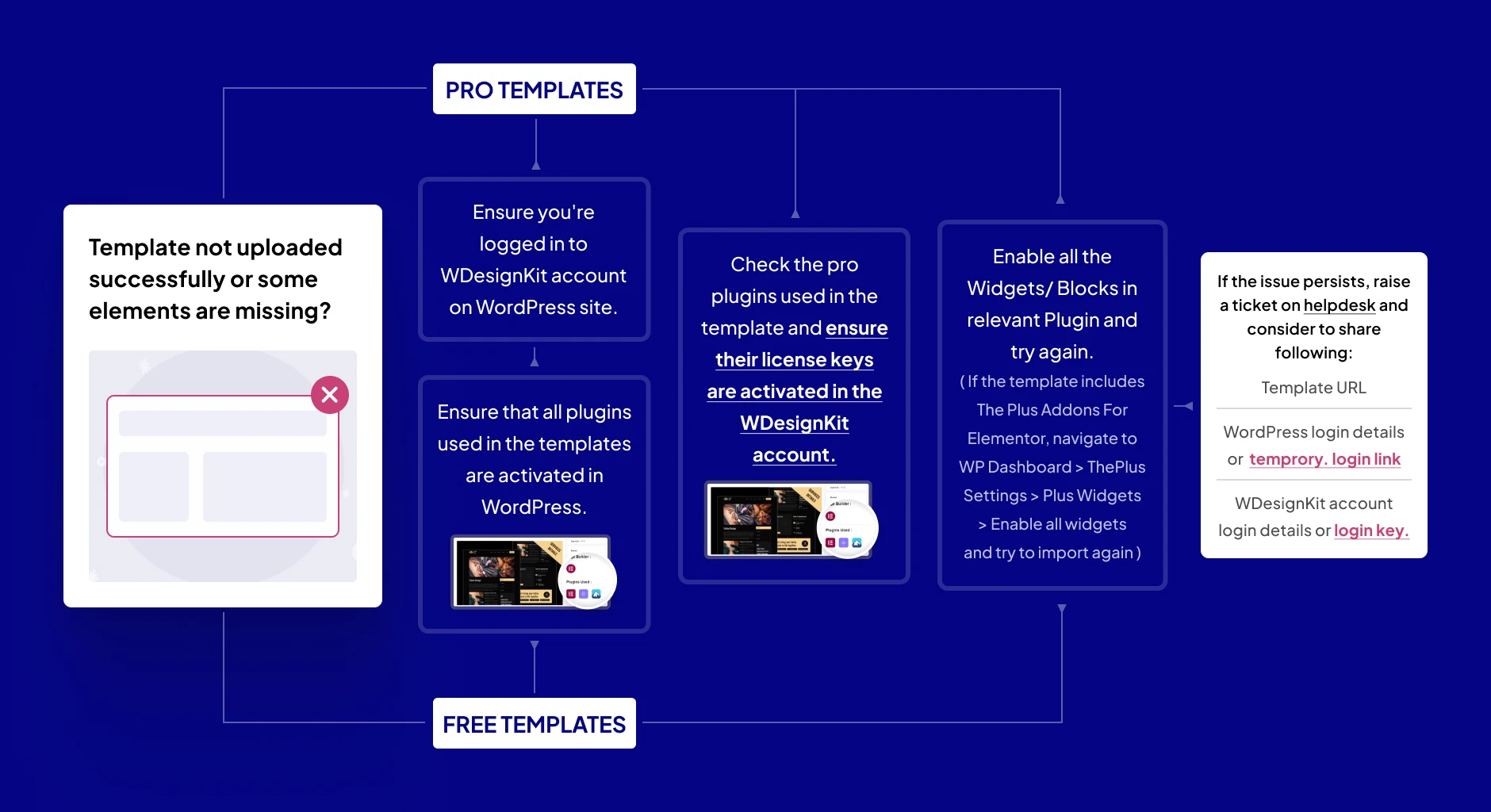
For visual readers, you can check the following infographic and other readers can continue reading.
How to Fix It
Free Templates
If you are having issues while importing free templates, then try the following solutions.
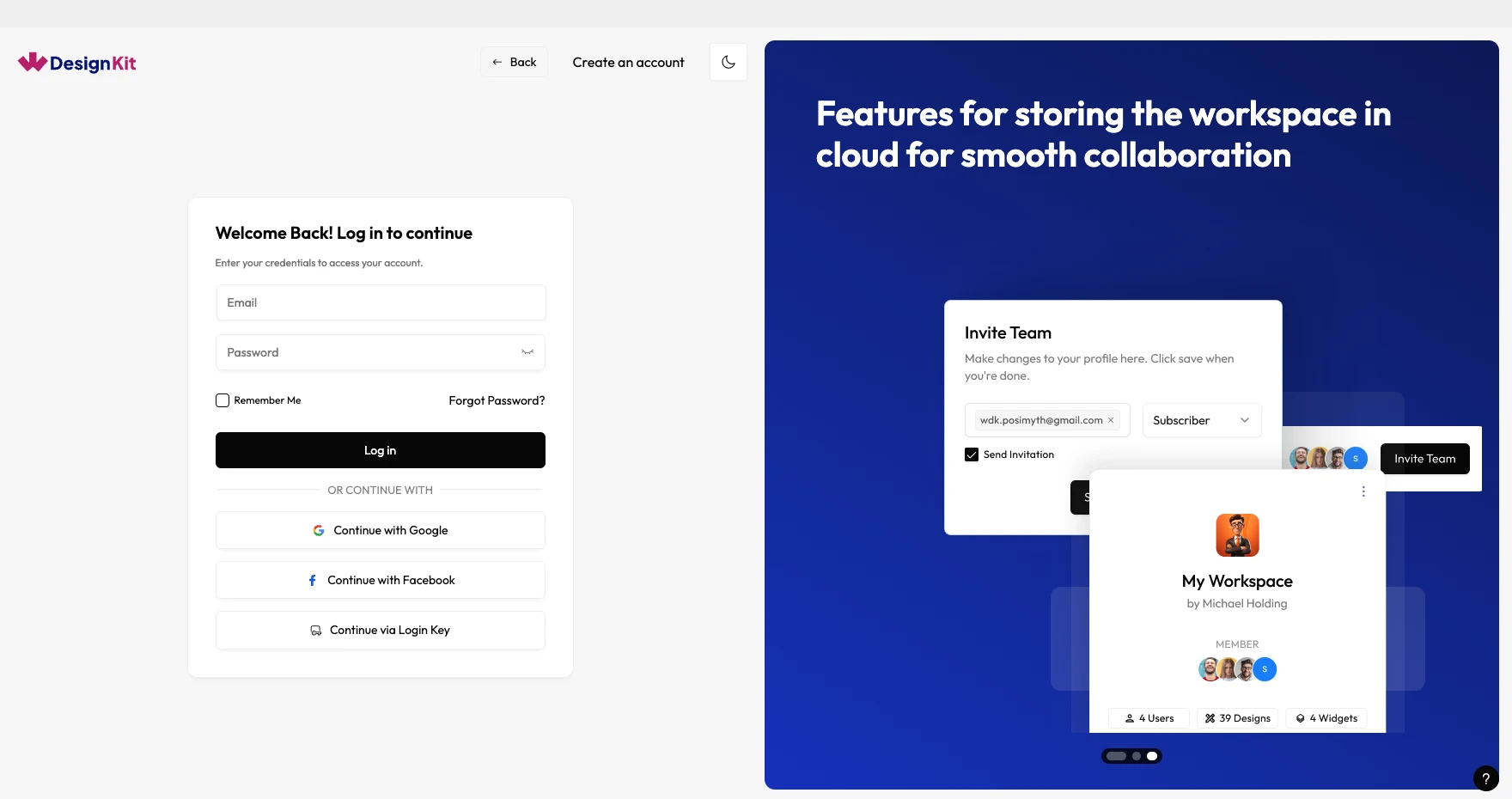
- Make sure you are logged into your WDesignKit account from the WDesignKit plugin in your WordPress site.
- Make sure all the plugins used in that particular WDesignKit template are installed and activated on your WordPress site.
Update (September 2026): for full Website/Page Kit imports, WDesignKit’s current import wizard (Customize Website → Select Features → Content & Media Setup → All Set!) now detects and installs or activates required plugins and the theme automatically, as part of the “Installed Plugins & Theme” step, reinstalling or reactivating a missing dependency with no manual prompt or error shown. The manual “install this plugin yourself” step described above still applies mainly to older single-element imports from the classic Browse panel, or on the rare occasion the automatic install fails; in that case, manually install and activate the missing plugin from Plugins > Add New, then re-import.
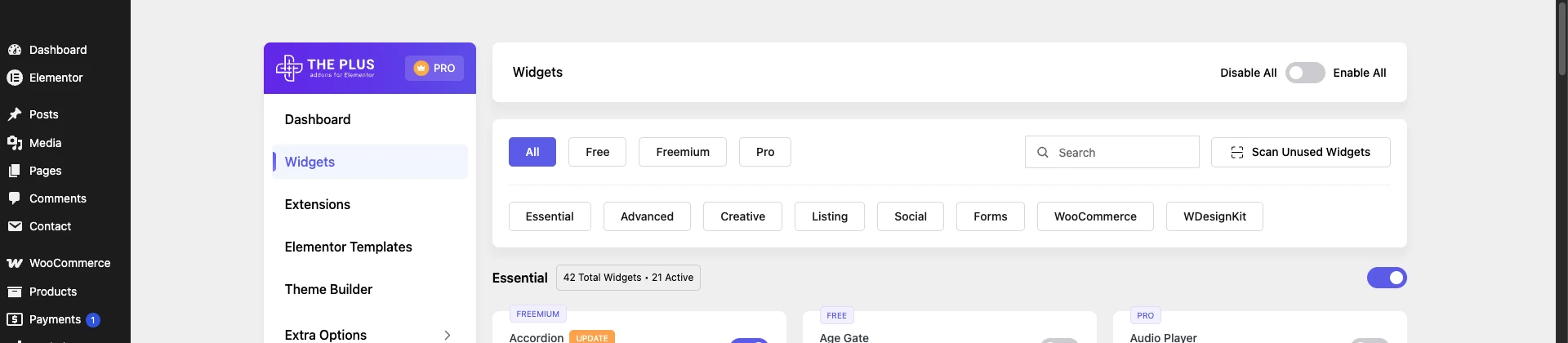
- Enable all the blocks/widgets in the relevant plugin and then try again. For example, if the particular WDesignKit template uses widgets from The Plus Addons for Elementor then navigate to WordPress Dashboard > ThePlus Settings > Plus Widgets > Enable all the widgets and then try again.
Pro Template
If you are having issues while importing pro templates, then try the following solutions.
- Make sure you are logged into your WDesignKit account from the WDesignKit plugin in your WordPress site.
- Make sure all the plugins used in that particular WDesignKit template are installed and activated on your WordPress site.
Update (September 2026): for full Website/Page Kit imports, WDesignKit’s current import wizard (Customize Website → Select Features → Content & Media Setup → All Set!) now detects and installs or activates required plugins and the theme automatically, as part of the “Installed Plugins & Theme” step, reinstalling or reactivating a missing dependency with no manual prompt or error shown. The manual “install this plugin yourself” step described above still applies mainly to older single-element imports from the classic Browse panel, or on the rare occasion the automatic install fails; in that case, manually install and activate the missing plugin from Plugins > Add New, then re-import.
- Make sure the licenses of all the pro plugins used in the particular WDesignKit template are activated on your WordPress site.
- Enable all the blocks/widgets in the relevant plugin and then try again. For example, if the particular WDesignKit template uses widgets from The Plus Addons for Elementor then navigate to WordPress Dashboard > ThePlus Settings > Plus Widgets > Enable all the widgets and then try again.
Activate Elementor Flexbox Container
All the templates in WDesignKit are built using the Elementor Flexbox containers, so make sure the Elementor Flexbox Container is activated. If it is deactivated your imported template might not show properly.
Update (September 2026): in current Elementor versions (verified on 4.1.4), Flexbox Container is no longer a separate experiment/toggle under Elementor > Settings > Features; it is now standard, always-on behavior, so there is nothing to manually activate. If you are on an older Elementor version that still lists it as an experiment, go to Elementor > Settings > Features and set Flexbox Container to Active.
Once activated, then try to import the template again.
Raise a Support Ticket
After performing the above mentioned steps the WDesignKit templates should import properly but if you are still having issues feel free to raise a ticket on our helpdesk.
While raising a ticket, consider sharing the following so we can assist you quickly.
- The URL of the WDesignKit template you are trying to use.
- Temporary WordPress Login access.
- WDesignKit account login access or login key.
Limitations
- These steps cover the most common causes (missing plugin dependencies, disabled widgets, Flexbox Container disabled); a template built with a plugin version much newer or older than what you have installed can still render incorrectly even after all of the above.
- Pro template imports additionally depend on an active license for every pro plugin the template uses, not just WDesignKit Pro itself.
Troubleshooting
One related support request (FluentSupport ticket #17293, subject matching this doc’s title) turned out to be an unrelated Cross-Domain Copy-Paste question, not a confirmed template-import defect; included here for transparency, not as evidence of a specific recurring bug.