
How to Create Templates for Private Use?
On this page
What It Does
Every WDesignKit template you save starts with Visibility set to Private, so it is only visible in your own account (or, via Workspace, to people you invite) until you deliberately switch it to Public.
Why It Matters
A template you build for one client project or a personal layout you are still testing should not turn up when every other WDesignKit user browses the public marketplace. Private is the safe default, and the same Visibility control is what you use to re-lock a template if it was ever switched to Public by mistake.
What You Get
- A Visibility field (Private / Public) on every saved template
- The same toggle reachable from two places: the WordPress plugin’s My Templates page, or the WDesignKit web app’s Templates → Uploaded page
- Workspace, for sharing a Private template with specific people without making it Public
Benefits
- Reuse the same template across your own sites without it ever appearing in the public library
- Share a template with a specific team or client through Workspace instead of publishing it for everyone
Capabilities
- Templates default to Private the moment you export or save them — no action needed to keep a new template off the marketplace
- Switch a previously-Public template back to Private any time from My Templates
- Manage the same setting from the WDesignKit web app’s Templates → Uploaded page
- Add a Private template to a Workspace so named collaborators can still use it
How It Works
Visibility is a property stored on the template record in your WDesignKit cloud account, not on the template’s content. Private removes the template from marketplace browse and search entirely, so only your own account (or, through Workspace, an invited member) can find and import it. Switching Visibility never changes what the template contains, only who can discover it.
How to Use It
- From the WDesignKit plugin page, go to Templates → My Templates.
- Find the template you want to make Private, click the three dots, then click Edit — this opens the WDesignKit web app.
- In the Visibility dropdown, select Private, then click Save.
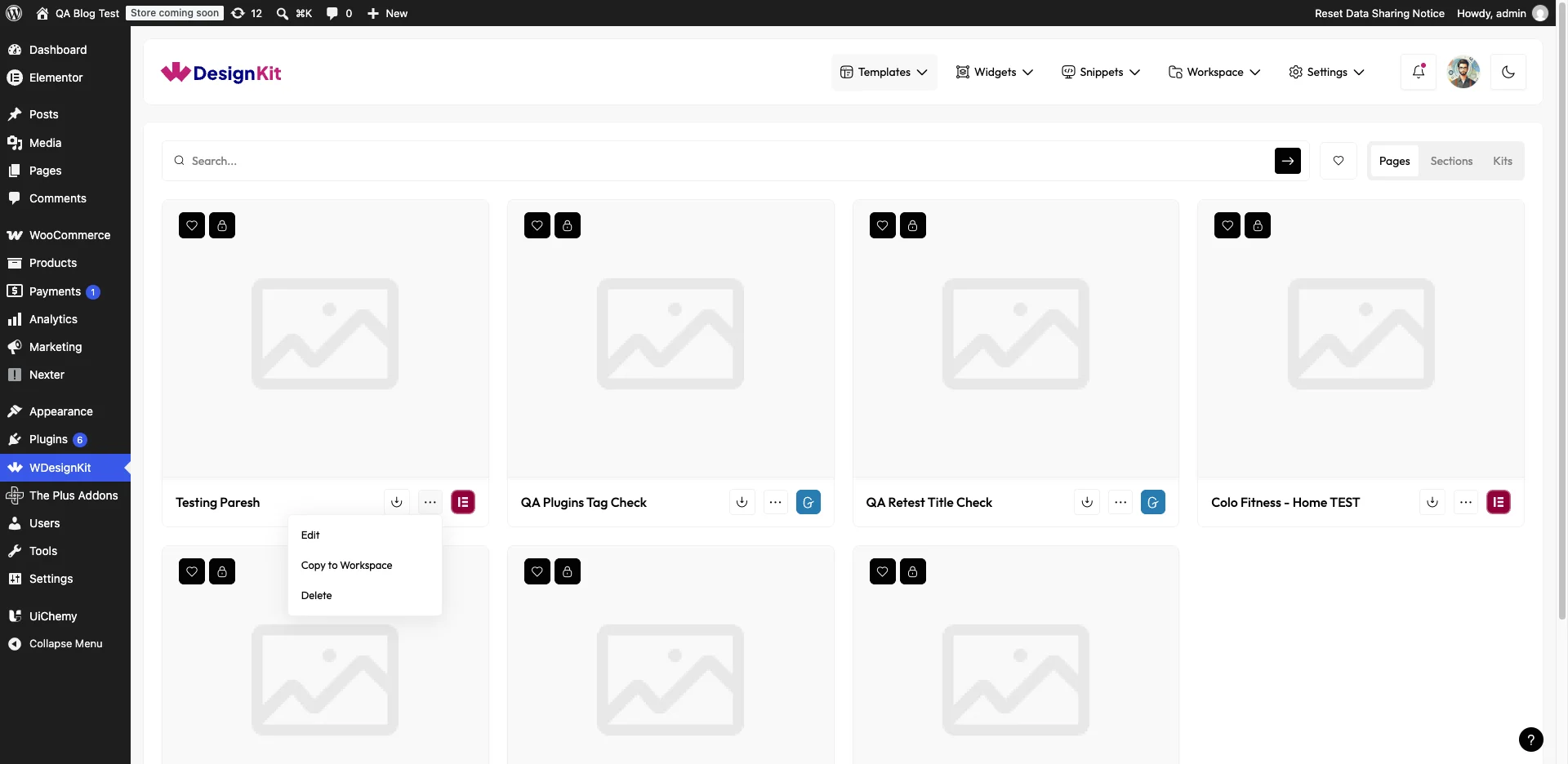
You can do the same thing from the WDesignKit app directly, under Templates → Uploaded, without going through the plugin first.
Note: log in to the WDesignKit website and the plugin separately — they use independent sessions.
Use Cases
Workflow-derived, not sourced from a specific support ticket.
- Keeping a client-branded template private so it never surfaces in public marketplace search
- Re-locking a template that was made Public while experimenting with the listing flow
- Building a personal library of layouts you reuse across your own projects without publishing any of them
Limitations
- Visibility is set per template, one at a time — there is no bulk Private/Public switch
- Private only controls marketplace discoverability; it is not a password or access lock on the template file, so anyone added to a Workspace it belongs to can still use it
- Changing Visibility requires the WDesignKit web app; it cannot be done from inside the plugin’s own popup
Troubleshooting
Workflow-derived guidance, not sourced from a specific support ticket.
- Clicking Edit from My Templates opens a blank or logged-out WDesignKit app tab — log in to wdesignkit.com in that tab separately; the plugin session does not carry over.
- A template still shows up for a teammate after you set it back to Private — Private only affects public marketplace visibility, not Workspace membership; remove it from the Workspace separately to revoke that access.
- Visibility change doesn’t seem to save — confirm you clicked Save in the WDesignKit app after changing the dropdown, not just closed the tab.