
How to Backup Your WordPress Site?
On this page
What It Does
Backing up a WordPress site creates a restorable copy of its files and database, taken before a risky change such as importing a WDesignKit Page Kit, updating a page-builder plugin, or migrating to a new host.
Why It Matters
Importing a Page Kit can install additional required plugins and change existing settings. If the import does not go as expected, or a plugin update breaks the page builder, a recent backup is the fastest way back to a working site, far faster than rebuilding pages or settings by hand.
What You Get
A restore point you can return to if an import, update, or migration leaves the site broken, mismatched, or missing content.
Benefits
- Several free backup options exist, so protecting a small site before an import costs nothing.
- Selective restoration on some plugins lets you undo just the affected files or database instead of the whole site.
- The same backup can double as a migration file if you later move the site to a new host.
Capabilities
- Back up using a dedicated WordPress backup plugin (UpdraftPlus, BlogVault, or All-in-One WP Migration and Backup) or your hosting provider’s built-in backup tool.
- Run a one-off manual backup right before an import, or schedule recurring automatic backups.
- Store copies off-server in remote storage such as Dropbox or Google Drive, keep them on the host, or download them locally, depending on the plugin.
- Restore the whole site or, with some plugins, only specific components such as plugins, themes, or the database.
How It Works
A backup plugin, or your host’s built-in tool, copies the site’s wp-content directory (themes, plugins, and uploads) and exports the WordPress database into an archive, stored locally, remotely, or both. Restoring reverses the process: the saved files and database replace the site’s current state.
How to Use It
Before importing a Page Kit, it’s important to create a backup of your WordPress site. The import process can install additional plugins and may overwrite some of your current settings. Having a backup makes sure you can restore your site if the import doesn’t go as expected.
Note: If your site is new or only contains demo content, you can go ahead and import the Page Kit directly. However, for a live production site, we strongly recommend creating a backup first to avoid any data loss or unexpected changes.
Backup Using a WordPress Backup Plugin
One of the easiest ways to back up your WordPress site before importing a Page Kit is by using a WordPress backup plugin. These plugins let you create a complete copy of your site in just a few clicks and restore it whenever needed. Below are some of the top plugins you can use to back up your site safely.
1. UpdraftPlus
One of the safest and most straightforward ways to back up your WordPress site before importing a Page Kit is by using a backup plugin like UpdraftPlus. It supports both scheduled backups and manual backups on demand, a crucial feature when you’re about to make significant changes. UpdraftPlus lists 3+ million active installations on its WordPress.org listing.
Key Features
- Manual Backup – You can immediately back up your site with a single click. You can choose which components to include, database, files, or both, and where to store them. This on-demand backup ensures you can capture the exact state of your site before importing a Page Kit, giving you a reliable rollback point.
- Scheduled Backups – Set regular backups to run automatically at intervals like every 2, 4, 8, or 12 hours, or daily, weekly, fortnightly, or monthly. Ideal for maintaining general backup routines, but manual backups give you that extra layer of protection right before major changes.
- What It Backs Up – The free version backs up your wp-content directory (plugins, themes, uploads, other files) plus the WordPress database. The pro version extends coverage to include wp-config.php, custom directories, external databases, and more.
- Remote Storage Options – In the free version, you can store data in Dropbox, Google Drive, Amazon S3, Rackspace, FTP, DreamObjects, OpenStack Swift, and email. In the pro version, you can store data in Microsoft OneDrive, Azure, Google Cloud, Backblaze B2, pCloud, WebDAV, SFTP, SCP, and UpdraftVault.
- Selective Restoration – After creating backups, you can restore specific components, such as only plugins, themes, or the database, without overwriting the entire site. This is particularly useful if the Page Kit import only impacts certain areas.
Manual Backup
1. Once you’ve installed and activated the UpdraftPlus plugin, from the Dashboard, go to UpdraftPlus > Backup/Restore tab and click on the Backup Now button.
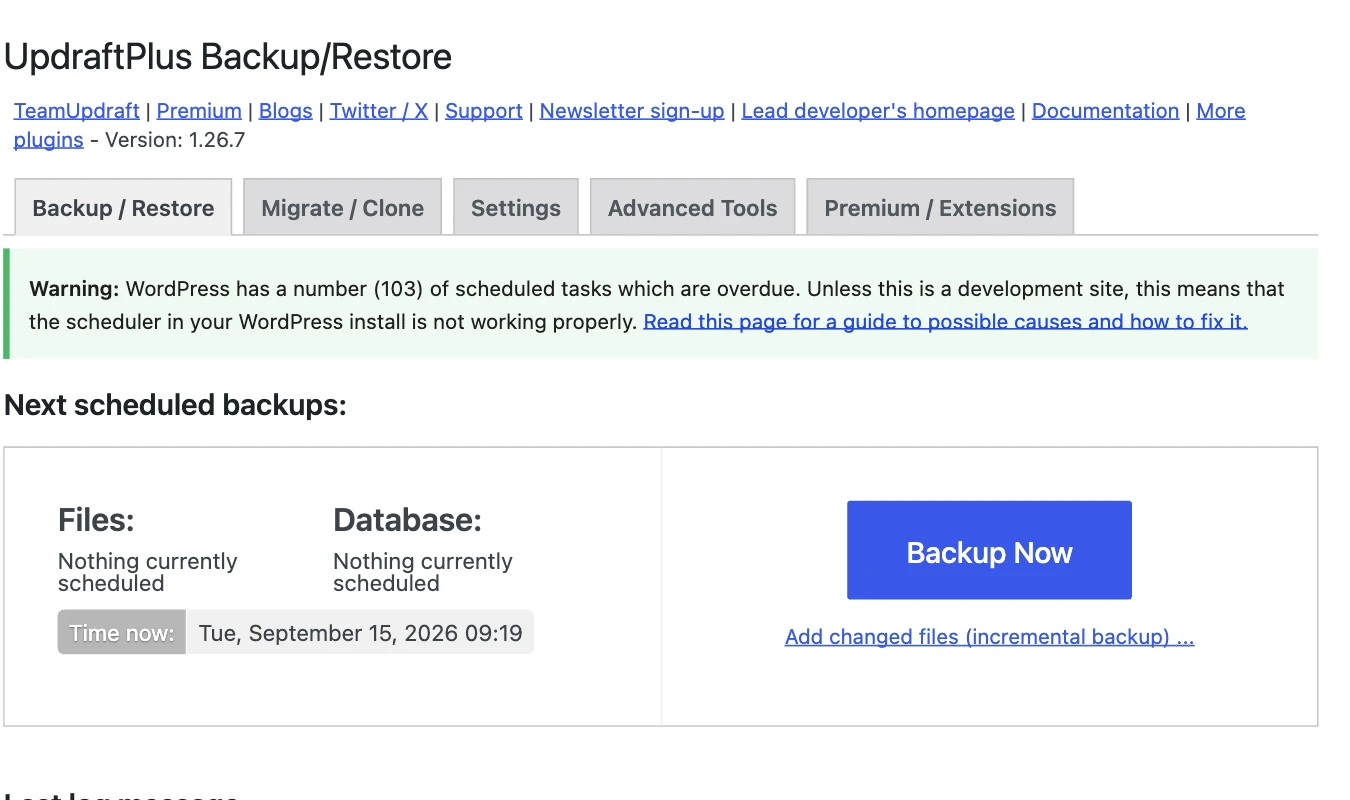
2. Then it will open a popup where you can select which parts to back up, database, files, or both. Once selected, click on the Backup Now button.
Now, a backup of your site will be created. If you have a large site, it may take a bit longer to create the backup.
Auto Backup
1. From the Dashboard, go to UpdraftPlus > Settings tab.
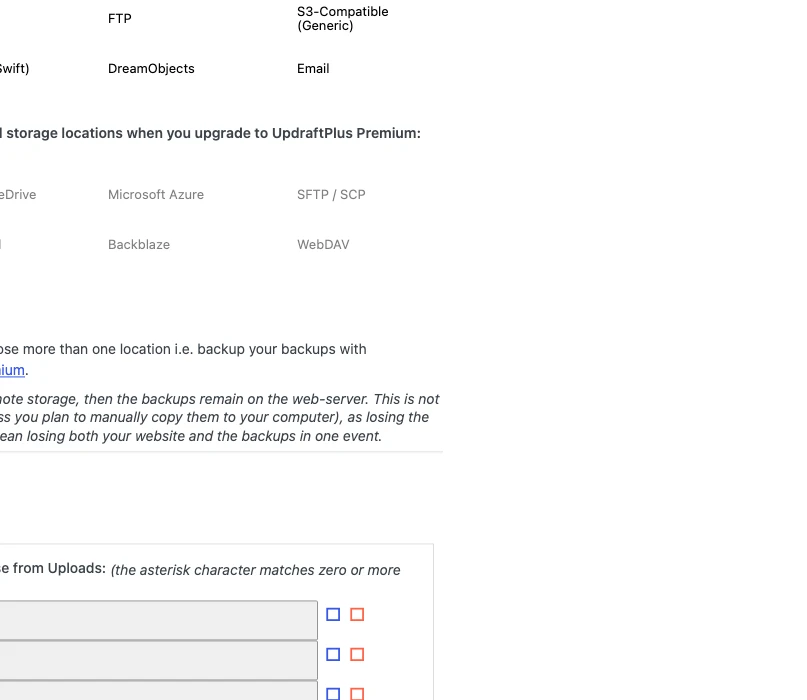
2. Then set the backup frequency for files and the database separately.
3. After that, select your preferred remote storage and follow the steps to authenticate with the chosen service.
4. Then select which files to back up.
5. Once done, click on the Save Changes button.
Now your auto and manual backups will be stored in your preferred remote location. Check how to back up and restore your site with UpdraftPlus.
2. BlogVault
BlogVault is a WordPress backup and recovery service. It runs backups on its own servers, so your site performance stays unaffected. It offers real-time backups, one-click restores, and integrated staging. BlogVault is a premium plugin; you can test its features for 7 days for free.
Key Features
- Automatic, scheduled backups – Set backups to run daily or more frequently without manual effort.
- 90 days of backups (extendable up to 365 days) – Maintain a long backup history to roll back whenever needed.
- Incremental Backups with Zero Load on Your Server – BlogVault runs the backup operations on its own servers, so your site remains unaffected during backup processes. It captures only changes since the last backup.
- Reliable Restore – BlogVault offers one-click restore, test restores, and an Emergency Connector for full-site recovery even if the WordPress admin area becomes inaccessible.
- One-Click Staging & Merging – Safely test changes in a staging environment with one-click staging and later merge them back to the live site if everything looks good.
- Migration – Move your site to another domain or host with automatic URL rewriting, handled through BlogVault’s servers.
- Real-Time WooCommerce Backups – Useful for eCommerce sites: BlogVault captures orders and key events as they happen and preserves up to 365 days of backups.
- Site Management, Security & Monitoring – Manage updates, monitor uptime, detect and remove malware, view activity logs, enforce a real-time firewall, and generate white-label reports from a centralized dashboard.
Quick Backup
1. Once you’ve installed and activated the BlogVault plugin, from the Dashboard, go to BlogVault.
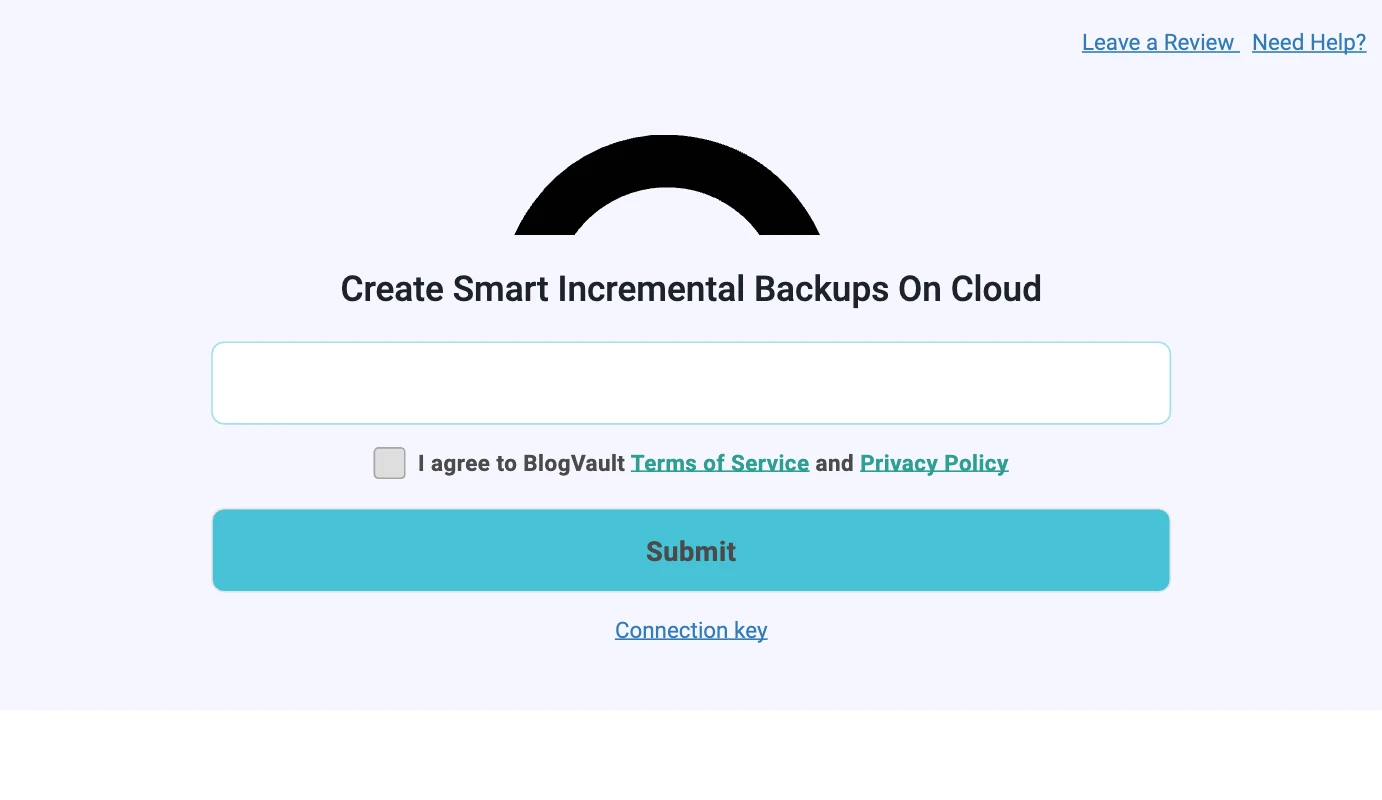
2. Then add your email and click on the Submit button. It will take you to the BlogVault site and start creating a backup of your site.
Check how to back up a site using BlogVault.
3. All-in-One WP Migration and Backup
All-in-One WP Migration and Backup is a widely used WordPress migration and backup plugin. It is built to make site exports and imports simple even for beginners, while still offering advanced options for power users.
Key Features
- Export/Import – Export your entire site, including database, media, themes, and plugins, with a single click.
- Zero Downtime – Complete migrations or restores without interrupting your live site.
- Broad Hosting Compatibility – Works across hosting providers, from budget shared hosting to enterprise servers.
- Cross-Database Support – Move between MySQL, MariaDB, and SQLite databases.
- Advanced Find & Replace – Control exactly what changes during export or import.
- Selective Content Migration – Choose which content types to include or exclude during backup.
- Command-Line Support (WP-CLI) – Automate migrations and backups via CLI for advanced users.
- Unlimited Site Size (Pro) – Remove size restrictions and back up or migrate even very large sites.
- Cloud Storage Integration (Pro) – Save and restore directly from Dropbox, Google Drive, OneDrive, and more.
- Scheduled Backups (Pro) – Automate recurring backups to keep your site protected at all times.
Manual Backup
1. Once you’ve installed and activated the All-in-One WP Migration and Backup plugin, from the Dashboard, go to All-in-One WP Migration > Backups.
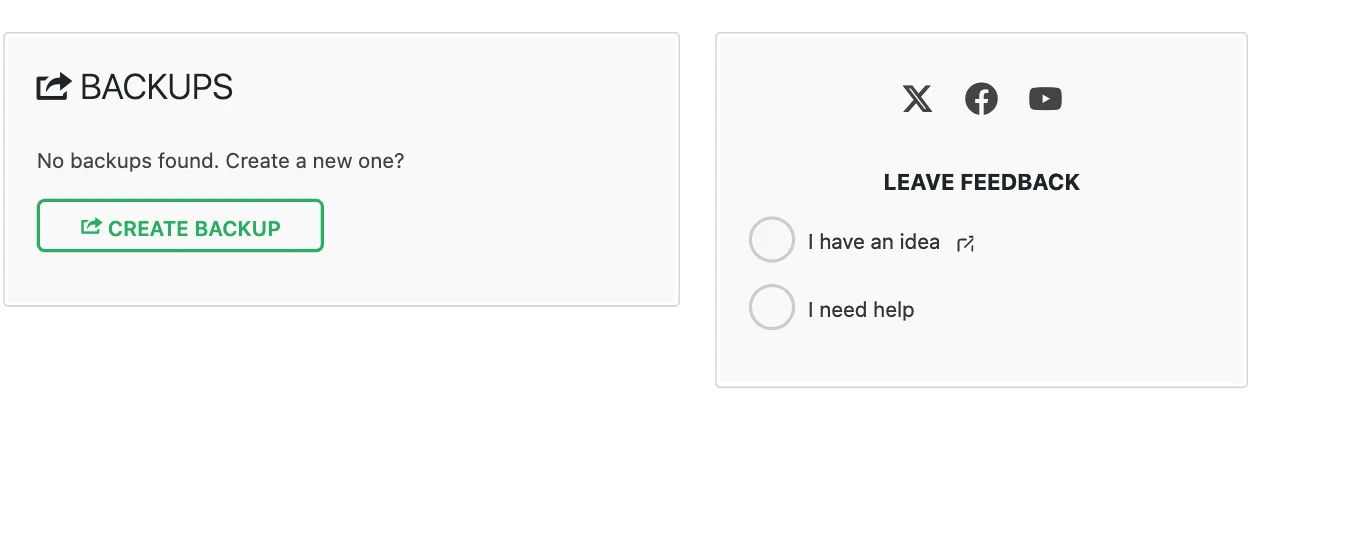
2. On the next page, click on the Create Backup button. It will start creating a backup of your site. Once done, you can download the backup to your local system.
Check how to back up a site using All-in-One WP Migration and Backup.
Backup Using Your Hosting Provider
Most hosting providers include built-in backup tools as part of their service. These tools often let you create full site backups directly from your hosting dashboard, without needing any extra plugins. You can keep the backups on the server or download them to your local system, giving you a quick way to restore your site if the Page Kit import causes unexpected changes.
Check how to back up a site from cPanel hosting.
Use Cases
- Before importing a WDesignKit Page Kit, since importing can install additional plugins and change existing settings.
- Before updating a page-builder plugin such as Elementor or Nexter Blocks on a live site, since an update can occasionally break the editor or a saved layout.
- Before migrating a site from local development or staging to a live host.
- Testing a new Page Kit or Pro widget without risking the current live design.
Limitations
- WDesignKit itself does not include a built-in full-site backup tool; use a dedicated WordPress backup plugin or your hosting provider’s backup feature to create one.
- A backup only protects what it captured at the time it ran; an old backup will not contain content or changes made after that point.
- Restoring a backup returns files and the database to their saved state, but it does not always resolve a plugin conflict on its own; you may still need to identify and deactivate the specific plugin causing the problem.
- Moving a backup to a new domain or host can leave a plugin licence tied to the old URL, which may need reactivating separately after the move.
- Free plugin tiers cap what they back up, for example UpdraftPlus’s free version excludes wp-config.php and supports fewer remote storage destinations than its pro version; check each plugin’s free-versus-pro feature list before relying on it for a full site copy.
Troubleshooting
- The site still has problems after restoring a backup. A backup restore undoes the change, but it does not always identify what caused it; if the issue traces back to a plugin update, you may also need to deactivate that specific plugin (or roll it back to the previous version) before the site fully recovers.
- A specific block or widget combination misbehaves only on the first, uncached page load after restoring. This can be a caching artifact rather than a problem with the restore itself; clear the site’s page cache after restoring and reload before assuming the backup or restore failed.
- A plugin licence stops working after restoring a backup onto a different domain or host. Some licences are tied to the URL they were activated on. Reactivate the licence against the new URL from the plugin’s licence settings after the move.
- The backup is taking a long time or times out on a large site. Large sites (especially large media libraries) can take noticeably longer to back up; run the backup during low-traffic hours, or split it into files and database backups separately if your plugin supports that, instead of assuming the process has failed.