
Content Scroll Animation Widget for Elementor
On this page
What It Does
With this widget, you can create engaging content with scroll-based animations that activate as users scroll through the page. You can add a title, subtitle, and image, and apply smooth animation effects to make the content more interactive and visually appealing.
See it working on a live page before adding it to your own page:
Why It Matters
The Content Scroll Animation widget is easy to customize and helps you highlight key information in a modern and attractive way as users move through your website, instead of every section appearing static and all at once.
What You Get
- A title, subtitle, and image block that animates in as the visitor scrolls to it
- A clickable content area with an optional link
- Full style controls to match your site’s design
Capabilities
- Title and subtitle text fields
- Image or SVG image selection
- Optional link URL on the whole content block
- Full Style tab controls for colors, spacing, and typography
Required Setup
- Elementor FREE Plugin installed & activated.
- You need to have the WDesignKit plugin installed and activated.
- Make sure you’ve created an account and logged into it.
- Make sure you’ve downloaded the Content Scroll Animation widget.
How to Use It
How to Activate the Content Scroll Animation Widget
- WDesignKit →Widgets → Browse Widgets.
- Search the widget name and select Elementor as the Page Builder.
- Click on the Download icon.
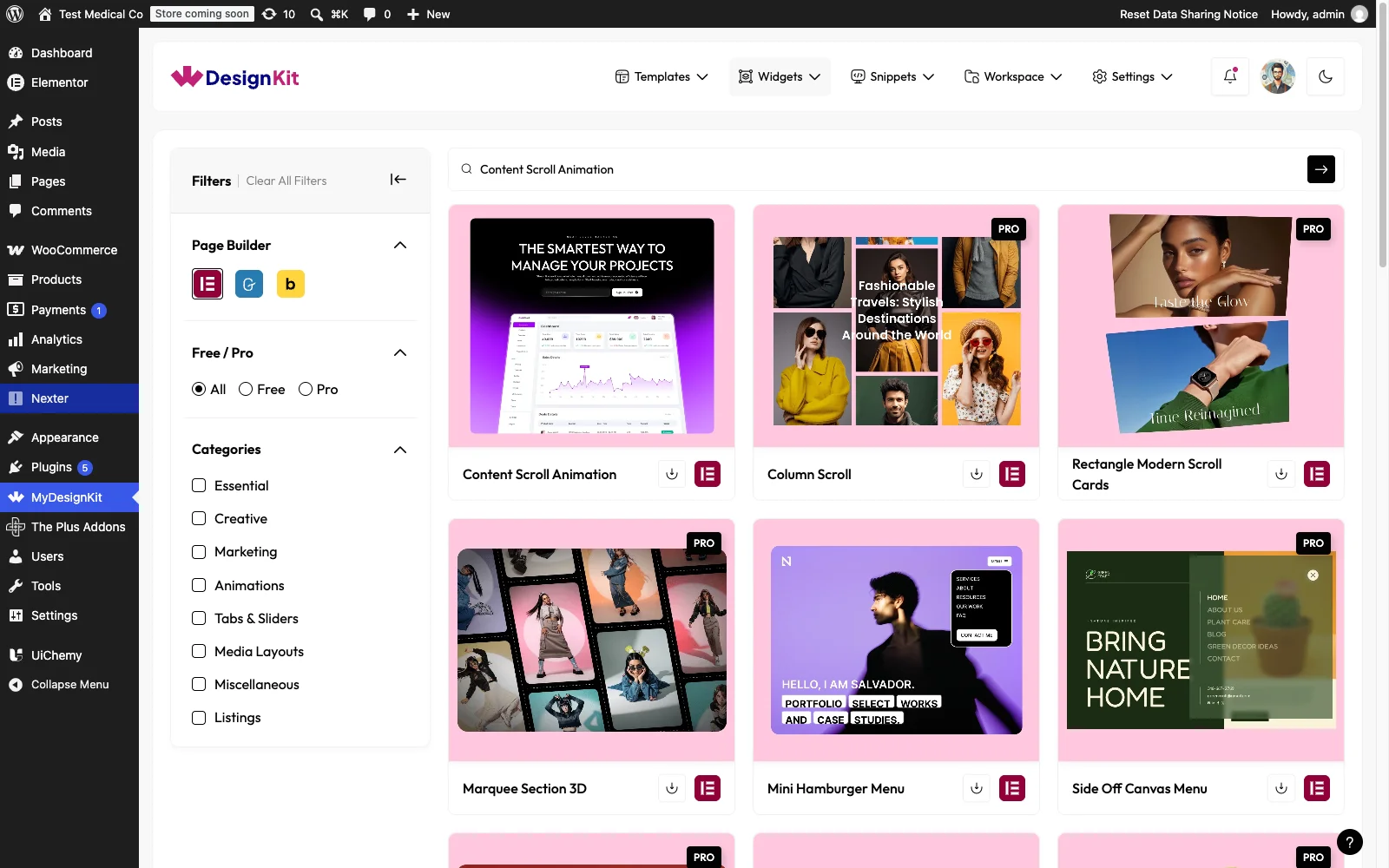
Using the Widget in Elementor
Add the Content Scroll Animation widget to the page.
Content
In the Title field, you can add the main heading text.
In the Subtitle field, you can add supporting or descriptive text below the title.
From the Select Image field, you can choose the image or SVG Image for the content.
Extra Option
From the URL field, you can add a link that opens when the content is clicked.
Then, from the Style tab, you can further customize the style of the Content Scroll Animation.
Use Cases
Best For:
- Storytelling Sections: Reveal content step by step as users scroll, helping guide them through your message in a clear and engaging way.
- Feature Highlights: Showcase product features or services with animated titles, subtitles, and images to draw attention to key details.
- Landing Pages: Create dynamic sections that keep users engaged while scrolling through important content and calls to action.
- Portfolio Websites: Present projects, case studies, or creative work with smooth animations that enhance visual impact.
- About & Company Pages: Highlight company values, milestones, or team information using animated content blocks.
- Marketing & Promotional Content: Add motion to promotional sections to make campaigns more eye-catching and interactive.
Limitations
- Only available for Elementor in this version; a separate Bricks version exists as its own element
- The animation only triggers once per scroll into view, it does not repeat if you scroll back up and down again
Troubleshooting
- The animation does not trigger on scroll. This is workflow-derived, not sourced from a specific support ticket: confirm the widget is actually in the visible viewport area being scrolled, and check for a conflicting animation or scroll-effect plugin active on the same page.
- The image does not display, or shows a broken icon. This is workflow-derived, not sourced from a specific support ticket: reselect the image from the Select Image field, since a media library item that was later deleted will leave a broken reference.