
How to Enable/Disable Template or Widget Feature in WDesignKit?
On this page
What It Does
Feature Manager lets you turn WDesignKit’s three main modules, Design Templates, Widget Builder, and Code Snippet, on or off independently, so a site that only needs one of them is not carrying the other two.
Why It Matters
Not every WDesignKit user needs templates, widgets, and code snippets all at once. Disabling the modules you do not use removes their options from the plugin page and stops their files from loading on the server.
What You Get
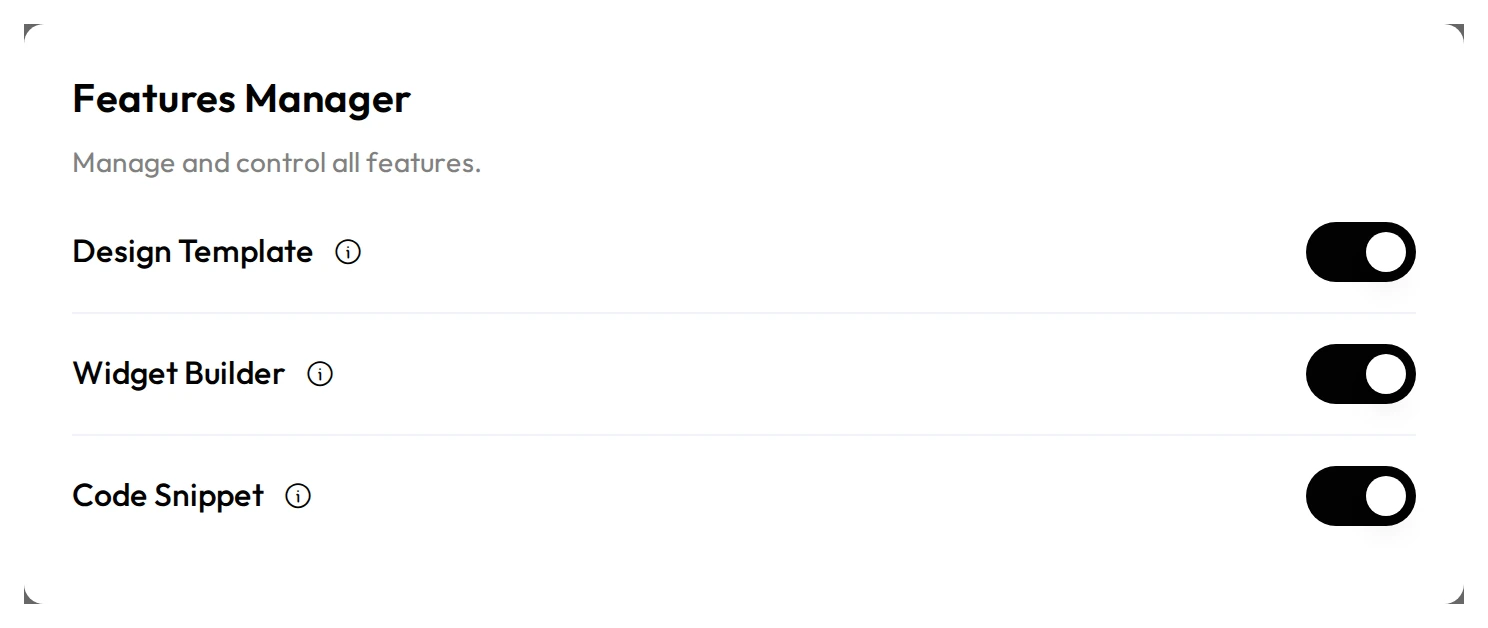
A single Features Manager popup with one toggle per module: Design Template, Widget Builder and Code Snippet.
Benefits
- A leaner plugin page once you disable the modules you do not use.
- Fewer files loaded on the server for disabled modules.
Capabilities
- Three toggles: Design Template, Widget Builder and Code Snippet.
- Disabling Code Snippet also turns off Browse Snippets, My Snippets, and the Workspace snippet options in one step.
How It Works
Each toggle in Features Manager writes to WDesignKit’s stored feature settings. WDesignKit checks those settings before loading a module’s admin screens and related files, so a disabled feature’s code does not load on that page request instead of only being hidden from view.
How to Use It
With WDesignKit, you have the freedom to unleash your creativity by either:
- Creating your own templates, widgets, and code snippets
- Downloading ready-made assets created by other WDesignKit users
The possibilities are endless, and the choice is yours.
Requirement – This feature is a part of The WDesignKit, make sure it’s installed & activated to enjoy all its powers.
We understand that sometimes you may want to work with only one type of asset based on your project requirements.
That’s why WDesignKit allows you to easily enable or disable specific features.
Examples:
- If you are focused on the Design Template, you can disable:
- Widget Builder
- Code Snippet
- Widget Builder
- If you are working only with Widget Builder, you can disable:
- Design Template
- Code Snippet
- Design Template
- If you are focused on Code Snippet, you can disable:
- Design Template
- Widget Builder
- Design Template
This helps you keep your workspace clean and optimized.
How to Customize Features
To enable or disable features:
- Go to the WDesignKit plugin page
- Navigate to Settings
- Click the Customize button in the Features Manager section
Feature Manager
- This will open the Features Manager pop-up
- From here, you can easily:
- Enable or disable Design Template
- Enable or disable Widget Builder
- Enable or disable Code Snippet
- Enable or disable Design Template
What Happens When You Disable a Feature
When a feature is disabled:
- Its related options are removed from the WDesignKit plugin page
- Its associated files are not loaded on the server
For example:
Disabling Widget Builder:
- Removes widget-related options from the plugin page
- Prevents widget-related files from loading on the server
Similarly:
- Disabling the Design Template removes template-related options and files
- Disabling Code Snippet removes snippet-related options and files
Use Cases
- A site that only uses Design Templates disabling Widget Builder and Code Snippet to simplify the plugin page.
- An agency that only offers custom widget builds disabling Design Templates and Code Snippet for its clients.
Limitations
- Disabling a module removes access to any assets already built with it from the plugin page while it stays off; the underlying data is not deleted.
- Feature Manager controls the three content modules only; per-builder toggles (Elementor, Gutenberg, Bricks) live under the separate Widget Builders setting.
Troubleshooting
- A module’s menu item disappeared after disabling it. This is expected: disabling a feature removes its menu and page options. Re-enable it in Features Manager to bring the menu item back.
- Code Snippet options are missing even though Code Snippet looks enabled. Check whether Widget Builder’s master switch or the plugin itself was recently updated; reloading the Settings page after an update usually restores the correct toggle states.
- Not sure which feature to disable for a performance issue. This is workflow-derived guidance, not sourced from a specific support ticket this session: check with WDesignKit support before turning off a module you may still need.