
How to Update Your Payment Method?
On this page
What It Does
The Update Payment Method flow lets you change the card or PayPal account billing your POSIMYTH Store subscription, so WDesignKit Pro renewals, updates, and support keep working without interruption.
Why It Matters
Your POSIMYTH Store payment method is what keeps your WDesignKit Pro license active. An expired card or a stale payment method causes a failed renewal, which then locks you out of pro widgets, templates, and priority support until it is fixed. Keeping the payment method current avoids that gap entirely.
What You Get
- A direct path to update your billing details from the POSIMYTH Store dashboard.
- Separate, documented instructions depending on whether you paid via PayPal or via Credit/Debit card (Stripe).
- A way to add a new card without cancelling and repurchasing your subscription.
Benefits
Updating your payment method proactively means uninterrupted access to WDesignKit updates, cloud widget sync, and support, and it avoids the extra step of manually renewing a lapsed subscription.
Capabilities
- Update a Stripe-processed credit or debit card directly from Manage Subscriptions.
- Add a brand-new card without removing the old one first.
- Manage PayPal-based payment methods from your PayPal account (POSIMYTH Store cannot change PayPal billing details on your behalf).
How It Works
POSIMYTH Store routes card payments through Stripe and wallet payments through PayPal. Because these are two separate payment processors, the POSIMYTH Store dashboard can only manage the Stripe-based card on file. If you originally checked out with PayPal, PayPal itself is the system of record for that billing method, so the change has to be made inside your PayPal account instead.
How to Use It
Did You Purchase Using PayPal?
If you paid through PayPal, you can only change your payment method from the PayPal dashboard.
Refer to the following PayPal document guides:
- Can I change the payment method for Pay Monthly payments? (if you used PayPal Wallet)
- How do I update my debit or credit card on PayPal?
- What is an automatic payment and how do I update or cancel one?
You can also reach out to PayPal Support for further assistance. If you need help from us, contact our Helpdesk.
Did You Purchase Using a Credit Card (Stripe)?
- Log in to your POSIMYTH Store account.
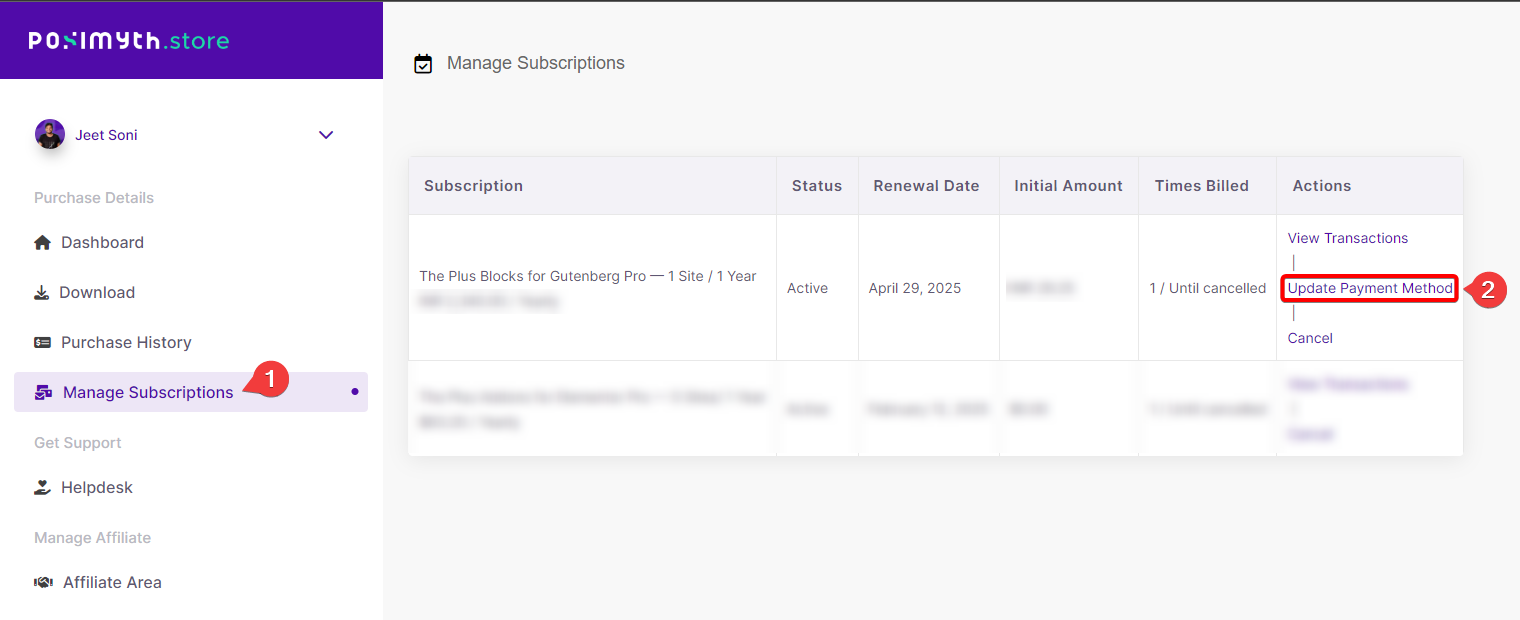
- From your Dashboard, go to Manage Subscriptions.
- Find your subscription plan and click Update Payment Method.
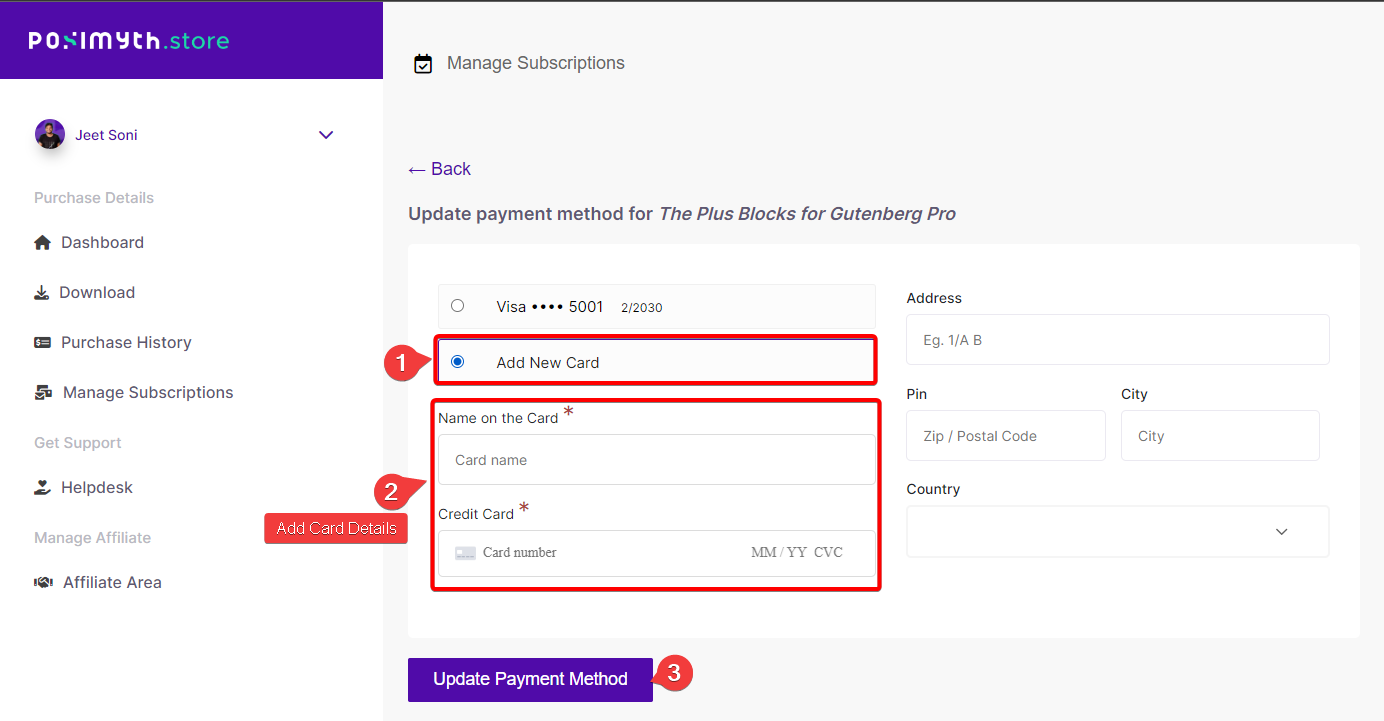
- On the next screen, select Add New Card and enter your card details.
- Click Update Payment Method to save the new card.
Use Cases
- Your card is about to expire and you want to avoid a failed renewal.
- You want to switch billing to a different card after a bank reissue.
- A renewal payment failed and you need to update the card before retrying.
Limitations
- POSIMYTH Store cannot change a PayPal-based payment method on your behalf – that change must be made inside PayPal.
- Updating the payment method does not retroactively retry a payment that already failed; you may need to manually retry the renewal after adding the new card.
- You must be logged into the POSIMYTH Store account that owns the subscription; a different POSIMYTH account will not see the subscription in Manage Subscriptions.
Troubleshooting
- “Update Payment Method” button is missing or greyed out – this usually means the subscription was originally billed through PayPal, not Stripe; use the PayPal-side instructions above instead.
- New card is saved but the renewal still fails – the failed invoice does not always auto-retry; contact the Helpdesk to have the renewal retried manually against the new card.
- Can’t find “Manage Subscriptions” in the Dashboard – confirm you’re logged into the same POSIMYTH Store account used at checkout; subscriptions are tied to the purchasing account, not to your WDesignKit plugin login.
If you have any issues updating your payment method or any other concerns, please reach out to our support team. We’re here to help.