
How to Delete Elementor Widget or Gutenberg Block?
On this page
What It Does
Deleting an Elementor widget or Gutenberg block you created with WDesignKit removes it from your site (and, if you choose, from your WDesignKit cloud account too). It’s the way to clean up widgets you no longer need.
Why It Matters
A free WDesignKit account has a limit on custom widgets/blocks (15 on the free plan), and downloaded/imported widgets count against that limit too. Removing widgets you no longer use keeps your active count under control instead of forcing you to buy extra credits for clutter.
What You Get
- A one-click Delete action from each widget card’s ⋯ (three-dot) menu
- A confirmation popup that adapts to whether the widget is cloud-uploaded
- The choice to remove a widget locally only, or permanently from both site and cloud, when it has been uploaded
Capabilities
| Option | What it does | When you see it |
|---|---|---|
| Local Delete | Removes the widget from your current WordPress site only. If uploaded, it stays recoverable from your WDesignKit cloud account. | Always available |
| Permanently Delete | Removes the widget from the server as well as your site. Not recoverable. | Only when the widget was uploaded to your cloud account and you’re logged in |
| Server-only delete (via wdesignkit.com → Widgets → Uploaded) | Removes a widget from the cloud server only; it remains on your site | From the WDesignKit web app, not the WordPress plugin |
How It Works
When you click Delete on a widget card, WDesignKit checks two things before deciding what to show you: whether you’re currently logged into your WDesignKit cloud account in the plugin, and whether that specific widget was actually pushed to your own cloud account. If either check fails, for example the widget was only ever created locally, or it was pushed under a different account, you’ll only see the Local Delete option. Only when both checks pass does the popup offer the second, Permanently Delete choice. Local Delete removes the widget’s files from your site’s WordPress installation; Permanently Delete additionally calls the WDesignKit cloud API to remove your marketplace record, which cannot be undone.
How to Use It
You’ll need the WDesignKit plugin installed and activated. Logging into your WDesignKit account in the plugin is only required if you want the Permanently Delete option to appear for a widget you’ve uploaded.
Delete from your WordPress site
- From the WDesignKit plugin, go to Widgets → My Widgets.
- Find the widget or block you want to delete, click its ⋯ (three-dot) menu, then click Delete.
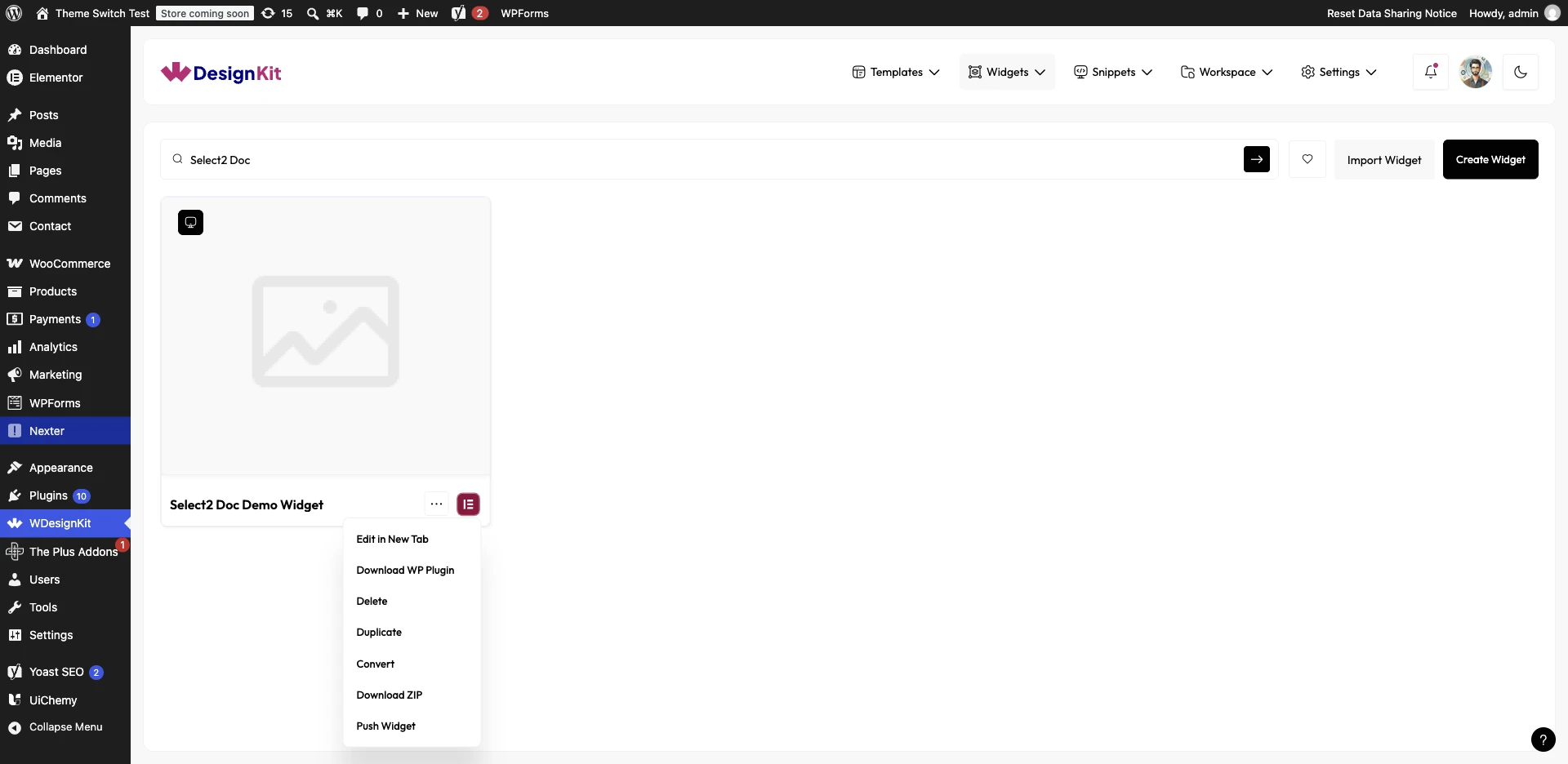
- A confirmation popup opens. If the widget was never uploaded to the server, you’ll see only Local Delete. Click Yes, Delete It to confirm.
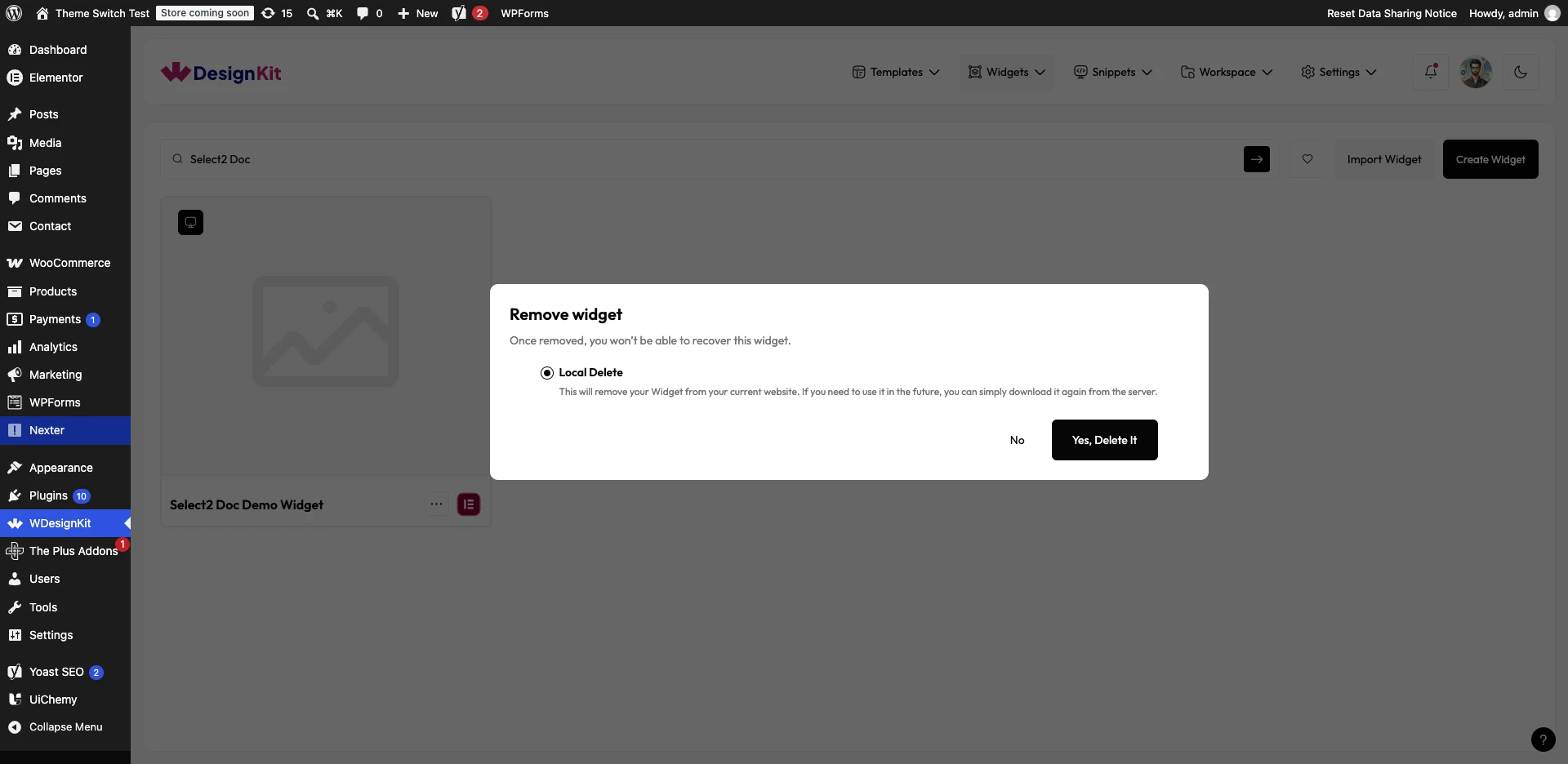
If the widget has been uploaded to your cloud account and you’re logged in, the popup instead shows two options:
- Permanently Delete: removes the widget from the server as well as your site.
- Local Delete: removes the widget from your site only; it remains on the server, so you can re-download it later.
Select the option you want, then click Yes, Delete It.
Note: For downloaded (not self-created) widgets, you’ll only see one delete option.
Delete a widget from the server only
This removes a widget from your cloud account while leaving it in place on your WordPress site.
- Go to the WDesignKit website (wdesignkit.com) and log into your account.
- Go to Widgets → Uploaded.
- Find the widget or block, click its ⋯ menu, then click Delete.
- Confirm in the popup by clicking Yes. The widget is removed from the server only; it stays on your site.
You can also delete a downloaded widget or block directly from this Uploaded page.
Use Cases
- Removing a test/demo widget you built while learning the Widget Builder
- Cleaning up a duplicate widget after finalizing the version you actually want to keep
- Staying under the free-plan widget/block limit without buying extra credits
- Removing a widget from one site while keeping it archived in your cloud account for reuse elsewhere
Limitations
- Permanently Delete cannot be undone: the popup explicitly warns “Once removed, you won’t be able to recover this widget.”
- The two-option choice (Local vs. Permanently Delete) only appears if you’re logged into your WDesignKit account in the plugin and the widget was actually uploaded under that same account; otherwise you only get Local Delete.
- Pushing a widget to your cloud account in the first place (the step that makes Permanently Delete possible) is not available on every plan; if you don’t see a Push Widget option in the ⋯ menu, Permanently Delete won’t be reachable for that widget.
- Deleting a widget or block already placed on live pages does not remove it from those pages automatically, which can leave the element broken wherever it was used.
- Server-only deletion requires visiting the WDesignKit web app directly; it isn’t available from inside WordPress.
Troubleshooting
No FluentSupport tickets specifically about the delete-widget flow itself were found. One tangentially related ticket (#1742, “Carousel anything widget erratic problem”) mentions deleting and re-adding a widget as a workaround for a separate frontend misalignment bug in an unrelated carousel widget, not an issue with the delete feature itself.
- Only see one delete option when you expect two: confirm you’re logged into your WDesignKit cloud account in the plugin, and that the widget was actually pushed/uploaded to the server under that same account.
- Deleted a widget still used on a page: check that page in the builder afterward; a deleted widget’s instances typically need to be manually replaced or removed from any page that used them.