
How to Create an Account in WdesignKit?
On this page
A WDesignKit account is what unlocks the plugin’s cloud features: browsing the marketplace, downloading templates and widgets, and creating shared workspaces. You need one to use anything beyond purely local widget building.
What It Does
Creating a WDesignKit account registers you with WDesignKit’s cloud service, either through the public website or directly inside the WordPress plugin, using email/password or a Google or Facebook social login.
Why It Matters
Without an account you cannot reach the marketplace, download any template or widget, save anything to the cloud, or set up a workspace to collaborate with a team. The account is the identity WDesignKit uses to track your plan, credits, and saved content.
What You Get
A single WDesignKit identity you can log into from the website or from the plugin on any WordPress site, with access to the free tier of templates, widgets, and workspaces out of the box.
Benefits
Skipped as a distinct section: the concrete benefit (unlocking cloud features) is already covered under Why It Matters and What You Get above, and restating it here would just repeat those sections.
Capabilities
- Sign up from the public WDesignKit website (wdesignkit.com/signup) with email/password, Google, or Facebook.
- Sign up or log in directly from the WDesignKit plugin’s admin page inside WordPress.
- Log in to the plugin without a username or password, using a personal API key instead.
- One account works across every WordPress site where you install the WDesignKit plugin.
How It Works
The WDesignKit website and the WDesignKit plugin each have their own separate login, even though both use the same underlying account. Signing up on one does not automatically log you in on the other, you complete the same signup or login step in whichever surface you are using at the time.
How to Use It
Creating an Account From the WDesignKit Website
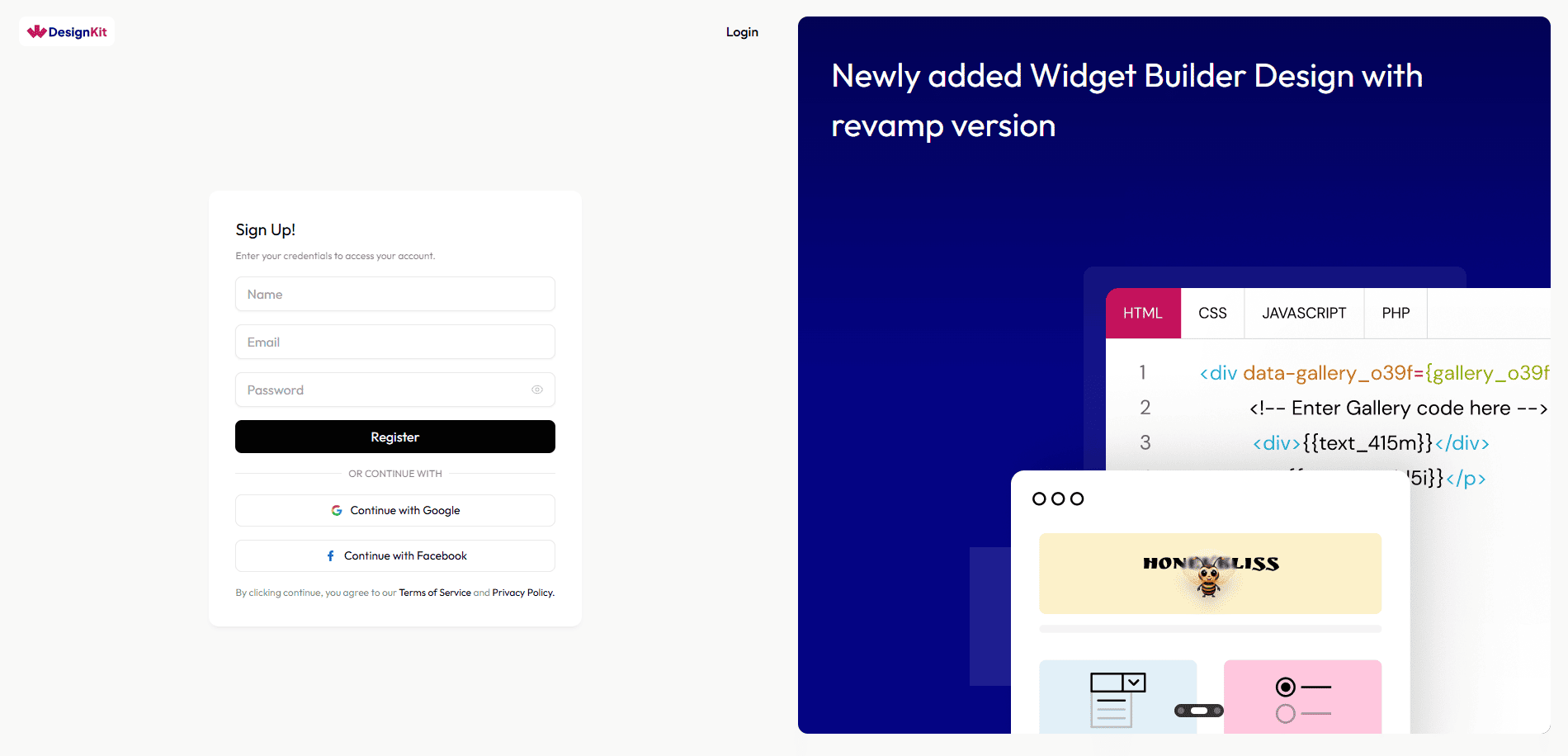
- Visit the WDesignKit signup page.
- Sign up with your Google or Facebook account, or fill in the manual signup form with your name, email, and password.
Creating an Account From the WDesignKit Plugin
- Install and activate the WDesignKit plugin on your WordPress site.
- Open the WDesignKit plugin page and click Login. This opens a login screen where you can sign in with Google or Facebook.
- Or click Create an account on that same login screen, which opens the WDesignKit website signup page in a new tab, where you can again sign up with Google, Facebook, or a manual form.
Note: The website login and the plugin login are separate. Logging in on one does not log you in on the other, you sign in to each surface individually.
Note: You can also log in to the WDesignKit plugin using a personal API key instead of a username and password.
Use Cases
- A developer installs WDesignKit on a client site and creates the account directly from the plugin, without ever visiting the public website.
- A user already has a WDesignKit website account from a previous project and logs into the plugin separately on a new site using the same email.
Limitations
- A manually-registered account (email + password, not social login) must be email-verified within 30 days or it is suspended, and within 60 days or it is permanently deleted, see the separate email-verification doc for details.
- The website login and plugin login sessions are independent and do not sync, you cannot assume being logged in on one means you are logged in on the other.
- A WDesignKit account is separate from a POSIMYTH Store account, even if you use the same email address for both.
Troubleshooting
No FluentSupport ticket specifically about WDesignKit account creation was found for this doc; the items below are derived from the documented signup workflow itself, not from a support ticket.
- Signup form rejects the email. Check for a typo and confirm the email is not already registered to a WDesignKit account, since one email can only own one account.
- Logged into the website but the plugin still shows logged out. This is expected, log in separately inside the plugin, the two sessions do not sync automatically.
- Signed up but plugin login still fails. Confirm you are using the plugin’s own Login screen (not the website), and if you prefer, use a personal API key instead of a password to log in.