
How to Generate Invoice after Purchase of WDesignKit?
On this page
What It Does
This is how to generate and download an invoice for a WDesignKit purchase, for your own records or for expensing/accounting.
Why It Matters
An invoice with your billing details is often required for expense reports, VAT/tax records, or reimbursement, and it needs to show the correct company name and address, not just the purchaser’s name.
What You Get
A self-serve invoice generator on your Dashboard that lets you enter billing details once and produce a downloadable invoice immediately, without waiting on a support reply.
Benefits
Because it’s self-serve, you can generate an invoice the moment you need it, for an expense deadline, for example, instead of waiting on a support ticket.
Capabilities
The invoice generator captures your billing details (name, company, address, tax/VAT ID where applicable) and produces a downloadable invoice tied to your specific purchase.
How It Works
Billing details you save here are stored against your account and reused for future invoices, you don’t need to re-enter them on every purchase, but any change you make afterward only applies to invoices generated after that point, not ones already downloaded.
How to Use It
- Visit the POSIMYTH Store and log in with the account used at checkout.
- On the Dashboard, click Generate Invoice.
- Fill in your billing details and click Save Billing Details & Generate Invoice.
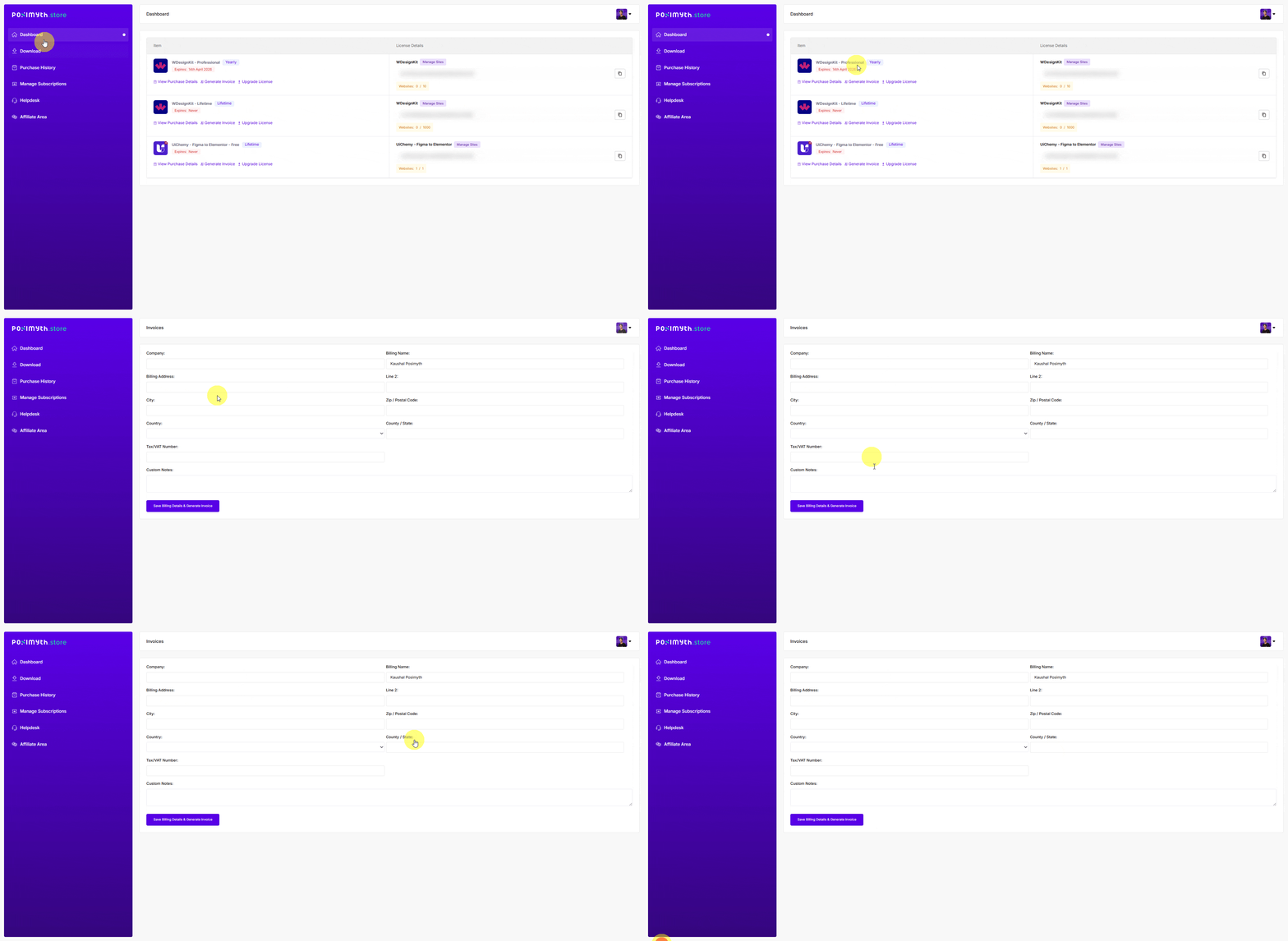
Your invoice is generated immediately and available to download for your records.
Use Cases
- Submitting an expense report that requires an itemised invoice
- Company accounting needs a VAT-compliant invoice under the business name, not the individual purchaser
- Keeping a personal record of software spend for tax purposes
Limitations
- Billing details must be entered before the invoice is generated, there’s no way to add a company name/VAT ID retroactively to an already-downloaded invoice without contacting support
- Invoices are tied to the purchasing account, you must be logged into the account used at checkout to generate one
- Changing your saved billing details doesn’t retroactively update invoices already generated
Troubleshooting
- Invoice was generated under a personal name instead of your company: a real, reported issue, update your billing details with the correct company name, VAT number, and address, then contact support to have the specific invoice reissued, since the self-serve generator won’t retroactively fix one already downloaded.
- Can’t log in to update billing details / generate an invoice, and the password reset email isn’t arriving: check spam first; if it still doesn’t arrive, contact support directly with your invoice/receipt number so they can verify and assist without needing account access.
- Generate Invoice button isn’t visible on the Dashboard: confirm you’re logged into the account that made the purchase, the option only appears against orders tied to that account.