
Advanced Pricing With Toggle Widget for Elementor
On this page
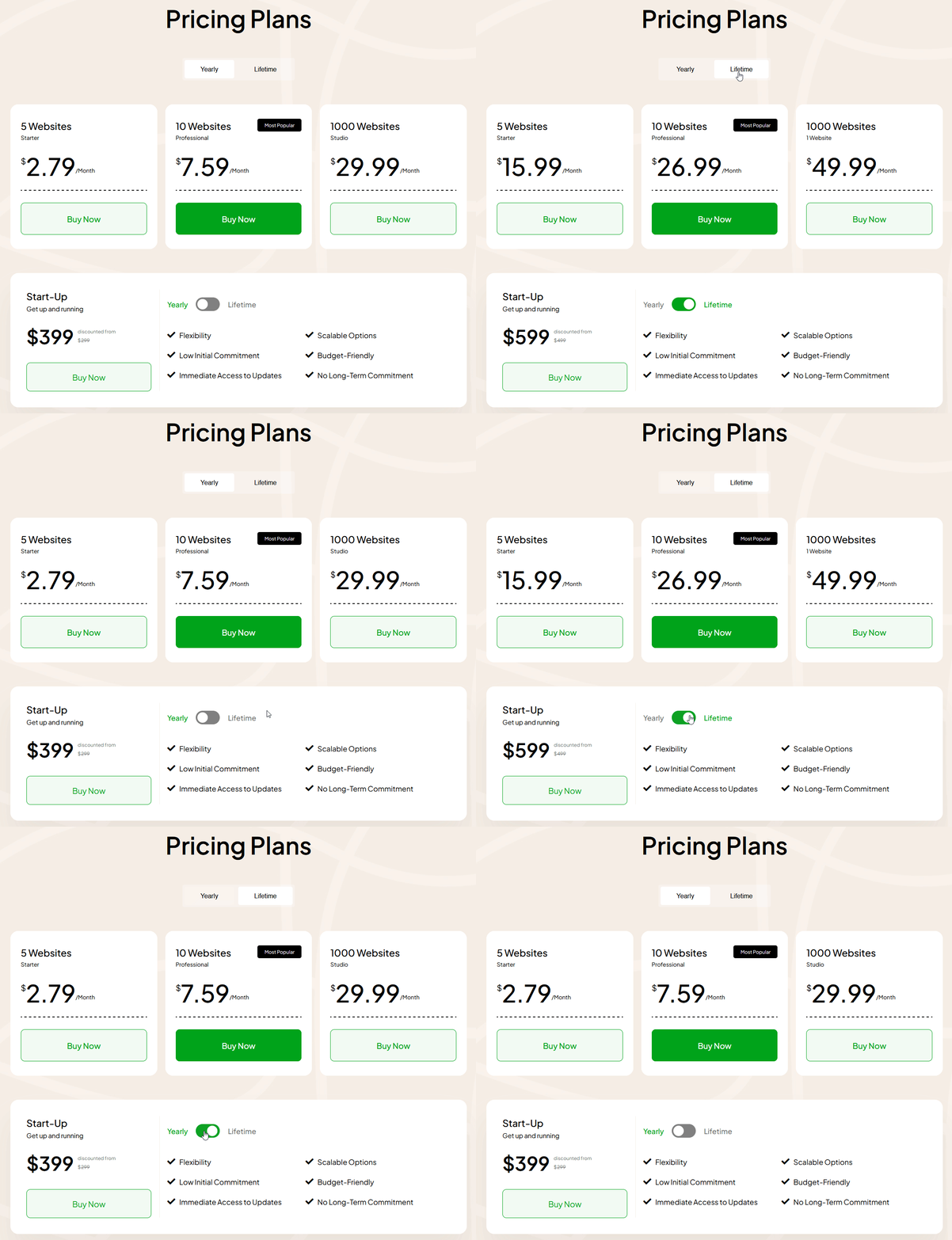
The Advanced Pricing With Toggle widget builds a two-switch pricing table where each switch reveals its own set of plan cards, and can sync its switches with a paired Toggle Pricing Features Table widget via a shared Connection ID.
1. What It Does
Renders two independently switchable groups of pricing cards, Switch 1 and Switch 2, each holding its own repeater of plan items with price, discount, and button.
2. Why It Matters
Letting visitors flip between two full sets of plans, not just two prices in one card, works for comparing different billing terms or different plan tiers side by side without a page reload.
3. What You Get
Two Select Items repeaters, Switch 1 and Switch 2, each plan item configurable with its own subtitle, price, discount, offer badge, button, and colors, plus an optional circular Extra Shape accent.
4. Benefits
Skipped, already covered above: the value is the two independently switchable plan sets described in Why It Matters and What You Get, restating it here would not add anything new.
5. Capabilities
- Switch 1 and Switch 2 sections, each with a Title for the switcher button text and an optional Tooltip Title
- Select Items repeater per switch: Title, Banner Show toggle for a highlight badge, Subtitle, Pricing Number, Price Month, Dollar Sign, Display Discount toggle, Display Offer toggle, Url, Button Title, Button Description, and per-item color controls
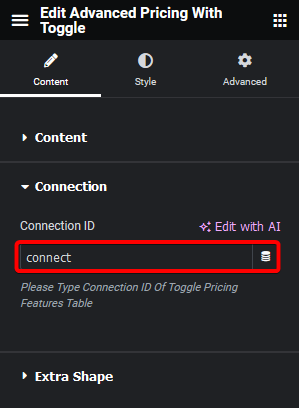
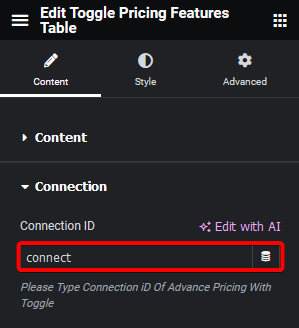
- Connection ID field to sync with a Toggle Pricing Features Table widget
- Extra Shape toggle for a decorative circle accent on both sides of the items, with its own background color
6. How It Works
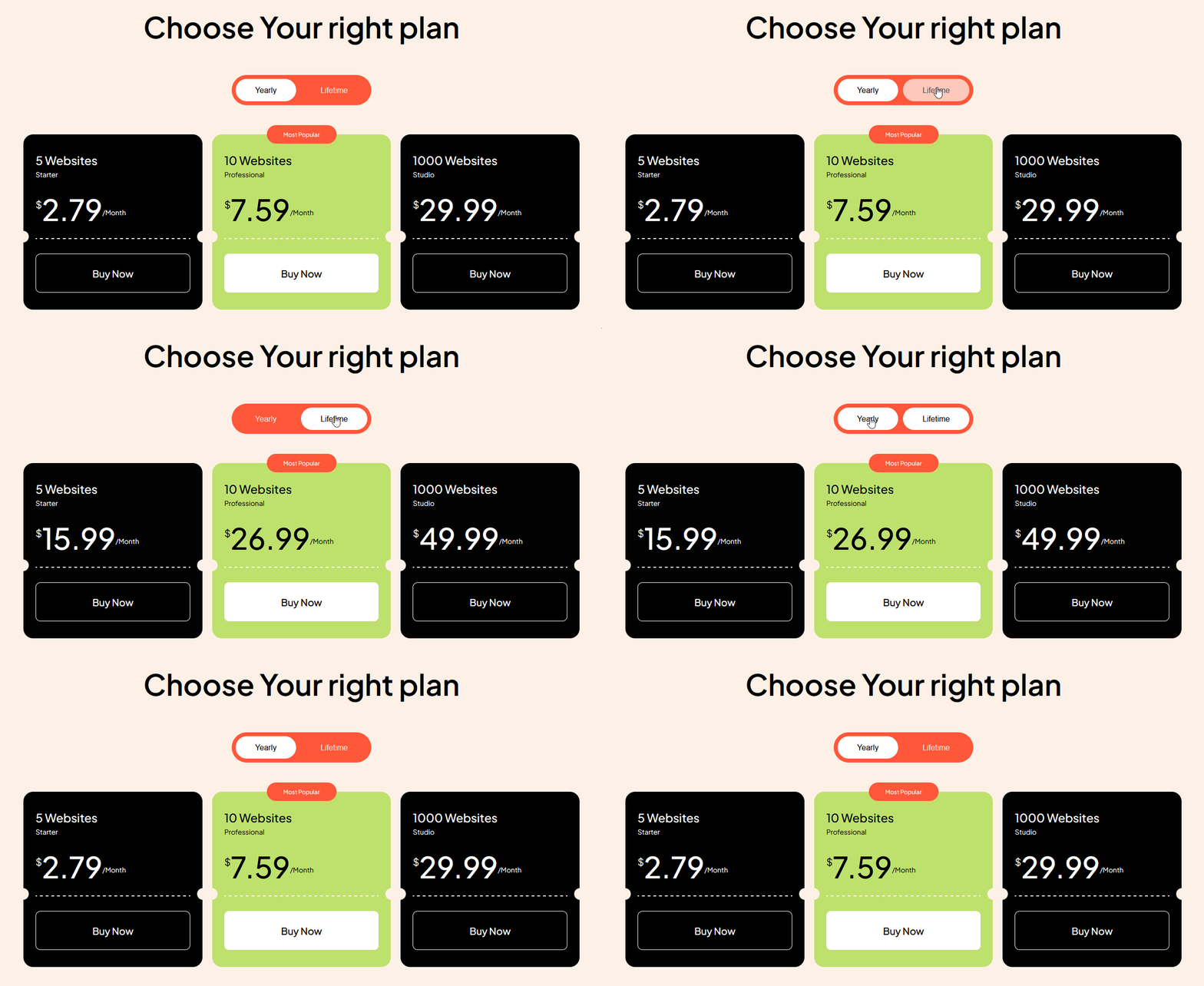
Each switch shows only its own Select Items repeater, flipping the switch swaps which repeater is visible. Setting the same value in Connection ID on both this widget and a Toggle Pricing Features Table widget makes their switches move together.
7. How to Use It
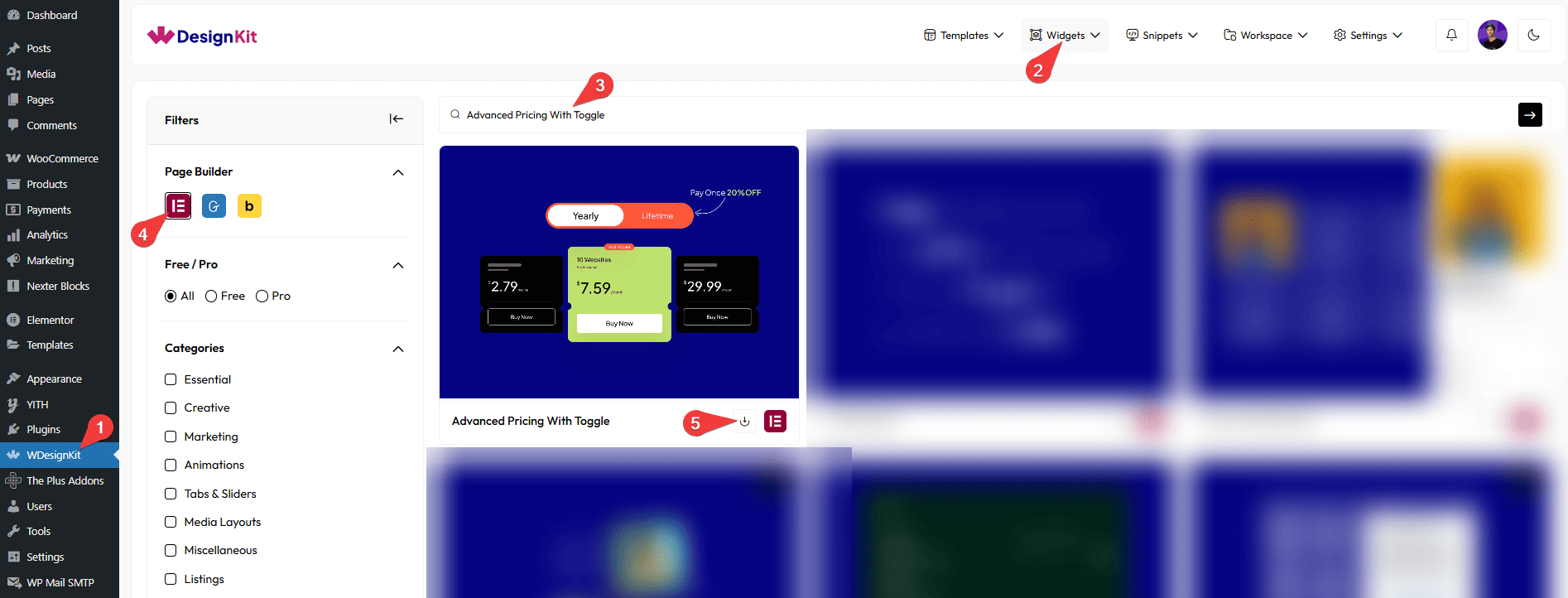
- Activate the Advanced Pricing With Toggle widget from WDesignKit’s Ready Widgets.
- Drag the widget onto the page and fill in the Switch 1 repeater with your first set of plans.
- Fill in the Switch 2 repeater the same way for the second set of plans.
- To connect it to a Toggle Pricing Features Table widget, add the same Connection ID to both widgets’ Connection tabs.
- Preview the page, flipping the switch on either widget now flips both.
8. Use Cases
- A pricing section that swaps between two full plan tiers, for example Starter versus Pro, on one switch
- A connected pair of pricing widgets that toggle together across a page
9. Limitations
- The Connection ID sync only works with the Toggle Pricing Features Table widget, not with other WDesignKit widgets.
- Each Select Items repeater renders as a fixed grid, item count changes the layout width rather than adding a scroll.
10. Troubleshooting
- Switching one widget does not switch the other: confirm the exact same Connection ID value is set on both widgets’ Connection tabs.
- Offer badge or discount not showing: enable Display Offer or Display Discount on that specific item first, both are per-item toggles, not global.
- Tooltip not appearing on the second switcher: Tooltip only applies to Switch 2 and only shows once Tooltip Title has content.