
How to Manage Licence in WDesignKit?
On this page
WDesignKit works on a credit system; these credits are required to create templates, widgets, and a workspace in WDesignKit.
What It Does
Manage Licence is the screen inside WDesignKit where you track your credit balance and activate license keys for WDesignKit, The Plus Addons for Elementor, Nexter Blocks, and UiChemy.
Why It Matters
WDesignKit runs on a credit system. Every template, widget, and workspace you create draws from your credit balance, and the free plan caps how many you can keep active. Activating a product licence in Manage Licence adds credits, removes those limits, and upgrades your account to PRO.
What You Get
- A live view of your available credits and how many templates, widgets, and workspaces you’ve used
- A dropdown to activate a licence key for any of the four POSIMYTH products from one screen
- An Existing Licence Keys list where every activated key, its status, and its credits are visible and removable
Benefits
Credits from every activated licence pool into one balance, so a Nexter Blocks Pro key and a WDesignKit key stack instead of competing. Activating The Plus Addons for Elementor or Nexter Blocks unlocks the PRO templates tied to that specific plugin, and activating UiChemy Pro specifically unlocks the Pro Figma template library on top of its own credits.
Capabilities
Credits required per asset:
- Template: 2 credits each
- Widget: 5 credits each
- Workspace: 10 credits each
Free-plan usage limits: 140 templates, 20 widgets, 2 workspaces. Credits added per activated licence: WDesignKit 1000, The Plus Addons for Elementor 100, Nexter Blocks 100, UiChemy 100 (plus access to Pro Figma templates). Activating WDesignKit together with The Plus Addons for Elementor and Nexter Blocks bundles your plan into WDesignKit and adds a further 200 credits.
How It Works
Credits deduct the moment a template, widget, or workspace is created, not when it’s used afterward. Once your balance hits zero and you try to create another asset, WDesignKit doesn’t block the action outright, it automatically deactivates your oldest asset of that type (by creation date) to make room. Deactivated assets aren’t deleted; you can reactivate them by buying more credits or freeing space by deleting other assets.
How to Use It
To check your credits from the WordPress Dashboard, go to WDesignKit > Settings > Manage Licence.
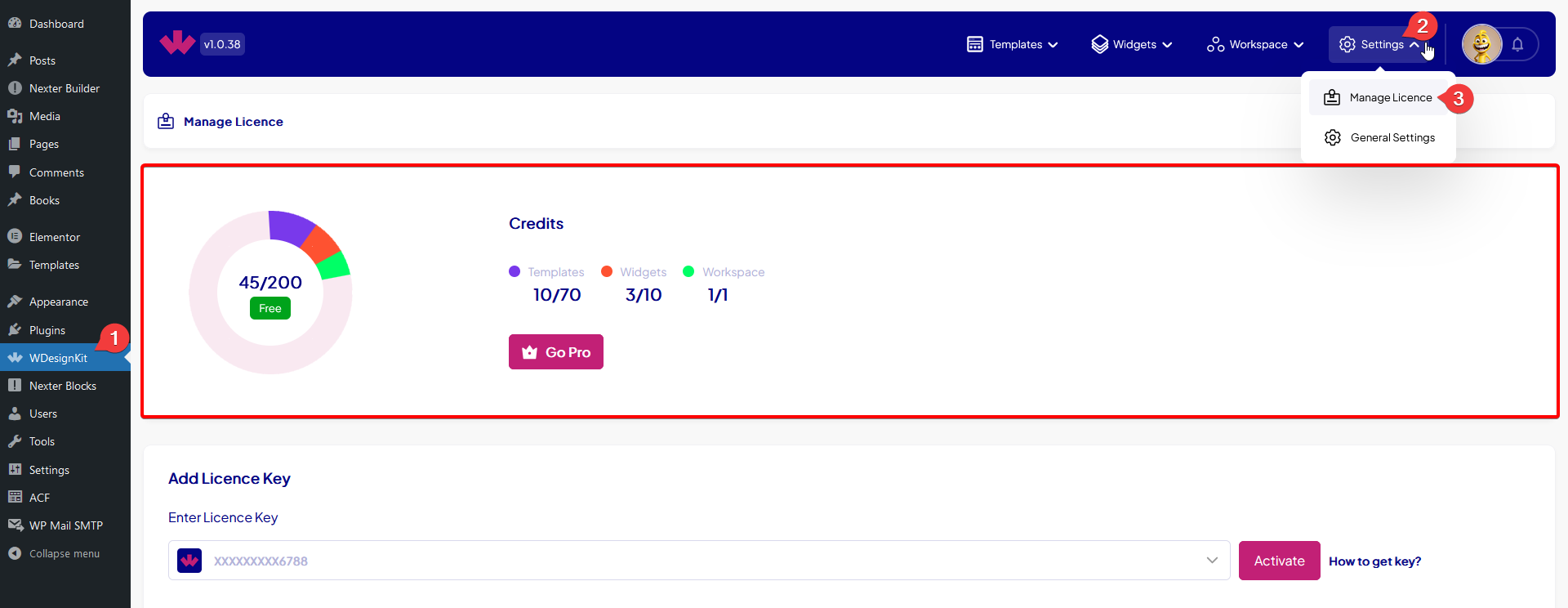
You can reach the same screen from the WDesignKit app: go to the Activate menu under Manage Licence.
To add a licence key, select the product from the Enter Licence Key dropdown, paste your key, then click Activate.
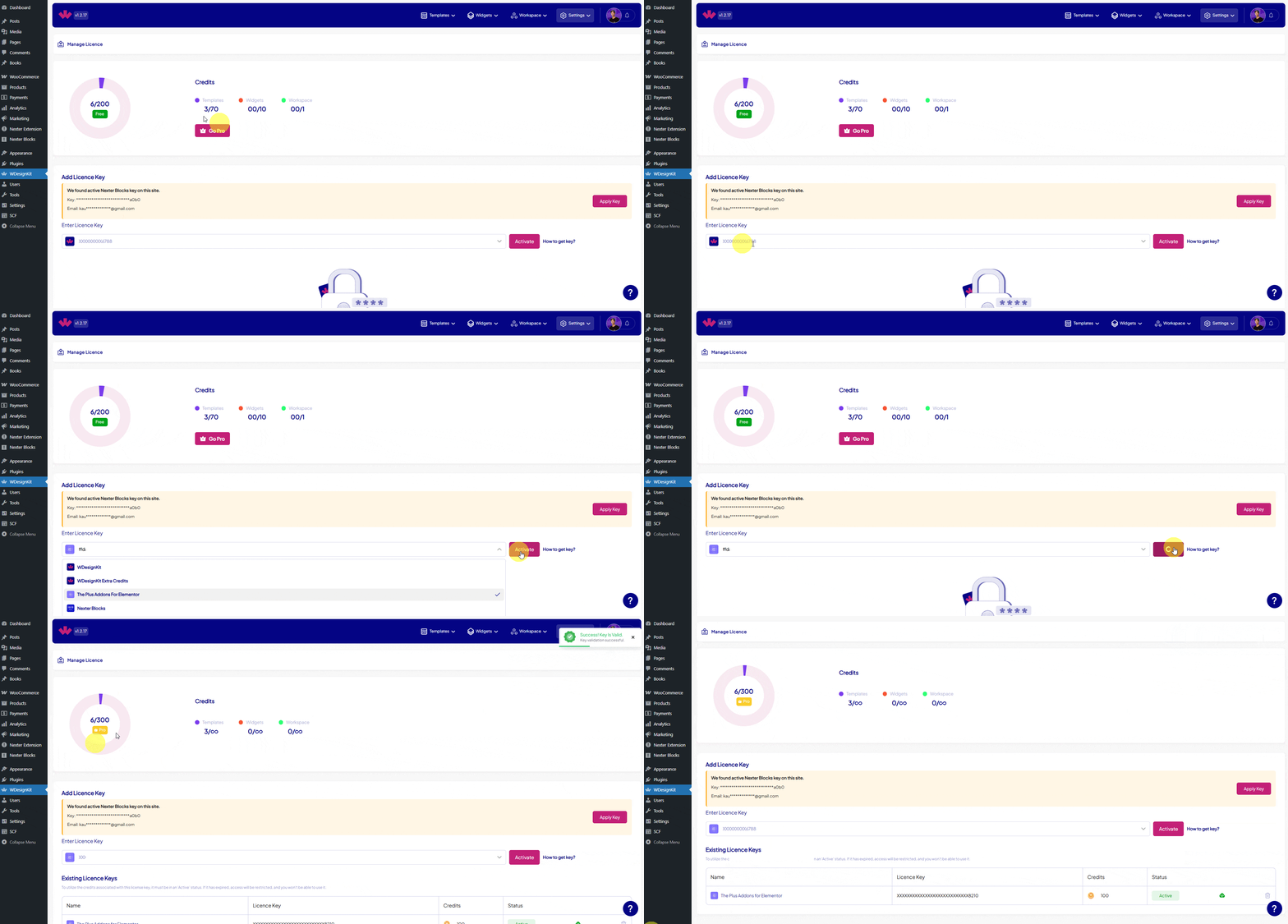
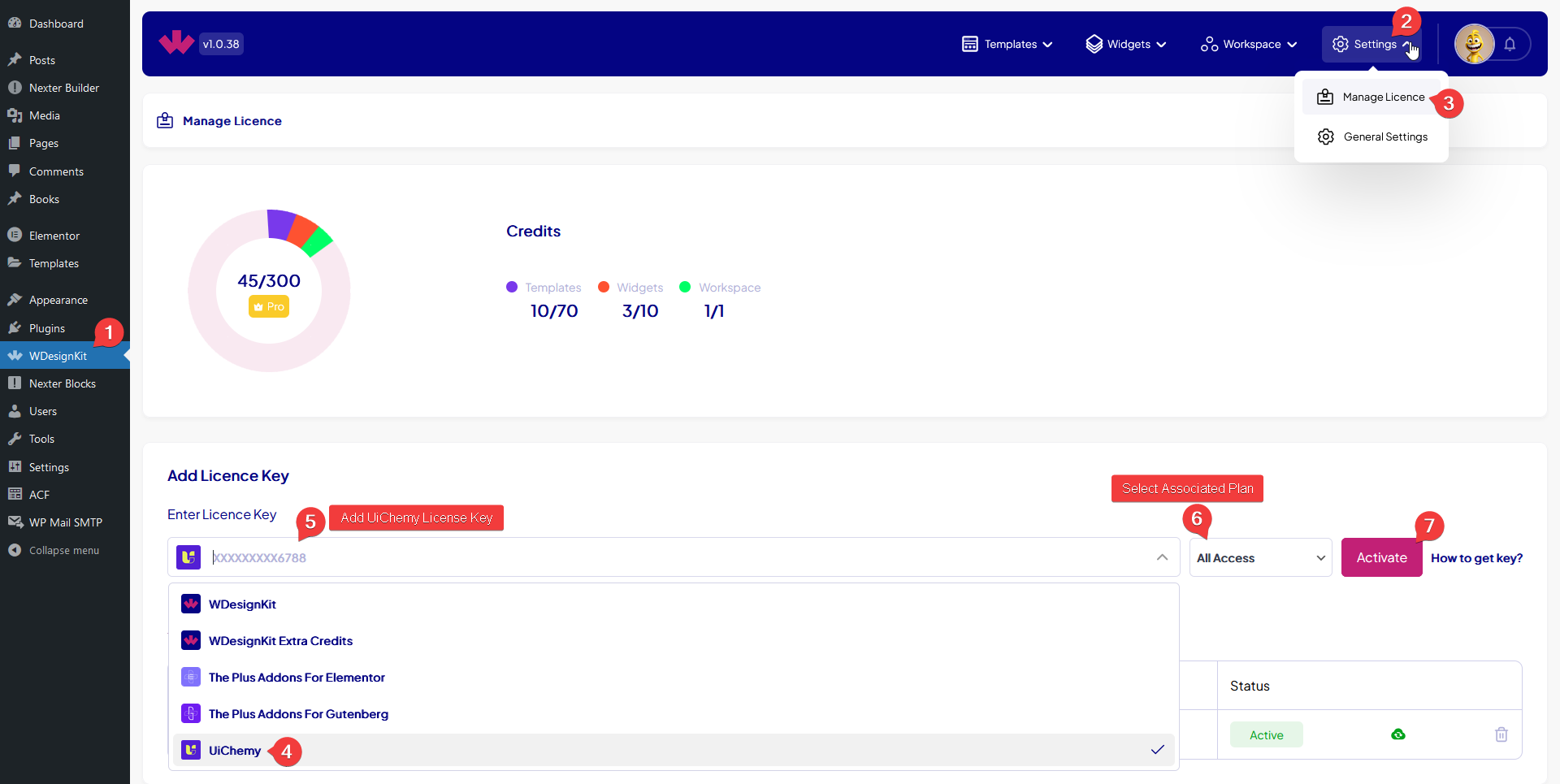
The added credits appear immediately, and the key shows up in Existing Licence Keys with its status and credits. You can remove any key individually with its delete icon. To access Pro Figma templates specifically, select UiChemy from the dropdown, enter the UiChemy Pro key and plan, and click Activate.
Use Cases
- A freelancer on the free plan checking their remaining credits before starting a new template
- An agency activating both The Plus Addons for Elementor and Nexter Blocks keys to unlock PRO templates for both plugins from one account
- A designer activating a UiChemy Pro key specifically to unlock the Pro Figma template library
Limitations
- Free-plan limits (140 templates, 20 widgets, 2 workspaces) apply even before credits run out, a licence key is required to remove them, not just more credits
- Only a UiChemy Pro key unlocks the Pro Figma template library; The Plus Addons for Elementor and Nexter Blocks keys do not
- When credits run out, WDesignKit auto-deactivates your oldest asset rather than letting you choose which one to deactivate
- Removing a licence key removes the credits and access it granted; assets created using those credits can be deactivated as a result
Troubleshooting
- Licence key won’t activate: re-copy the key directly from your POSIMYTH Store account dashboard, watching for extra spaces, and confirm the correct product is selected in the dropdown before activating, a mismatched product is the most common cause.
- Activation shows an “Error message Not Found”: this usually means the wrong product was selected for that key, or a security plugin/firewall on your site is blocking the outbound licence check, whitelist the request and retry.
- Credits didn’t increase after activation: confirm you entered the correct key variant (a Pro key grants credits; a free-tier account key does not), then refresh the Manage Licence page, the balance doesn’t always update without a reload.