
How to Delete a Workspace?
On this page
What It Does
Deleting a workspace permanently removes that cloud workspace from your WDesignKit account, from both the WDesignKit web app and the WordPress plugin.
Why It Matters
Test workspaces, one-off client spaces, and duplicate names pile up over time. Removing the ones you no longer need keeps your workspace list short enough that you and your team can find the right one at a glance, and avoids accidentally editing or sharing from the wrong workspace.
What You Get
A single confirmation-gated action, available from either the WDesignKit web app or the WordPress plugin, that removes an unwanted workspace from your account without deleting the templates, widgets, or code snippets that were stored inside it.
Benefits
- Keeps the workspace switcher clean so your team opens the right workspace the first time.
- Reduces the chance of a client or teammate being invited to a stale, no-longer-relevant workspace.
- The templates, widgets, and code snippets that were stored in the workspace are not deleted with it, so nothing is lost by cleaning up the workspace itself.
Capabilities
- Delete from the WDesignKit web app’s Workspace page, or from the WordPress plugin’s Workspace page , both point at the same cloud workspace.
- A confirmation popup (Yes/No) stands between you and the deletion, so a stray click cannot remove a workspace by accident.
- Only the workspace container is removed. The cloud templates, widgets, and code snippets that were inside it survive and remain in your account.
- You cannot delete a workspace that someone else shared with you , only the owner can delete it.
How It Works
Confirming the deletion calls WDesignKit’s cloud workspace-delete endpoint for that workspace ID. The cloud marks the workspace container as removed and takes it out of your (and any collaborators’) workspace list; the templates, widgets, and code snippets that were grouped inside it stay in your account, just no longer grouped under that workspace.
How to Use It
If you want to delete your workspace, you can easily do that from the WDesignKit app and plugin.
To do so, log in to your WDesignKit app account and then go to Workspace.
Go to the workspace you want to delete, click on the three dots, and then click Delete. Then click on the Yes button in the confirmation popup and your workspace will be deleted.
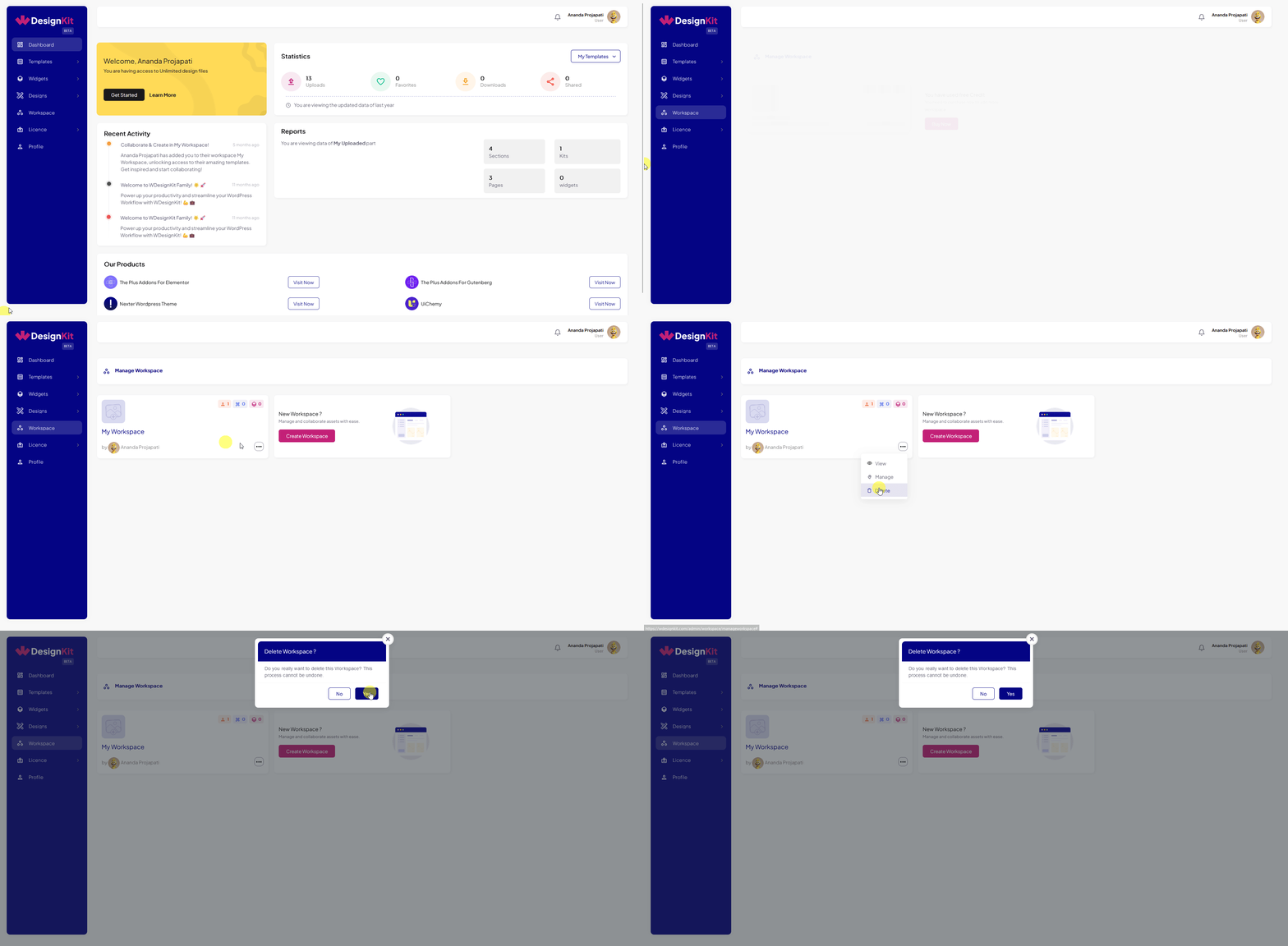
You can do the same from the Workspace page of the WDesignKit plugin.
Note: You can’t delete a workspace that is shared with you.
Use Cases
- Removing a workspace you created only to test Workspace before rolling it out to your real team.
- Cleaning up a client workspace once a project has wrapped up and access is no longer needed.
- Correcting an accidental duplicate workspace created by a typo in the name.
Limitations
- Deletion is permanent for the workspace container itself , there is no undo or trash for a deleted workspace.
- A workspace shared with you by someone else cannot be deleted from your account; only its owner can delete it.
- This session’s WDesignKit connector was not logged in to a cloud account, so the exact confirmation-popup wording could not be re-captured live; the steps below reflect the plugin’s existing documented flow and were not re-verified against the current screen this session.
Troubleshooting
- Delete option is missing from the three-dot menu. Only the workspace owner sees Delete; if you were invited to the workspace, ask the owner to remove it instead.
- Deleted a workspace by mistake. There is no restore option for the workspace container. Recreate the workspace with Create Workspace and re-add the templates, widgets, or snippets you need , they were not deleted with the workspace itself.
- Workspace still visible to invited members after deletion. This is workflow-derived guidance, not sourced from a specific support ticket this session: ask members to refresh the WDesignKit app or plugin page, since a cached workspace list can take a moment to update.