
Book Shelf 3D Widget for Elementor
On this page
What It Does
The Book Shelf 3D widget displays content in a visually engaging 3D bookshelf layout. Content sits inside pages, and when a visitor clicks a book, it opens to reveal the full content, creating an interactive, realistic browsing experience.
See it working on a live page before adding it to your own site:
Why It Matters
Plain text sections and flat cards are easy to skim past. A clickable, realistic 3D book format gives visitors a reason to interact with content instead of scrolling past it, improving engagement on documentation, portfolio and content-heavy pages.
What You Get
- A repeater-based bookshelf, 4 books by default and expandable
- Per-book title, author, back-cover description and multi-page content
- A customizable shelf background image
- Preview behavior toggles that control how far a click opens each book
Benefits
- A realistic, interactive book-opening effect with no custom animation code
- Multiple pages per book via a simple content separator, no page builder templates needed per page
- Full color control over covers, text and shelf background
Capabilities
- Books repeater: Book Name, Author Name, Back Side Description, and Content (page text) per book
- Multi-page content: separate multiple pages within one book using
&&&between page text - Cover and page colors: background, author name color and book name color per book, plus separate front-cover and back-cover content colors
- Shelf Background: a Select Image field for the background the books sit on
- Extra Options: Hide Author & Book Name, Book Preview (click-through stages), Book Back Side Preview, and Hide Shelf Background toggles
- Style tab: further visual customization of the shelf background
How It Works
Each repeater item renders as a 3D book on the shelf. With Book Preview enabled, the first click reveals the front page, the second click shows the inner pages (split by the &&& separator), and the third click closes the book. With Book Back Side Preview enabled, the back cover and its description also become viewable. The shelf itself sits on the image set in Shelf Background, which can be hidden entirely if you only want the books.
How to Use It
Required Setup
- Elementor FREE Plugin installed & activated.
- You need to have the WDesignKit plugin installed and activated.
- Make sure you’ve created an account and logged into it.
- This is a pro widget. A valid WDesignKit Pro license is required to access and use them.
- Make sure you’ve downloaded the Book Shelf 3D widget.
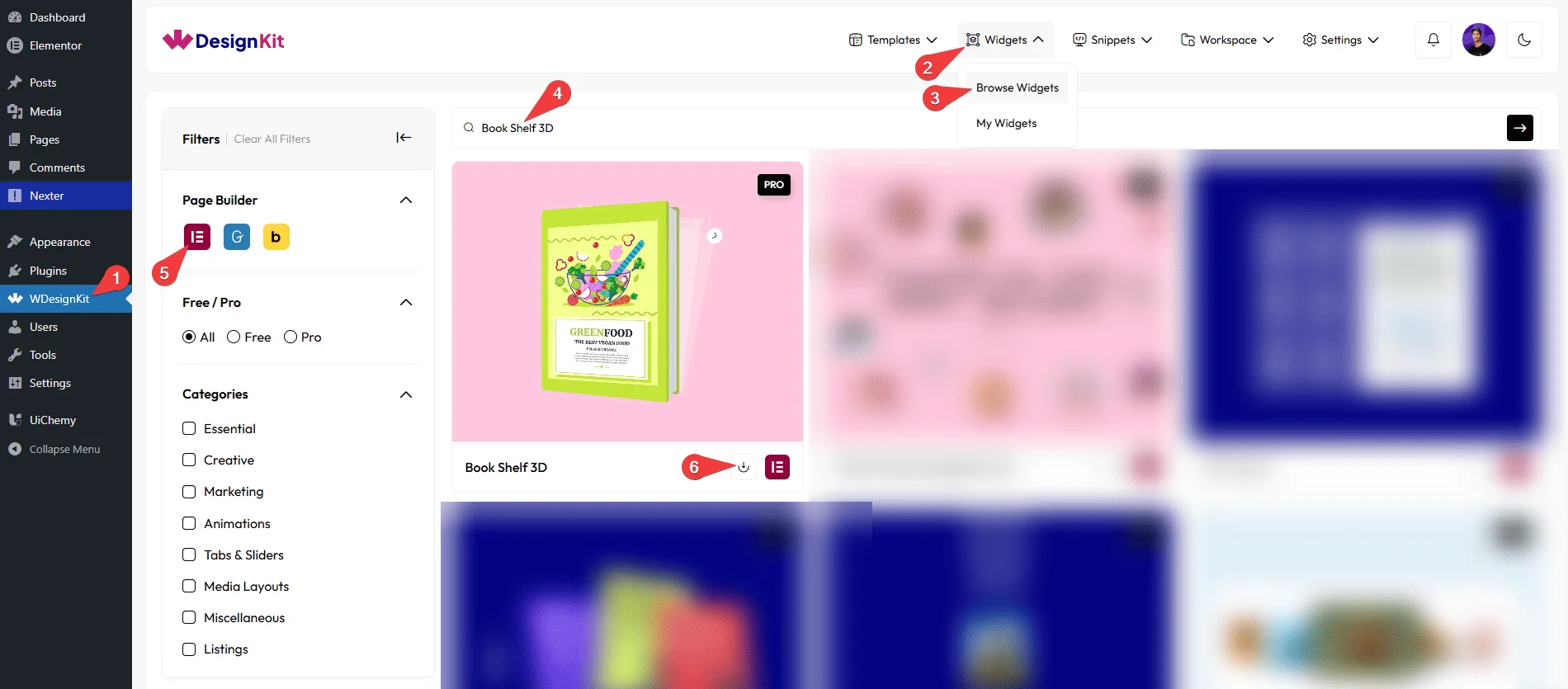
How to Activate the Book Shelf 3D Widget
Go to
- WDesignKit →Widgets → Browse Widgets.
- Search the widget name and select Elementor as the Page Builder.
- Click on the Download icon.
Using the Widget in Elementor
Add the Book Shelf 3D widget to the page.
Books
Once you add the widget, by default, you’ll find four repeater items; open one.
In the Book Name section, you can add the title of the book.
In the Author Name section, you can add the name of the book’s author.
In the Back Side Description section, you can add a short description that will be partially visible on the back surface of the book in a 3D view.
In the Content section, you can add the page content of the book.
Note: You can add multiple pages by separating the content with &&&. For example: Page 1 Content &&& Page 2 Content.
Then, you can manage the background, author name color, and book name color of the book.
You can manage the background color of the front cover content.
You can manage the background color and text color of the back cover content.
Then you can click on the + Add Item button to add more books.
Shelf Background
From the Select Image section, you can add the shelf background image.
Extra Options
By enabling the Hide Author & Book Name toggle, you can hide the author name and book title from the front page of the book. This is useful for creating clean or anonymous covers.
By enabling the Book Preview toggle, you can enable this option so that on the first click, the front page is shown, on the second click, the inner pages are displayed, and on the third click, the book is closed.
By enabling the Book Back Side Preview toggle, you will be able to view the back side of the book.
By enabling the Hide Shelf Background toggle, you can hide the shelf background.
Then, from the Style tab, you can further customize the style of the Shelf Background.
Use Cases
Use this widget when you want to present content in an interactive and visually appealing 3D bookshelf format that feels realistic and engaging.
Best For
- Digital Books & eBooks: Showcase digital books, manuals, or guides where users can click a book and read its content page by page.
- Documentation & Knowledge Bases: Display product documentation, tutorials, or help guides in an organized book-style layout for better readability.
- Portfolios & Case Studies: Present case studies, portfolios, or project details as individual books to create a premium and creative browsing experience.
- Educational Websites: Perfect for courses, lessons, or study materials where each book represents a topic or module.
- Marketing & Product Pages: Highlight product stories, brand journeys, or feature explanations in an interactive book format that captures attention.
- Content-Rich Websites: Ideal for blogs, magazines, or editorial websites that want to display long-form content in a clean and engaging way.
- Interactive Storytelling: Use it to tell stories, showcase brand narratives, or present content creatively instead of plain text sections.
- User Engagement Enhancement: Encourage users to interact by clicking, opening, and browsing through books, making content exploration more enjoyable.
- Design-Focused Websites: Best suited for websites that want a unique, modern, and visually rich content presentation instead of standard layouts.
Limitations
- This is a Pro widget: requires a valid WDesignKit Pro license and must be individually downloaded before use.
- Multi-page content depends on the exact
&&&separator; a typo in the separator merges pages instead of splitting them. - The widget carries a runtime dependency (registered as a
wdkit/wb-*block/widget) that must be present on any site the layout is copied to; pasting content between sites without WDesignKit active on the destination breaks the effect.
Troubleshooting
No FluentSupport tickets specific to this widget were found at the time of writing; the items below are workflow-derived, not ticket-sourced.
- Pages not splitting correctly: confirm the Content field uses the exact
&&&separator with no extra spaces or typos between pages. - Back cover not visible: enable the Book Back Side Preview toggle under Extra Options; it is off by default.
- “Your site doesn’t include support for the ‘wdkit/wb-…’ block” error: this happens when content using this widget is copied to a site where WDesignKit (and the specific downloaded widget) isn’t installed/active. Install and activate WDesignKit and re-download the Book Shelf 3D widget on the destination site before pasting the content.