
How to Favourite an Elementor Widget or Gutenberg Block?
On this page
Favouriting lets you mark any widget or block you have already uploaded to the WDesignKit cloud server, from the WordPress plugin page or the WDesignKit web app, so it shows up in a dedicated Favourite list for one-click access later.
1. What It Does
Favouriting flags an uploaded widget or block so it appears separately in a Favourite list, instead of mixed in with every other item on your My Widgets screen.
2. Why It Matters
Once a library grows past a handful of custom widgets, finding the one you built for a specific client or project means scrolling through every uploaded item. Favouriting removes that search step.
3. What You Get
A heart icon on every uploaded widget or block in My Widgets, plus a separate Favourite tab that lists only the items you have marked, kept in sync between the plugin’s wp-admin screen and the WDesignKit web app.
4. Benefits
Faster reuse across projects since your most-used widgets sit in one filtered list, with no separate naming or tagging system to maintain.
5. Capabilities
- Favourite or unfavourite any widget or block already uploaded to the cloud server
- Toggle from the plugin’s My Widgets screen (heart icon) or the WDesignKit web app (three-dot menu, Add Favourite)
- Dedicated Favourite tab/link that filters to just the marked items
- Works the same way for both Elementor widgets and Gutenberg blocks
6. How It Works
WDesignKit stores a favourite flag on the widget’s cloud record, the same record created when you export or upload it to the server. Clicking the heart toggles that flag through the cloud API, so it is unaffected by anything happening in the widget’s local PHP, CSS or JS files.
7. How to Use It
- If the widget or block is not uploaded to the server yet, upload it first.
- From the WDesignKit plugin page, go to the My Widgets page.
- Find the widget or block, click the heart icon to add it to your favourites.
- Click the Favourite link at the top to see only your favourited items.
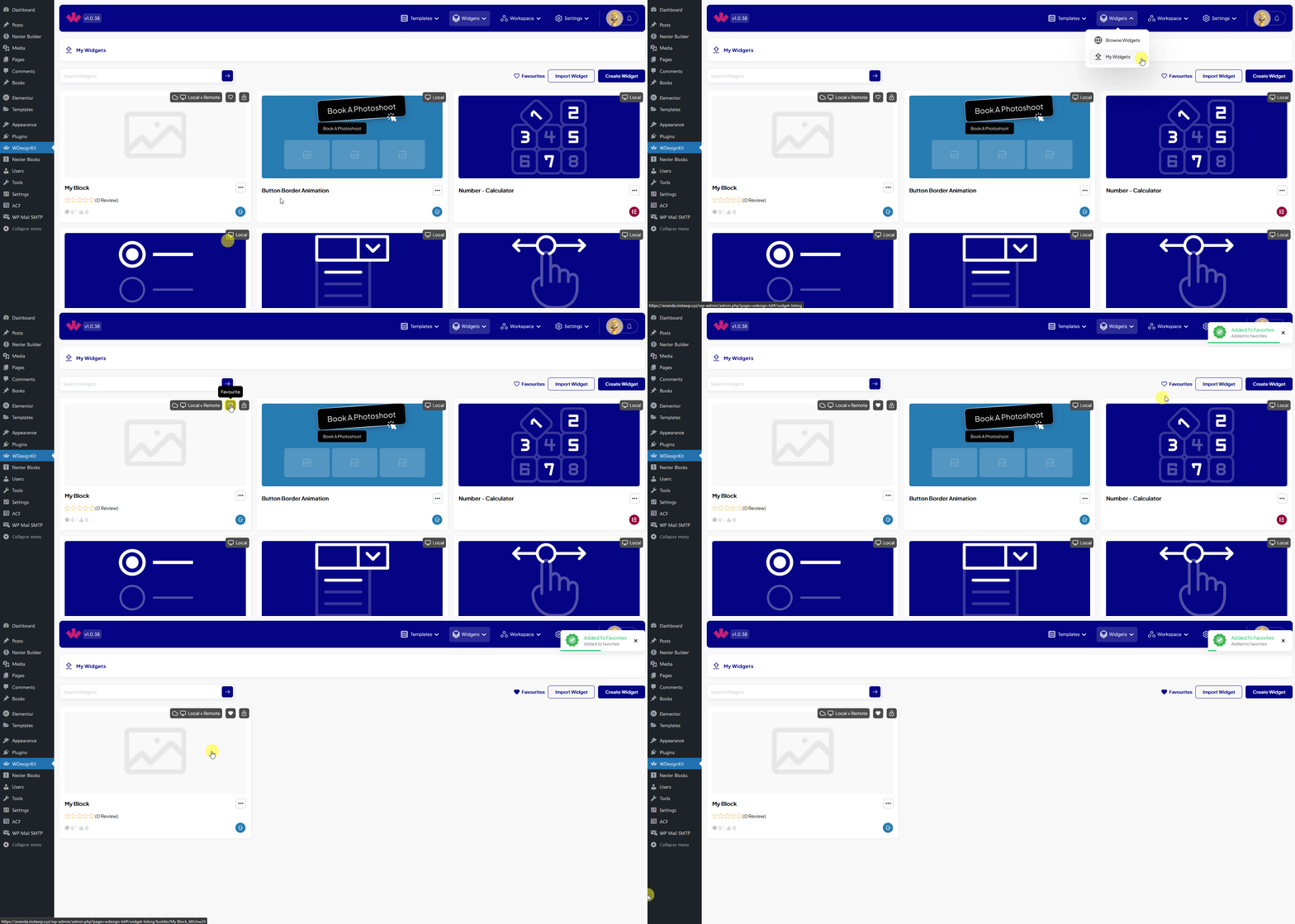
The same toggle is available from the WDesignKit web app.
- Go to Widgets › Uploaded in the WDesignKit app.
- Click the heart icon, or open the three-dot menu and choose Add Favourite.
- Open the Favourite tab to see the filtered list.
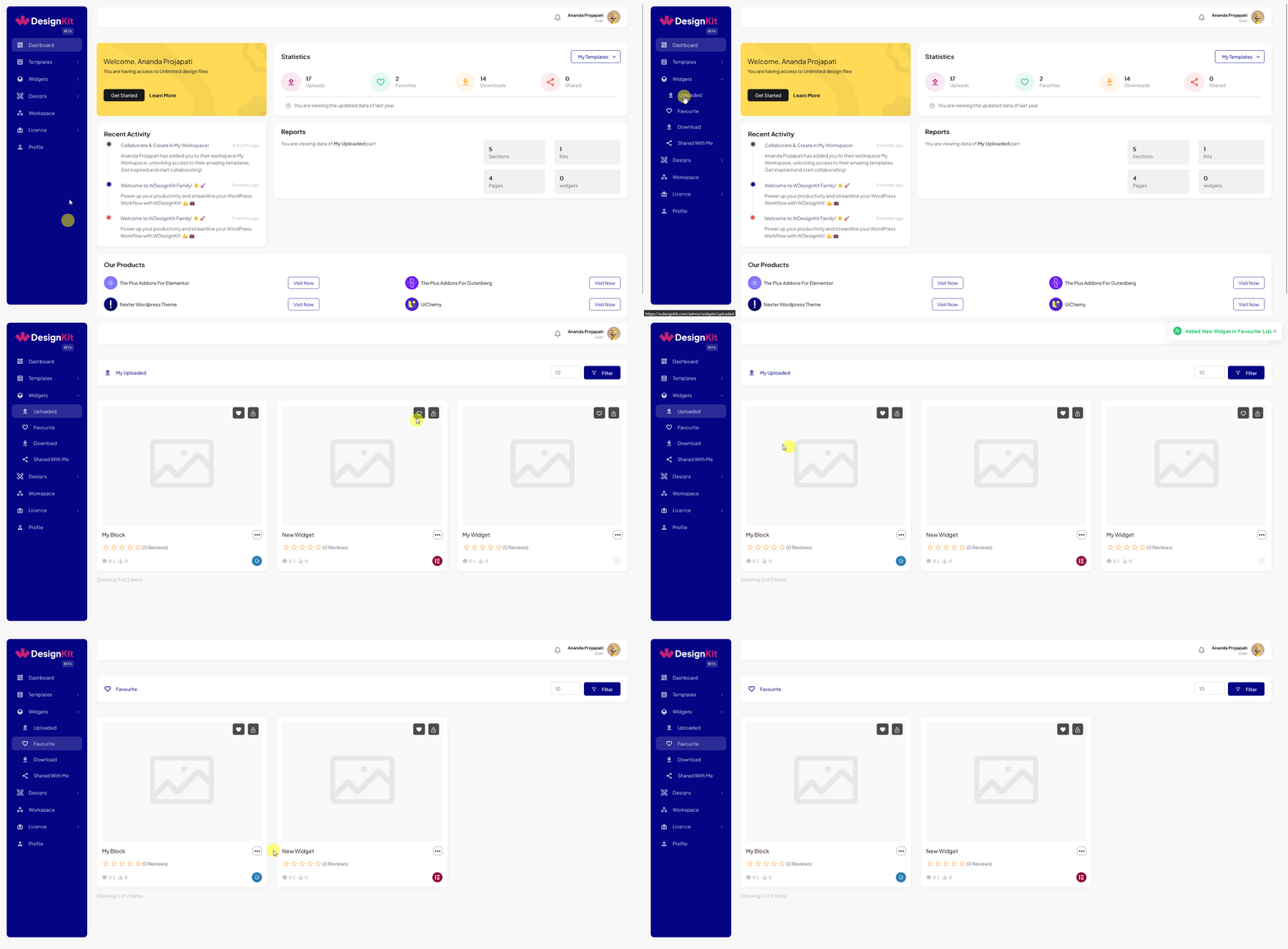
8. Use Cases
- An agency maintaining dozens of client widgets favourites the handful it reuses on every new build.
- A developer favourites a widget still in progress so it stays one click away while iterating, instead of scrolling to find it.
9. Limitations
- Only widgets or blocks already uploaded to the cloud server can be favourited; a purely local widget that has never been exported has no heart icon since it has no cloud record yet.
- Favourites are tied to your WDesignKit account, not to a specific site, so they will not automatically appear for a teammate logged in with a different account on the same site.
10. Troubleshooting
- No heart icon showing on a widget: it has not been uploaded to the server yet, upload it first.
- Favourited item is not showing in the Favourite tab right away: refresh the My Widgets page, the cloud flag can take a moment to sync.
- Favourites disappeared after reinstalling WDesignKit: favourites live on your cloud account, log back in with the same account to see them again.