
How to Export Templates From Your Elementor Site to Cloud?
On this page
What It Does
WDesignKit lets you export any Elementor section or full page as a reusable template on the WDesignKit cloud, so it’s available from any site you manage, not just the one it was built on.
Update (September 2026): screenshots below are live-verified against the current plugin (real logged-in WDesignKit.com session). One real flow change found: the page-level save option is no longer a dropdown arrow next to Publish; it now lives under Elementor’s own panel footer “…” (more options) menu at the bottom of the left panel, as “Save Page in WDesignKit.” The section/container-level right-click option (“Save in WDesignKit”) is unchanged in location.
Requirement: This feature is part of WDesignKit. Make sure it’s installed and activated.
Why It Matters
Rebuilding the same section or page layout on every new client site wastes time. Exporting a finished section or page to the cloud turns it into a template you (or your team) can pull into any site later: no copy-pasting Elementor JSON, no rebuilding from scratch.
What You Get
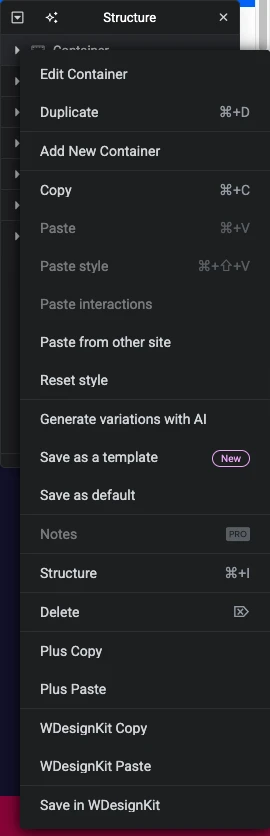
- A Save in WDesignKit option directly in Elementor’s right-click context menu (Container/Section/Inner Section level)
- A Save Page in WdesignKit option next to the Publish/Update button for whole-page export
- Workspace and category organization for exported templates
- Plugin-dependency tagging so anyone downloading your template knows what else they need installed
Benefits
- Reuse a finished section or page across every site you manage, without rebuilding it
- Keep templates organized by workspace and category as your library grows
- Templates start private, so nothing is public until you choose to share it
Capabilities
| Field | Purpose |
|---|---|
| New Template / Update Existing toggle | Choose whether this export creates a new cloud template or overwrites one you already saved |
| Template Name | Name shown for the template in your WDesignKit library |
| Template Type | Section or Page Template, auto-set based on whether you exported a section or the whole page |
| Select Workspace | Which workspace the template is saved into; you can add a new workspace inline |
| Category | Categorizes the template inside your library |
| Plugin Used | Tags the plugins required to use the template, shown to anyone who downloads it later |
Required Setup
- WDesignKit plugin installed and activated
- Elementor active, editing a page or post
- An account on the WDesignKit website, logged in separately from the WordPress plugin login
How to Use It
Save and Export a Section
- Right-click the Container (Flexbox), Section, or Inner Section you want to save, and choose Save in WDesignKit.
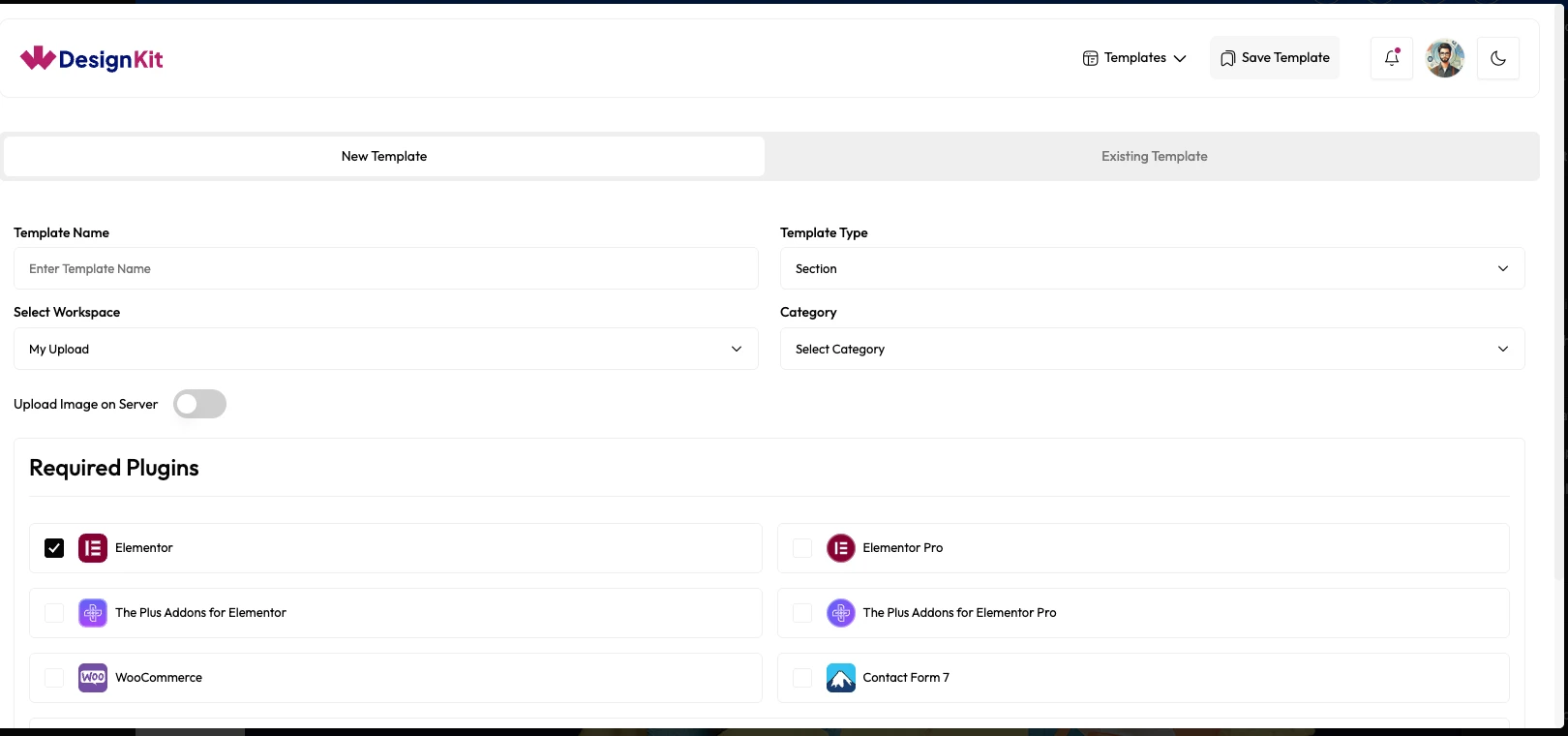
- In the popup, keep the toggle on New Template (or switch it to update an existing one).
- Enter a Template Name.
- Choose Template Type: defaults to Section, but can be changed.
- Pick a Select Workspace (or add a new one via +Add New Workspace).
- Choose a Category.
- Select the relevant plugins under Plugin Used.
- Click Save Template. The template saves to the server as private, and the popup redirects you to the selected workspace where you’ll find it.
Save and Export a Full Page
- Click the arrow beside the Update/Publish button and choose Save Page in WdesignKit.
- In the popup, click Save Template, then choose New Template or update an existing one.
- Fill in the same fields as above; Template Type defaults to Page Template this time.
- Click Save Template. The page saves to the server as private and the popup redirects you to the selected workspace.
This opens the same Save Template popup shown above, with Template Type pre-set to Page Template instead of Section.
Use Cases
- Turning a finished hero section into a reusable template for future client builds
- Archiving a whole landing page design to redeploy on a different site
- Building a private template library organized by workspace for a design team
- Tagging plugin dependencies so teammates know what to install before using a shared template
Limitations
- Requires a separate WDesignKit.com account login from the WordPress plugin login; they are not automatically the same session.
- Exported templates are Elementor-only in this flow; other builders use their own save/export paths.
- Templates save as private by default; making one public for the marketplace is a separate step outside this export flow.
Troubleshooting
No FluentSupport tickets specifically about exporting Elementor templates to the WDesignKit cloud were found at the time of writing.
- “Save in WDesignKit” option missing from the right-click menu: confirm WDesignKit is active and you’re inside the Elementor editor (not Preview mode), and that you right-clicked a Container/Section/Inner Section, not a widget.
- Save Template button does nothing: confirm you’re logged into your WDesignKit.com account; the plugin login and the website login are separate sessions.
- Template doesn’t show up in the expected workspace: double-check which workspace was selected in the save popup before clicking Save Template.