
How to Import and Export Elementor Widget or Gutenberg Block?
On this page
Importing and exporting Elementor widgets or Gutenberg blocks lets you move a widget between websites as a local ZIP file, without uploading it to the WDesignKit cloud marketplace.
What It Does
Export packages a local widget or block into a downloadable ZIP file. Import loads that ZIP back into another WordPress site’s WDesignKit library.
Why It Matters
Not every widget belongs on the cloud marketplace, client-specific branding, unfinished work, or an NDA’d project all need to move between sites without ever being uploaded to the server.
What You Get
A single ZIP file per widget or block containing its JSON config, PHP, CSS, JS and thumbnail, downloadable from My Widgets and re-importable on any other WordPress install running WDesignKit.
Benefits
Fully offline portability between sites with no cloud account or licence required for the transfer itself.
Capabilities
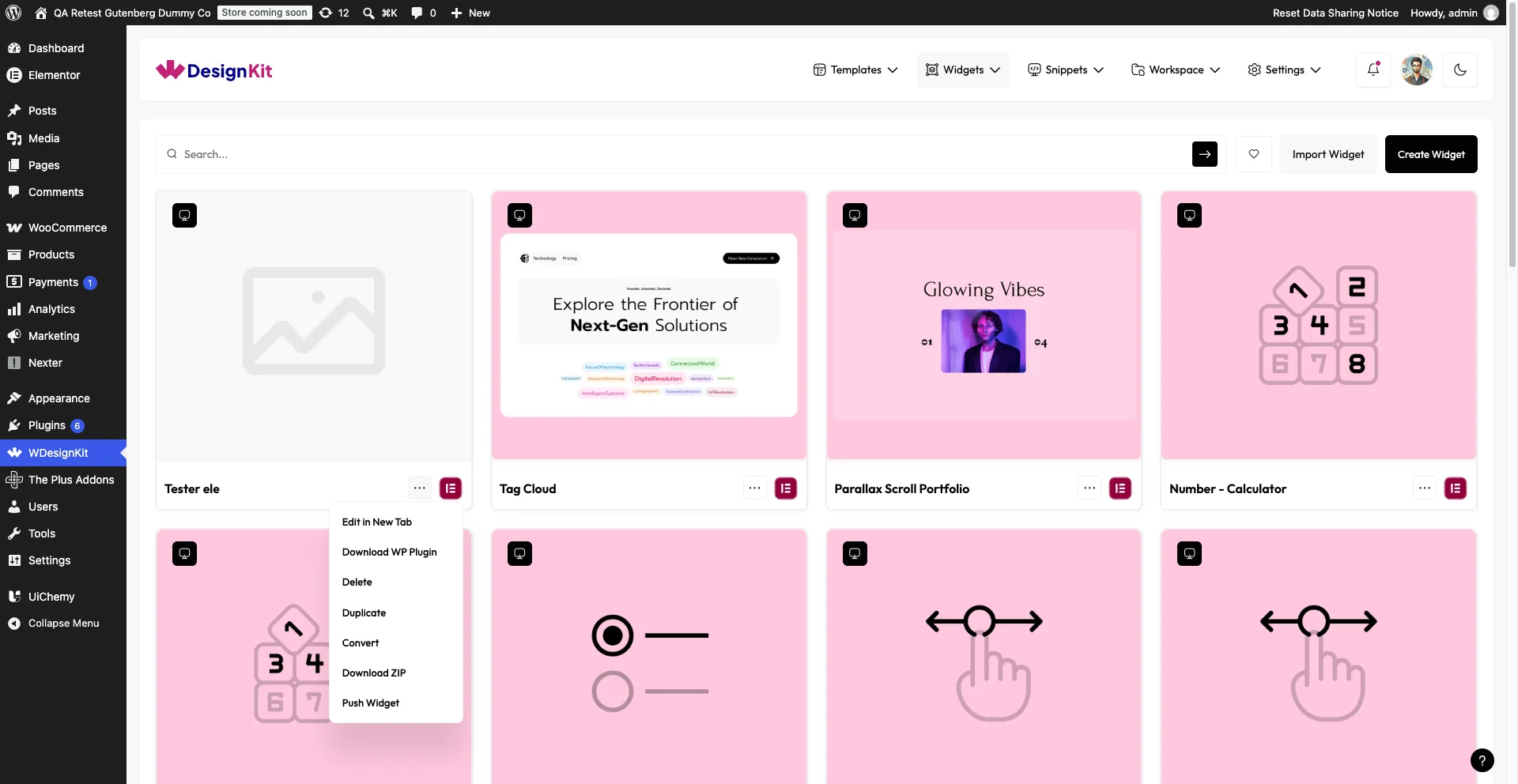
- Export any local widget or block to a ZIP from My Widgets › three-dot menu › Download ZIP
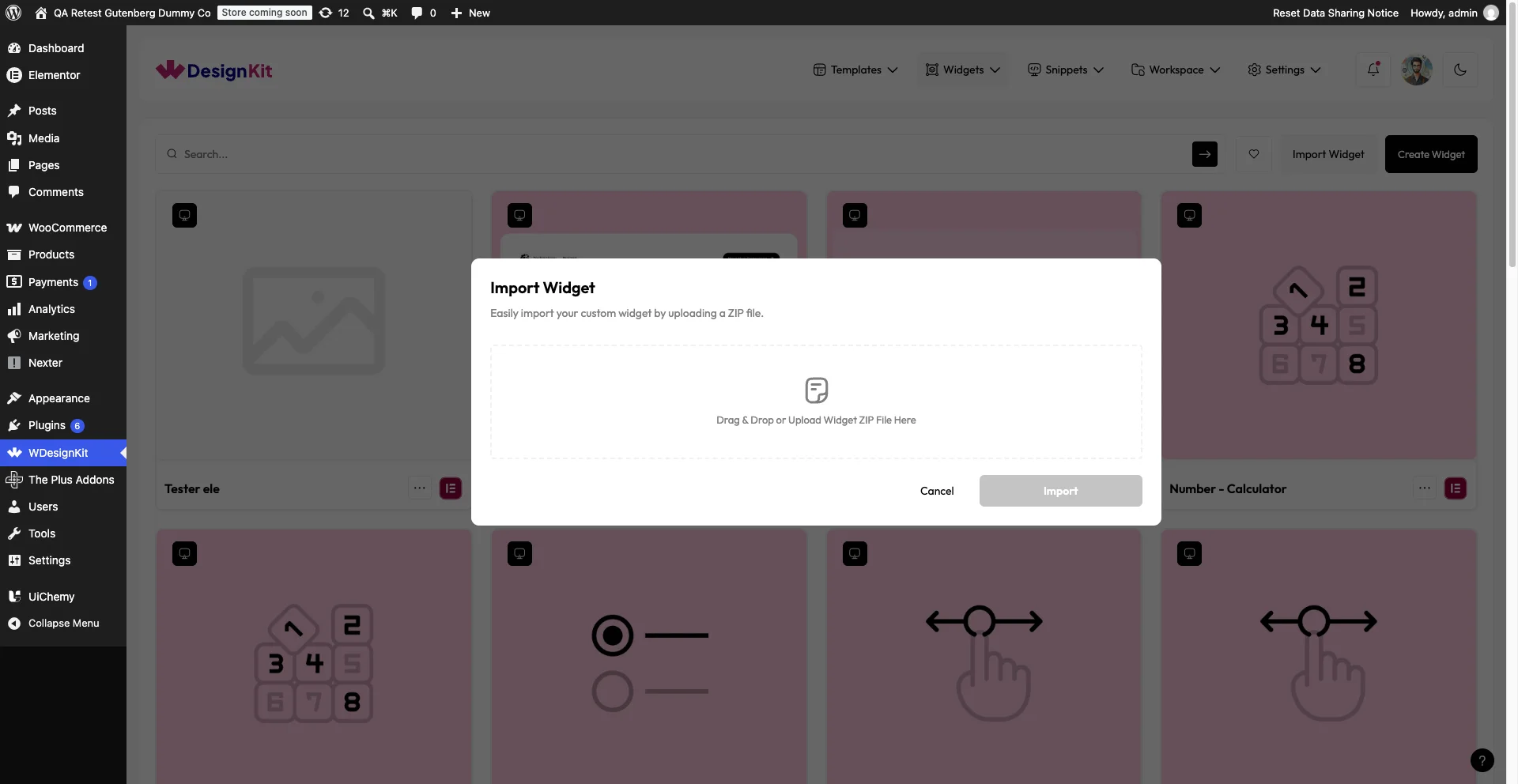
- Import a ZIP back into My Widgets from the Import Widget button
- Works for both Elementor widgets and Gutenberg blocks
- No cloud login required for either export or import
How It Works
Export serialises the widget’s folder, its JSON config plus PHP, CSS and JS files, into a ZIP on your computer. Import reads that same JSON structure back and recreates the widget folder in the target site’s local library. Because neither step touches the cloud, an imported widget starts as local-only until you separately push it to your account.
How to Use It
Export Widgets or Blocks
- From the WDesignKit plugin page, go to Widgets › My Widgets.
- Find the widget or block, click the three dots, then click Download ZIP.
- The ZIP downloads to your computer.
Import Widgets or Blocks
- From the WDesignKit plugin page, go to Widgets › My Widgets on the target site.
- Click Import Widget at the top.
- Select the downloaded ZIP file and click Import.
Use Cases
- Handing a custom-built widget to a freelancer working on a different install without publishing it anywhere public.
- Keeping a personal backup of a widget outside the cloud account in case it is accidentally deleted.
Limitations
- Import rejects a widget whose internal widget ID already exists on the target site, so importing the same widget twice onto one site will fail until the existing copy is removed or duplicated first.
- Exported ZIPs are not automatically versioned, re-exporting after edits overwrites the previous file, so keep your own version filenames if you need to import multiple revisions later.
Troubleshooting
- “Widget already exists” error on import: a widget with the same ID is already on the target site, duplicate or remove the existing copy first.
- Downloaded ZIP does not appear in the import file picker: check your browser’s default Downloads folder.
- Imported widget is missing its thumbnail: the ZIP does not always bundle it, set the thumbnail again locally after import.