
How to Access Elementor Templates in WDesignKit with The Plus Addons for Elementor Pro?
On this page
What It Does
WDesignKit gives you access to over 1,000 Elementor templates, both free and Pro. Pro Elementor templates specifically require The Plus Addons for Elementor Pro to be active on your site. This doc covers how to access and import them.
Why It Matters
WDesignKit is a server-based template library: new templates get added without bloating your install, but Pro templates are gated behind the plugin that provides their advanced widgets and controls. Without The Plus Addons for Elementor Pro active, Pro templates either can’t be imported correctly or will be missing elements.
What You Get
- Two ways to import a Pro Elementor template: directly from the Elementor editor, or from the WDesignKit plugin’s Templates library
- An automatic dependency check that shows which required plugins are missing before you import
- One-click Install All for the free plugins a template depends on
Capabilities
| Import path | Covers | Limitation |
|---|---|---|
| Elementor editor → WDesignKit icon → Templates | Sections and Full Page templates, filtered to Pro | Cannot import Page Kits from here |
| WDesignKit plugin → Templates (Public Library) | Sections, Full Pages, and full Page Kits, filtered to Pro | Page Kits show a per-template selection screen; Sections/Full Pages don’t |
Required Setup
- WDesignKit plugin installed and activated
- Elementor active
- The Plus Addons for Elementor Pro installed and activated (required for Pro Elementor templates specifically)
Note: Before downloading a Pro template, check its listed required plugins and confirm they’re installed and activated.
How to Use It
Import from the Elementor editor
- Open any page or post in the Elementor editor.
- Click the WDesignKit icon to open its popup, then go to the Templates section.
- Select Pro in the filters.
- Hover the template you want and click its download icon.
- A popup lists required plugins. Click Install All to auto-download and activate the free ones (or download individually). Already-installed-but-inactive plugins are simply activated. Premium plugins are never auto-downloaded.
- Click Next to add the template to the page.
Note: You can also click Continue Anyway to install the template without its required plugins; expect missing elements if you do. Page Kits cannot be imported from the Elementor editor this way.
Import from the WDesignKit Public Library
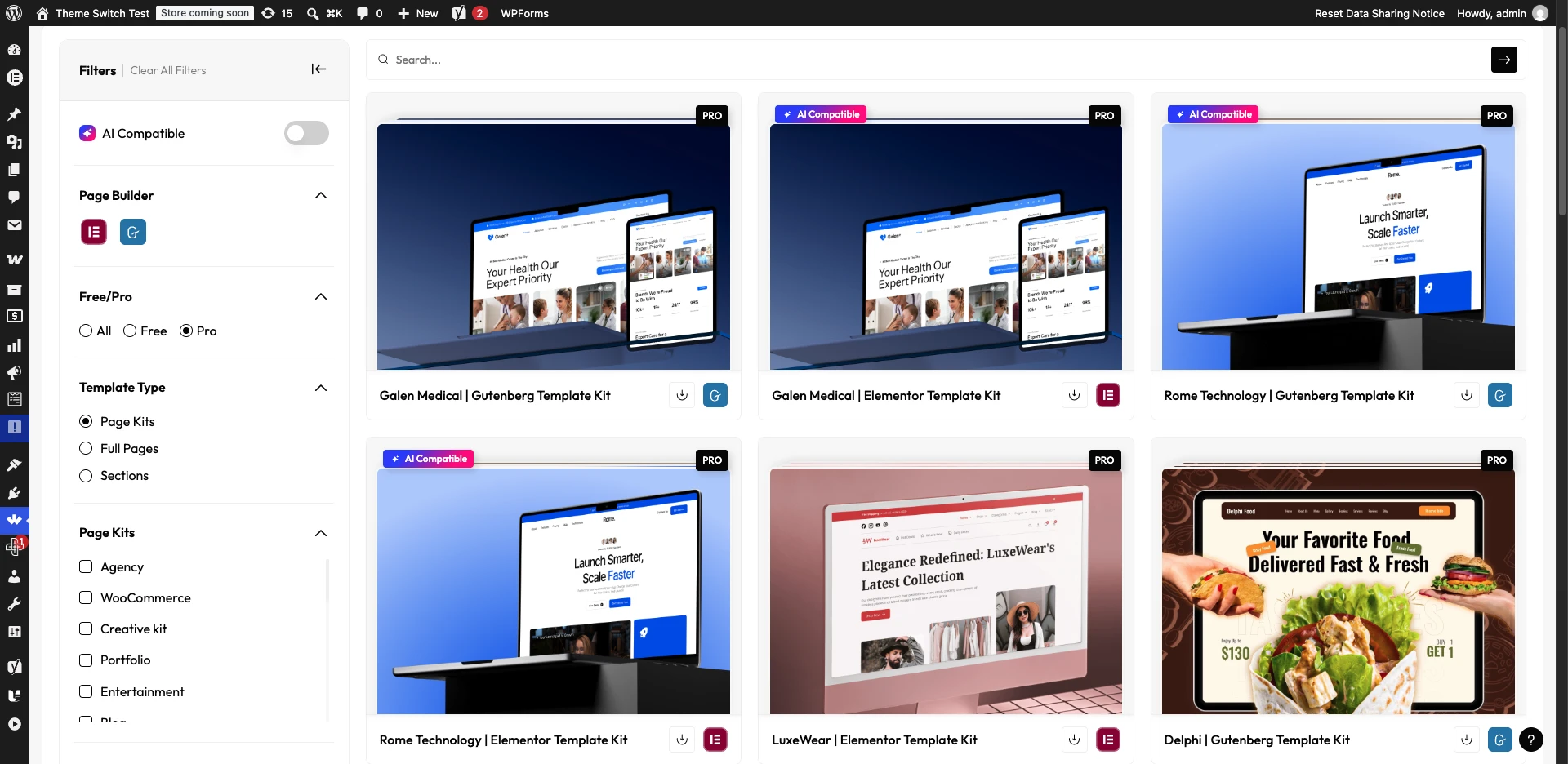
- From the WDesignKit plugin page, go to Templates.
- Select Elementor as the page builder and Pro in the filters. Optionally search or filter by template type.
- Click the download button on the template you want. For a Page Kit, either select individual templates and click Download, or check Select All to import every template in the kit. (Sections and Full Pages skip this selection screen.)
- A popup lists required plugins; click Install All (or download individually), same behavior as above.
- Optionally check Import Theme Builder Settings? to also import the template’s Elementor theme settings.
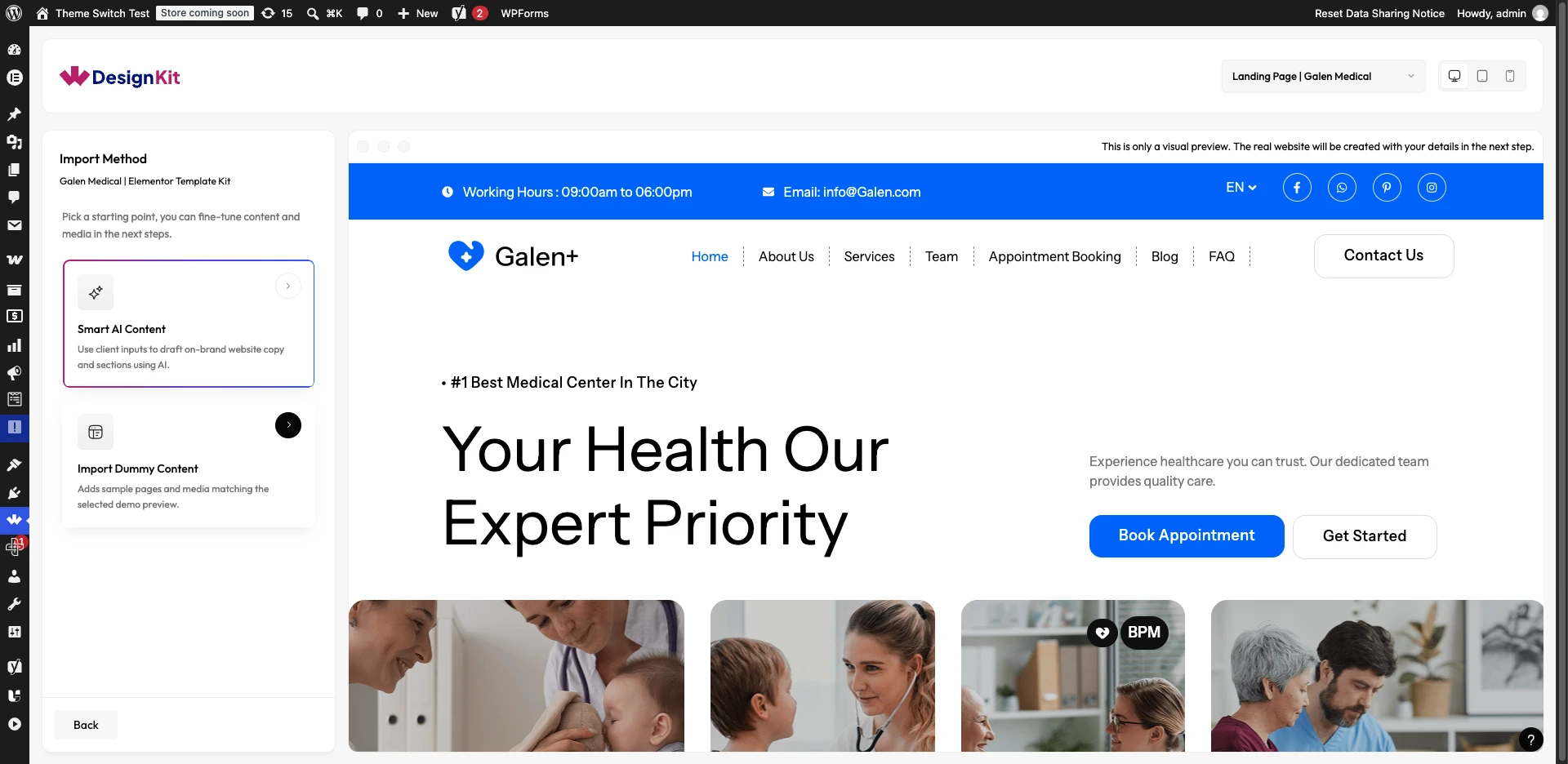
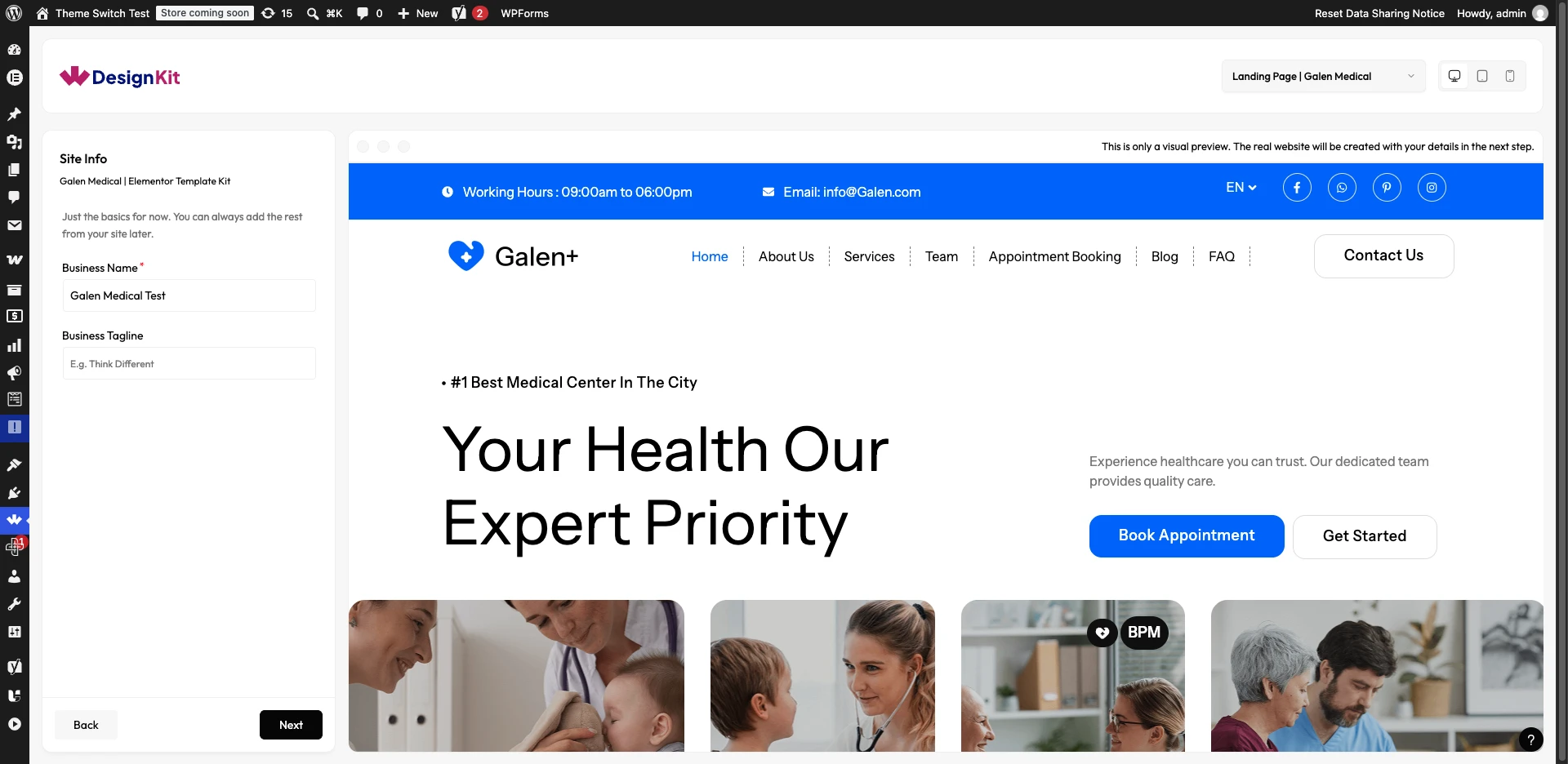
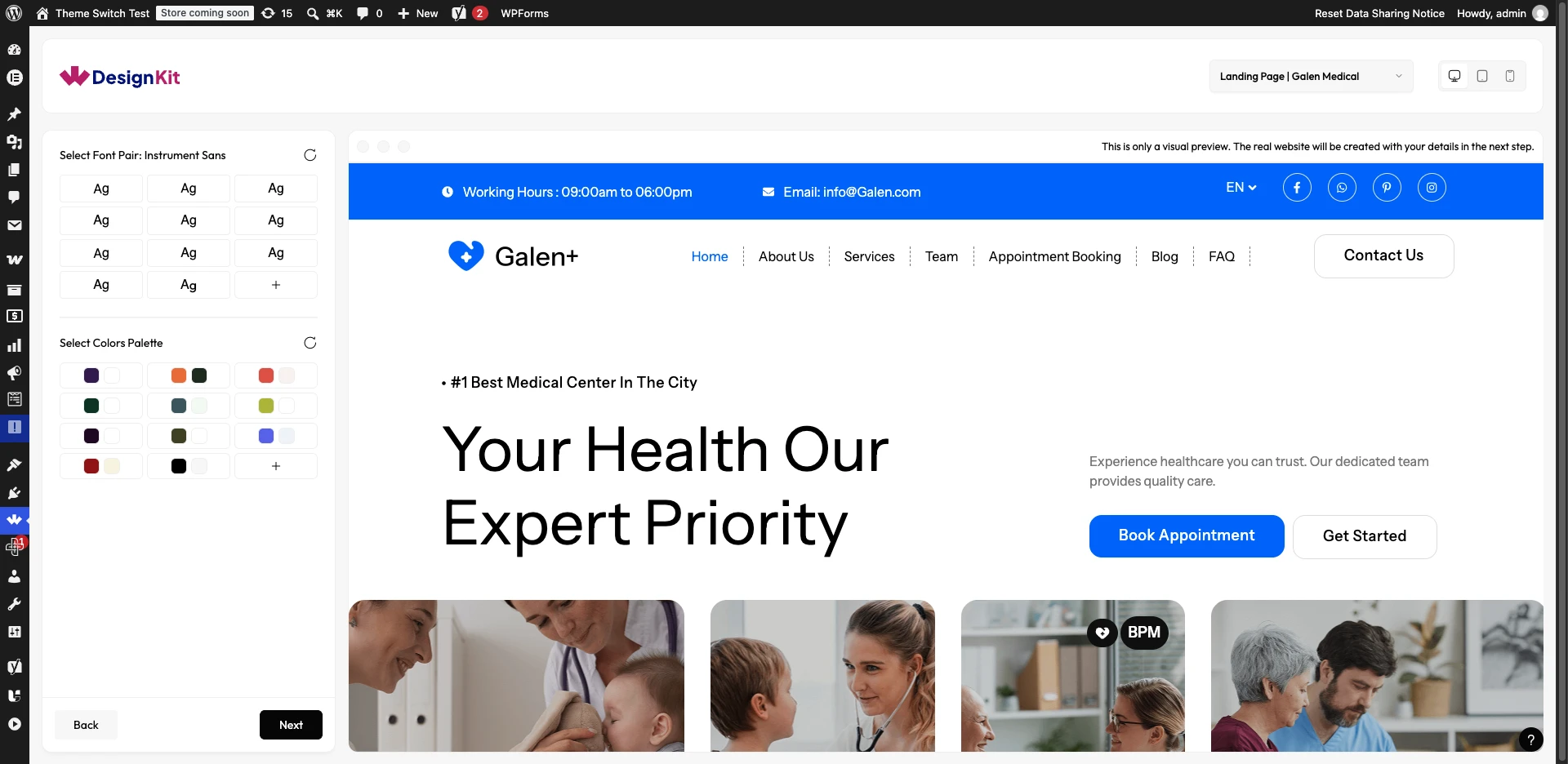
- Click Next, choose the post type the templates should be added as, then click Import. Use the eye icon next to each imported template to preview it.
Use Cases
- Quickly adding a Pro-tier section or full page while mid-build in Elementor
- Importing an entire Pro Page Kit to scaffold a new site
- Bulk-importing multiple Pro templates from a kit in one pass via Select All
Limitations
- Pro Elementor templates require The Plus Addons for Elementor Pro; a free plugin alone is not enough for templates tagged Pro.
- Premium (paid) dependency plugins are never auto-installed; only free ones are. You must install and license any other premium dependency yourself.
- Page Kits cannot be imported from inside the Elementor editor; only from the WDesignKit plugin’s Templates library.
- Using Continue Anyway without installing required plugins results in a template with missing elements.
Troubleshooting
No FluentSupport tickets specifically about accessing Pro Elementor templates via The Plus Addons Pro were found at the time of writing.
- Imported Pro template is missing elements: check that The Plus Addons for Elementor Pro (and every other required plugin listed at import time) is installed, activated, and licensed, not just downloaded.
- “Install All” doesn’t finish installing everything: expected for premium plugins; those are never auto-installed and must be added manually with your own license.
- Can’t find a Page Kit import option in the Elementor editor: expected; Page Kits are only importable from the WDesignKit plugin’s Templates page, not the in-editor popup.