
How to Create Login Key to Login to WDesignKit Account?
On this page
What It Does
A Login Key lets someone log the WDesignKit plugin into your account from the WordPress login screen, without you ever sharing your email or password.
Why It Matters
Handing over your actual password to a developer, support agent, or teammate so they can activate the plugin on a client site is a real security risk, and it means you have to change your password afterward to lock them out again. A Login Key solves both problems: it grants access to the plugin login only, and you can revoke it the moment the job is done, no password change needed.
What You Get
A Login Key page under License in the WDesignKit app (License > Login Key) where you can generate any number of named keys, see which sites each one is currently connected to, and delete a key to revoke it.
Benefits
- Your real password never has to leave your hands, even when someone else needs plugin access.
- Each key is named and shows its Active Sites, so you can see exactly where it is being used.
- Revoking access is a single click, deleting the key.
Capabilities
- Generate a named Login Key from License > Login Key in the WDesignKit app.
- Copy the key and use it on the WordPress plugin’s login screen instead of an email and password.
- See each key’s connected sites under Active Sites (shows “No Active Sites” until it has been used to connect a plugin install).
- Delete any existing key to instantly revoke that access.
How It Works
A Login Key is a credential tied to your WDesignKit account, generated from License > Login Key in the web app and redeemed on the WordPress plugin’s login screen via the Continue via Login Key option (alongside Continue with Google and Continue with Facebook). It authenticates the plugin as your account without exposing your actual password, and it stays valid until you delete it from the Login Key list.
How to Use It
1. Log in to your account in the WDesignKit app, and go to License > Login Key.
2. Under Create an Login Key, enter a name for the key and click Generate Key. Creating a key means accepting the linked Terms & Conditions.
3. Your new key appears under Existing Login Keys with its API Key value, a copy button, and an Active Sites column (this will read “No Active Sites” until it is actually used).
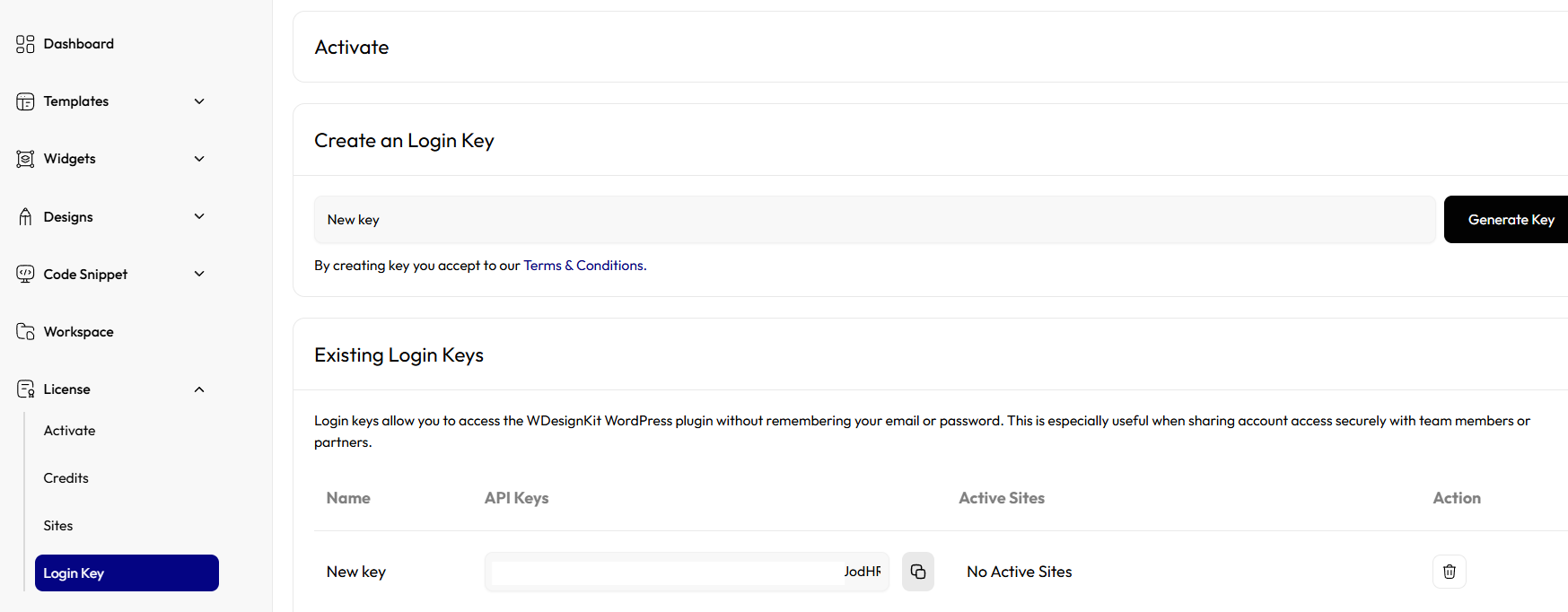
4. Copy the key value using the copy icon next to it.
5. On the site where you want to use it, go to the WordPress plugin’s login screen and click Continue via Login Key.
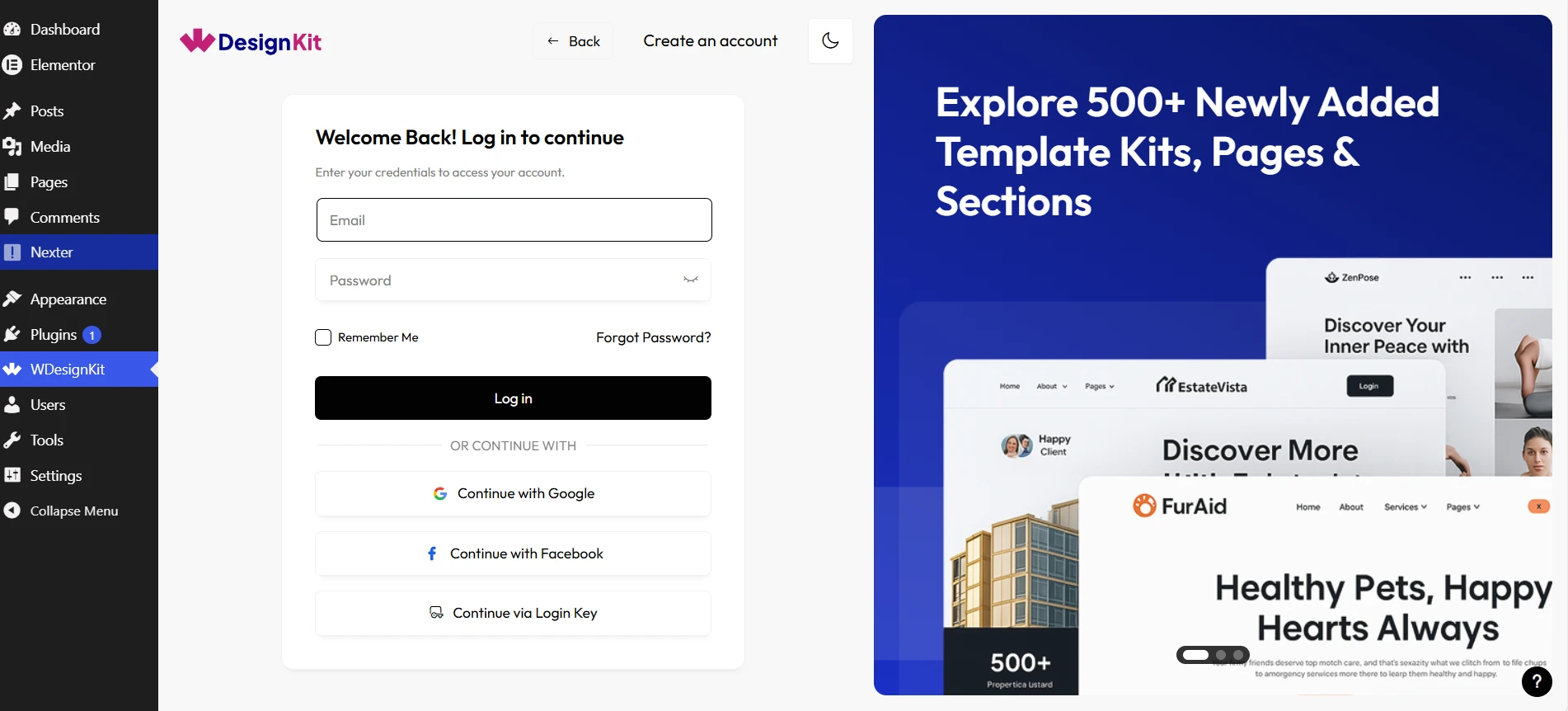
Note: A Login Key logs the WordPress plugin into your account, it does not work on the wdesignkit.com web app login.
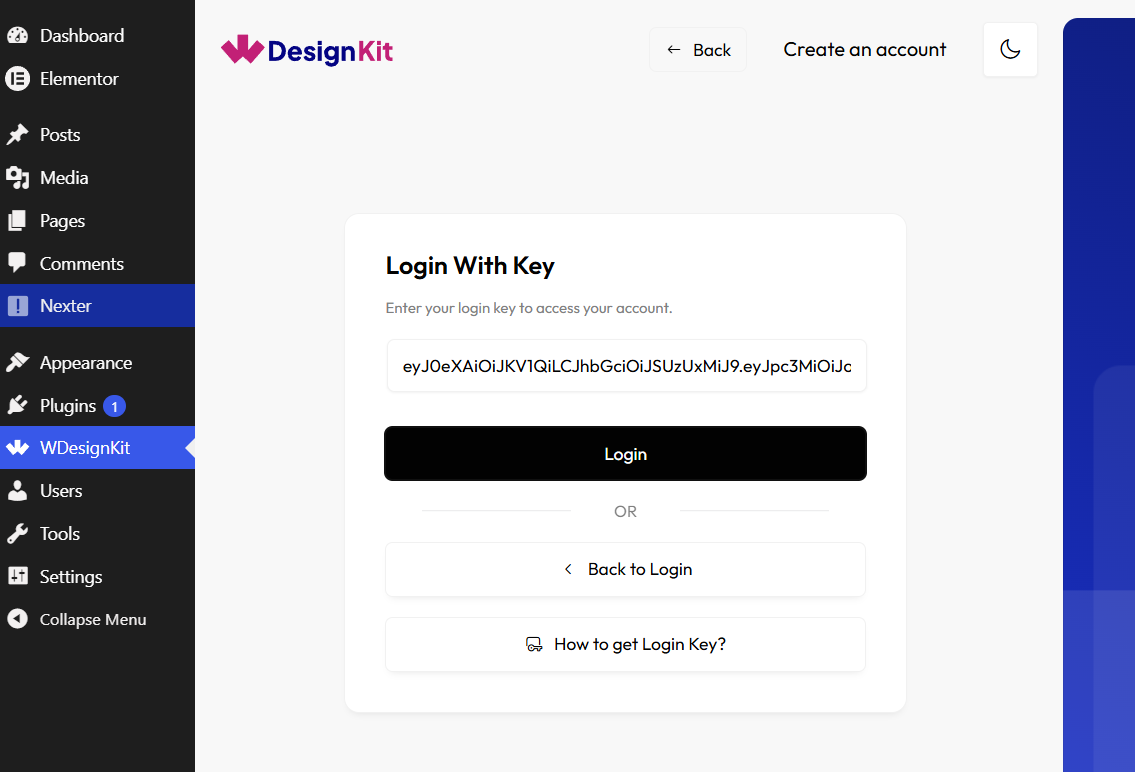
6. Paste your Login Key and submit. The plugin connects to your account, and the key’s Active Sites entry updates to show that site.
This is especially useful when sharing account access securely with team members or partners, or when you need to grant a support agent temporary access for troubleshooting.
Delete a Login Key
To remove someone’s login access, go to License > Login Key and click the delete (trash) icon in the Action column for that key.
Use Cases
- Handing a developer temporary access to activate WDesignKit on a client site without sharing your password.
- Letting a support agent log in to reproduce a bug on your account.
- Issuing a separate named key per team member so you know exactly whose access to revoke when they leave, and which sites each key touched.
Limitations
- A Login Key only works on the WordPress plugin’s login screen, it cannot be used to sign in to the wdesignkit.com web app.
- Deleting a key ends that session’s access, but any local changes already made on that site before deletion are not undone.
- Login Keys are generated and managed from the web app only, there is no way to create one from inside WordPress.
Troubleshooting
- Cannot find where to generate a Login Key. Real FluentSupport ticket #17503 reported this exact confusion, the customer only had access to store.posimyth.com and could not locate the wdesignkit.com login. Log in at wdesignkit.com first, then go to License > Login Key, not the POSIMYTH store dashboard.
- Pasted the Login Key on the plugin’s login screen and it is rejected. Regenerate a fresh key and copy it again using the copy icon, extra spaces or a partially copied key are the most common cause of a rejected key.
- Deleted a Login Key by mistake and lost access. Go back to License > Login Key in the web app and generate a new one, deleting a key does not affect your main account password or login.