
How to Share Elementor Widget or Gutenberg Block for Public?
On this page
What It Does
Sharing a widget or block makes it visible to every WDesignKit user in the Public Library, so anyone can browse, preview, and download it into their own site.
Why It Matters
The Public Library only grows because individual users publish their own widgets to it. Sharing what you built lets other WDesignKit users skip work you already did, the same way the Public Library saves you time when you download from it.
What You Get
A review-gated publishing flow: you upload a widget to the cloud, fill in its title and description, mark it Public, and WDesignKit’s admin team approves or rejects it before it appears in the Public Library for everyone.
Benefits
- Gives back to the WDesignKit community the same way you benefit from other users’ shared widgets.
- The admin approval step keeps the Public Library’s quality reasonably consistent for everyone downloading from it.
- You can flip a previously approved widget private and back to public again without repeating the approval review.
Capabilities
- Upload a local widget to the WDesignKit cloud marketplace with a title, description, and Public/Private status.
- Submit an uploaded widget for admin approval before it becomes visible to other users in Browse Widgets.
- Re-toggle an already-approved widget between public and private without a new approval pass.
How It Works
Uploading a widget posts its packaged PHP, JSON config, CSS, and JS files to WDesignKit’s cloud save-widget endpoint under your account. Setting its status to Public and submitting for approval flags that cloud record for the WDesignKit team to review; once approved, the same record becomes searchable to every user through Browse Widgets.
How to Use It
With WDesignKit, sharing your Elementor widgets or Gutenberg blocks with other WDesignKit users for public use is a straightforward process. This powerful feature enables you to easily share your custom-designed widgets or blocks, allowing other users to benefit from your creations in their own projects.
Requirement – This feature is a part of The WDesignKit, make sure it’s installed & activated to enjoy all its powers.
To share your custom widget or block publicly, first, you have to upload your widget or block to the server. Learn the process.
Go to the WDesignKit website and log into your account.
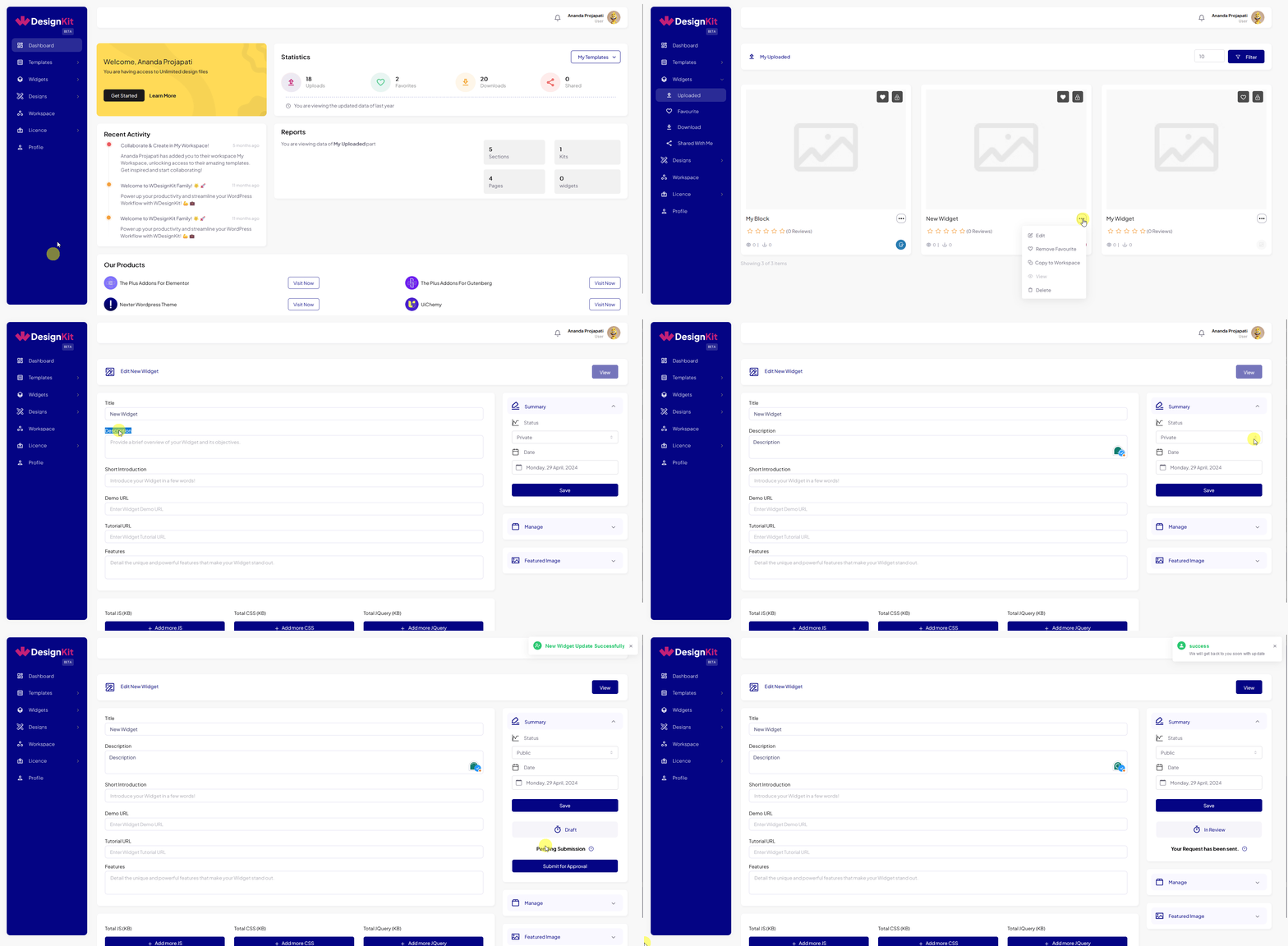
Then go to Widgets > Uploaded. Here you’ll see your uploaded widgets.
Go to the widget you want to share publicly, click on the three dots, and then click Edit.
It will take you to the edit page, where you can edit the widget information.
To make a widget or block public make sure the Title and Description fields are filled.
Then, select Public from the Status dropdown and click the Save button.
Now you’ll see a new button Submit for Approval, click on it.
Your widget or block will be sent for approval once the admin approves the widget or block you’ll get an approved message on this page.
But if it is rejected you’ll see a rejected message, you can edit the information and again send it for approval.
Once your widget or block is approved it will be available to all the WDesignKit users. If you go to the Browse Widget page from the WDesignKit plugin, you’ll be able to see your widget or block.
Note: For some reason, If you make an approved widget or block private and again make it public you don’t have to send it for approval.
Use Cases
- Publishing a widget you built for your own project so other WDesignKit users can reuse it.
- Building a small library of reusable widgets under your own account and making the useful ones public over time.
- Temporarily making a widget private while you rework it, then public again once it is ready.
Limitations
- A widget cannot go public until it has already been uploaded to the server, and until its title and description fields are filled in.
- Approval is manual and reviewed by the WDesignKit team, so a newly submitted widget will not appear publicly right away.
- This session’s WDesignKit connector was not logged in to a cloud account, so the Uploaded widgets screen and the approval-status messaging could not be re-captured live; the steps below reflect the plugin’s existing documented flow and were not independently re-verified against today’s screen.
Troubleshooting
- Submit for Approval button never appeared. Confirm the widget’s Title and Description are both filled in and the Status dropdown is set to Public first; the button only shows once those are set.
- Widget was rejected. Edit the widget’s information based on the rejected message shown on the same page, then resubmit for approval.
- Widget stuck on pending for a long time. This is workflow-derived guidance, not sourced from a specific support ticket this session: contact WDesignKit support with the widget’s cloud ID if approval is taking noticeably longer than usual.