
Column Scroll Widget for Elementor
On this page
What It Does
The Column Scroll widget creates a smooth, scrollable column layout that highlights multiple items in an organized, visually engaging way. Each column can have a Title, Select Images, and a shared Main Title, with the scroll animation’s Duration under your control.
See it working on a live page before adding it to your own site:
Why It Matters
A static image grid can feel flat. The Column Scroll widget presents content dynamically across desktop, tablet and mobile, making a page feel more engaging and interactive without hand-built scroll animation code.
What You Get
- A repeater-based column layout, 3 columns by default and expandable
- Multiple images per column for a richer scroll effect
- A shared Main Title heading for the whole section
- Independent column counts and scroll duration control
Benefits
- Turns a plain image set into a dynamic, scrollable presentation with no custom code
- Responsive column settings keep the layout usable on any device
- Optional inverted background gives a visually distinct alternate style
Capabilities
- Column repeater: each item has a Title (comma-separated for multiple titles per column) and one or more Select Images
- Main Title: a shared heading text for the whole Column Scroll section
- Background Invert: toggles an inverted color effect across the text, image and background
- Special Options: Desktop, Tablet and Mobile column counts set independently
- Extra Options: a Duration (seconds) field controlling how long each column item stays visible during the scroll effect
- Style tab: further visual customization of the Column Scroll section
How It Works
Each repeater item becomes its own column of images and title text. As the visitor scrolls, the columns animate based on the Duration you set, creating a staggered, dynamic reveal instead of a static grid. The Main Title sits above the columns as a shared heading, and the column count adapts per breakpoint according to the Special Options settings.
How to Use It
Required Setup
- Elementor FREE Plugin installed & activated.
- You need to have the WDesignKit plugin installed and activated.
- Make sure you’ve created an account and logged into it.
- This is a pro widget. A valid WDesignKit Pro license is required to access and use them.
- Make sure you’ve downloaded the Column Scroll widget.
How to Activate the Column Scroll Widget
Go to
- WDesignKit →Widgets → Browse Widgets.
- Search the widget name and select Elementor as the Page Builder.
- Click on the Download icon.
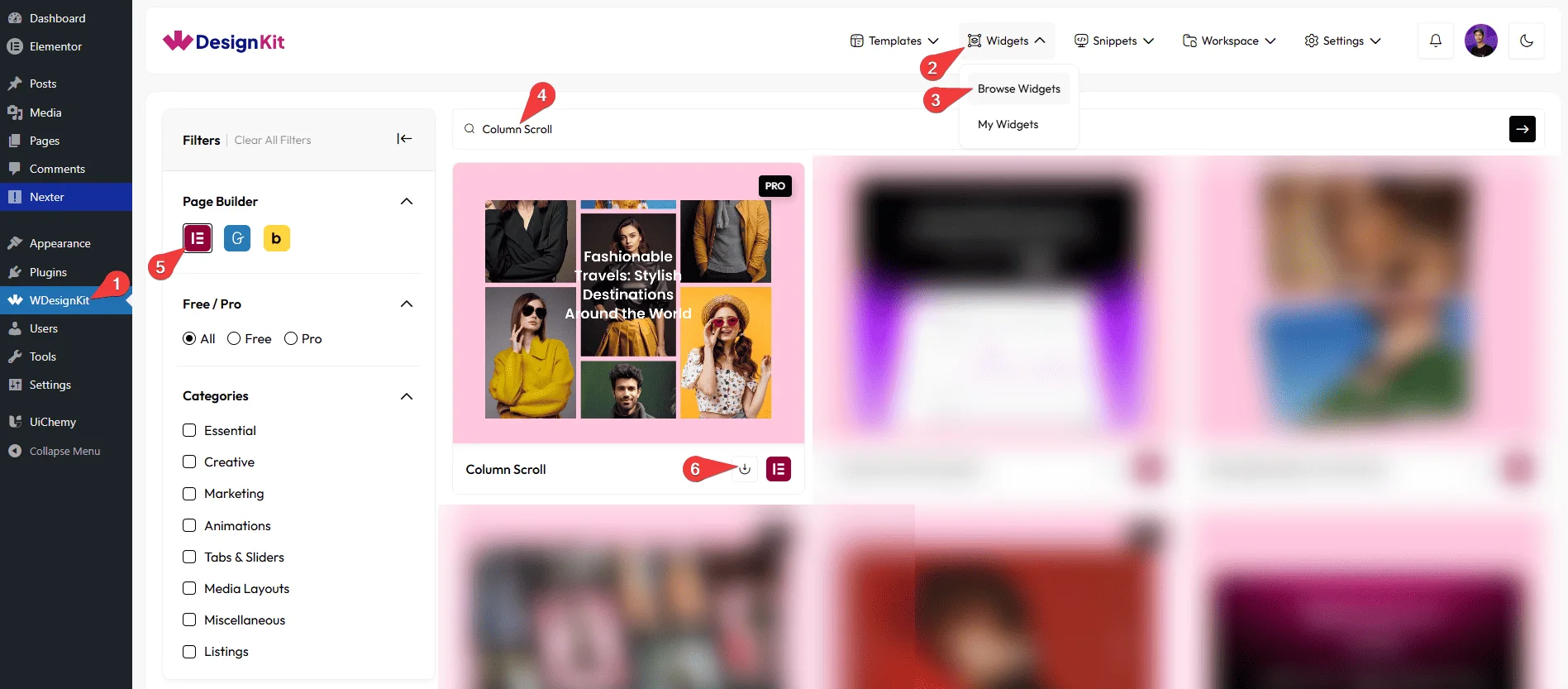
Using the Widget in Elementor
Add the Column Scroll widget to the page.
Content
From the Column section, you can add column items. By default, you’ll find three repeater items; open them.
In the Title field, you can add the text for each column item.
Note: Use a comma (,) to separate titles for multiple items. Example: Title 1, Title 2, Title 3.
In the Select Images section, you can add images for the column slider. You can also add multiple images for a better experience of this widget’s effect.
You can click on the + Add Item button to add more items.
Main Title
In the Text field, you can add a main heading for the column scroll section.
In the Background Invert option, you can enable or disable inverted background colors for the section.
Note: Enabling the Background Invert option will invert the effect for the text, image and background.
Special Options
From the Desktop Column field, you can set the number of columns displayed on desktop devices.
From the Tablet Column field, you can set the number of columns displayed on tablet devices.
From the Mobile Column field, you can set the number of columns displayed on mobile devices.
Extra Options
From the Duration (seconds) field, you can set how long each column scroll item stays visible.
Note: You can refresh the page after changing the duration to apply the new settings.
Then, from the Style tab, you can further customize the style of the Column Scroll.
Use Cases
Use this widget when you want to display multiple items in a smooth, scrollable column layout that looks organized and modern.
Best For
- Showcasing Products or Services: Highlight multiple items like products, features, or services in an attractive, scrollable column layout.
- Portfolios & Projects: Display images with titles and main headings to showcase your work in a neat, interactive way.
- Landing Pages: Present key content or highlights dynamically without cluttering the page.
- E-commerce Websites: Feature product categories, promotions, or collections with smooth scrolling for a better user experience.
- Blogs & News Sections: Display multiple posts or highlights with images, titles, and short descriptions in an engaging layout.
- Responsive Layouts: Perfect for desktop, tablet, and mobile screens, with adjustable column settings for each device.
- Interactive Content: Add multiple images, titles, and main headings with customizable scroll duration to create an engaging visual effect.
- Modern Website Designs: Keep your page organized and visually appealing while showing multiple items in a dynamic, animated way.
Limitations
- This is a Pro widget: requires a valid WDesignKit Pro license and must be individually downloaded before use.
- A duration change doesn’t apply live in the editor; the page needs a refresh for the new setting to take effect.
- The widget carries a runtime dependency (registered as a
wdkit/wb-*block/widget) that must be present on any site the layout is copied to; pasting content between sites without WDesignKit active on the destination breaks the effect.
Troubleshooting
No FluentSupport tickets specific to this widget were found at the time of writing; the items below are workflow-derived, not ticket-sourced.
- Duration change not visible: refresh the page after changing the Duration field; the new timing does not apply live in the editor preview.
- “Your site doesn’t include support for the ‘wdkit/wb-…’ block” error: this happens when content using this widget is copied to a site where WDesignKit (and the specific downloaded widget) isn’t installed/active. Install and activate WDesignKit and re-download the Column Scroll widget on the destination site before pasting the content.
- Titles not matching columns: confirm the Title field uses one comma-separated value per column, in the same order as the Select Images items.