
With this block, you can offer visitors a seamless experience by allowing them to copy discount codes with just one click.
Required Setup
- Nexter Blocks FREE Plugin installed & activated.
- You need to have the WDesignKit plugin installed and activated.
- Make sure you’ve created an account and logged into it.
- This is a pro block. A valid WDesignKit Pro license is required to access and use them.
- Make sure you’ve downloaded the Copy Coupon Code block.
How to Activate the Copy Coupon Code Block?
Go to
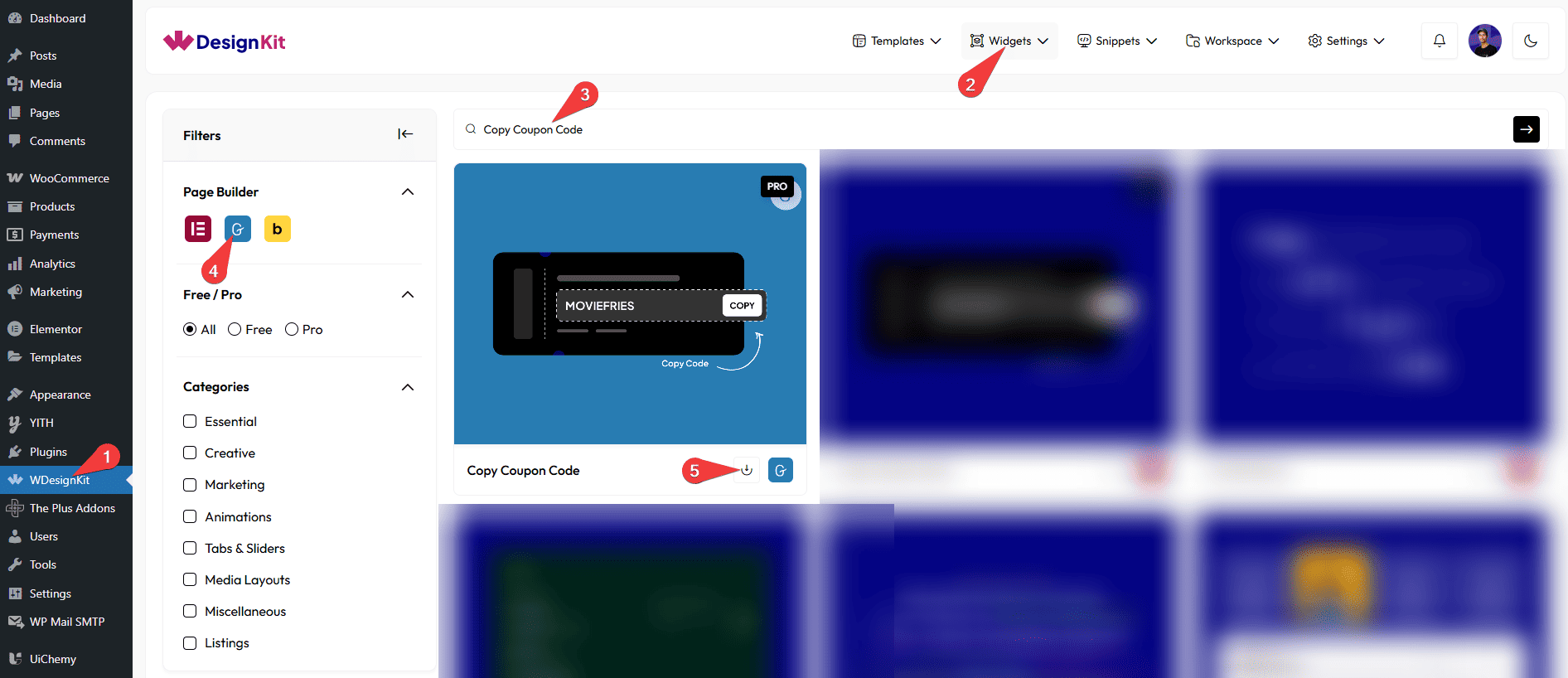
- WDesignKit → Widgets.
- Search the block name and select Gutenberg as the Page Builder.
- Click on the Download icon.
How to Use the Copy Coupon Code Block in WordPress?
Add the Copy Coupon Code block to the page.
Content
From the Select dropdown, you can choose different Copy Coupon Code styles as the layout.
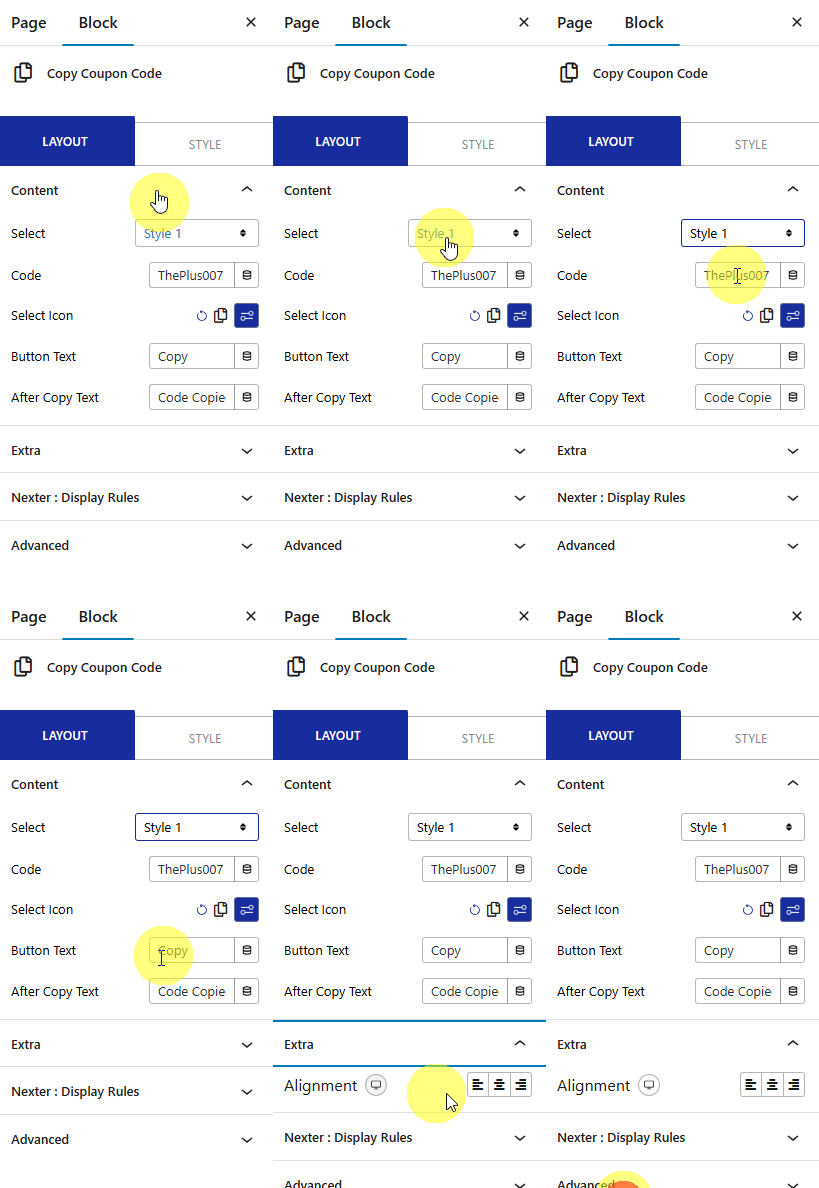
In the Code section, you have to add the coupon code.
You can add an icon or SVG to the copy button from the Select Icon section.
From the Button Text section, you can add the text for the button.
You can add the text that appears after copying in the After Copy Text section.
You can add the text that appears after clicking the button in the Animation Text section.
Extra
Then, from the Alignment section, you can align the layout for responsive devices.
Then from the Style tab, you can further customize the style of the Copy Coupon Code.