
Blurred Text Reveal Widget for Elementor
On this page
This widget shows a three-part line, an optional lead-in, a blurred middle segment, and an optional close-out, where the blurred segment clears character by character as the visitor hovers directly over it.
1. What It Does
Blurred Text Reveal keeps its middle text segment blurred until the visitor’s cursor is directly over each character, at which point that character clears.
2. Why It Matters
It draws attention to a specific phrase using motion instead of static bold or color styling, useful for a password-style reveal or a teaser line.
3. What You Get
Three independent text fields, Prefix, Blurred and Postfix, each with its own heading tag, plus a Row or Column layout.
4. Benefits
Skipped, already covered above: the value is the motion-based attention draw described in Why It Matters, restating it here would not add anything new.
5. Capabilities
- Separate Prefix, Blurred and Postfix text fields, each with its own heading tag (H1-H6)
- Row or Column layout style
- Adjustable Blur amount
- Alignment control
6. How It Works
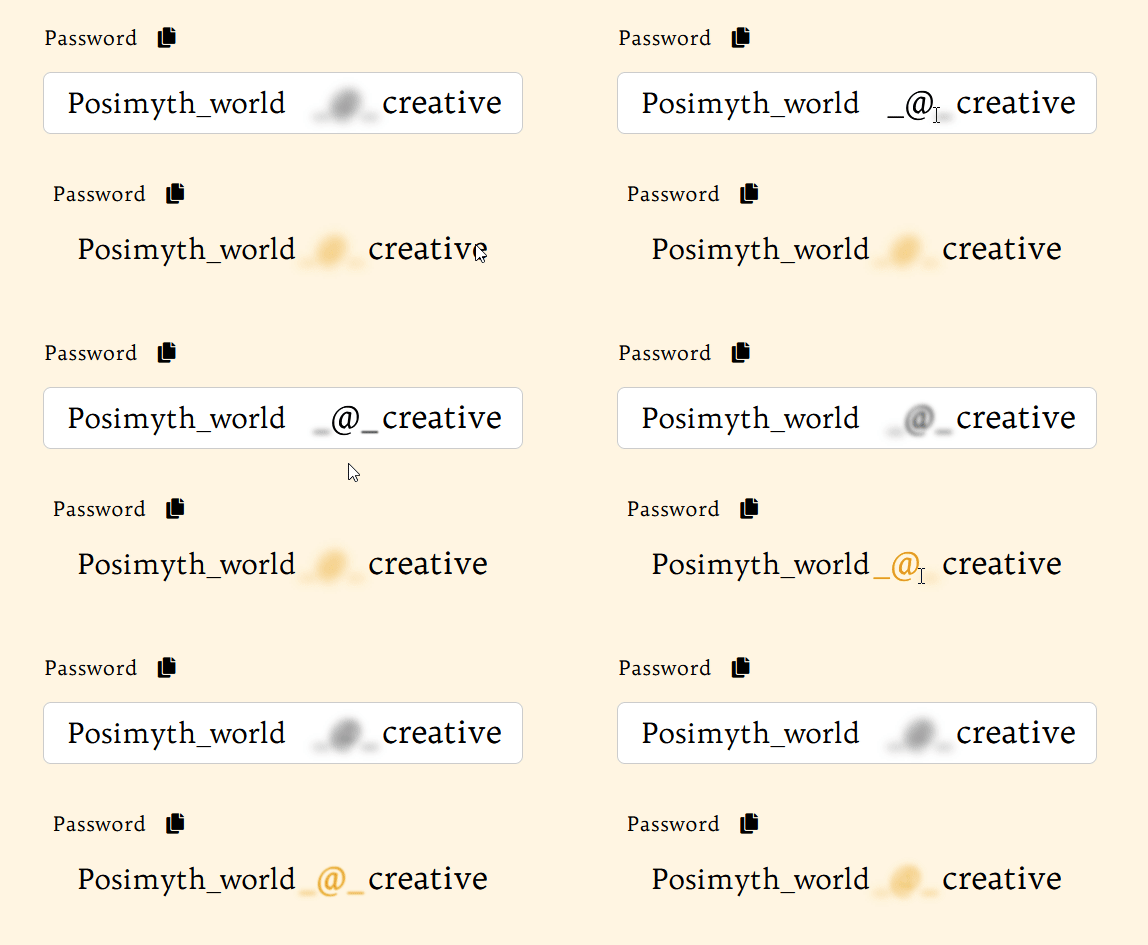
The Blurred segment’s text is split into individual characters on the front end. Each character is blurred by CSS and clears the instant the cursor is directly over that character, confirmed live via the widget’s JSON and CSS, this is a direct hover effect on each character, not a proximity or radius-based reveal.
7. How to Use It
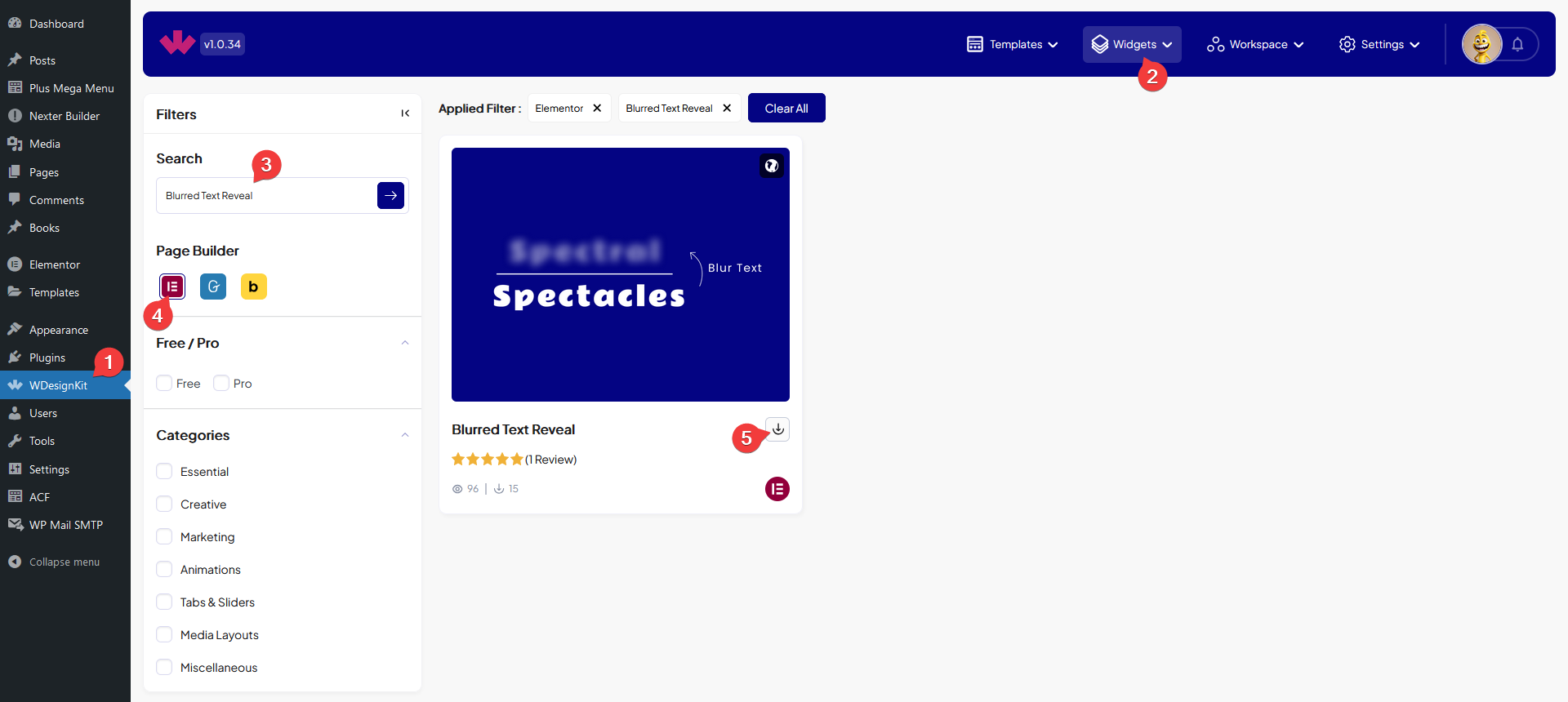
- Activate the Blurred Text Reveal widget from WDesignKit’s Ready Widgets.
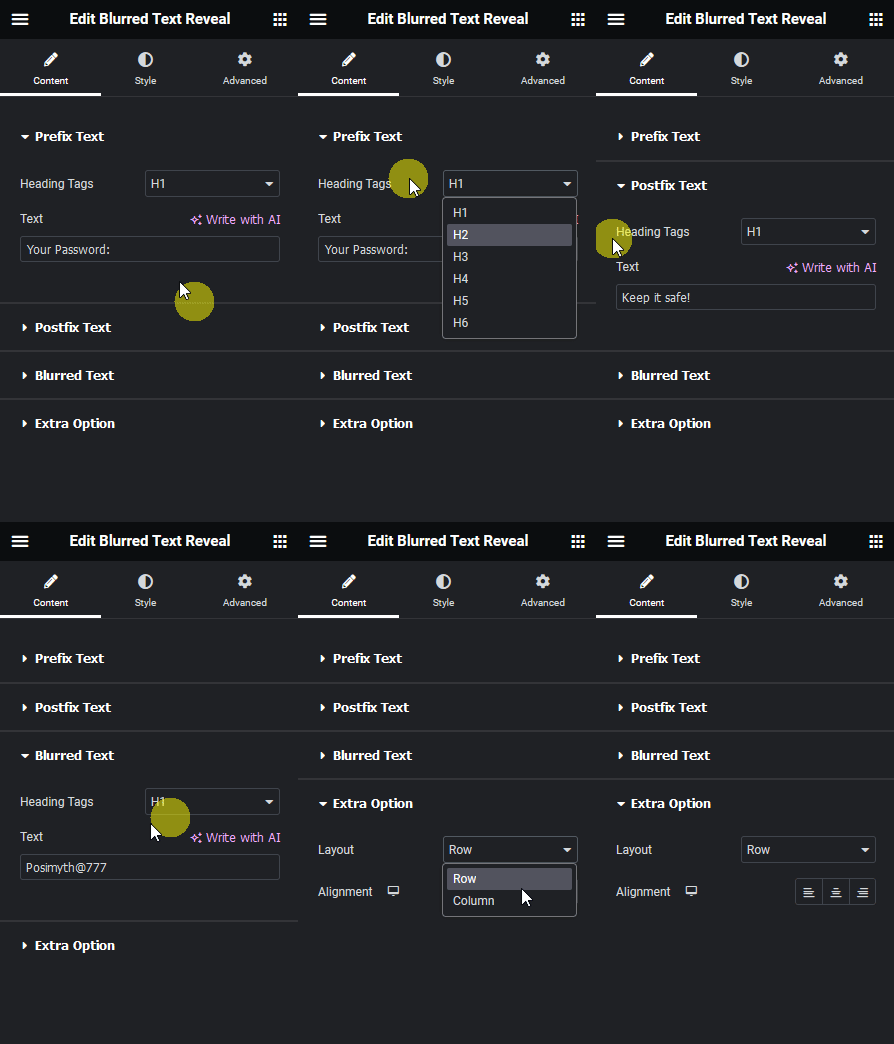
- Drag the widget onto the page and set the Prefix, Blurred and Postfix text fields as needed.
- Adjust the Blur amount and layout style, then preview on the published page since the hover effect does not play inside the Elementor editor canvas.
8. Use Cases
- A password-style reveal line, for example “Your Password: [blurred] Keep it safe!”
- A hidden discount code or teaser line that reveals on hover.
9. Limitations
- The reveal is a direct hover effect on each character, confirmed live via the widget’s CSS, it has no equivalent touch/tap trigger, not independently re-tested on a live mobile device this session.
- FLAGGED FOR OPERATOR: this widget shipped a “renamed content and style control labels” update since these screenshots were uploaded (screenshots dated 2024, control-label rename shipped as part of version 1.0.1) – the Activate and Content screenshots may show pre-rename Elementor panel labels and do not show the Prefix/Postfix fields. New screenshots are recommended.
10. Troubleshooting
- Text stays blurred everywhere: confirm the cursor is directly over the Blurred segment, the reveal is per character, not proximity-based.
- Effect not visible while editing in Elementor: expected, the hover effect plays on the published page, not inside the editor canvas.
- Revealed text is still hard to read: lower the Blur amount so the base text keeps enough contrast once cleared.