
How to Export Elementor Widget or Gutenberg Block From Your Site to Cloud?
On this page
What It Does
Push Widget uploads a locally built Elementor widget or Gutenberg block from your WordPress site to the WDesignKit cloud, so it becomes a versioned, shareable widget you can reuse across other sites.
Requirement — this feature is part of WDesignKit, make sure it’s installed & activated to enjoy all its powers.
Why It Matters
A widget you build locally only exists on that one WordPress install until you export it. Pushing it to the cloud is what makes it portable: reusable across projects, backed up outside the local database, and shareable with teammates or the public.
What You Get
- A cloud copy of your widget, versioned with a changelog per push.
- The ability to reuse the same widget across different websites.
- Private sharing through a workspace, or public sharing through the marketplace.
Benefits
Cloud-hosted widgets remove the need to manually copy widget files between sites, keep a version history so you can track what changed and when, and give you a backup that survives a site rebuild.
Capabilities
- Push a widget for the first time, or push an update to a widget already on the cloud.
- Attach a version number and changelog entries to each push.
- Trigger the same push from either the widget list’s three-dot menu or the widget editor’s Push button.
- View every uploaded widget from the WDesignKit website under Widgets > Uploaded.
How It Works
WDesignKit reads the widget’s local PHP/JSON/CSS/JS files and packages them into a versioned record on the WDesignKit cloud, tied to your logged-in WDesignKit account. The first push has no prior version to compare against, so the latest-version field is disabled; every push after that lets you see the current cloud version next to the version you’re about to upload, and optionally record what changed.
How to Use It
- Log in to your account from the WDesignKit plugin page.
- Go to the My Widget page.
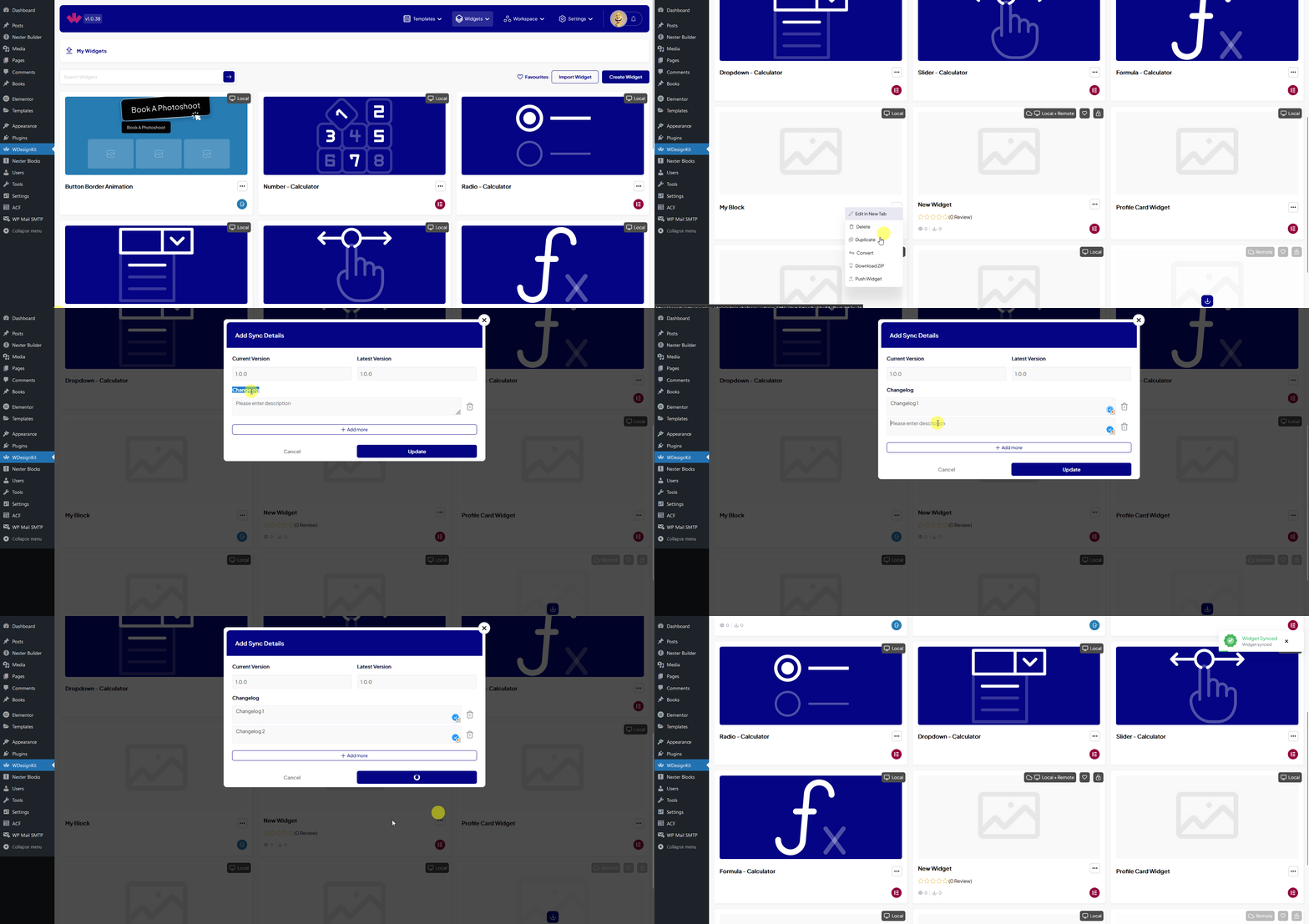
- Find the widget you want to upload, click the three dots, then click Push Widget.
Note: you can do the same from the Edit option, then the Push button on the widget editor page.
- In the Add Sync Details popup, review the current version and the latest version.
Note: when uploading a widget for the first time, the latest-version field is disabled.
- Optionally add changelogs — click +Add more to add multiple changelog items.
- Click Update to upload the widget to the server.
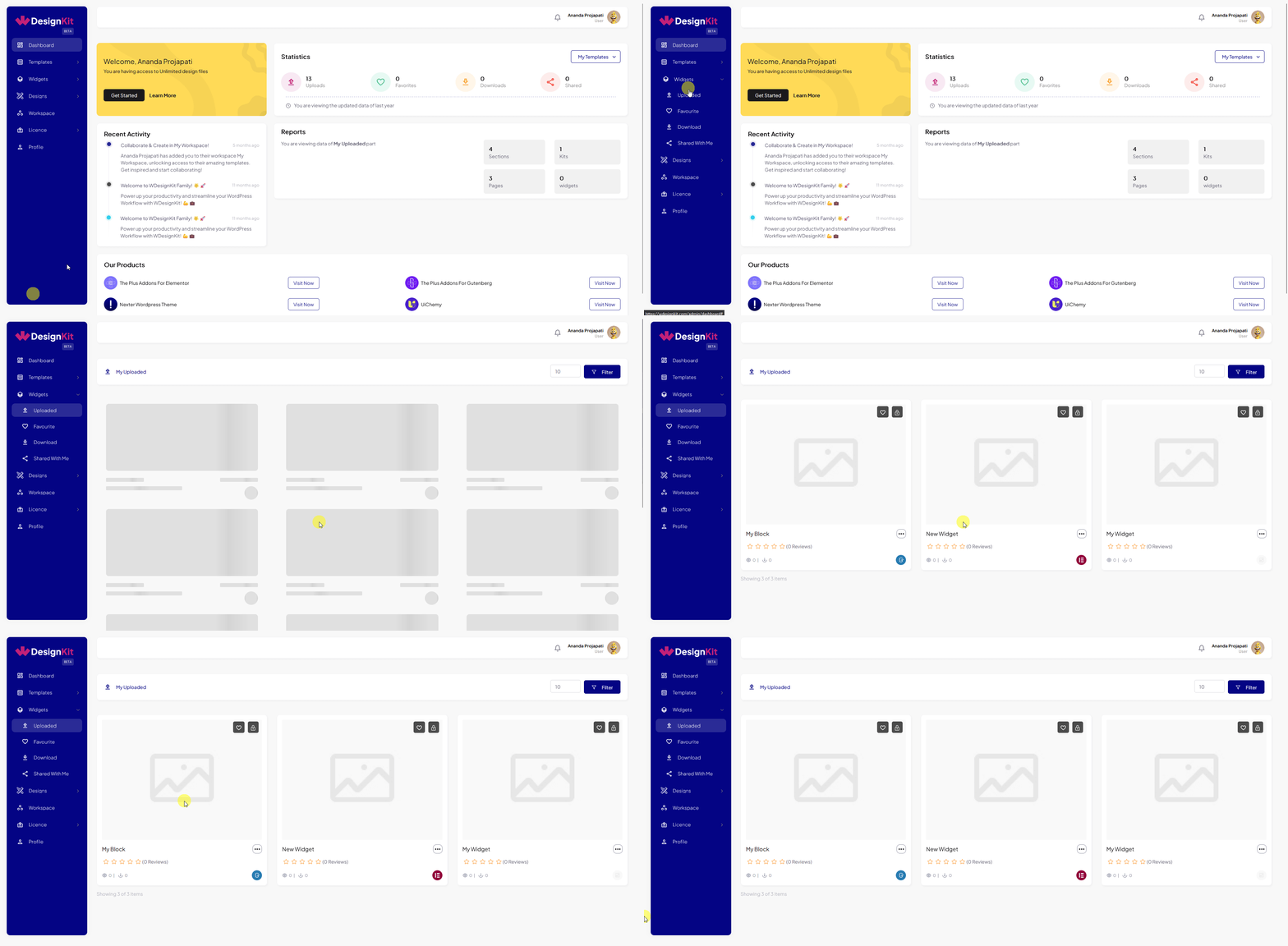
- To confirm the upload, go to the WDesignKit website and log into your account.
- Go to Widgets > Uploaded to see your uploaded widgets.
Use Cases
- You built a custom widget on a client site and want to reuse it on future projects.
- You want a cloud backup of a widget before making risky local edits.
- You want to share a widget privately with teammates through a workspace, or publicly on the marketplace.
Limitations
- Requires an active WDesignKit account login — the export cannot be done anonymously or without cloud access.
- The first push cannot be compared against a prior version, since none exists yet.
- Pushing uploads the widget’s code and metadata; it does not automatically make it public — visibility is controlled separately in the widget’s Edit > Status setting.
Troubleshooting
- Push Widget option is missing from the three-dot menu — confirm you are logged into your WDesignKit account from the plugin page; the cloud actions only appear when a session is active.
- Latest-version field is disabled and can’t be edited — this is expected on a widget’s first push; there is no prior cloud version yet to compare against.
- Pushed widget doesn’t appear under Widgets > Uploaded on the WDesignKit website — make sure you’re checking the same WDesignKit account you were logged into in the plugin when you pushed; uploads are tied to that account, not the WordPress site.
By uploading your custom widget or block to the cloud, you can reuse it across different websites, keep multiple versions, and share it privately with others through a workspace.