
CTA with Connected Background Widget for Elementor
On this page
The CTA with Connected Background widget builds a call-to-action section where the whole background changes to match whichever slide the visitor hovers over.
1. What It Does
Displays a list of slides, each with its own title, description, and background image, and swaps the section’s background to match the slide the visitor is hovering over.
2. Why It Matters
Connecting the background to the hovered item turns a plain list of options into an interactive showcase, useful for presenting a small set of services or categories with a strong visual per option.
3. What You Get
A Horizontal or Vertical layout choice and a Slides repeater with title, description, background image, and button per item.
4. Benefits
Skipped, already covered above: the value is the hover-connected background switch described in Why It Matters and What You Get, restating it here would not add anything new.
5. Capabilities
- Layout dropdown: Horizontal for side-by-side items, Vertical for stacked items
- Vertical on Mobile toggle to force a vertical layout on small screens when Layout is Horizontal
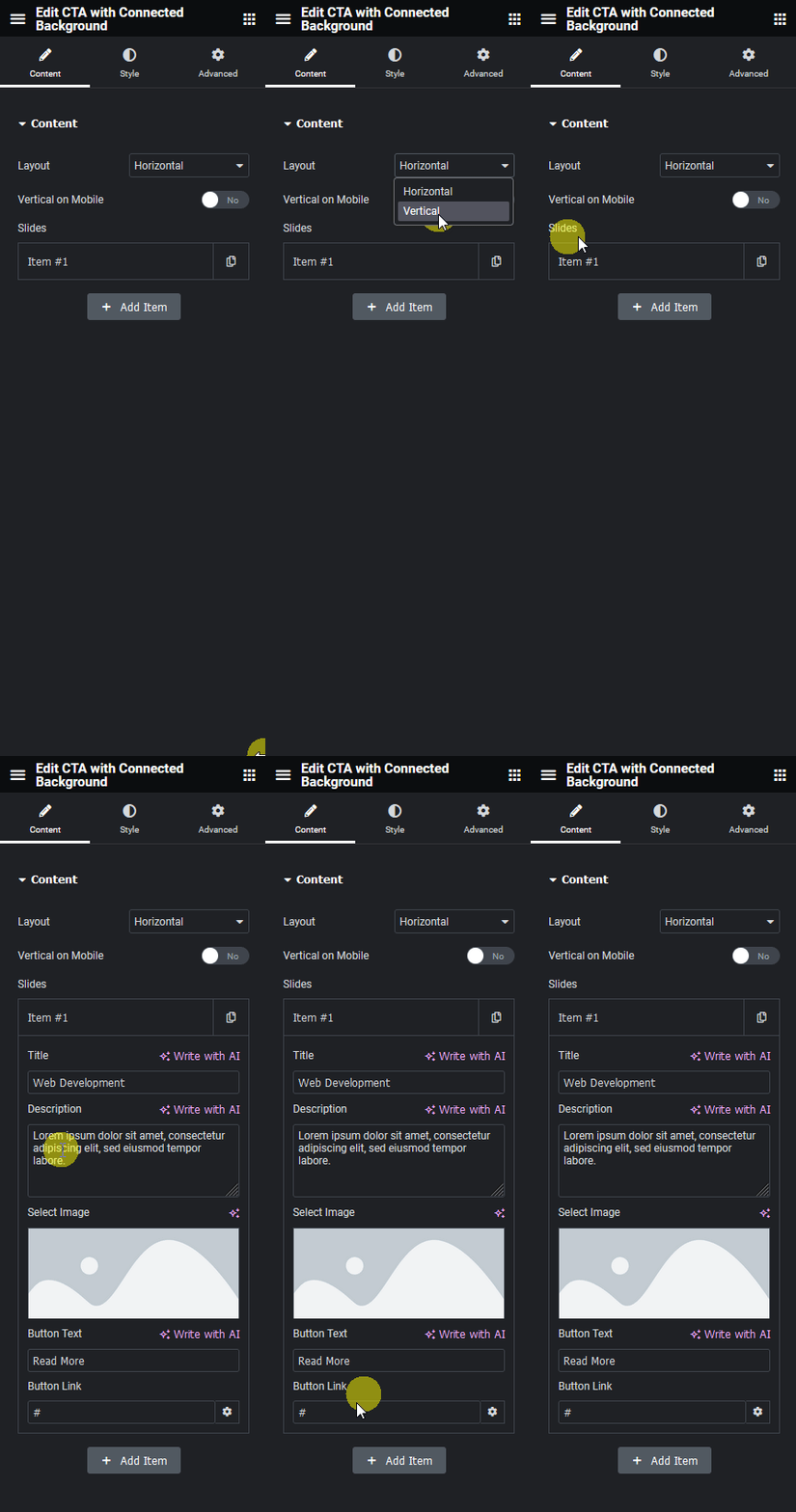
- Slides repeater, each item with Title, Description, Select Image for the background, Button Text, and Button Link
6. How It Works
Hovering over a Slides item swaps the entire section’s background to that item’s Select Image, so only one background shows at a time based on the visitor’s cursor position.
7. How to Use It
- Activate the CTA with Connected Background widget from WDesignKit’s Ready Widgets.
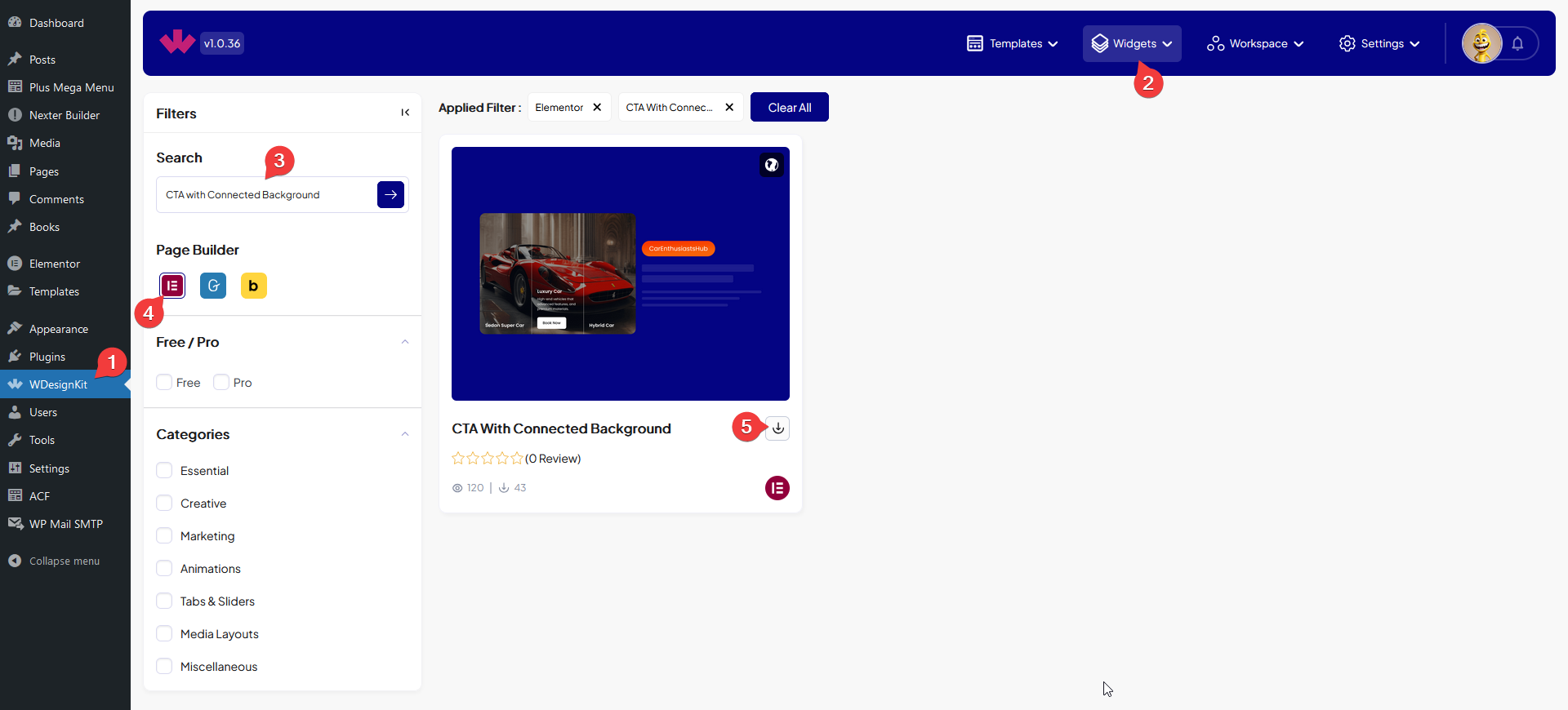
- Drag the widget onto the page and choose Horizontal or Vertical from Layout, enabling Vertical on Mobile if needed.
- Add items under Slides, each with a Title, Description, Select Image, Button Text, and Button Link.
- Preview the page and hover each slide to confirm its background swaps in correctly.

8. Use Cases
- A services list where each service reveals its own background photo on hover
- A small product or category picker with a full-bleed image per option
9. Limitations
- The background swap is hover-triggered, on touch devices only the default or last-tapped state is visible.
- Only one background shows at a time, there is no split or side-by-side background view.
10. Troubleshooting
- Background does not change on hover: confirm Select Image is actually set for that Slides item, an empty field leaves the previous background in place.
- Items stack awkwardly on mobile: enable Vertical on Mobile if Layout is set to Horizontal.
- Button link does not work: confirm Button Link has a complete address including https://.