
On Scroll Letter Animation Widget for Elementor
On this page
The On Scroll Letter Animation widget animates a line of text letter by letter as it scrolls into view.
1. What It Does
Reveals a line of text one letter at a time, in a pre-defined animation style, as the visitor scrolls it into view.
2. Why It Matters
A letter-by-letter reveal draws attention to a headline as the visitor scrolls to it, adding motion to an otherwise static section without a full page animation library.
3. What You Get
A Style choice for the animation preset, a Content field for the text, and full typography and color controls on the Style tab.
4. Benefits
Skipped, already covered above: the value is the scroll-triggered letter reveal described in Why It Matters and What You Get, restating it here would not add anything new.
5. Capabilities
- Style dropdown with pre-defined letter-animation presets
- Content field for the text to animate
- Style tab controls for the text’s typography and color
6. How It Works
As the Content text scrolls into the viewport, its letters animate in using the pattern set by Style, rather than the whole line appearing at once.
7. How to Use It
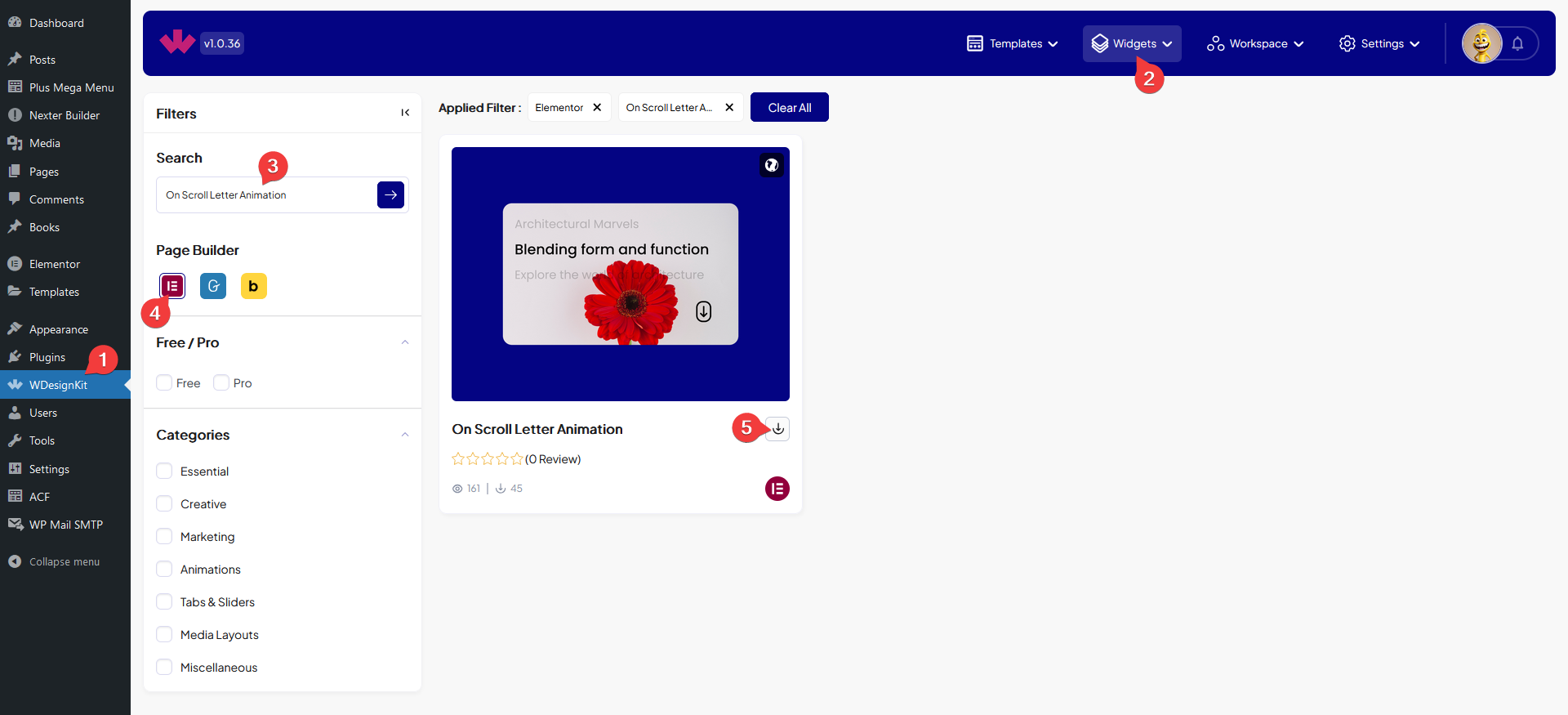
- Activate the On Scroll Letter Animation widget from WDesignKit’s Ready Widgets.
- Drag the widget onto the page and choose an animation preset from Style.
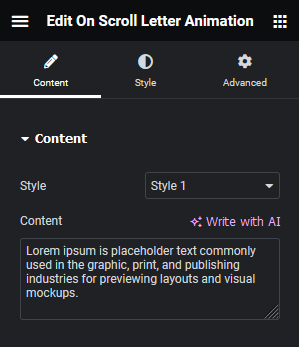
- Set the Content field to the text you want animated, then adjust typography and color on the Style tab.
8. Use Cases
- A hero headline that animates in as the visitor scrolls down
- A section title that draws attention as it enters the viewport
9. Limitations
- Only the pre-defined Style presets are available, there is no custom keyframe editor.
- The animation plays once per scroll into view, it does not loop continuously.
10. Troubleshooting
- Text never animates: confirm the Content field actually has text entered, an empty field has nothing to animate.
- Animation looks different than expected: double check the chosen Style preset, each one has a distinct letter pattern.
- Text color looks wrong: set the color explicitly on the Style tab rather than relying on the page’s default heading color.