
Team with Popup Widget for Elementor
On this page
What It Does
With this widget, you can showcase your team members in a clean and interactive layout. On hover, it displays their name and designation, and on click, it opens a pop-up with more details about the person.
See it working on a live page before adding it to your own page:
Why It Matters
A team page that just lists names and photos gives a visitor no way to actually reach a person. Putting contact details, a bio, and social links behind a click keeps the layout clean while still making every team member easy to get in touch with.
What You Get
- A grid of team member cards with a hover reveal of name and designation
- A popup per team member with description, contact number, email, and up to three social links
- Responsive column and alignment controls
Capabilities
- Repeater-based team member list (4 items by default, add more with + Add Item)
- Per-member image, name, designation, description, phone, and email
- Up to three custom social icons/SVGs with individual links per member
- Responsive alignment for name/designation text
- Separate Desktop Column and Tablet Column counts, plus a Gap control
Required Setup
- Elementor FREE Plugin installed & activated.
- You need to have the WDesignKit plugin installed and activated.
- Make sure you’ve created an account and logged into it.
- Make sure you’ve downloaded the Team with Popup widget.
How to Use It
How to Activate the Team with Popup Widget
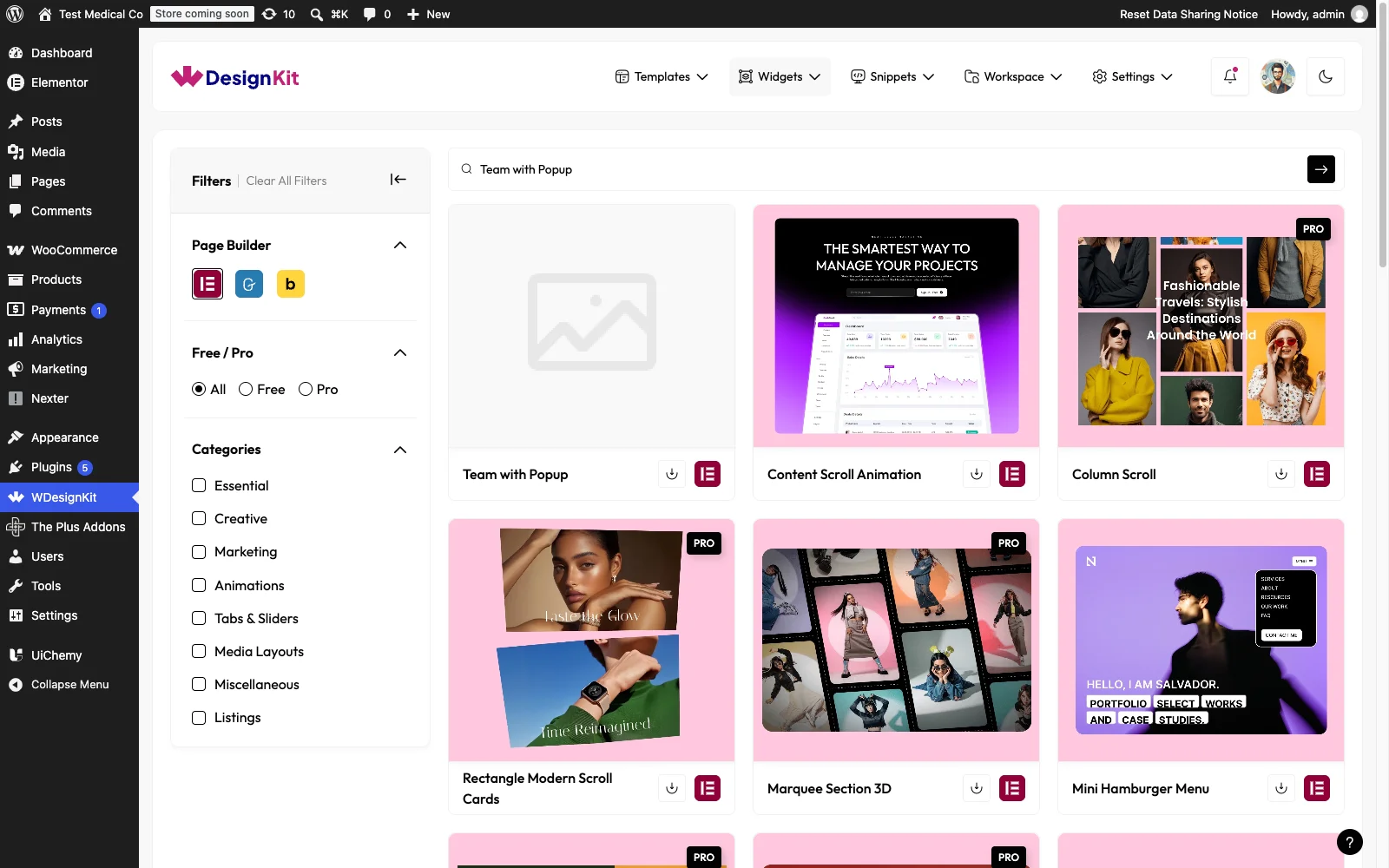
- WDesignKit → Widgets.
- Search the widget name and select Elementor as the Page Builder.
- Click on the Download icon.
Using the Widget in Elementor
Add the Team with Popup widget to the page.
Content

Once you add the widget, by default, you’ll see four repeater items under the Items section. Open one item.
From the Select Image section, you have to choose an image to see the pop-up effect.
In the Name section, you have to add the name of the team member.
From the Designation section, you have to add the designation of the team member.
From the Description section, you have to add the details of the team member, which will be visible in the popup.
In the Tel section, you can add the contact number of the team member, which will be visible in the pop-up.
In the Email section, you can add the email address of the team member, which will also be shown in the pop-up.
Then you can add up to three icons or SVGs to add social media links for the team member that will show in the popup.
You can add individual icons or SVGs and links for each.
Then, you can click the + Add Item button to add more team members.
Extra Option

From the Alignment section, you can align the team member’s name and designation for responsive devices.
You can set the number of columns for the Team Member items separately for desktop and tablet devices using the Desktop Column and Tablet Column sections, respectively.
From the Gap section, you can adjust the gap between the columns.
Then, from the Style tab, you can further customize the style of the Team with Popup.
Use Cases
- An About Us or Meet the Team page with contact details behind each member
- A staff directory where each person’s phone, email, and social links matter
- An agency or studio page showcasing individual team bios without cluttering the grid
Limitations
- Only available for Elementor
- Up to three social icon/SVG links per team member
- An image must be selected on each repeater item for the popup effect to work
Troubleshooting
- Clicking a team member does not open the popup. This is workflow-derived, not sourced from a specific support ticket: confirm an image is actually selected in that item’s Select Image field, the popup effect is tied to the image being present.
- Social icons don’t appear in the popup. This is workflow-derived, not sourced from a specific support ticket: each social icon needs both an icon/SVG selected and its link filled in; an icon with no link will not render.