
Text 3D Effect Widget for Elementor
On this page
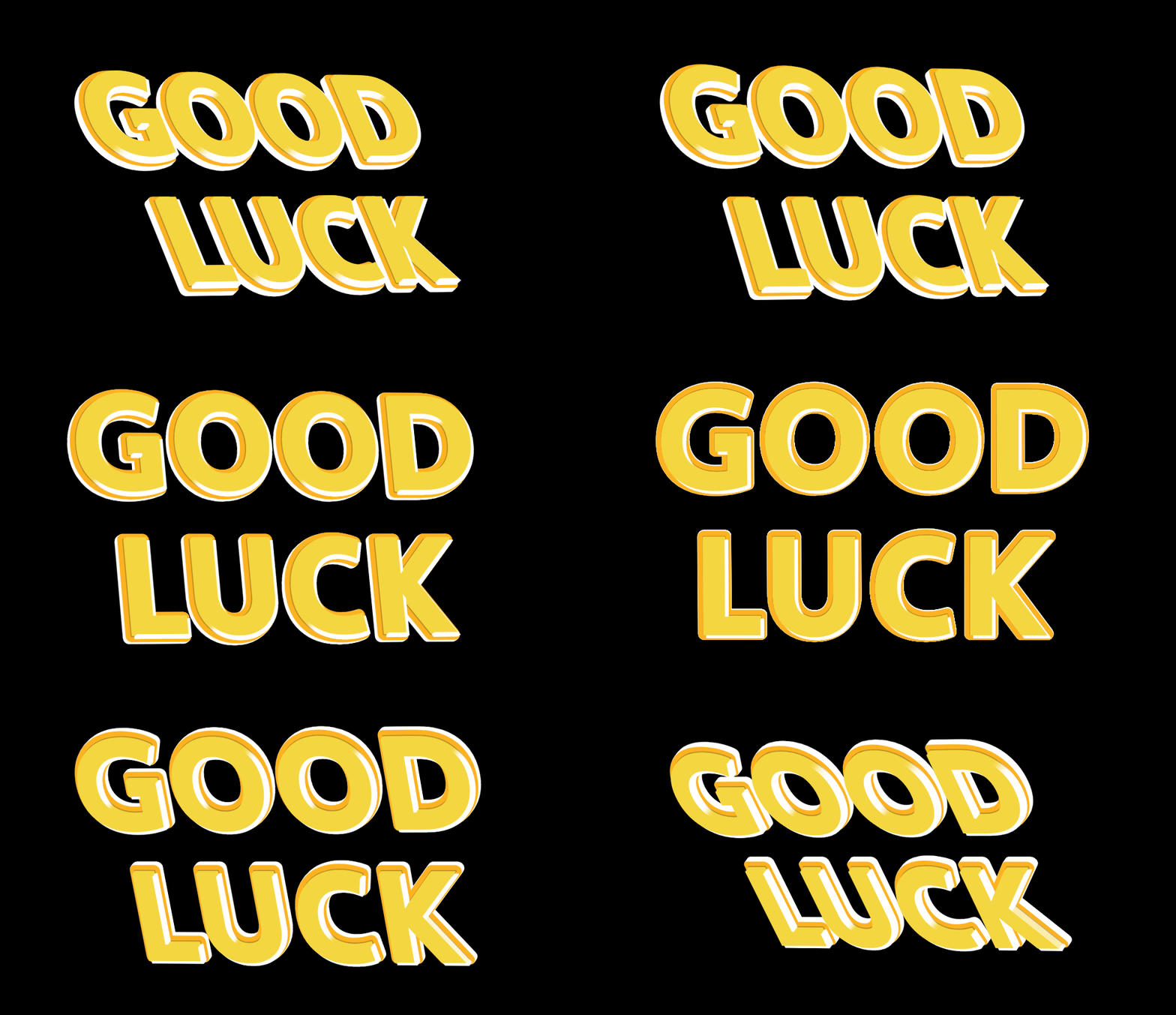
The Text 3D Effect widget renders text with a stroked, rotated 3D look, either static or continuously animated.
1. What It Does
Displays a line of text styled with stroke and rotation to read as three-dimensional, and can animate that rotation continuously.
2. Why It Matters
A 3D text treatment gives a headline extra depth and movement without needing a video or a custom SVG animation.
3. What You Get
A Text field, a Continuous Animation toggle with a duration control, and stroke width, stroke color, and rotation controls on the Style tab.
4. Benefits
Skipped, already covered above: the value is the stroked, rotated 3D look described in Why It Matters and What You Get, restating it here would not add anything new.
5. Capabilities
- Text field for the heading content
- Continuous Animation toggle to keep the text rotating
- Duration (in second) field to set the animation speed when Continuous Animation is on
- Style tab controls for stroke width, stroke color, and text rotation, which together create the 3D look
6. How It Works
Stroke width, stroke color, and rotation on the Style tab build up the layered, angled look that reads as 3D. Enabling Continuous Animation keeps that rotation moving at the speed set by Duration, instead of holding it at a fixed angle.
7. How to Use It
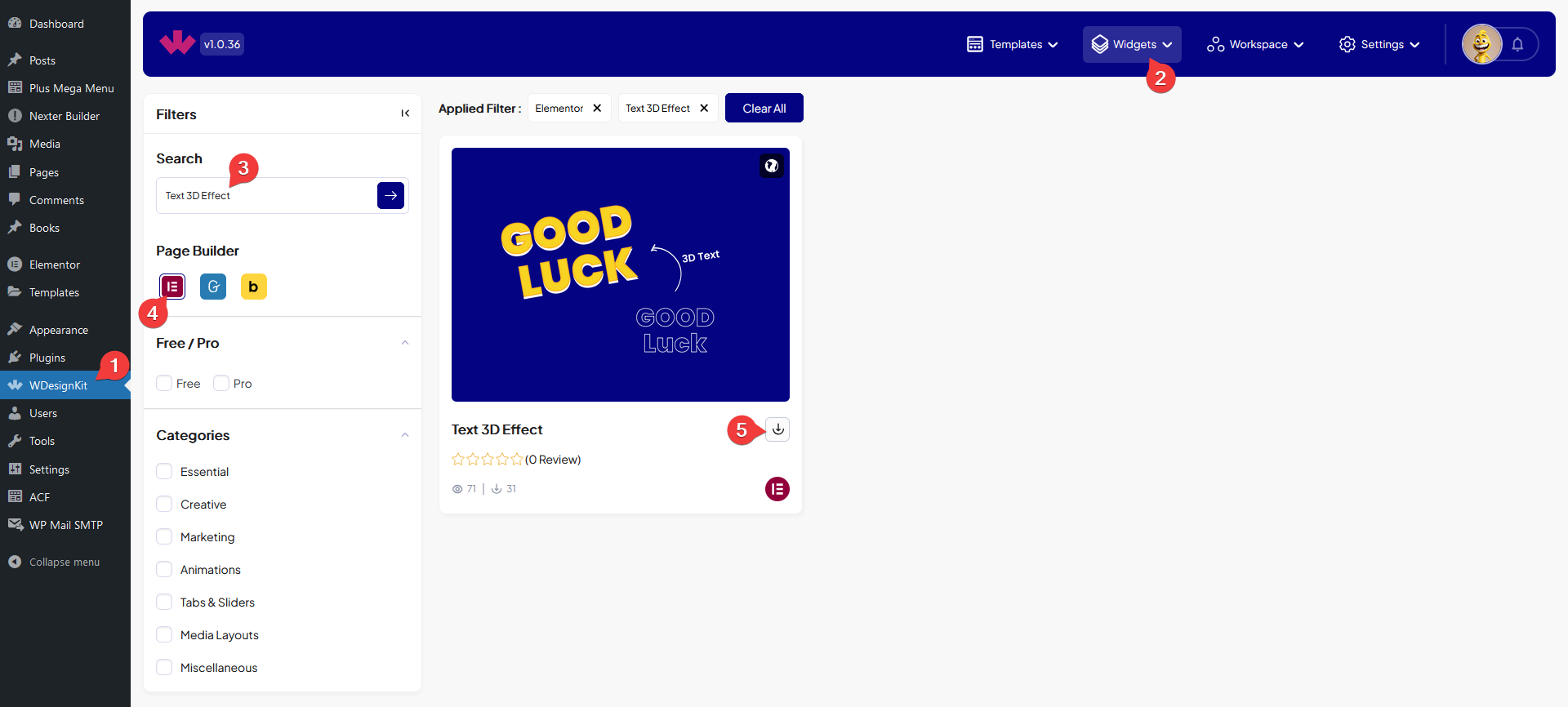
- Activate the Text 3D Effect widget from WDesignKit’s Ready Widgets.
- Drag the widget onto the page and set the Text field.
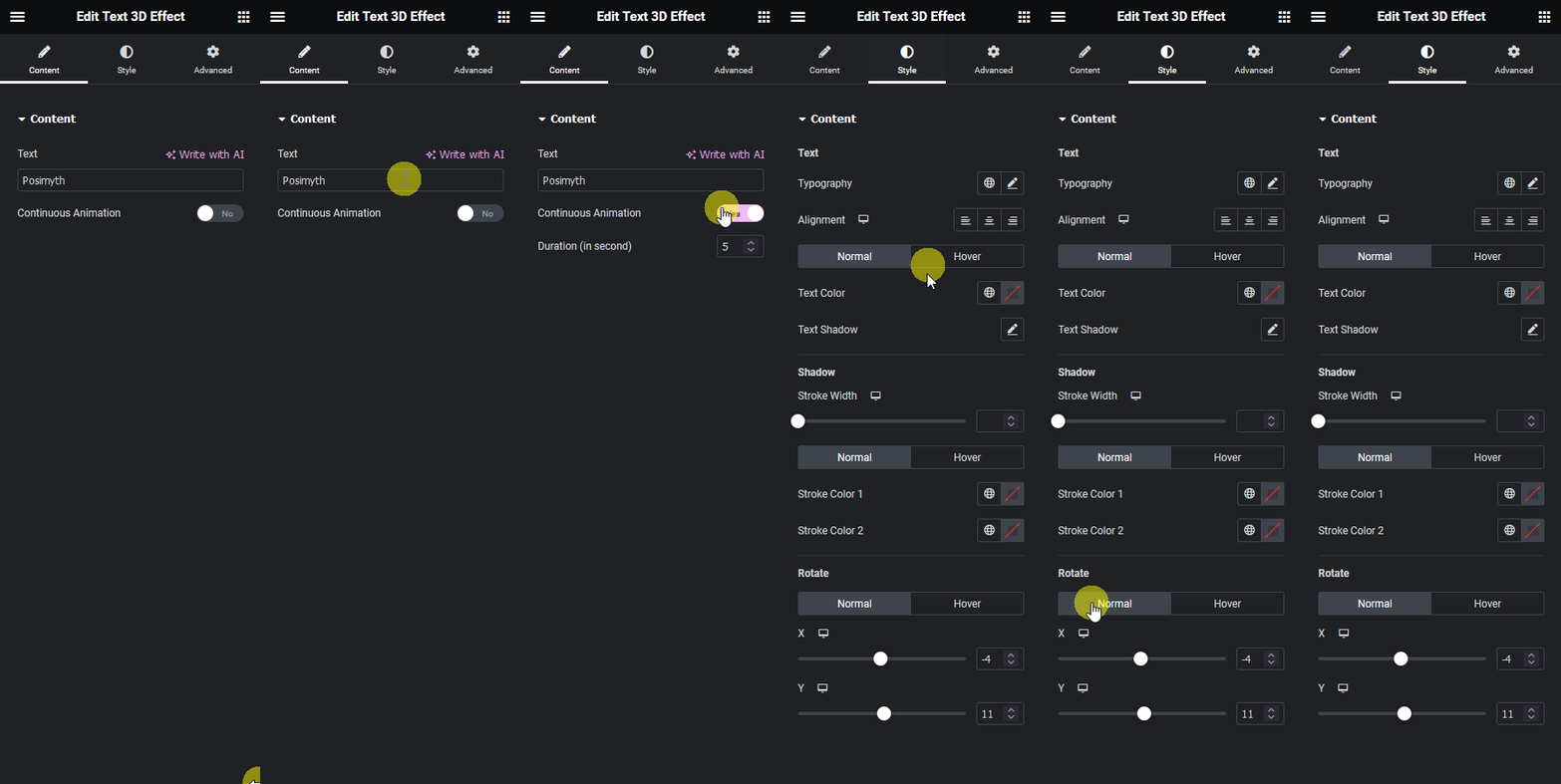
- Optionally enable Continuous Animation and set its Duration (in second).
- Set the stroke width, stroke color, and rotation on the Style tab to shape the 3D look.
8. Use Cases
- A hero headline with an animated 3D rotation for extra visual weight
- A static, angled 3D-styled logotype or brand word
9. Limitations
- Stroke, color, and rotation apply to the whole Text field, individual characters cannot be styled separately.
- Continuous Animation only offers a fixed rotation loop, it does not support a custom easing curve.
10. Troubleshooting
- Text does not look 3D: increase the stroke width and adjust rotation on the Style tab, a stroke width of zero flattens the effect.
- Animation never starts: confirm Continuous Animation is enabled, it is off by default.
- Animation feels too fast or too slow: adjust Duration (in second) under the toggle.