
Review Testimonial Carousel Widget for Elementor
On this page
The Review Testimonial Carousel widget displays a set of testimonial thumbnails, each opening a detailed review with a rating, embeddable media, and up to three description blocks.
1. What It Does
Shows a row of testimonial thumbnails that switch a detail panel showing that reviewer’s name, location, star rating, and up to three labeled content blocks, plus an optional embedded video or site.
2. Why It Matters
Splitting a testimonial into labeled sections, such as the problem, the result, and a quote, reads as more credible and scannable than one long block of praise.
3. What You Get
An Add Item repeater with thumbnail, name, location, star rating, an optional iFrame embed, and three labeled content fields, plus per-device thumbnail column controls.
4. Benefits
Skipped, already covered above: the value is the labeled, multi-part testimonial format described in Why It Matters and What You Get, restating it here would not add anything new.
5. Capabilities
- Add Item repeater, each with Select Image thumbnail, User Name, Location, Select Icon beside the location, an iFrame Link to embed a video or webpage, Star Rating, and Content 1, Content 2, Content 3 description fields
- Item Info tab to relabel Content 1, Content 2, and Content 3 and give each an icon
- Separator tab to edit the text shown on the separator line between sections
- Extra Option tab with Desktop Column, Tablet Column, and Mobile Column controls for the thumbnail row
6. How It Works
Each Add Item entry becomes one selectable thumbnail, and selecting it shows that entry’s name, location, rating, iFrame embed, and its three Content fields under the labels set on Item Info. The Desktop, Tablet, and Mobile Column settings control how many thumbnails show per row at each breakpoint.
7. How to Use It
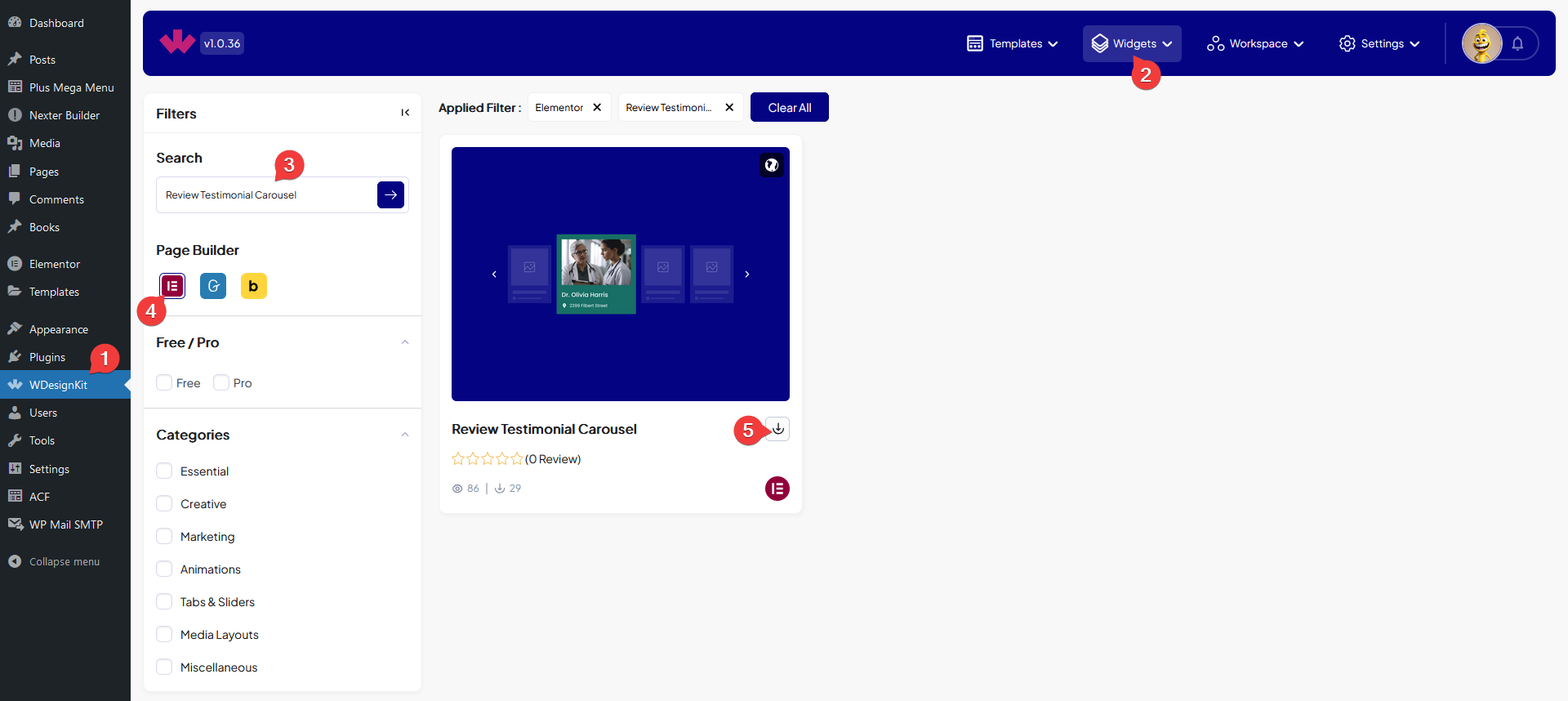
- Activate the Review Testimonial Carousel widget from WDesignKit’s Ready Widgets.
- Drag the widget onto the page and add items under Add Item, each with a thumbnail, name, location, and rating.
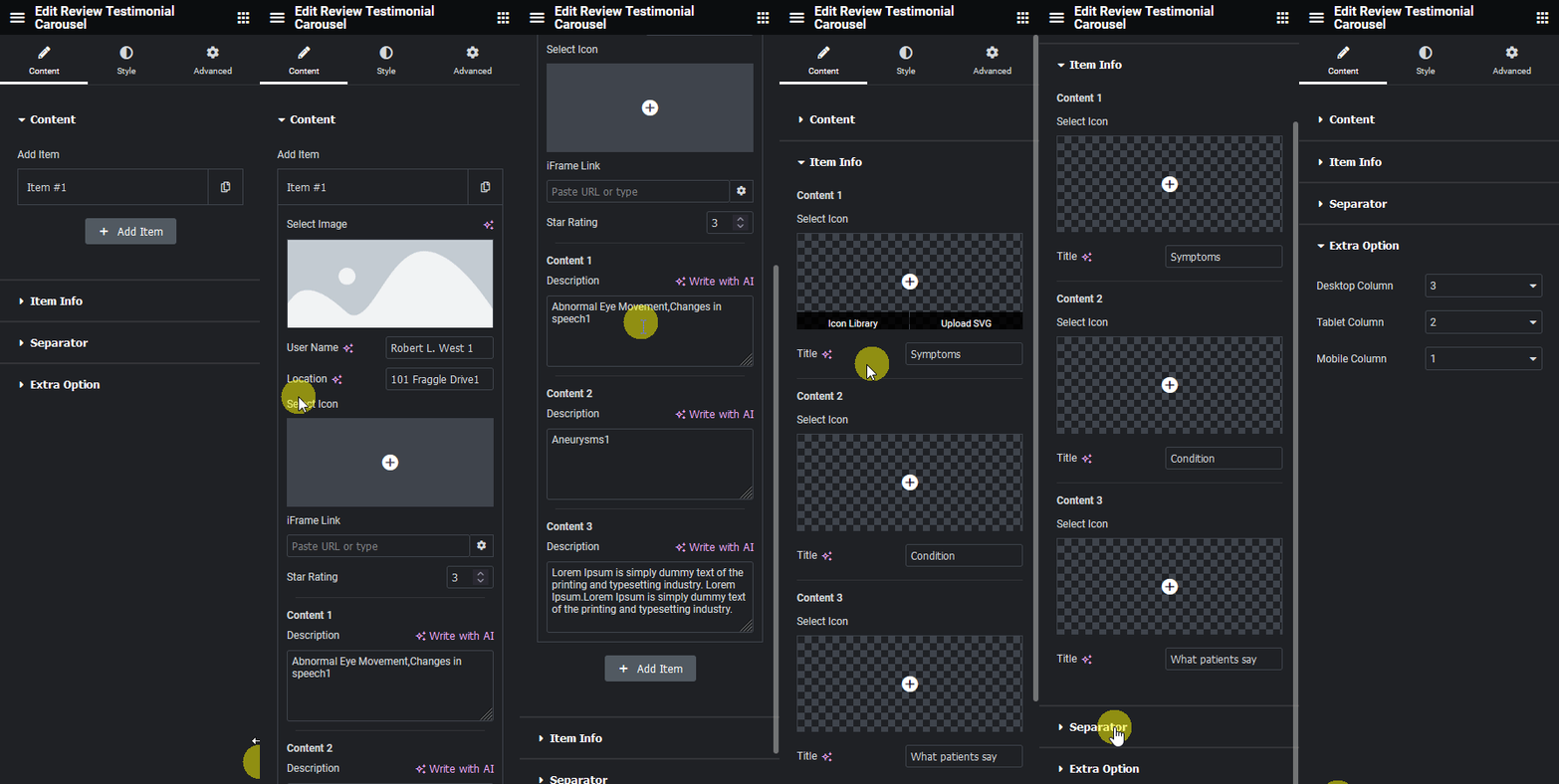
- Fill in Content 1, Content 2, and Content 3, or optionally add an iFrame Link to embed a video or site instead.
- Relabel Content 1 to 3 and their icons under Item Info, edit the Separator text, and set the thumbnail column counts under Extra Option.

8. Use Cases
- A case-study style testimonial section with a labeled challenge, result, and quote per client
- A reviews section that embeds a real video testimonial via iFrame Link alongside written ones
9. Limitations
- Every item shares the same Content 1 to 3 labels set on Item Info, individual items cannot use different labels.
- The iFrame Link field embeds external content directly, its availability depends on the source site or video allowing embedding.
10. Troubleshooting
- Embedded video does not appear: confirm the iFrame Link uses the video’s real embed URL, not its normal watch page link.
- Thumbnails wrap awkwardly on mobile: lower the Mobile Column count under Extra Option.
- Content label changes do not show: confirm the edit was made on the Item Info tab, not retyped inside an individual item.