
Scroll to Top Widget for Elementor
On this page
The Scroll to Top widget adds a click-to-scroll button that returns the visitor to the top of the page or to a specific container.
1. What It Does
Displays a button that appears after the visitor scrolls past a set offset, and scrolls them back to the top of the page or of a chosen container when clicked.
2. Why It Matters
A scroll-to-top button saves visitors from manually scrolling back up on long pages, and targeting a specific container instead of the whole page suits long sections like a FAQ or a feed.
3. What You Get
A configurable button with text and an optional icon or image, a choice between scrolling the whole page or a specific container, and position and offset controls per device.
4. Benefits
Skipped, already covered above: the value is the configurable scroll target and trigger point described in Why It Matters and What You Get, restating it here would not add anything new.
5. Capabilities
- Title field for the button text
- Select Icon dropdown: Icon, Image, or None for a text-only button
- Select Side dropdown to lay the button out horizontally or vertically
- Apply To dropdown: Body to scroll the whole page, or Container to scroll a specific element
- Connection ID/Class field to target a specific container when Apply To is set to Container
- Select Position dropdown: Relative or Fixed
- Offset field, set separately for desktop, tablet, and mobile, controlling how far the visitor scrolls before the button shows
6. How It Works
The button stays hidden until the page, or the targeted container when Apply To is set to Container, is scrolled past the Offset value, then it appears and scrolls back to the top on click. Leaving Connection ID/Class empty targets the button’s own parent container.
7. How to Use It
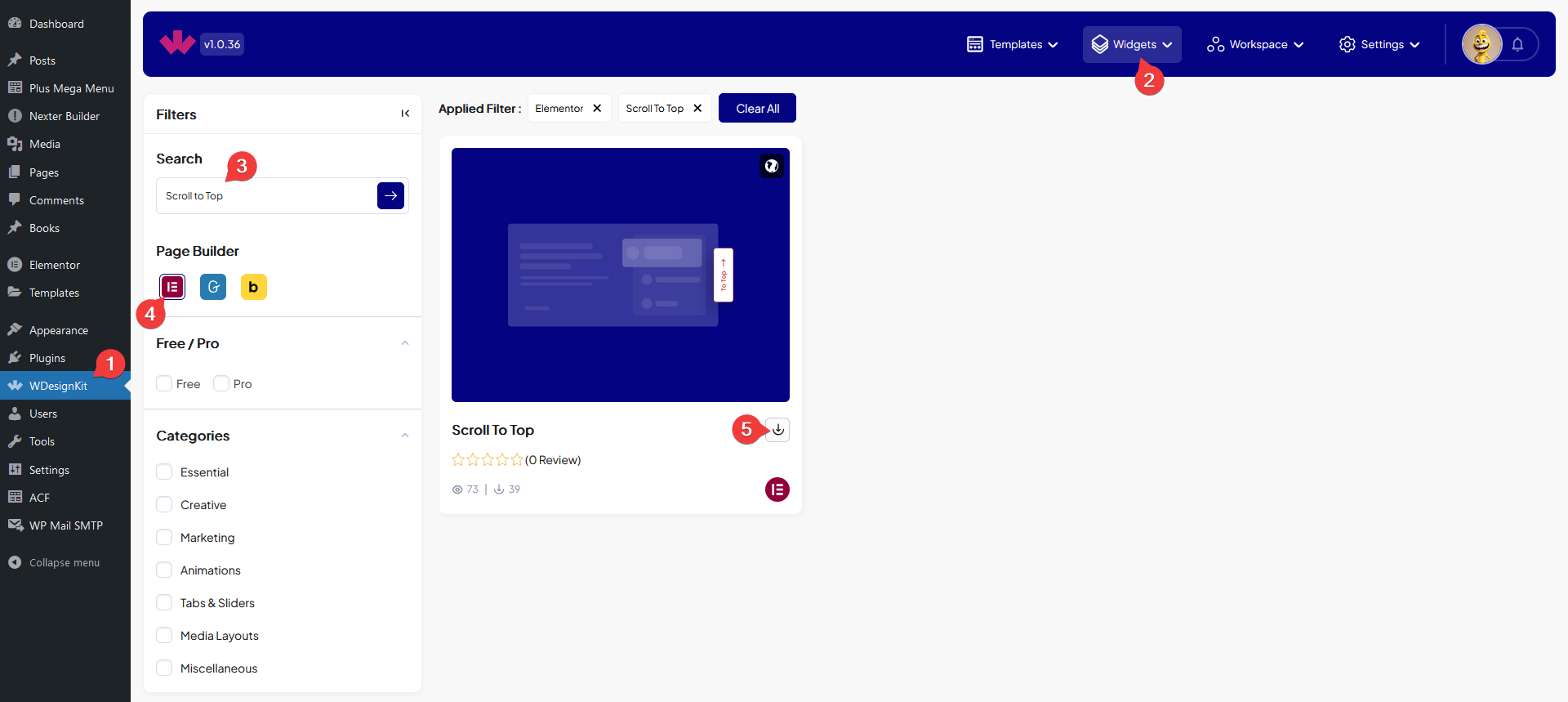
- Activate the Scroll to Top widget from WDesignKit’s Ready Widgets.
- Drag the widget onto the page, set the Title, then pick Icon, Image, or None from Select Icon.
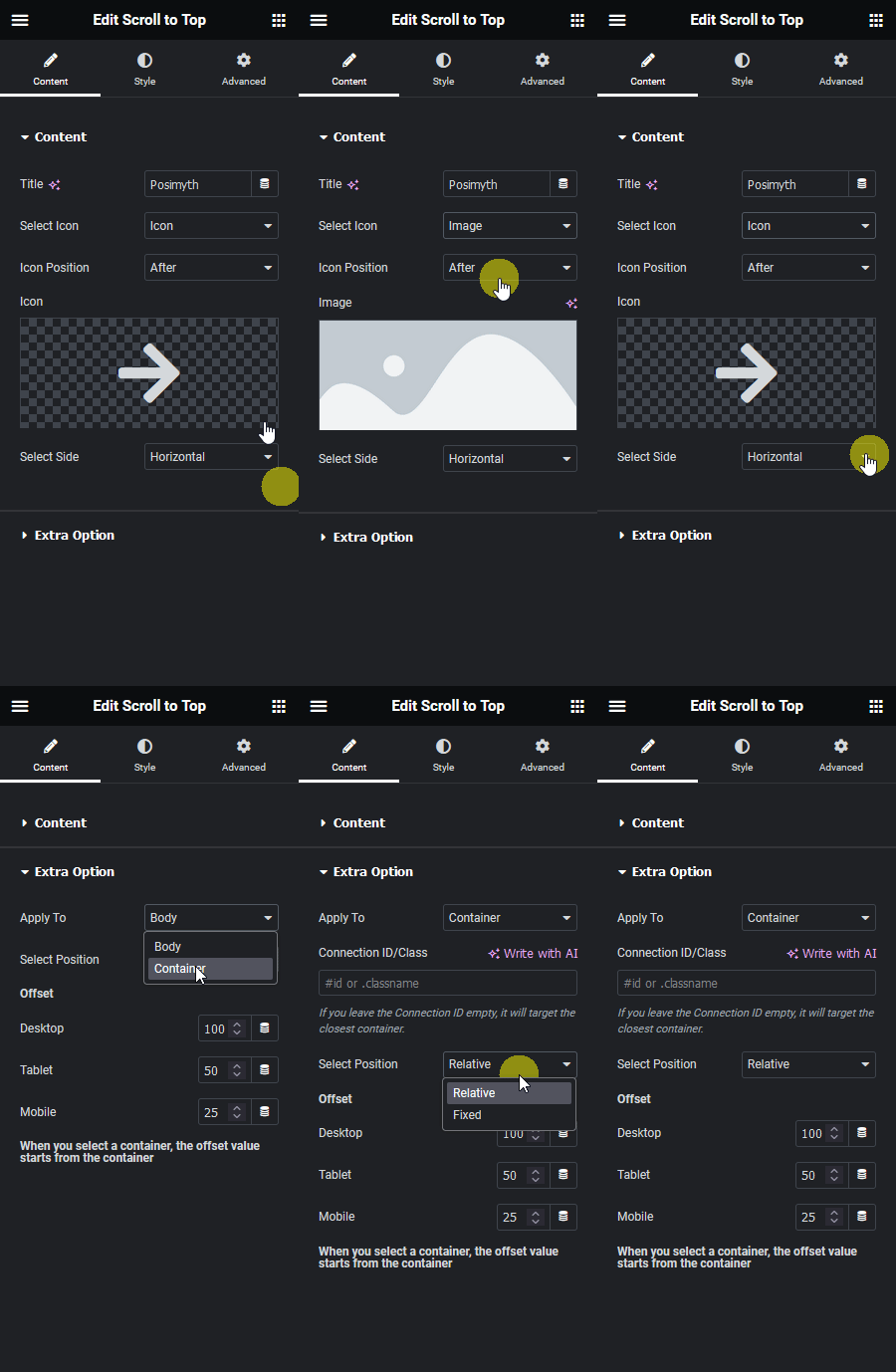
- Choose Apply To, Body for the whole page or Container plus a Connection ID/Class for a specific section.
- Set Select Position and the per-device Offset under Extra Option.
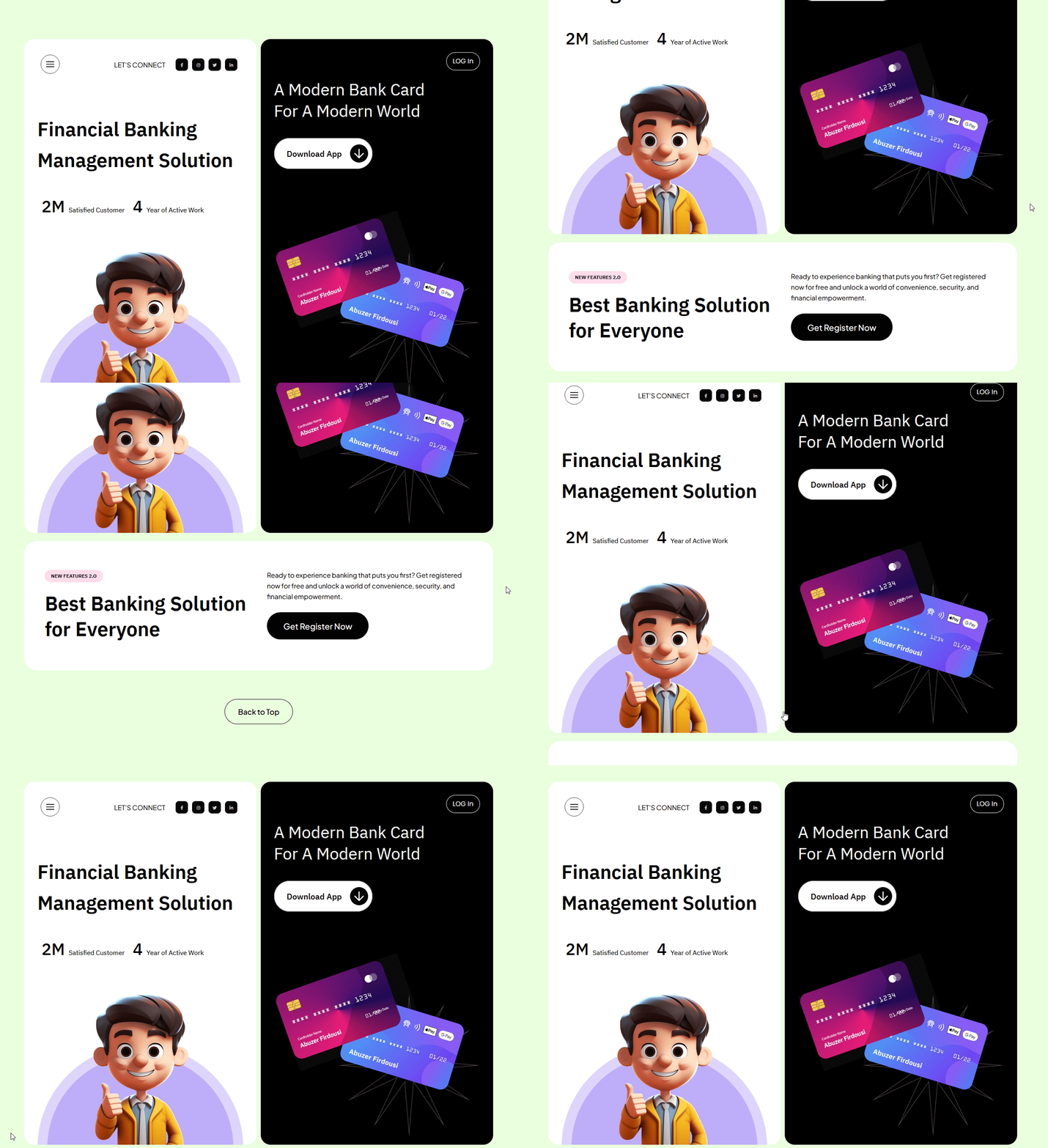
8. Use Cases
- A fixed page-wide scroll-to-top button for long blog posts
- A scroll-to-top button scoped to one long section, such as an FAQ or product feed, using Apply To Container
9. Limitations
- Only one Offset value set applies per device, individual containers on the same page cannot each have a different trigger point unless using separate widget instances.
- When Apply To is Container and Connection ID/Class is left empty, the widget always falls back to its own parent container, it cannot auto-detect an unrelated section.
10. Troubleshooting
- Button never appears: check the Offset value for that device, a value larger than the page’s scroll height means it never triggers.
- Button scrolls the wrong section: confirm Connection ID/Class exactly matches the target container’s CSS ID or class when Apply To is Container.
- Button position looks wrong on mobile: recheck Select Position and the mobile Offset separately, these do not inherit from desktop.