
Sparkle Text for Elementor
On this page
What It Does
With this widget, you can add a soft, moving sparkle effect to any text on your website, helping important words stand out in a clean and elegant way. It’s great for headings, offers, festive messages, or key lines that need extra attention. You can fully customize the sparkle size, speed, color, and density to match your site’s style.
See it working on a live page before adding it to your own page:
Why It Matters
A subtle sparkle effect draws the eye to the exact words you want a visitor to notice, without the heaviness of a full animation or popup. It works well for anything that should feel a little special, a limited offer, a festive greeting, or a headline you want remembered.
What You Get
- Two style layouts to choose from
- A repeatable list of sparkle icons you control individually
- Adjustable sparkle timing and responsive alignment
Capabilities
- Style 1 or Style 2 layout, each with its own content options
- Custom text content for the sparkling text itself
- Per-sparkle icon selection (icon or SVG), with separate normal and SVG color controls
- Add or remove sparkle items with the repeater
- Sparkle Timing control to speed up or slow down the effect
- Responsive alignment control
Required Setup
- Elementor FREE Plugin installed & activated.
- You need to have the WDesignKit plugin installed and activated.
- Make sure you’ve created an account and logged into it.
- Make sure you’ve downloaded the Sparkle Text widget.
How to Use It
How to Activate the Sparkle Text Widget
- WDesignKit → Widgets → Browse Widgets.
- Search the widget name and select Elementor as the Page Builder.
- Click on the Download icon.
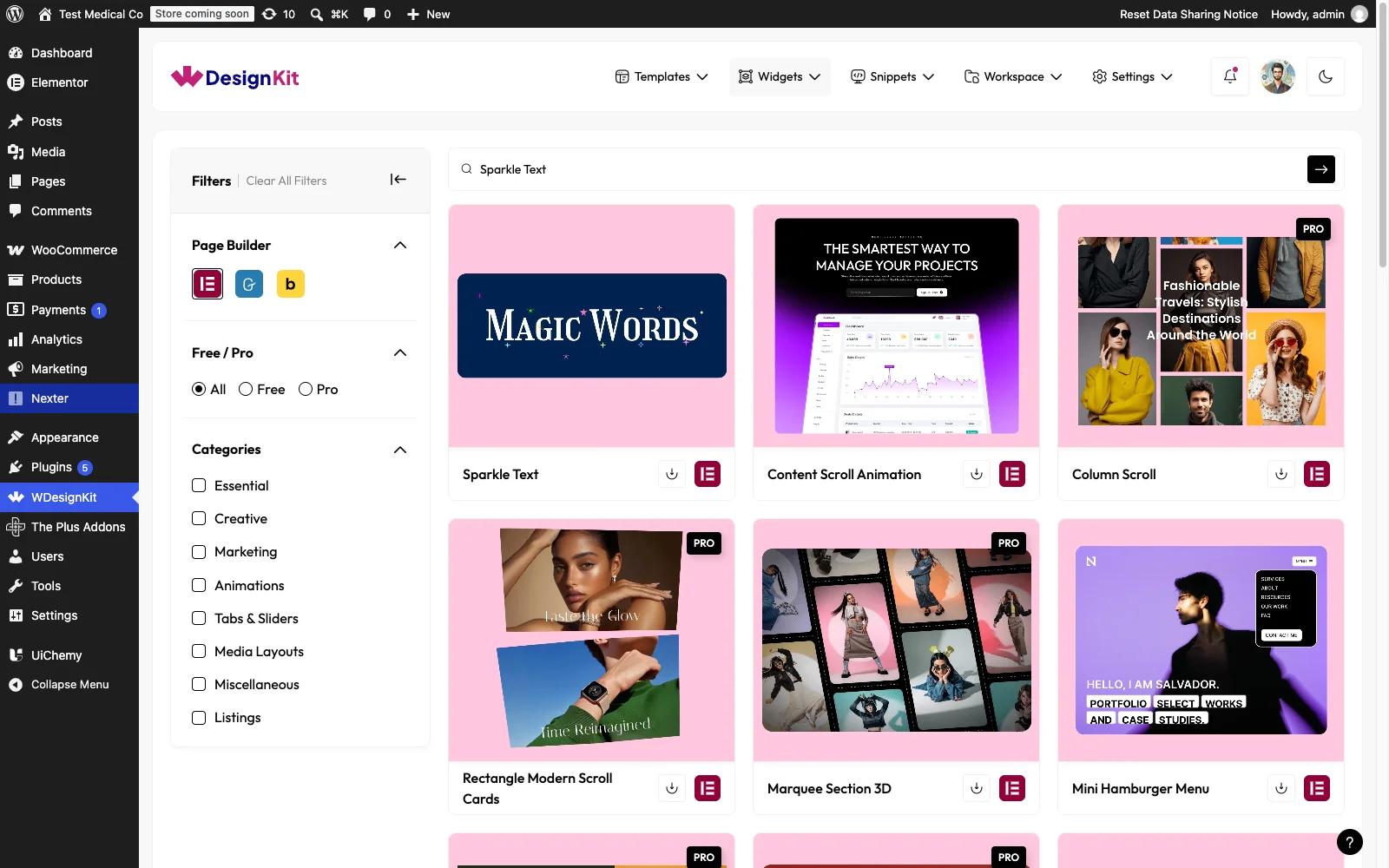
Using the Widget in Elementor
Add the Sparkle Text widget to the page.
Layout
You can select a pre-defined style from the Style dropdown.
Based on your selection, you’ll find different options to add the content.
Content
In the Text field, you have to add the content name.
Note: When you select Style 2 in the Style dropdown under the Layout tab, you will be able to see an additional Sparkle Icons section.
From the section, you can add the sparkle icons. By default, you’ll find one repeater item; open it.
From the Select Icon section, you can choose either an icon or an SVG for the content.
From the Icon Color field, you can manage the normal icon color for the item.
From the SVG Color field, you can manage the SVG icon color for the item.
You can click on the + Add Item button to add more icons.
Extra Options
From the Sparkle Timing (ms) section, you can set how fast or slow the sparkle effect plays. Smaller values make it faster, and larger values make it slower.
Then, from the Alignment section, you can align the layout for responsive devices.
Then, from the Style tab, you can further customize the style of the Sparkle Text.
Use Cases
- Highlighting a key word or phrase in a heading
- Drawing attention to a limited-time offer or discount
- Adding a festive or celebratory touch to seasonal messaging
- Making a hero headline feel more premium or eye-catching
Limitations
- Only available for Elementor
- The Sparkle Icons repeater only appears when Style 2 is selected in the Layout tab
- Using very large or many sparkle icons can visually crowd smaller text blocks
Troubleshooting
- The Sparkle Icons section is not visible in the editor. This is workflow-derived, not sourced from a specific support ticket: this section only appears when Style 2 is selected under the Layout tab’s Style dropdown, it will not show for Style 1.
- The sparkle icons don’t appear on the front end. This is workflow-derived, not sourced from a specific support ticket: confirm at least one repeater item has an icon actually selected in Select Icon, an empty repeater item will not render a visible sparkle.