
WhatsApp Chat Element for Bricks
On this page
What It Does
The WhatsApp Chat element adds a floating WhatsApp chat box to your Bricks page, so visitors can message you directly without leaving your site.
See it working on a live page before adding it to your own site:
Why It Matters
A visible, always-available chat option lowers the friction between a visitor having a question and actually asking it. Instead of hunting for a contact form or an email address, they tap the WhatsApp icon and start a conversation immediately, on the app they already use daily.
What You Get
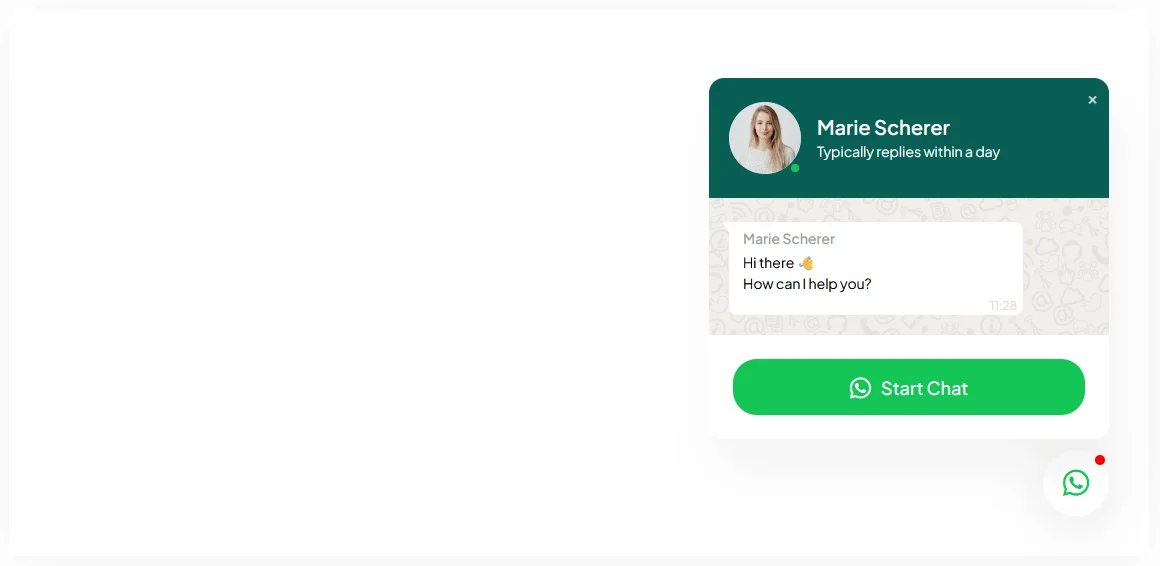
- A floating chat toggle button with an optional “someone is typing” dot animation
- A configurable chat window with avatar, title, subtitle, and a default message
- A direct link to WhatsApp pre-filled with your number and an optional starting message
Capabilities
- Toggle button text, icon, and default-open state
- Chat agent avatar, title, verified badge icon, and subtitle
- Custom default message and custom button text/icon inside the chat box
- Full style controls for colors, spacing, and typography from the Style tab
Required Setup
- Bricks Builder installed & activated.
- You need to have the WDesignKit plugin installed and activated.
- Make sure you’ve created an account and logged into it.
- Make sure you’ve downloaded the WhatsApp Chat element.
How to Use It
How to Activate the WhatsApp Chat Element
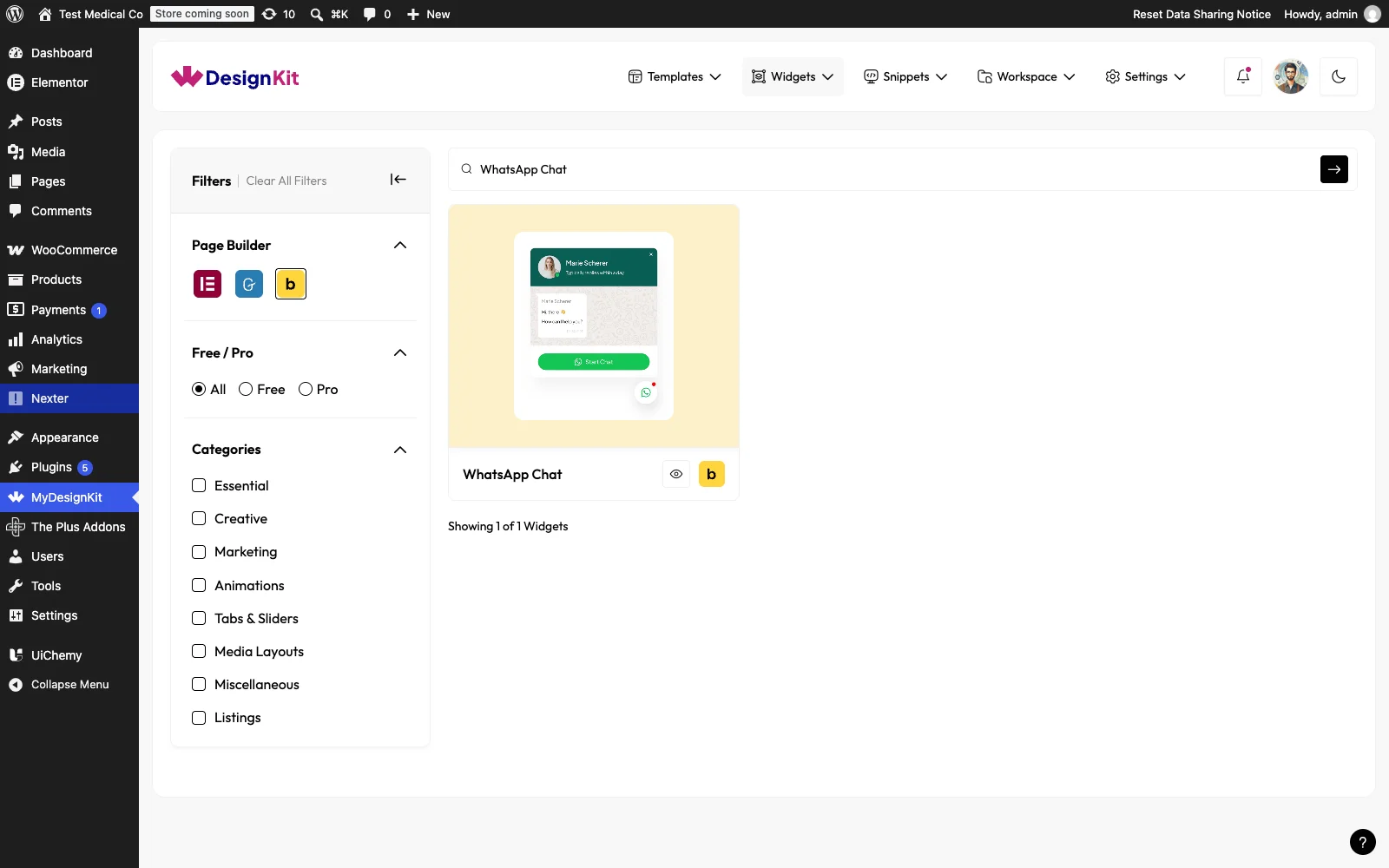
- WDesignKit → Widgets.
- Search the element name and select Bricks as the Page Builder.
- Click on the Download icon.
Using the Element in Bricks
Add the WhatsApp Chat element to the page.
Toggle Button
In the Text field, you can add the toggle button text.

From the Icon Type dropdown, you can select the icon type. Here you’ll find two options –
- None – To add no icons.
- Icon – To add an icon.
By enabling the Show Dot toggle, you can show animated dots as if someone is typing in the chat box before showing the default text message.
Then, you can keep the chat box open by default by enabling the Default Enable toggle.
Content
In the Avatar Image section, you can add a profile image of the chat agent.
In the Title field, you can add the title of the chat agent.
You can add an icon beside the title as a verified icon from the Verified Icon section.
In the Subtitle field, you can add a subtitle.
From the Subtitle Prefix Icon section, you can add an icon before the subtitle.
Then in the Text field under the Content section, you have to add the default message.
From the Text field under the Button section, you can modify the button text in the chat box.
From the Icon Type dropdown, you can add an icon to the button.
Then in the WhatsApp Number field, you have to add the WhatsApp number where you want the user to contact.
Note: Make sure to add the WhatsApp number with the country code.
In the Message field, you can add a message that will be visible when users go to the WhatsApp page.
From the Style tab, you can further customize the chat box style.
Use Cases
- Giving support or sales visitors a one-tap way to reach you instead of a contact form
- Adding a low-friction lead channel to a landing page
- Replacing a generic contact page link with a direct, pre-filled WhatsApp conversation
Limitations
- Only available for the Bricks builder in WDesignKit today, not Elementor or Gutenberg
- Requires the WhatsApp number to include the country code, or the chat link will not connect correctly
- Running more than one WhatsApp chat plugin/widget at once on the same site can conflict; only one should be active
Troubleshooting
- The chat box stays fixed inside a container instead of floating at a screen corner. The element’s default position is controlled by its own positioning settings, not by the container around it; check the element’s Style tab for its position setting rather than trying to move the container itself.
- The WhatsApp widget disappeared after a plugin update, or a second copy of it triggers a fatal error. This usually means two different WhatsApp-chat sources are active on the same site (for example an older standalone WhatsApp plugin alongside WDesignKit’s element). Deactivate the other WhatsApp plugin so only the WDesignKit element remains active.
- The WhatsApp element option isn’t visible when searching widgets. Confirm the Page Builder filter in WDesignKit > Widgets is set to Bricks, not Elementor or Gutenberg, since this element is currently Bricks-only and won’t appear under the other builder filters.