
WhatsApp Chat Widget for Elementor
On this page
The WhatsApp Chat widget adds a floating chat button that opens a WhatsApp conversation with a pre-filled message.
1. What It Does
Displays a toggle button that opens a chat-style popup with a profile, a default message, and a button that hands the visitor off to WhatsApp with a pre-filled message.
2. Why It Matters
A WhatsApp chat entry point gives visitors a faster, more personal way to reach you than a contact form, useful for support or sales conversations that benefit from a real-time channel.
3. What You Get
A toggle button, a chat popup with a profile title and subtitle, a default popup message, and a WhatsApp Number and pre-filled Message that opens the visitor’s WhatsApp app or web client.
4. Benefits
Skipped, already covered above: the value is the direct WhatsApp hand-off described in Why It Matters and What You Get, restating it here would not add anything new.
5. Capabilities
- Toggle Button section: Button Text, Icon Type (None or Icon), Icon Position, Select Icon
- Profile Title section: Title, Select Image, Select Icon
- Profile Subtitle section: Text, Select Icon
- Popup Content section: Text, the default message shown in the popup
- Popup Button section: Text, Icon Type, Select Icon, WhatsApp Number, and Message, the pre-filled text sent to WhatsApp
- Extra Options: Show Dot toggle for an animated typing indicator, Default Enable toggle to keep the popup open by default
6. How It Works
Clicking the Toggle Button opens the popup showing the Profile Title, Profile Subtitle, and Popup Content message. Clicking the Popup Button opens WhatsApp, using WhatsApp Number as the recipient and Message as the pre-filled text, so the visitor only has to hit send.
7. How to Use It
- Activate the WhatsApp Chat widget from WDesignKit’s Ready Widgets.
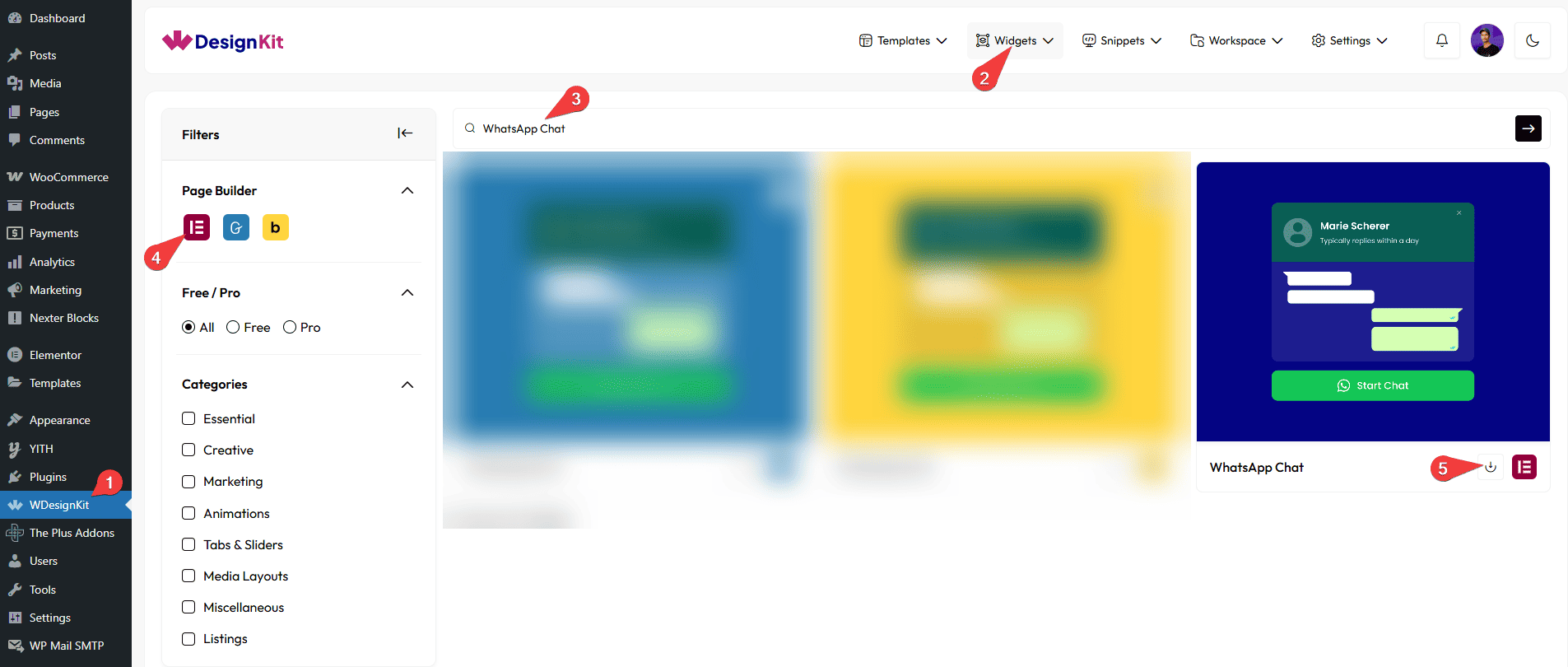
- Drag the widget onto the page, set the Toggle Button text and icon.
- Fill in Profile Title, Profile Subtitle, and Popup Content with your chat agent’s details and greeting.
- Set the Popup Button’s WhatsApp Number, with the country code, and its pre-filled Message.
- Optionally enable Show Dot for a typing animation, or Default Enable to keep the popup open by default.
8. Use Cases
- A floating support chat entry point on a services or pricing page
- A pre-filled sales inquiry button on a product landing page
9. Limitations
- The widget only opens WhatsApp with a pre-filled message, it does not send the message automatically or track replies.
- Only one WhatsApp Number can be set per widget instance, routing to multiple agents needs separate widgets.
10. Troubleshooting
- Clicking the popup button does not open WhatsApp: confirm WhatsApp Number includes the full country code with no extra spaces or symbols.
- Popup does not appear on click: confirm Default Enable is not conflicting with the toggle’s own open and close state.
- Profile image is missing: check Select Image under Profile Title has a real image chosen.