
Magnetic Button Widget for Elementor
On this page
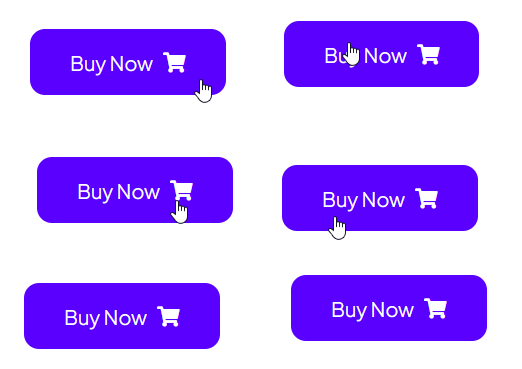
This widget makes a button visually stick to and follow the cursor whenever the pointer is over it, floating toward the pointer and springing back when the cursor leaves.
1. What It Does
Magnetic Button offsets a button toward the cursor while the pointer is anywhere over it, then animates it back to its resting position once the cursor leaves.
2. Why It Matters
It adds a tactile micro-interaction to a call-to-action button that a plain hover color change cannot give.
3. What You Get
A button element with its own text, link and icon, plus the built-in magnetic hover motion.
4. Benefits
Skipped, already covered above: the value is the tactile hover interaction described in Why It Matters, restating it here would not add anything new.
5. Capabilities
- Button Text and URL (with open-in-new-tab and nofollow options)
- Select Icon with Before/After placement
- Alignment control (left, center, right)
- Tablet Link and Mobile Link toggles to disable the click-through link on those breakpoints specifically
- Full style controls for the button and icon in Normal and Hover states (typography, color, background, border, radius, box shadow)
6. How It Works
While the cursor is anywhere over the button, JS offsets the button toward the cursor in real time, then animates it back to (0,0) once the cursor leaves. The amount of pull is fixed by the widget’s own code, confirmed live via the widget’s JSON config, there is no separate radius or strength control exposed in Elementor.
7. How to Use It
- Activate the Magnetic Button widget from WDesignKit’s Ready Widgets.
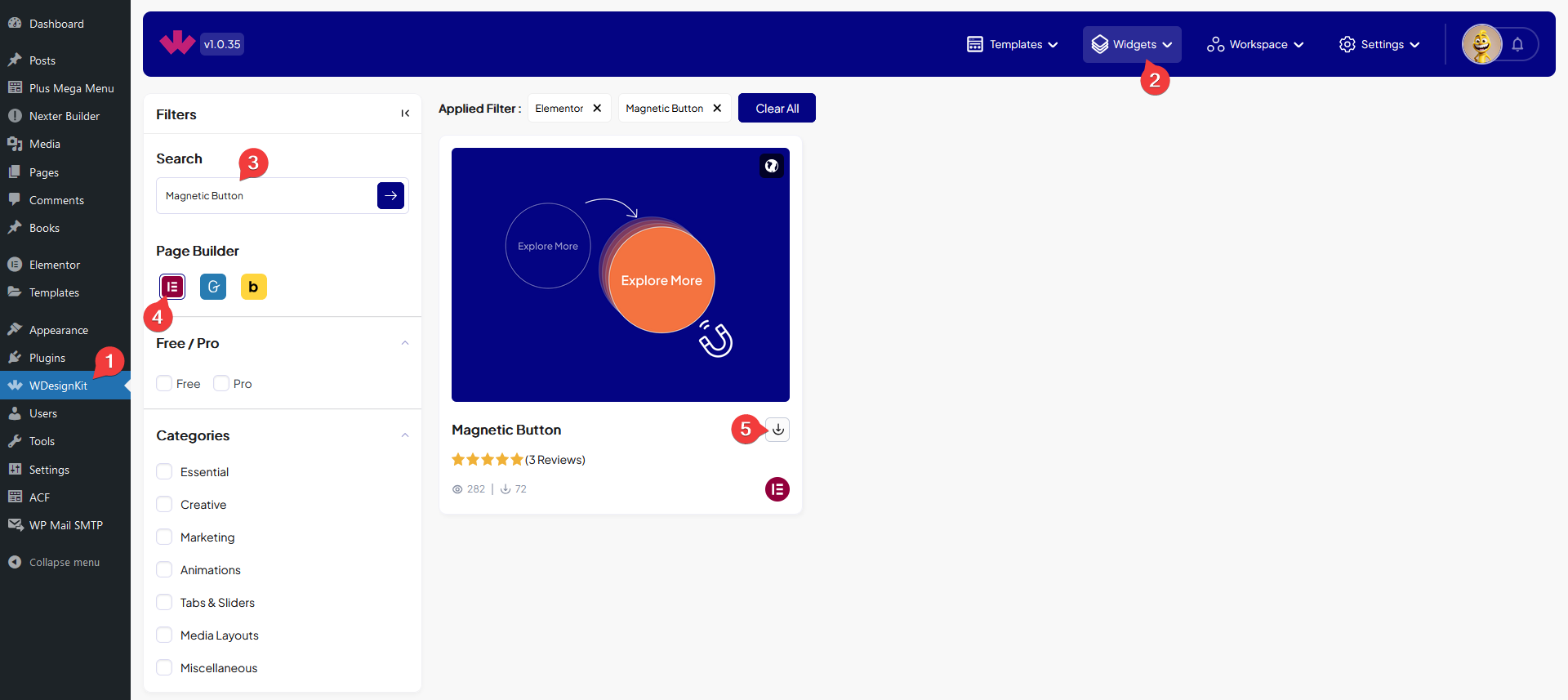
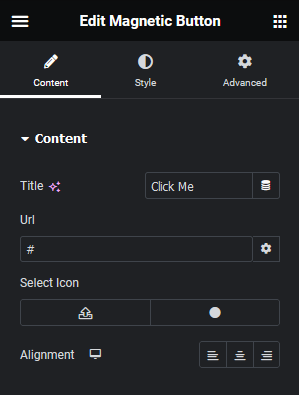
- Drag the widget onto the page, set the Button Text and URL, and pick an icon and its placement.
- Set the alignment and, if needed, disable the link on tablet or mobile.
- Style the button and icon under the Style tab, then preview on the published page since the hover pull does not play inside the Elementor editor canvas.
8. Use Cases
- A primary call-to-action button on a landing page hero.
- An agency portfolio’s Contact button.
9. Limitations
- The pull strength and distance are fixed by the widget’s own code and are not exposed as an Elementor control, confirmed by reading the widget’s live JSON config, so the feel of the effect cannot be tuned without custom CSS/JS.
- The magnetic pull is a hover and pointer effect with no equivalent motion on touch-only devices, not independently re-tested on a live mobile device this session.
- FLAGGED FOR OPERATOR: this widget shipped a “renamed content and style control labels” update since these screenshots were uploaded (screenshots dated 2024, control-label rename shipped as part of version 1.0.1) – the Activate and Content screenshots may show pre-rename Elementor panel labels. New screenshots are recommended.
10. Troubleshooting
- Button does not move on hover: confirm the widget was activated in Ready Widgets before dragging it onto the page.
- Link still works on mobile or tablet when it should not: check the Tablet Link / Mobile Link toggles under Extra Options.
- Icon appears on the wrong side of the text: check the Icon Placement setting (Before/After).