
With this element, you can create a call to action image box with a beautiful hover effect.
Required Setup
- Bricks Builder installed & activated.
- You need to have the WDesignKit plugin installed and activated.
- Make sure you’ve created an account and logged into it.
- Make sure you’ve downloaded the CTA Image Box element.
How to Activate the CTA Image Box Element?
Go to
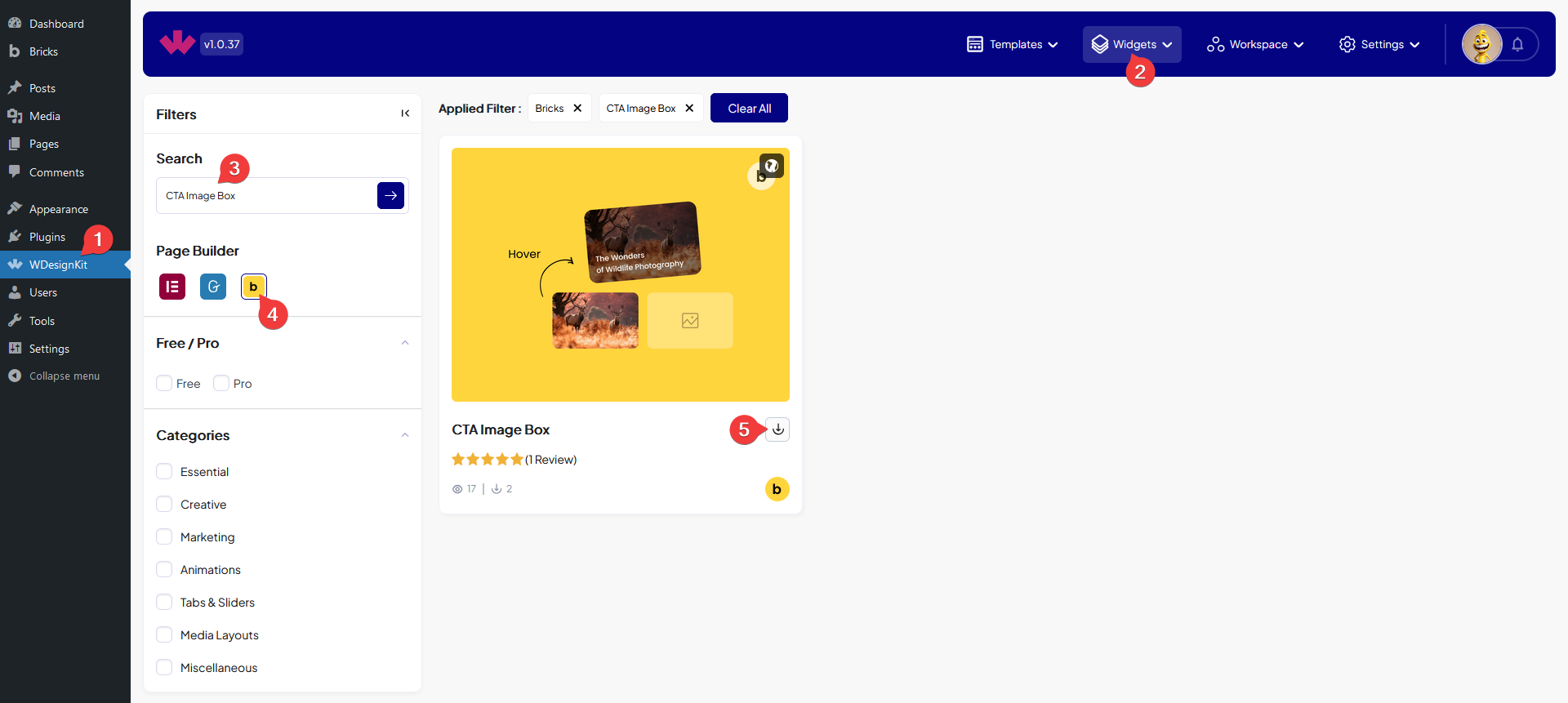
- WDesignKit → Widgets.
- Search the element name and select Bricks as the Page Builder.
- Click on the Download icon.
How to Use the CTA Image Box Element in Bricks?
Add the CTA Image Box element to the page.
In the Title field, you have to add the title.
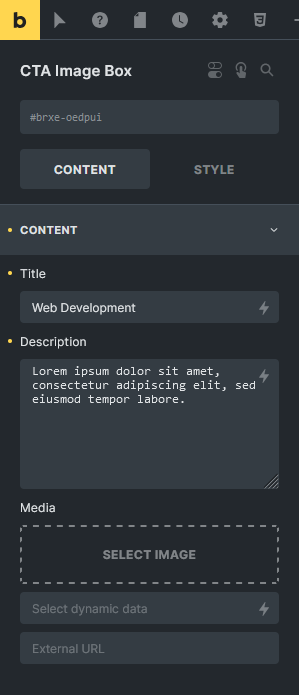
You can add a description from the Description field.
Then you have to add the image from the Media section.
From the Style tab, you can customize the style further.