
With this element, you can stack images or icons that will expand on hover.
Required Setup
- Bricks Builder installed & activated.
- You need to have the WDesignKit plugin installed and activated.
- Make sure you’ve created an account and logged into it.
- Make sure you’ve downloaded the Image Stack element.
How to Activate the Image Stack Element?
Go to
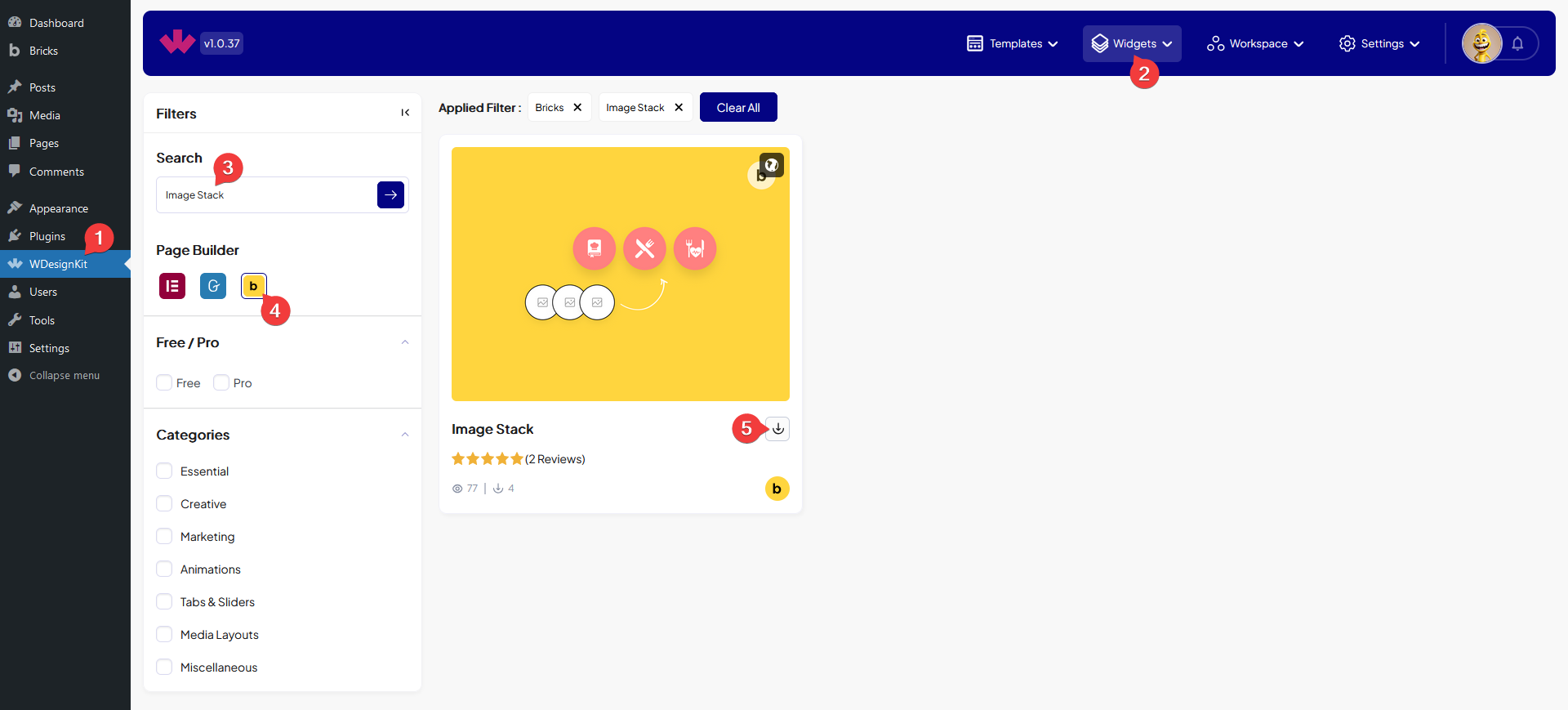
- WDesignKit → Widgets.
- Search the element name and select Bricks as the Page Builder.
- Click on the Download icon.
How to Use the Image Stack Element in Bricks?
Add the Image Stack element to the page.
Items
From the Item section, you have to add the images or icons. By default, you’ll find one repeater item, open it.
From the Icon Type dropdown, you have to select the image type. Here you’ll find two options –
- Icon – To add an icon.
- Image – To add an image.
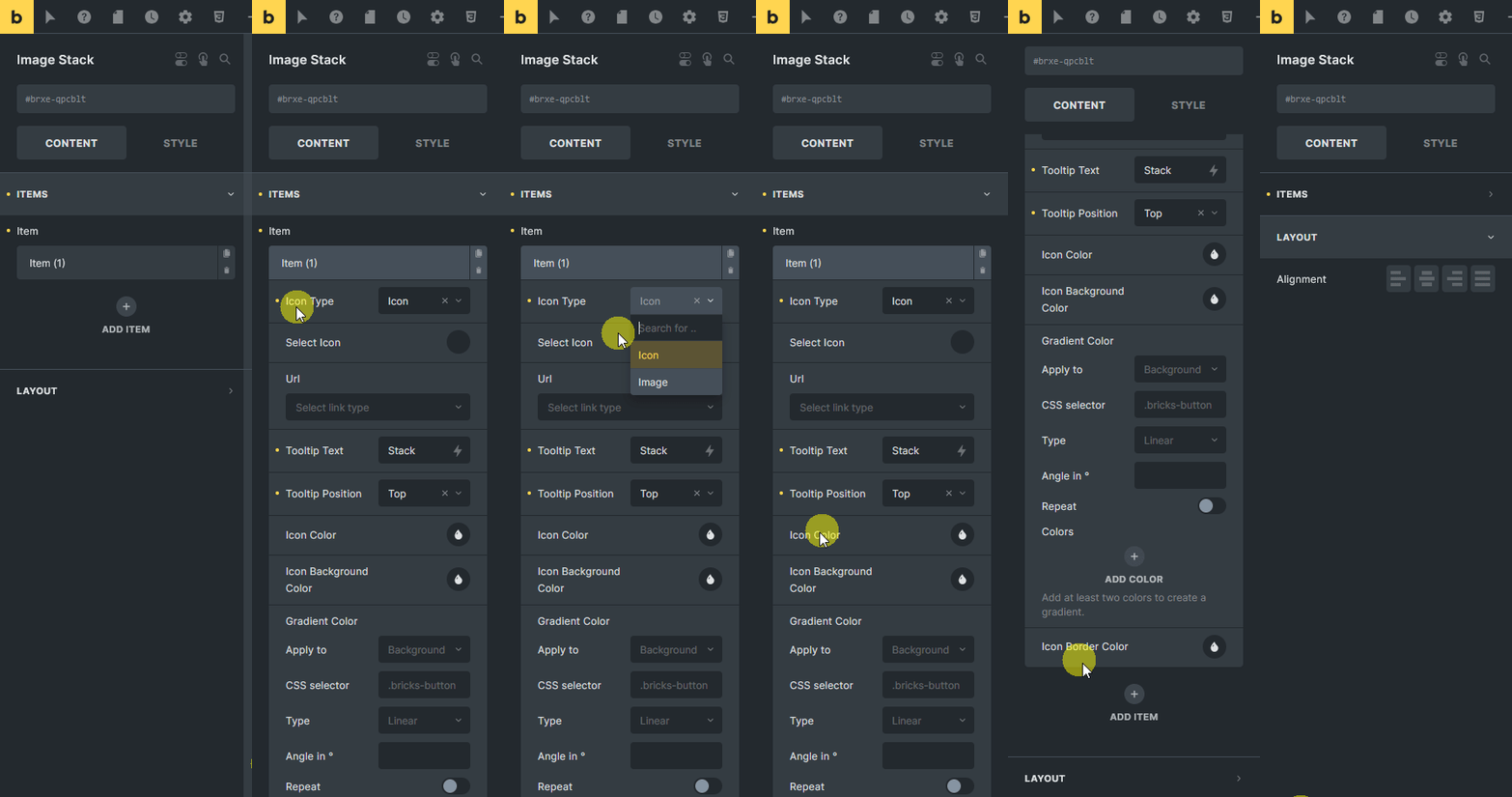
From the Url field, you can add different types of links to the icon or image.
Based on your selection of image type, you’ll find different options to add the icon or image.
Then from the Tooltip Text field, you can add a tooltip text to the image or icon.
You can position the tooltip text from the Tooltip Position dropdown.
You can manage the icon color, background and icon border color for the item.
You can click on the +ADD ITEM button to add more images or icons.
Layout
From the Alignment section, you can align the images or icons.
From the Style tab, you can customize the style further.