
Toggle Pricing Features Table Widget for Elementor
On this page
The Toggle Pricing Features Table widget builds a single pricing card with a toggle switch between two price states, and can sync that switch with a paired Advanced Pricing With Toggle widget via a shared Connection ID.
1. What It Does
Displays one pricing table with a toggle switch that flips between two price states, for example monthly and yearly, each with its own price, discount, and button, plus a list of features below.
2. Why It Matters
A toggle pricing table lets visitors compare two billing terms without leaving the page or loading a second table, and syncing it to a second widget keeps multiple pricing blocks on the same page showing the same billing term.
3. What You Get
A configurable toggle pricing card, title, subtitle, price sign, discount badge, and button, plus a features list with per-item icons, links, and toggle-aware tooltips.
4. Benefits
Skipped, already covered above: the value is the synced, in-place toggle described in Why It Matters and What You Get, restating it here would not add anything new.
5. Capabilities
- Title and Subtitle fields for the card heading
- Price Sign field for a currency symbol
- Discount Text field and a Discount Offer toggle with its own Offer Text badge
- Button Title and Button Description fields
- Toggle Off and Toggle On sections, each with its own Toggle Text, Discount Pricing, Normal Pricing, and Button Link
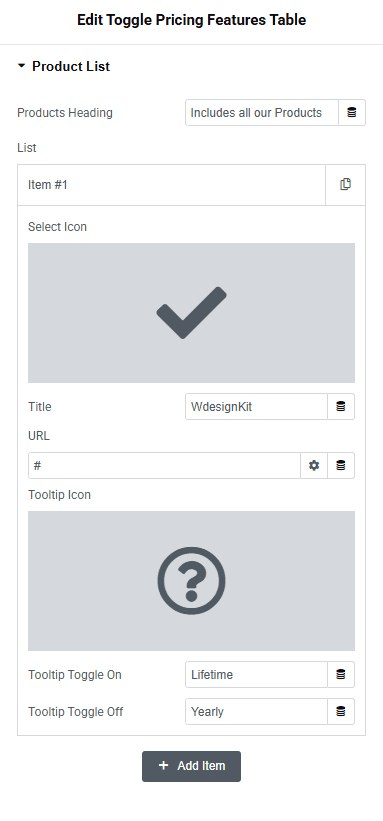
- Product List repeater with Select Icon, Title, URL, and separate Tooltip Toggle On and Tooltip Toggle Off content per item
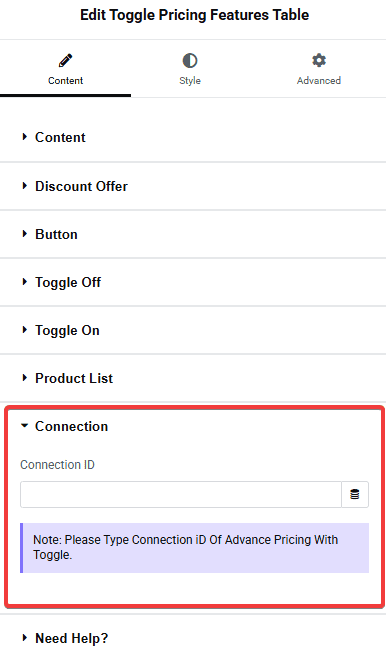
- Connection ID field to sync with an Advanced Pricing With Toggle widget
6. How It Works
The widget renders one price state at a time and swaps to the other state’s Toggle Text, Discount Pricing, Normal Pricing, and Button Link when the visitor flips the switch. Setting the same value in Connection ID on both this widget and an Advanced Pricing With Toggle widget makes their switches move together.
7. How to Use It
- Activate the Toggle Pricing Features Table widget from WDesignKit’s Ready Widgets.
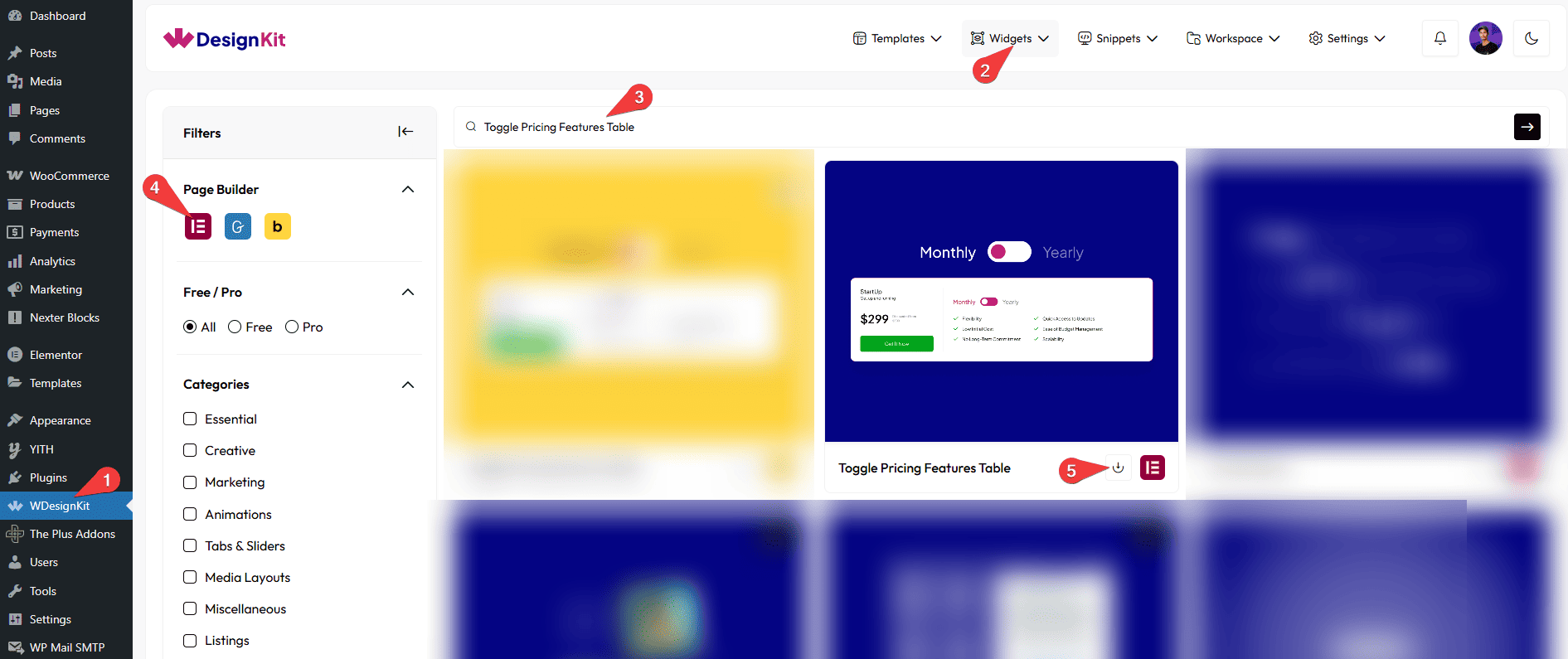
- Drag the widget onto the page and set the Title, Subtitle, and Price Sign.
- Add feature rows under Product List, each with an icon, title, URL, and toggle-aware tooltips.
- To sync with a second pricing table, add the same value to Connection ID on both widgets.
8. Use Cases
- A single pricing card with a monthly or yearly switch
- Two connected pricing tables, this widget plus Advanced Pricing With Toggle, that toggle together for a multi-plan comparison
9. Limitations
- The Connection ID sync only works with the Advanced Pricing With Toggle widget, not with other WDesignKit widgets.
- The features list uses one shared icon size and layout per item, individual rows cannot override the layout.
10. Troubleshooting
- Two pricing tables do not toggle together: confirm the exact same Connection ID value is set on both widgets, the field is case-sensitive.
- Feature tooltip does not appear: tooltip content only shows for the toggle state it is set for, check the matching Tooltip field was filled in.
- Discount badge is missing: enable the Discount Offer toggle first, the Offer Text field only renders once that toggle is on.