
Hover 3D Effect Widget for Elementor
On this page
The Hover 3D Effect widget tilts an image toward the cursor on hover, simulating a 3D perspective effect.
1. What It Does
Displays an image with an optional title and label that tilts and scales toward the cursor as the visitor hovers over it, simulating depth.
2. Why It Matters
A tilt-on-hover effect makes a flat image feel physical and responsive to the cursor, adding polish to a portfolio image or feature card without needing a video.
3. What You Get
A choice of two pre-defined styles, an image with optional title and label, and, for Style 1, tilt, speed, perspective, and scale controls for the hover animation.
4. Benefits
Skipped, already covered above: the value is the tilt-on-hover depth effect described in Why It Matters and What You Get, restating it here would not add anything new.
5. Capabilities
- Style dropdown with two pre-defined presentation styles
- Media field for the image, plus Title and Label fields
- Max Tilt field, available for Style 1, to set how far the image tilts on hover
- Speed field for the tilt and scaling animation speed
- Perspective field to adjust the depth of the 3D effect
- Scale field to set how much the image enlarges on hover
6. How It Works
As the cursor moves over the image, it tilts toward the cursor position up to the Max Tilt angle and scales by the Scale amount, with Perspective controlling how pronounced the depth looks and Speed controlling how quickly it responds. These four Animation controls only apply when Style is set to Style 1.
7. How to Use It
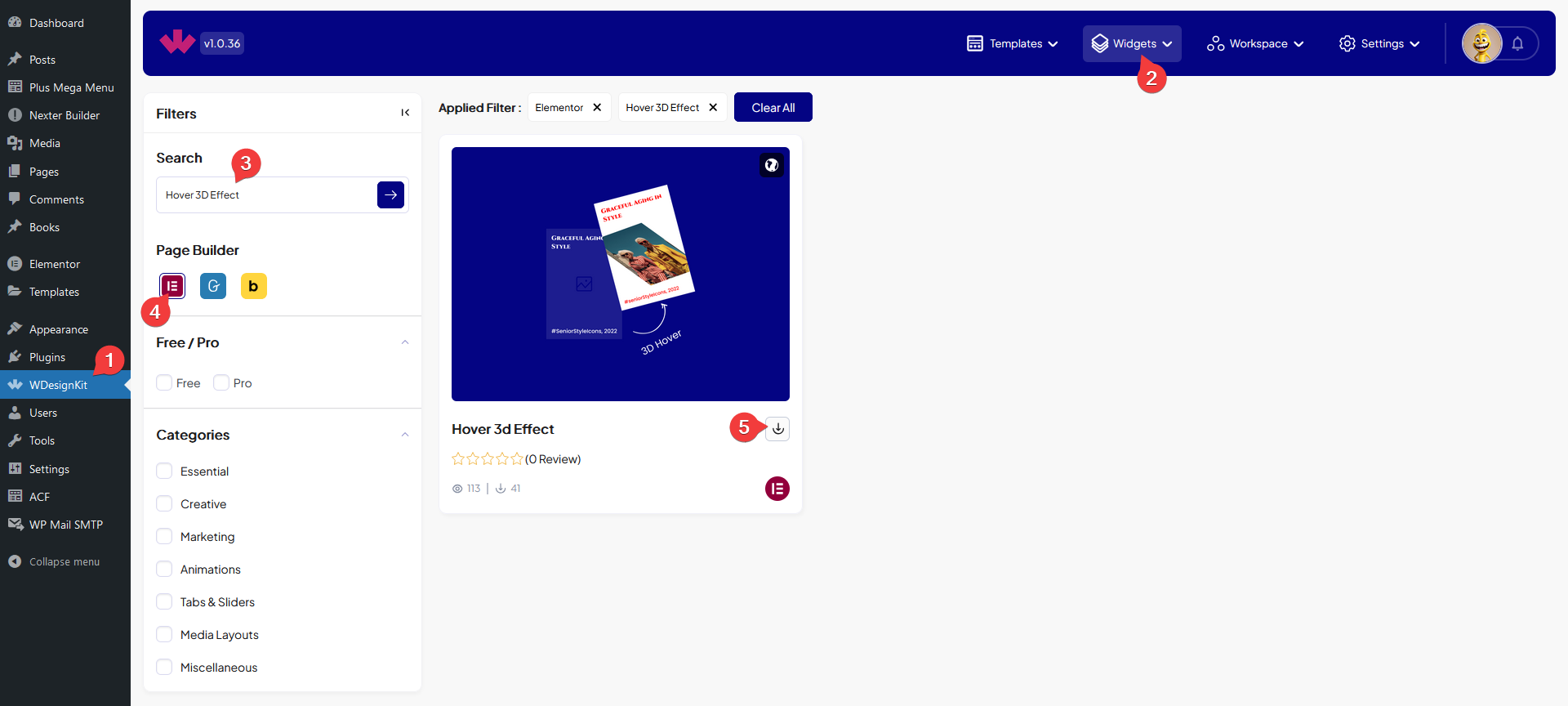
- Activate the Hover 3D Effect widget from WDesignKit’s Ready Widgets.
- Drag the widget onto the page, choose a Style, then set Media, Title, and Label.
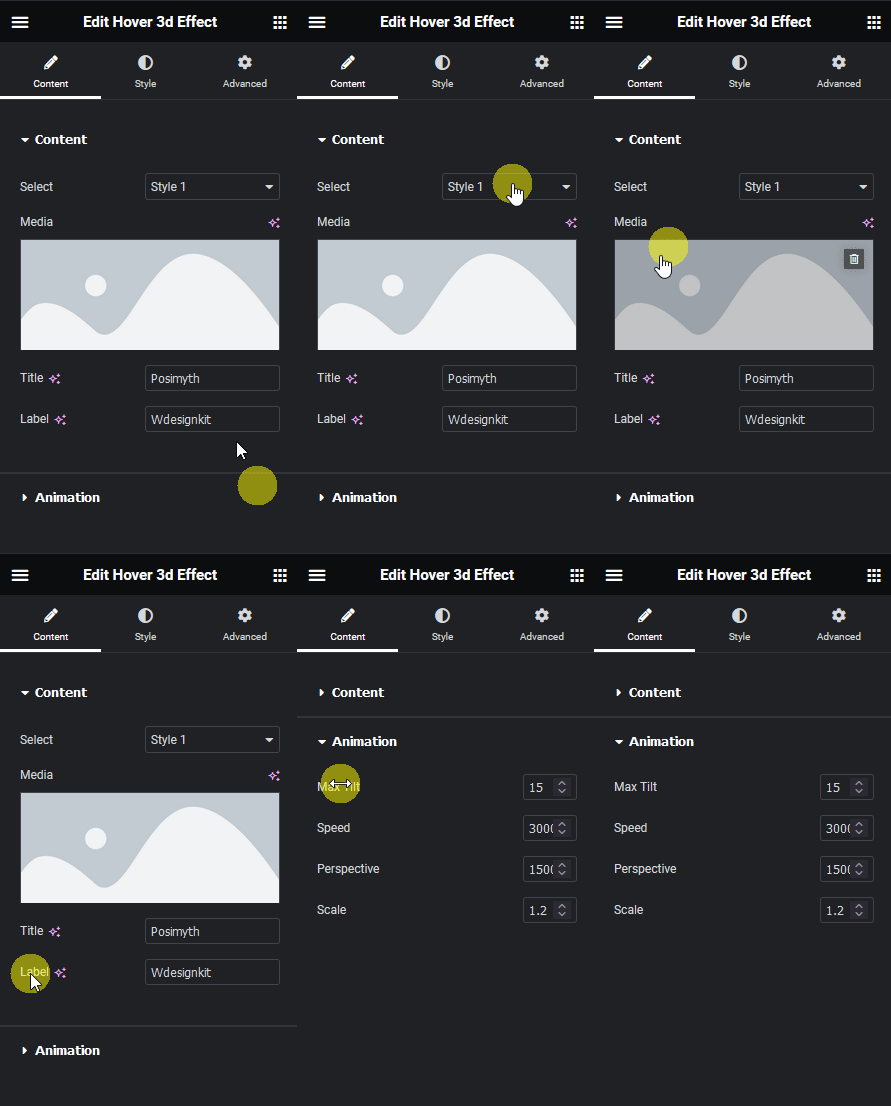
- With Style 1, adjust Max Tilt, Speed, Perspective, and Scale under Animation, then customize further on the Style tab.

8. Use Cases
- A portfolio image that tilts toward the cursor for a more tactile feel
- A feature card with a subtle 3D lift on hover
9. Limitations
- Max Tilt, Speed, Perspective, and Scale only apply to Style 1, Style 2 does not expose these controls.
- The tilt is cursor-driven, on touch devices there is no equivalent motion since there is no hover position.
10. Troubleshooting
- Tilt animation controls are missing: confirm Style is set to Style 1, Style 2 hides the Animation fields.
- Effect feels too subtle: increase Max Tilt or Scale under Animation.
- Image looks flat with no depth: increase Perspective, a low value reduces the 3D illusion.