Swap Logo Grid Widget for Elementor
1 min read
On this page
With this widget, you can randomly swap images within an image gallery.
Required Setup
- Elementor FREE Plugin installed & activated.
- You need to have the WDesignKit plugin installed and activated.
- Make sure you’ve created an account and logged into it.
- Make sure you’ve downloaded the Swap Logo Grid widget.
How to Activate the Swap Logo Grid Widget?
Go to
- WDesignKit → Widgets.
- Search the widget name and select Elementor as the Page Builder.
- Click on the Download icon.

How to Use the Swap Logo Grid Widget in Elementor?
Once you add the widget, you’ll see a repeater item, open it.
In the Select Image section, you have to add an image.
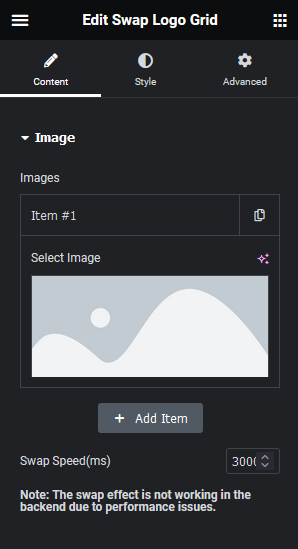
Then you can click on the + Add Item button to add more images to create the gallery.
From the Swap Speed(ms) field, you can set the image swapping speed.
Note: You can see the image swap effect only in the front end.
From the Style tab, you can further customize the style.
Now you’ll see images swap their position randomly.