
Marquee Logo Wall Element for Bricks
On this page
What It Does
The Marquee Logo Wall element scrolls a row of images or logos continuously across your Bricks page.
See it working on a live page before adding it to your own page:
Why It Matters
A scrolling logo wall is a common way to show client logos, brand partners, or press mentions without spending the vertical space a static grid needs. The constant motion also draws a visitor’s eye without requiring them to scroll or interact.
What You Get
- A continuously scrolling row of items, horizontal or vertical
- Support for text, icon, or image items in the same wall
- Adjustable scroll speed and direction
Capabilities
- Horizontal or vertical scroll layout
- Reverse Scroll toggle to flip the scroll direction
- Adjustable Speed control
- Per-item type (Text, Icon, or Image), link URL, and background/border color
- Style tab controls for image size, height, width, and gap between items
Required Setup
- Bricks Builder installed & activated.
- You need to have the WDesignKit plugin installed and activated.
- Make sure you’ve created an account and logged into it.
- Make sure you’ve downloaded the Marquee Logo Wall element.
How to Use It
How to Activate the Marquee Logo Wall Element
- WDesignKit → Widgets.
- Search the element name and select Bricks as the Page Builder.
- Click on the Download icon.
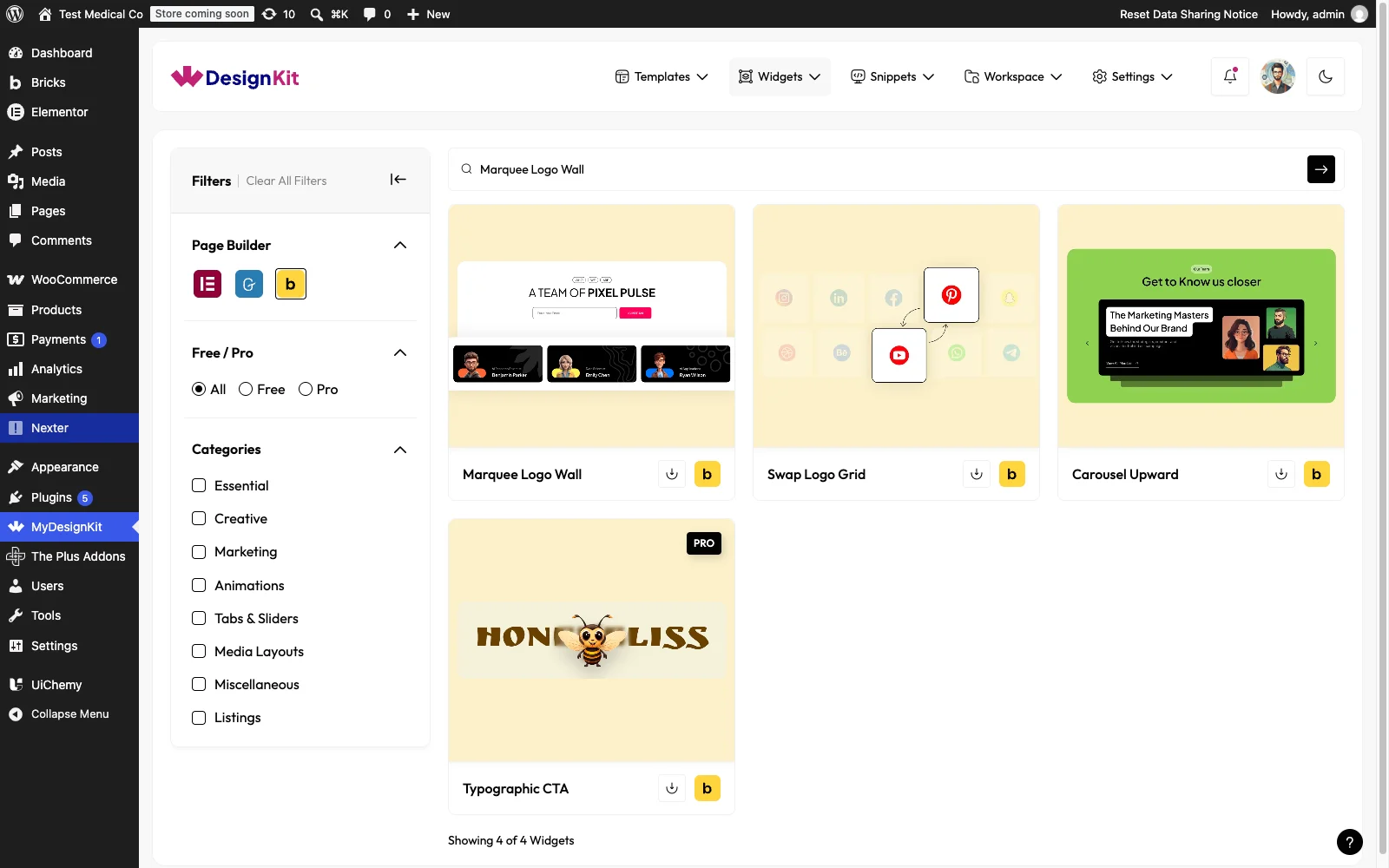
Using the Element in Bricks
Add the Marquee Logo Wall element to the page.
From the Layout dropdown, you have to select the scroll direction. Here you’ll find two options –
- Horizontal – To create a horizontal image scroll.
- Vertical – To create a vertical image scroll.

By enabling the Reverse Scroll toggle, you can reverse the image scroll direction.
From the Speed section, you control the image scroll speed.
From the Items section, you have to add the image items. By default, you’ll find one repeater item, open it.
From the Select dropdown, you have to select the image type. Here you’ll find three options –
- Text – To add a text.
- Icon – To add an icon.
- Image – To add an image.
Based on your selection, you’ll find different content adding options.
Then from the Url field, you can add different types of links to the item.
After that, you can manage the item background and border color.
You can click on the +ADD ITEM button to add more items.
From the Style tab, you can manage the image size, height, width and gap of items along with other styling options.

Use Cases
- Showing client or partner logos in a compact, continuously moving strip
- Displaying press mentions or “as seen in” media logos
- Building a scrolling brand/technology strip on a landing page
Limitations
- Only available for the Bricks builder in WDesignKit today, not Elementor or Gutenberg
- Very large images in the Items list can slow the scroll animation; keep logo images optimized
Troubleshooting
- The Marquee Logo Wall element will not download from the Widgets library. A customer reported several free widgets, including Marquee Logo Wall, failing to download at once; this was resolved by the support team on a case-by-case basis, so if the download icon does not respond, try again after a few minutes or contact support if it persists.
- Items are not showing in the expected order or type. This is workflow-derived, not sourced from a specific support ticket: confirm each repeater item’s Select dropdown is actually set to the intended type (Text, Icon, or Image), since a mismatched type is the most common reason an item looks wrong.
- The scroll animation looks jumpy or inconsistent. This is workflow-derived, not sourced from a specific support ticket: very large or inconsistently sized images in the Items list can cause uneven scroll timing; keep item images a similar size and optimized.