
Inline AJAX Search Bar Widget for Elementor
On this page
The Inline AJAX Search Bar widget filters content inside a target container as the visitor types or clicks Search, based on a container ID and a target class name you supply.
1. What It Does
This widget blurs out non-matching text inside a container you point it at, as the visitor types or clicks Search, leaving matching text sharp.
2. Why It Matters
A generic WordPress search sends visitors to a separate results page. This widget keeps them in place and highlights matches instantly, useful for filtering an FAQ, feature list, or directory-style block on the same page.
3. What You Get
A search input connected to any container via a Connection ID and a Target ClassName, plus optional live-filter or button-triggered search.
4. Benefits
Skipped, already covered above: the value is the instant, in-place filtering described in Why It Matters and What You Get, restating it here would not add anything new.
5. Capabilities
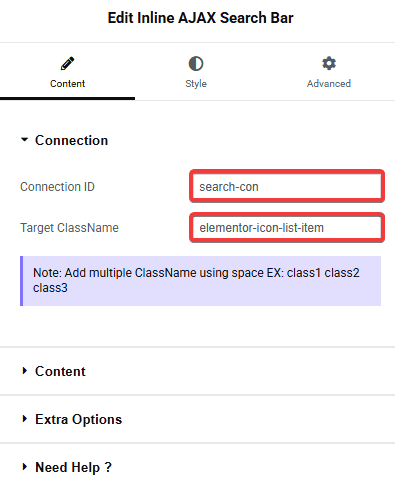
- Connection ID field, the element ID of the container to search
- Target ClassName field, the class name(s) of the searchable elements inside that container (multiple classes separated by spaces)
- Event control, filter On Input Change or On Button Click
- Focus Animation (None, Border, Background)
- Optional prefix search icon and button icon
6. How It Works
You give the container you want searchable a custom element ID in Elementor’s Advanced settings, and give the specific elements inside it you want matched a CSS class. Set that ID as this widget’s Connection ID and that class as its Target ClassName. As the visitor types (or clicks Search, depending on the Event setting), text that does not match gets blurred out via JS, matching text stays sharp, confirmed live via the widget’s JSON and JS.
7. How to Use It
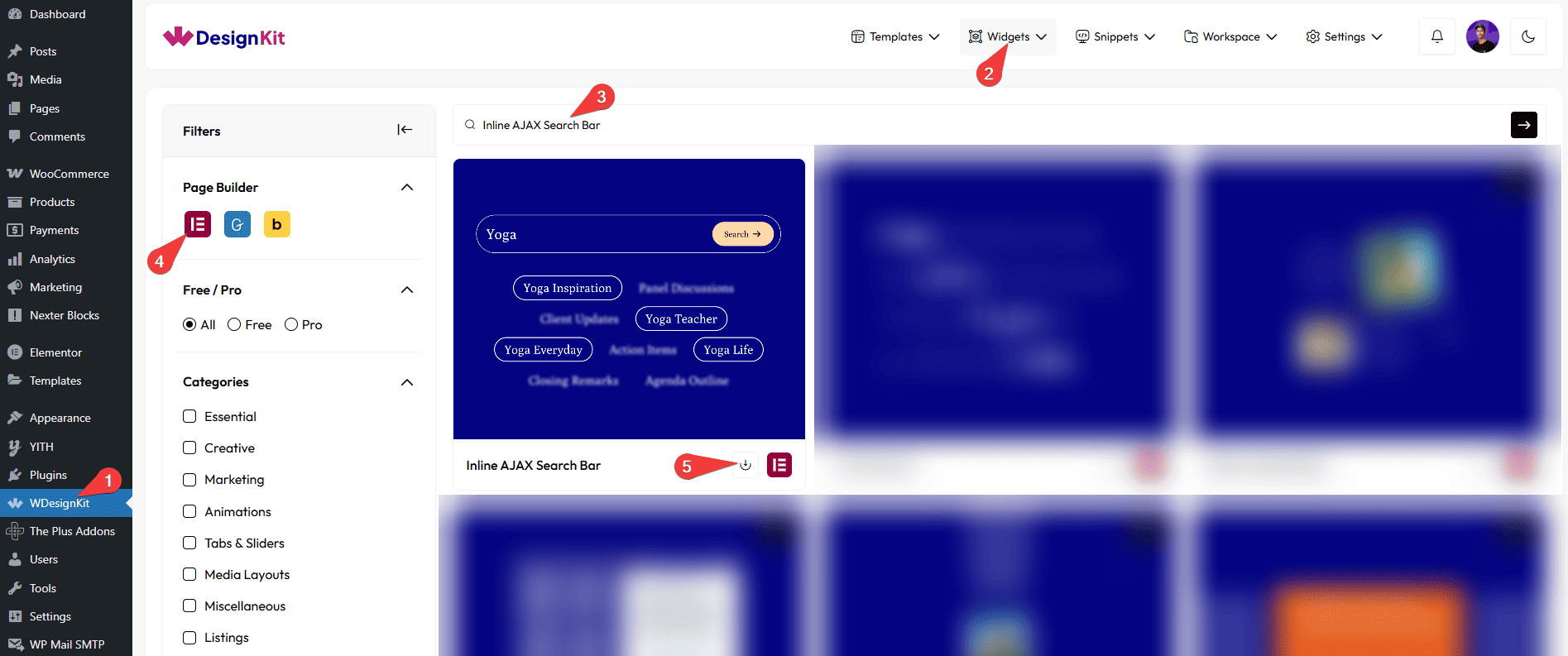
- Activate the Inline AJAX Search Bar widget from WDesignKit’s Ready Widgets.
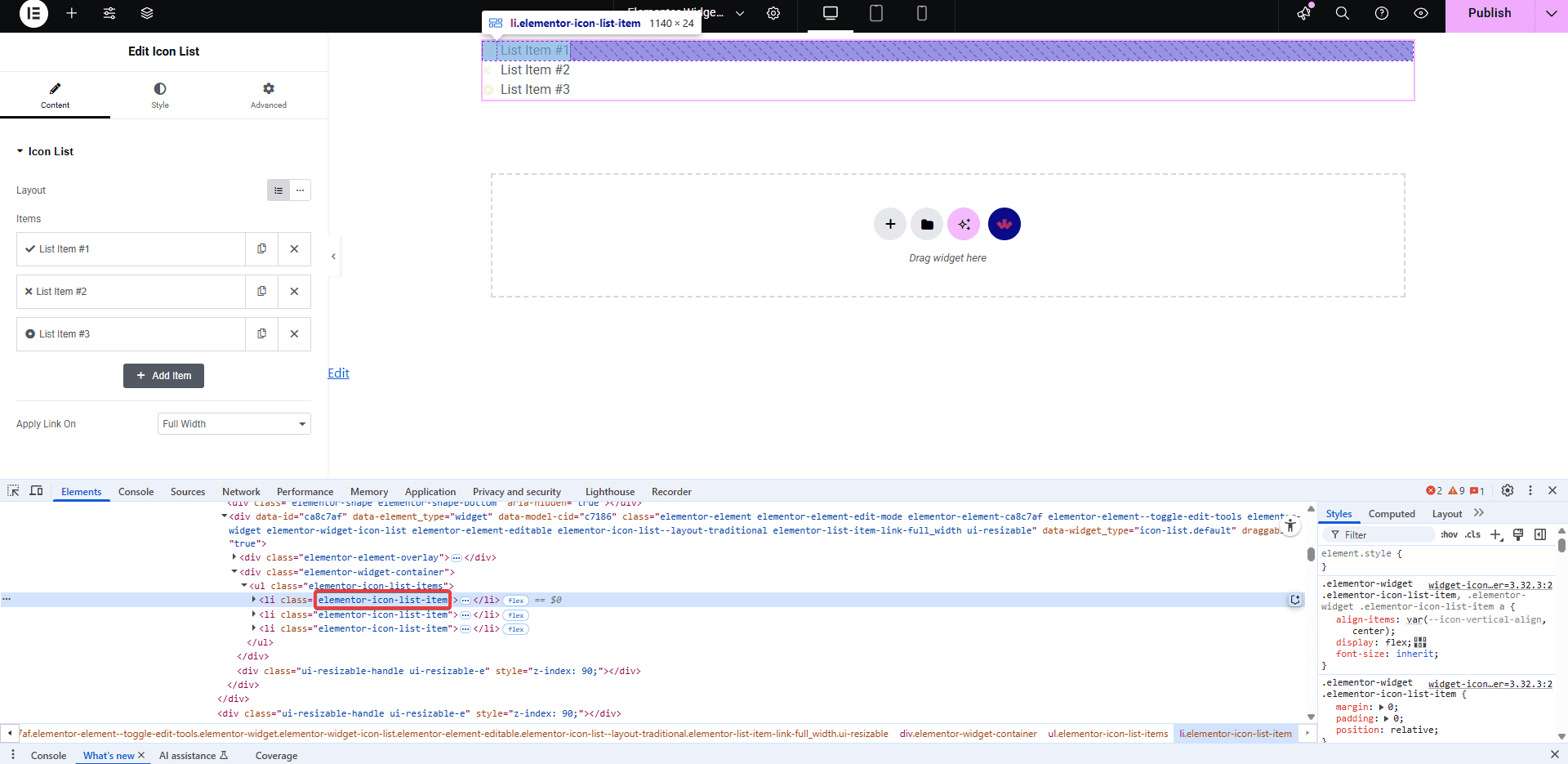
- Add the content you want to make searchable and give the individual searchable elements a CSS class, for example an Elementor Icon List where each item has a class.
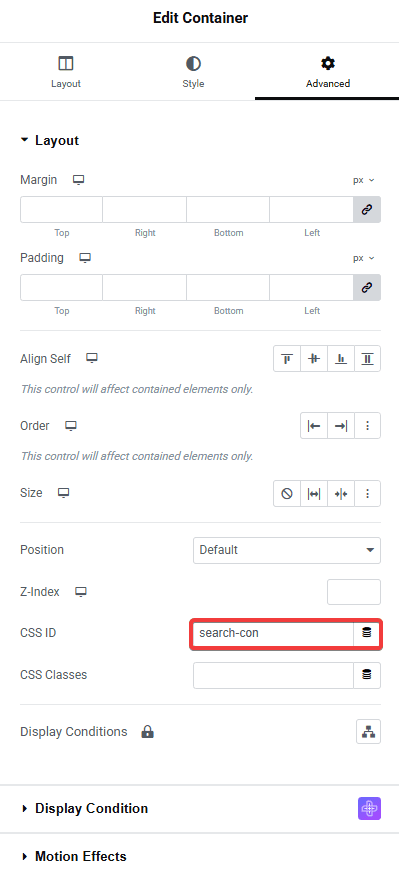
- Give the container itself a custom ID under Elementor’s Advanced settings.
- Drag the Inline AJAX Search Bar widget onto the page, paste the container’s ID into Connection ID, and the searchable elements’ class into Target ClassName.
- Preview the page and test the search box.
8. Use Cases
- Adding instant filtering to a long Icon List of FAQs or features.
- Letting visitors search a directory-style section without leaving the page.
9. Limitations
- Non-matching content is blurred, not removed, confirmed live via the widget’s CSS, so hidden results still take up their layout space rather than collapsing.
- Only searches the one container and class it is connected to, it does not search the whole page or site.
- FLAGGED FOR OPERATOR: this widget shipped a “renamed content and style control labels” update since these screenshots were uploaded (screenshots dated 2024, control-label rename shipped as part of version 1.0.1) – the field now called Connection ID and the separate Target ClassName field may be labeled differently in these screenshots. New screenshots are recommended.
10. Troubleshooting
- Search returns no results at all: the Connection ID does not exactly match the container’s element ID, or Target ClassName does not match the searchable elements’ class, re-check both for typos.
- Search box appears but typing does nothing: check the Event setting, it must be On Input Change for live typing to filter, or click the Search button if it is set to On Button Click.
- Styling looks broken after activation: clear the Elementor CSS cache under Elementor › Tools › Regenerate CSS after activating a new Ready Widget.