
Infinite Image Draggable Cube Widget for Elementor
On this page
What It Does
The Infinite Image Draggable Cube widget displays images on a rotating 3D cube that visitors can drag in any direction. The cube rotates smoothly and loops infinitely, creating an interactive, eye-catching effect.
See it working on a live page before adding it to your own site:
Why It Matters
A static image grid or slider is a common pattern visitors scroll past. A draggable 3D cube gives images a genuinely interactive presentation, ideal for portfolios, product highlights and galleries that need to stand out.
What You Get
- A draggable, infinitely-looping 3D image cube
- An optional label with icon/SVG and text
- An optional content block with title, subtitle, description and a linked button
- A multi-image gallery field with horizontal and vertical spacing control
Benefits
- A genuinely interactive, drag-to-explore image presentation with no custom JavaScript
- Combines imagery with a text/CTA block in one component
- Image spacing is adjustable without touching CSS
Capabilities
- Layout Style: a pre-defined display style chosen from a dropdown
- Label: Text and an icon/SVG selector for a small label element
- Content block: Title, Subtitle, Description, plus a Button Text, icon/SVG and URL for a linked CTA
- Image Gallery: add multiple images that populate the cube faces
- Extra Options: Horizontal Spacing and Vertical Spacing between images
- Style tab: further visual customization of the cube
How It Works
Every image added in the Image Gallery field is mapped onto a face of the 3D cube. The cube auto-rotates in a continuous loop, and visitors can drag it in any direction to explore all the faces manually. The optional label and content block layer on top of the cube, giving you a place for a heading, description and a call-to-action button alongside the visual effect.
How to Use It
Required Setup
- Elementor FREE Plugin installed & activated.
- You need to have the WDesignKit plugin installed and activated.
- Make sure you’ve created an account and logged into it.
- This is a pro widget. A valid WDesignKit Pro license is required to access and use them.
- Make sure you’ve downloaded the Image Draggable Cube widget.
How to Activate the Infinite Image Draggable Cube Widget
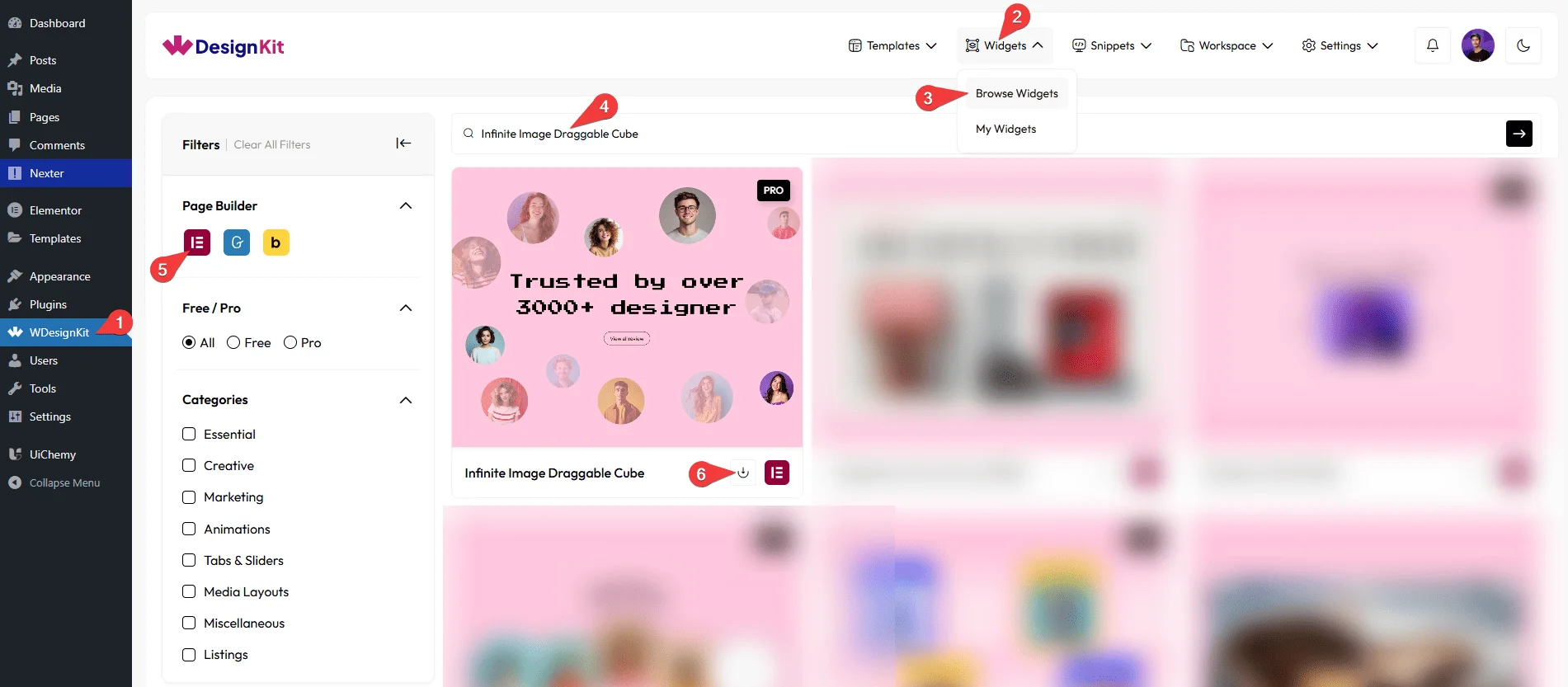
Go to
- WDesignKit →Widgets → Browse Widgets.
- Search the widget name and select Elementor as the Page Builder.
- Click on the Download icon.
Using the Widget in Elementor
Add the Infinite Image Draggable Cube widget to the page.
Layout
You can select a pre-defined style from the Style dropdown.
Note : From this tab, based on the style you selected, you will see different options to add the content.
Label
In the Text field, you can add the text of the label.
From the Select Icon section, you can choose either an icon or an SVG of the label.
Content
In the Title field, you can add the title of the content.
In the Subtitle field, you can add the subtitle of the content.
In the Description field, you can add the description of the content.
In the Button Text section, you can add the text to the button.
From the Select Icon section, you can choose either an icon or an SVG for the button.
Then, in the URL section, you can add a link to the button.
Image Gallery
In the Gallery section, you can add images to the gallery. You can also add multiple images to have a better experience of this widget’s effect.
Extra Options
From the Horizontal Spacing section, you can adjust the space between images horizontally.
From the Vertical Spacing section, you can adjust the space between images vertically.
Note: You can manage the spacing between images using these options.
Then, from the Style tab, you can further customize the style of the Infinite Image Draggable Cube.
Use Cases
Use this widget when you want to display images in an interactive 3D cube layout that users can drag and explore freely.
Best For
- Portfolio Showcases: Display your creative work or projects in a rotating 3D cube for a modern and unique presentation.
- Product Image Highlights: Showcase product images in an engaging way that users can rotate and interact with.
- Image Galleries: Create a 3D Image Gallery or a 3D Art Gallery that stands out from traditional grid or slider layouts.
- Landing Page Visual Sections: Add an eye-catching visual element to landing pages that instantly grabs user attention.
- Creative Website Designs: Perfect for designers or agencies looking to add a unique and modern visual effect.
- Brand or Showcase Sections: Highlight brand visuals, campaigns, or featured content in a dynamic 3D format.
- Interactive User Experiences: Encourage user interaction by allowing visitors to drag and rotate images freely.
- Promotional Displays: Showcase promotional images or featured content in a visually appealing and interactive way.
- Modern UI Layouts: Ideal for websites that want a clean, stylish, and interactive image presentation.
- Visual Storytelling: Present images in a continuous, rotating cube to tell a visual story in a creative way.
Limitations
- This is a Pro widget: requires a valid WDesignKit Pro license and must be individually downloaded before use.
- The widget carries a runtime dependency (registered as a
wdkit/wb-*block/widget) that must be present on any site the layout is copied to; pasting content between sites without WDesignKit active on the destination breaks the cube.
Troubleshooting
No FluentSupport tickets specific to this widget were found at the time of writing; the items below are workflow-derived, not ticket-sourced.
- Cube looks cramped or overlapping: adjust Horizontal Spacing and Vertical Spacing under Extra Options.
- “Your site doesn’t include support for the ‘wdkit/wb-…’ block” error: this happens when content using this widget is copied to a site where WDesignKit (and the specific downloaded widget) isn’t installed/active. Install and activate WDesignKit and re-download the Infinite Image Draggable Cube widget on the destination site before pasting the content.